1. Pengenalan
This manual provides comprehensive instructions for the MUNBYN ITPP130B Bluetooth Thermal Label Printer. It covers setup, operation, maintenance, and troubleshooting to ensure you get the most out of your device. This printer is designed for efficient and high-quality label printing in various environments, including home and office settings.

Image 1.1: The MUNBYN ITPP130B Bluetooth Thermal Label Printer with a printed label and a smartphone showing the companion app.
2. Maklumat Keselamatan
Please read and follow these safety guidelines to prevent damage to the printer or injury to yourself:
- Jangan dedahkan pencetak kepada air atau kelembapan berlebihan.
- Elakkan meletakkan pencetak di bawah cahaya matahari langsung atau berhampiran sumber haba.
- Gunakan hanya penyesuai kuasa dan kabel yang disediakan.
- Jauhkan pencetak daripada kanak-kanak dan haiwan peliharaan.
- Jangan cuba membuka atau membaiki pencetak sendiri. Hubungi sokongan jika timbul masalah.
- Pastikan pengudaraan yang betul di sekitar pencetak semasa operasi.
3. Kandungan Pakej
Sahkan bahawa semua item terdapat dalam pakej:
- MUNBYN ITPP130B Label Printer Unit
- Penyesuai Kuasa
- Kabel Kuasa
- Kabel USB
- Label Ujian
- Manual Pengguna (dokumen ini)
4. Persediaan
4.1 Physical Setup and Label Loading
- Letakkan pencetak pada permukaan yang stabil dan rata.
- Sambungkan penyesuai kuasa ke pencetak dan kemudian ke soket kuasa.
- Buka penutup pencetak.
- Insert the thermal labels into the printer, ensuring the print side is facing up. Adjust the paper guides to fit the label width snugly.
- Close the printer cover. The printer will automatically calibrate the label size.

Image 4.1: Illustration of loading labels into the printer and adjusting the paper guides.
4.2 Pilihan Kesambungan
The MUNBYN ITPP130B offers both Bluetooth and USB connectivity.

Imej 4.2: Selesaiview of Bluetooth connectivity for smartphones/tablets and USB connectivity for PCs (Windows, macOS, ChromeOS, Linux).
4.2.1 Bluetooth Connection (iOS, Android, Windows)
- Pastikan pencetak dihidupkan.
- Download the "MUNBYN Print" app from your device's app store (App Store for iOS, Google Play Store for Android).
- Enable Bluetooth on your mobile device or Windows PC.
- Open the "MUNBYN Print" app and search for available devices.
- Select "P130B" from the list to pair.
4.2.2 USB Connection (Windows, macOS, ChromeOS, Linux)
- Sambungkan pencetak ke komputer anda menggunakan kabel USB yang disediakan.
- For Windows and macOS, install the necessary drivers. Drivers can typically be found on the included USB drive or downloaded from the official MUNBYN webtapak.
- Ikut arahan pada skrin untuk melengkapkan pemasangan pemacu.
- Nota: Mac and desktop PCs primarily support USB connection. Windows PCs can use both USB and Bluetooth.
5. Arahan Operasi
5.1 General Printing via MUNBYN Print App
The "MUNBYN Print" app allows for quick and easy label printing from your mobile device.
- Ensure your printer is connected via Bluetooth to your mobile device.
- Open the "MUNBYN Print" app.
- Pilih file you wish to print (e.g., image, PDF, TXT). The app supports various file jenis.
- Adjust print settings such as label size, orientation, and density within the app.
- Tap the print button to send the job to the printer.
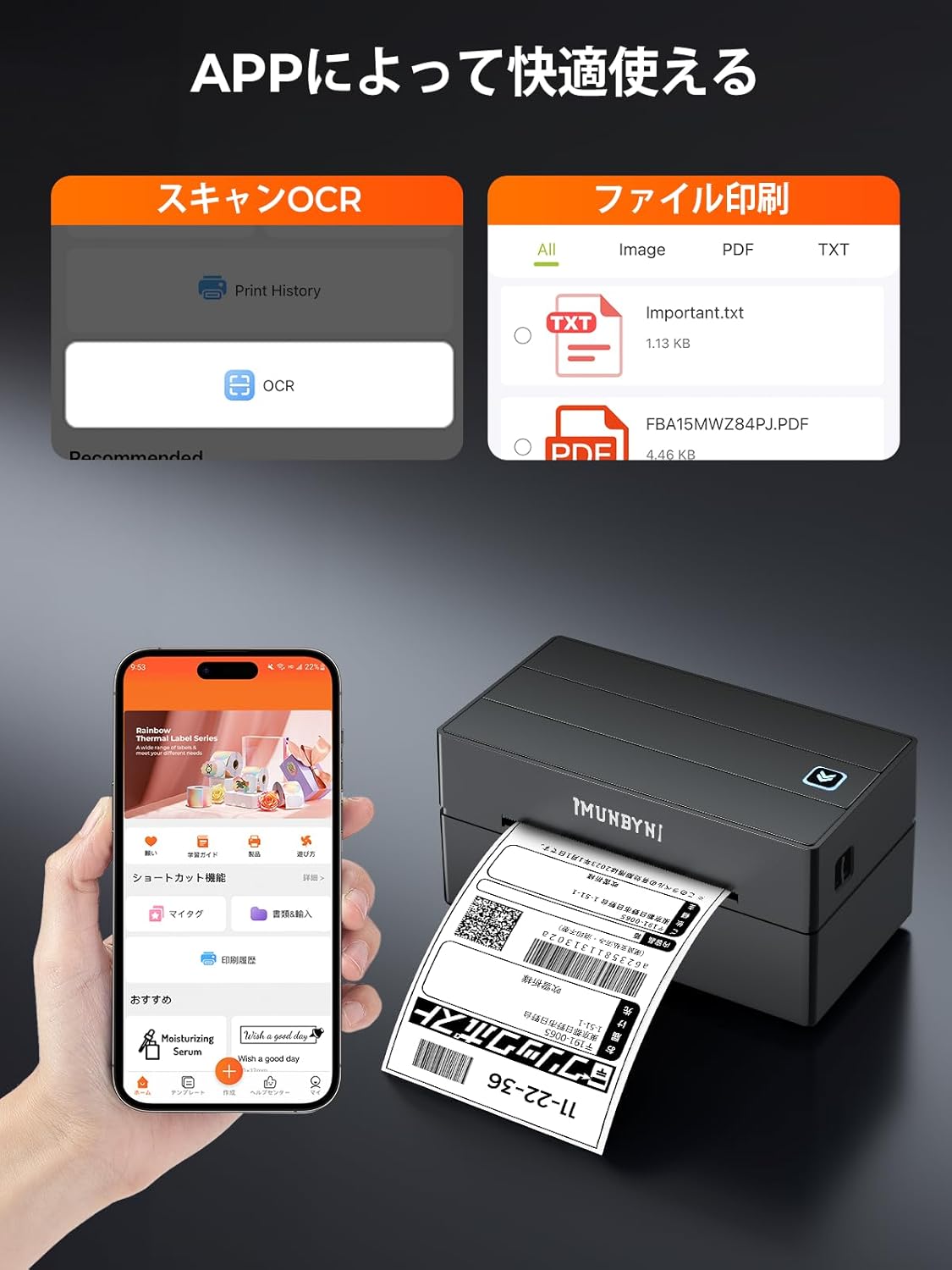
Image 5.1: Screenshot of the MUNBYN Print app showing options for scanning and file percetakan.
5.2 Printing Japan Post (Click Post) Labels
Click Post generates A4 size PDF files. To print these on A6 labels, a conversion is necessary. You can use third-party plugins for this purpose:
- Paid Plugin: "Click Post Batch Registration/Payment/Printing v3"
- Free Plugin: "Click Post Extension Function by GoQSystem (Click Post Batch Payment & Import)"
Penafian: Ini plugins are not products of MUNBYN. We provide this information for guidance only and are not responsible for their use or functionality. Please refer to the plugin provider's documentation for detailed instructions.

Image 5.2: Comparison showing a standard label (left) and a MUNBYN-optimized label (right) for clarity and proper formatting.
5.3 Printing from PC (Windows/macOS)
After installing the drivers and connecting via USB (or Bluetooth for Windows), you can print from any application that supports printing.
- Open the document or label design you wish to print.
- Pergi ke File > Cetak.
- Select the MUNBYN ITPP130B printer from the list of available printers.
- Access printer preferences or properties to adjust settings such as label size (e.g., 4x6 inch), orientation, and print quality. Ensure these settings match your loaded labels.
- klik Cetak.

Image 5.3: The printer supports various label sizes from 40mm to 110mm wide, including common sizes like 4x6 inches, 3x2 inches, and circular labels.
6. Penyelenggaraan
6.1 Membersihkan Kepala Cetak
Regularly cleaning the print head ensures optimal print quality and extends the printer's lifespan.
- Matikan pencetak dan cabut palam kord kuasa.
- Buka penutup pencetak.
- Lap kepala cetak dengan lembut menggunakan kapasampditambah dengan isopropil alkohol.
- Biarkan kepala cetak kering sepenuhnya sebelum menutup penutup dan menghidupkan pencetak.
6.2 Label Handling
- Use only high-quality thermal labels compatible with your printer.
- Store labels in a cool, dry place away from direct sunlight.
- Avoid touching the thermal printing surface of the labels with bare hands to prevent oil transfer.
7. Penyelesaian masalah
If you encounter issues with your MUNBYN ITPP130B printer, refer to the following common problems and solutions:
7.1 Pencetak Tidak Bertindak Balas
- Pastikan kabel kuasa disambungkan dengan kukuh dan pencetak dihidupkan.
- Check the USB or Bluetooth connection. Reconnect if necessary.
- Restart the printer and your connected device.
7.2 Kualiti Cetakan Lemah
- Bersihkan kepala cetak seperti yang diterangkan dalam Bahagian 6.1.
- Pastikan anda menggunakan label terma berkualiti tinggi.
- Adjust print density settings in your printer preferences or the MUNBYN Print app.
- Verify that the labels are loaded correctly and the print side is facing the print head.
7.3 Labels Not Feeding Correctly
- Ensure the labels are loaded straight and the paper guides are adjusted to the correct width.
- Periksa sebarang halangan pada laluan label.
- Perform a label calibration: With the printer on and cover closed, press and hold the feed button until the printer emits a beep or feeds a few blank labels, then release.
8. Spesifikasi
| Ciri | Spesifikasi |
|---|---|
| Jenama | MUNBYN |
| Nombor Model | ITPP130B |
| Teknologi Percetakan | terma |
| Kelajuan Cetakan Maks (Monokrom) | 180 mm/s (equivalent to 117 pages/minute) |
| Resolusi Cetakan Maks | 203 dpi |
| Saiz Media Maksimum (Kertas) | 108 mm (max width) |
| Lebar Label yang Disokong | 40mm hingga 110mm |
| Ketersambungan | Bluetooth (iOS, Android, Windows), USB (Windows, macOS, ChromeOS, Linux) |
| Dimensi Produk (L x W x H) | 20.5 x 17.5 x 12 cm |
| Berat Produk | 1.4 kg |
| warna | Hitam |
| Percetakan Dupleks | Tidak |
9. Waranti dan Sokongan
MUNBYN products come with a standard warranty. For specific warranty details, please refer to the warranty card included with your product or visit the official MUNBYN website. If you require technical assistance or have questions not covered in this manual, please contact MUNBYN customer support through their official channels.
Untuk maklumat lanjut, lawati MUNBYN Brand Store on Amazon.


