1. Pengenalan
Welcome to the EazeID P780BT Label Maker instruction manual. This document provides detailed guidance on how to set up, operate, maintain, and troubleshoot your new label maker. Please read this manual thoroughly to ensure proper use and to maximize the performance and longevity of your device.
The EazeID P780BT is a versatile label maker designed for various labeling tasks, supporting labels up to 24mm wide. It features Bluetooth connectivity for smartphones and computers, a Type-C charging port, and a durable internal battery.
Kandungan Pakej:
- 1 x EazeID P780BT Label Maker
- 1 x Starter Laminated White Tape - 0.94" (24mm) x 13.1' (4m) (pre-installed)
- 2 x Laminated Black on White Tape - 0.94" (24mm) x 26.2' (8m)
- 1 x Kabel USB Jenis-C
- 1 x Panduan Mula Pantas

Image 1.1: EazeID P780BT Label Maker and included tape rolls.
2. Persediaan
2.1. Mengecas Peranti
Before initial use, fully charge the EazeID P780BT Label Maker. Connect the provided USB Type-C cable to the label maker's charging port and to a compatible USB power adapter (not included) or computer USB port. The device features a 1200 mAh battery, providing up to 4 hours of continuous printing on a single charge. A full charge typically takes approximately 2 hours.

Image 2.1: Charging the P780BT Label Maker via USB Type-C.
2.2. Installing Label Tape
The P780BT Label Maker is compatible with various label tape widths, including 9mm, 12mm, 18mm, and up to 24mm (1 inch). To install or replace a label tape cassette:
- Pastikan pembuat label dimatikan.
- Buka penutup petak pita.
- Insert the label tape cassette firmly into the compartment, ensuring it clicks into place. The tape should feed smoothly through the output slot.
- Tutup penutup petak pita.
The label maker features chip recognition technology to automatically identify label specifications, which helps prevent label jams and ensures clearer printing.

Image 2.2: Label tape installation with chip recognition feature.
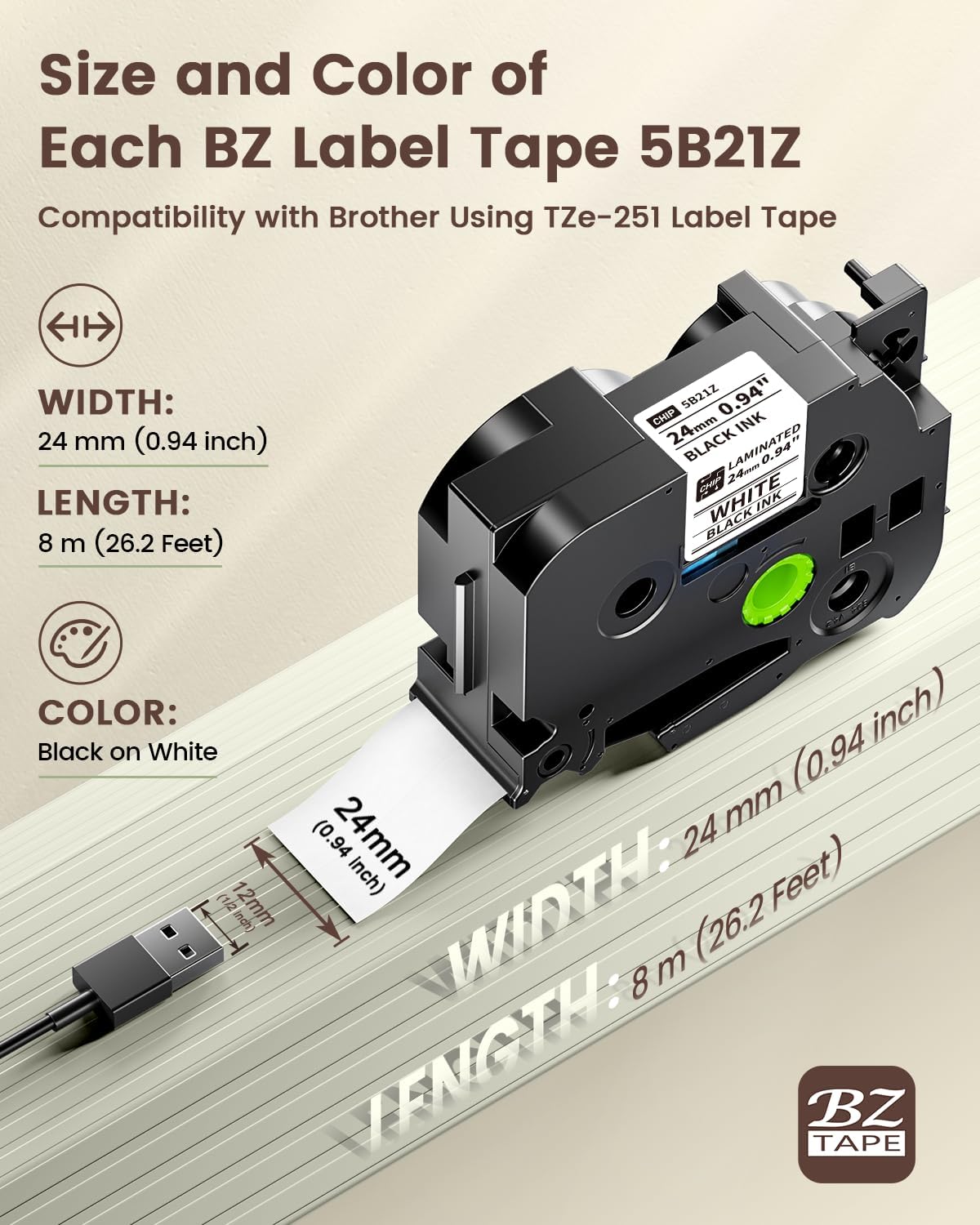
Image 2.3: Label tape dimensions and specifications.

Image 2.4: BZ Label Tapes with integrated chip for automatic detection.
2.3. Pemasangan Perisian
To operate the P780BT Label Maker, you will need to install the companion software:
- For PC users: Download and install the Labellife perisian.
- For smartphone users (Android/iOS): Download and install the Sarjana Cetak apl daripada gedung aplikasi peranti anda.
These applications provide a user-friendly interface for designing and printing labels.

Image 2.5: User-friendly apps for label creation.
3. Arahan Operasi
3.1. Menyambung ke Peranti Anda
The P780BT Label Maker offers versatile connectivity options:
- Sambungan Bluetooth: The device supports Bluetooth 4.2 for stable connections with both smartphones (Android, iOS, iPad) and computers (Mac OS, Windows). Ensure Bluetooth is enabled on your device and pair with the P780BT.
- Sambungan USB: For computers, the P780BT also supports a direct USB connection using the provided Type-C cable.

Image 3.1: Bluetooth and USB connectivity options.
3.2. Mencipta dan Mencetak Label
Once connected to the Labelife software or Print Master app:
- Open the application and select your P780BT label maker.
- Design your label using the available text, fonts, symbols, and templates.
- Praview label anda untuk memastikan ketepatan.
- Initiate the print command from the application. The label maker features an auto-cutting function for convenience.
3.3. Label Tape Compatibility
The EazeID P780BT is designed for compatibility with a wide range of TZe-style label tapes, including those used by Brother P-Touch label makers. This ensures a broad selection of tape types and colors for your labeling needs.

Image 3.2: Compatibility with TZe-style label tapes.
4. Penyelenggaraan
4.1. Membersihkan Kepala Cetak
To maintain optimal print quality, periodically clean the print head. Use a soft, lint-free cloth lightly dampened with isopropyl alcohol. Gently wipe the print head to remove any dust or adhesive residue. Ensure the device is powered off and completely dry before use.
4.2. Storing the Device
Store the label maker in a cool, dry place away from direct sunlight and extreme temperatures. When not in use for extended periods, ensure the battery is partially charged (around 50%) to preserve its lifespan.
4.3. Tape Storage
EazeID laminated tapes are designed for durability. They are water-resistant, abrasion-proof, heat-proof, and corrosion-proof, ensuring labels remain legible for over 10 years. Store tape cassettes in their original packaging or a clean, dry environment to protect them from dust and damage.

Image 4.1: Durable laminated tape features.
5. Penyelesaian masalah
If you encounter issues with your EazeID P780BT Label Maker, refer to the following common problems and solutions:
- Tiada Kuasa: Ensure the device is charged. Connect it to a power source using the USB Type-C cable.
- Tidak Boleh Bersambung melalui Bluetooth: Verify Bluetooth is enabled on both the label maker and your device. Ensure the label maker is within range and not paired with another device. Try restarting both devices.
- Kualiti Cetakan Lemah: Clean the print head as described in the Maintenance section. Ensure the label tape is correctly installed and not damaged. Check the tape type and settings in the app/software.
- Label Jam: Ensure the label tape is inserted correctly and that the tape compartment is closed properly. The P780BT's chip recognition helps prevent jams, but improper installation can still cause issues. Remove the tape, clear any obstructions, and reinsert.
- App/Software Issues: Ensure your Labelife software or Print Master app is updated to the latest version. Restart the application or your device if it becomes unresponsive.
6. Spesifikasi Teknikal
- Jenama: EazeID
- model: P780BT
- Teknologi Ketersambungan: Bluetooth 4.2, USB Jenis-C
- Ciri Khas: Portable, Chip Recognition, Auto-Cutting
- Output Pencetak: Monochrome (Thermal Transfer)
- Bateri: 1200 mAh (up to 4 hours continuous printing)
- Masa Pengecasan: Lebih kurang 2 jam
- Compatible Label Widths: 9mm, 12mm, 18mm, 24mm (1 inch)
- Compatible Tapes: TZe-style laminated tapes
7. Waranti dan Sokongan
EazeID products are manufactured to high-quality standards. For information regarding warranty coverage, please refer to the warranty card included with your product or visit the official EazeID website. For technical assistance or customer support, please contact EazeID's professional support team through the contact information provided in your quick start guide or on the EazeID brand store.
Anda boleh melawat EazeID Store untuk maklumat produk tambahan dan sumber sokongan.


