1. Pengenalan
This manual provides essential information for the setup, operation, maintenance, and troubleshooting of your Dopesplay 15.6" FHD 1080P Portable Monitor. Please read this manual thoroughly before using the product to ensure optimal performance and longevity.
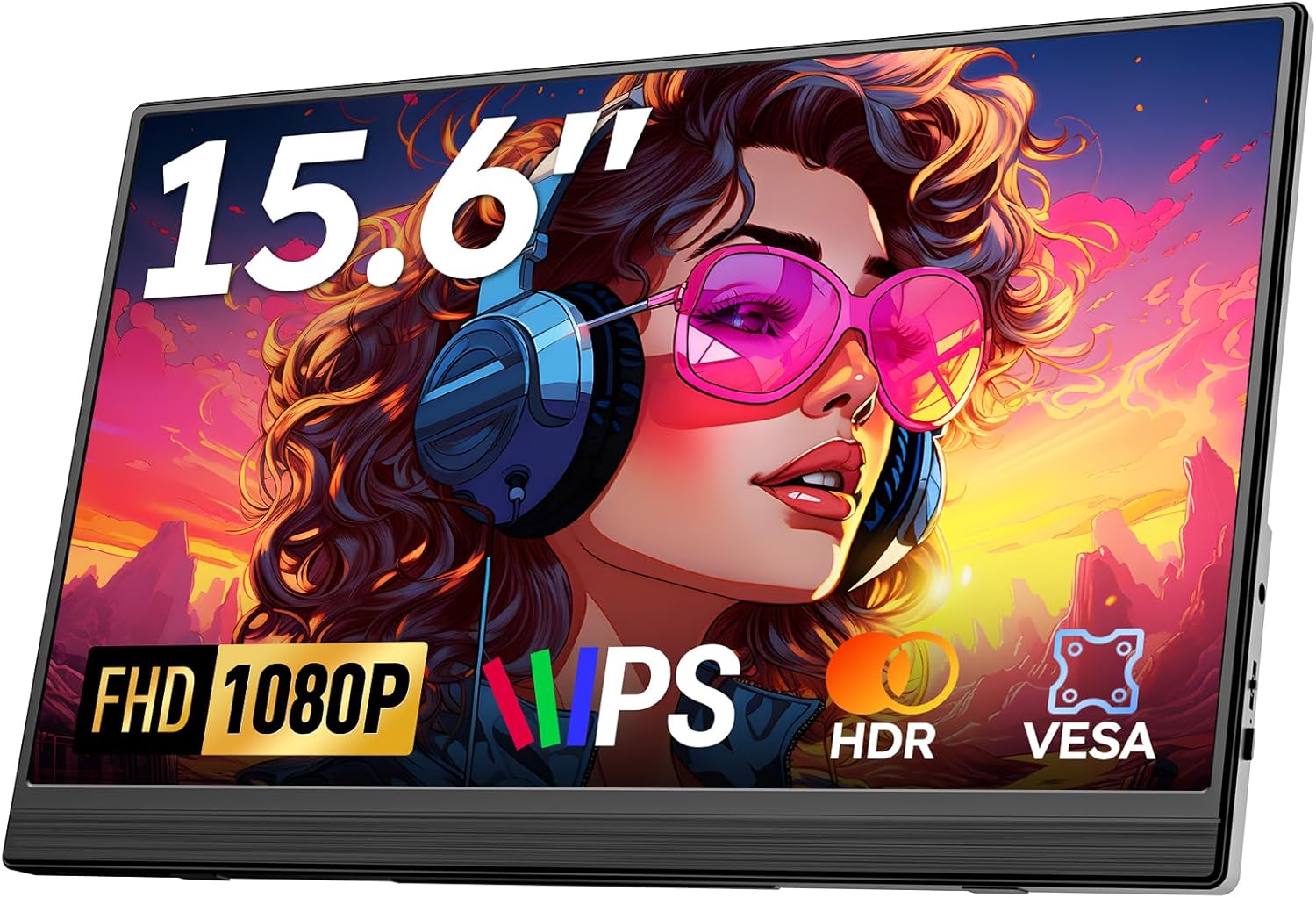
Image 1.1: Dopesplay 15.6" FHD 1080P Portable Monitor.
The Dopesplay portable monitor is designed to extend your digital workspace, offering a Full HD 1080P IPS display with HDR support for sharp visuals and vibrant colors. Its ultra-slim and lightweight design makes it an ideal companion for travel and remote work. Featuring a flexible kickstand and wide compatibility, it seamlessly integrates with various devices to enhance productivity and entertainment.
2. Kandungan Pakej
Sila sahkan bahawa semua item yang disenaraikan di bawah disertakan dalam pakej anda:
- 15.6" Portable Monitor x 1
- Mini HDMI ke Kabel HDMI x 1
- Kabel USB-A hingga USB-C x 1
- Kabel USB-C ke USB-C x 1
- Panduan Pengguna x 1

Image 2.1: Contents included in the product package.
3. Produk Lebihview
Biasakan diri anda dengan port dan kawalan monitor:
- Mini HDMI Input: For video signal input from devices with HDMI output.
- Type-C Input (x2): Full-featured USB-C ports for video, audio, data, and power delivery.
- Jack fon kepala: 3.5mm audio output for headphones or external speakers.
- Turning Button: Used to navigate the On-Screen Display (OSD) menu and adjust settings.
- Power Button / Return Button: Powers the monitor on/off and acts as a 'back' button in the OSD menu.

Imej 3.1: Sisi view of the monitor showing input ports and controls.
The monitor also features dual built-in speakers for audio output without needing external speakers.

Image 3.2: Illustration of the monitor's dual built-in speakers.
4. Persediaan dan Sambungan
The Dopesplay portable monitor is designed for plug-and-play functionality. Ensure your device's Type-C port is full-featured (supports data, video, and power transfer) for single-cable connection.
4.1 Single Type-C Connection (Recommended)
If your laptop or device has a full-featured USB-C port (Thunderbolt 3/4, Data + Video Transfer, or Data + Displayport alt mode), you can connect the monitor with a single USB-C to USB-C cable for both video and power.

Image 4.1: Connecting the monitor via a single USB-C cable.
4.2 HDMI & USB-A Connection
If your laptop does not have a full-featured USB-C port, you can connect the monitor using the Mini HDMI to HDMI cable for video and a USB-A to USB-C cable for power. An external power supply (5V/3A or higher) may be needed for optimal brightness (above 80%).

Image 4.2: Connecting the monitor using HDMI for video and USB-A for power.
4.3 Semakan Keserasian
Sebelum pembelianasing or connecting, please confirm your device's Type-C port functionality. Not all USB-C ports support video output.

Image 4.3: Guide to identifying full-featured Type-C ports.
5. Mengendalikan Monitor
5.1 Mod Paparan
The monitor supports both duplicated and extended display modes for Mac and Windows operating systems, allowing for flexible workspace configurations.

Imej 5.1: Cthamples of duplicated and extended display modes on Mac and Windows.
5.2 Menu Paparan Pada Skrin (OSD).
Use the Turning Button to access and navigate the OSD menu. Here you can adjust settings such as brightness, contrast, color temperature, input source, and HDR mode.
5.3 HDR Mode
The monitor supports HDR (High Dynamic Range) mode, which enhances color vibrancy and contrast for a more immersive viewing experience, especially with compatible multimedia content.

Image 5.2: Visual comparison of HDR and SDR display modes.
5.4 Viewing Angle and Eye Care
The IPS panel provides a wide 178° viewing angle, ensuring consistent image quality from various perspectives. Integrated eye care technology helps reduce eye strain during prolonged use.

Image 5.3: Illustration of the monitor's wide 178° viewsudut ing.

Image 5.4: Diagram showing how eye care technology reduces strain.
5.5 Adjustable Kickstand and VESA Mount
The integrated kickstand allows for multiple viewing angles, providing comfort and flexibility. The monitor is also VESA-compatible, enabling mounting on arms or stands for landscape or portrait orientations.
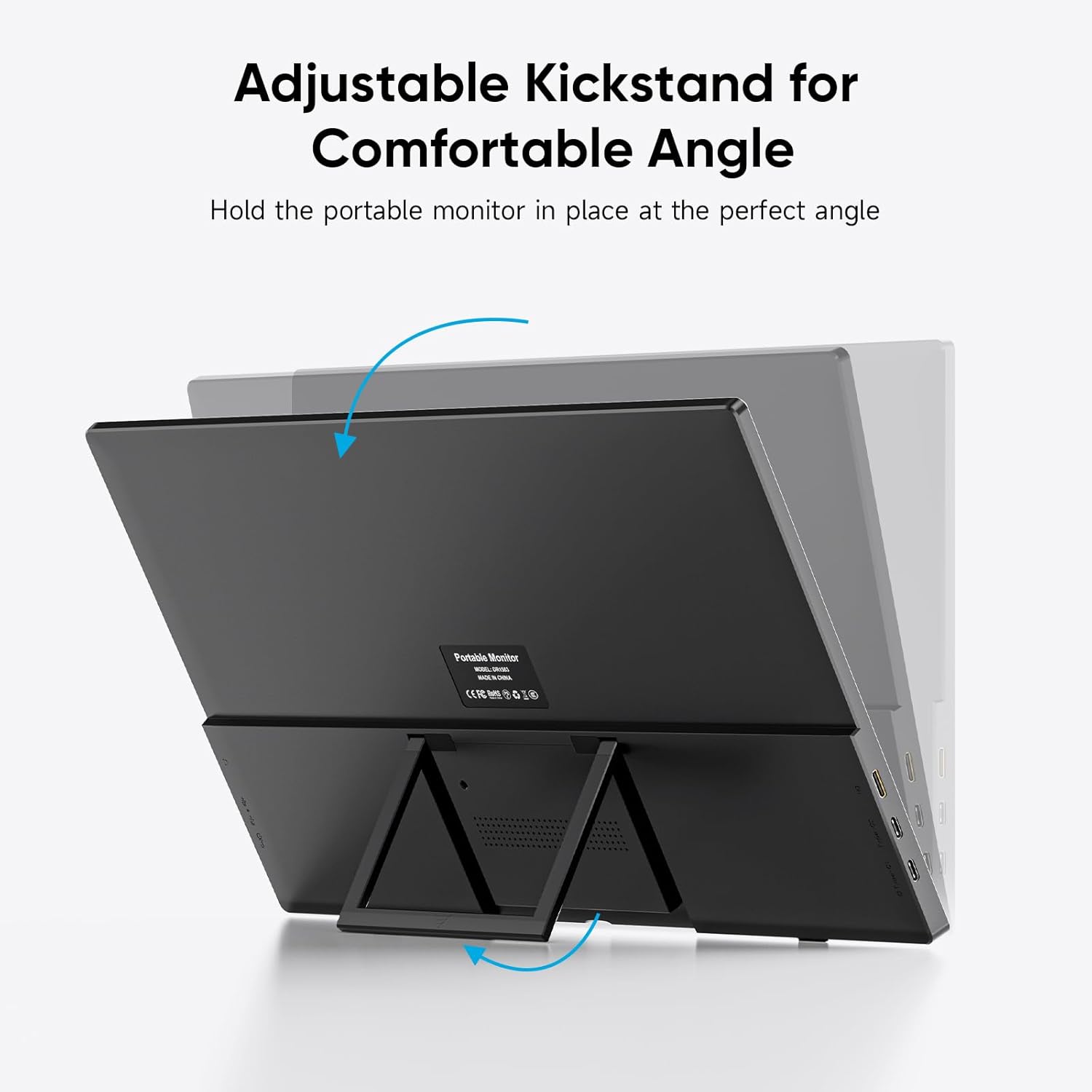
Image 5.5: The monitor's adjustable kickstand for comfortable viewing.

Image 5.6: The monitor mounted on a VESA-compatible arm.
6. Keserasian
The Dopesplay portable monitor offers wide compatibility with various devices and operating systems:
- Komputer riba: Windows laptops, Macs (including M1, M2, M3 chips), Chromebooks.
- Konsol Permainan: PS4/5, Xbox, Nintendo Switch.
- Telefon pintar: Compatible with phones supporting video output via USB-C (e.g., iPhone 15 series) or requiring an adapter for Lightning port devices.
- Desktop: Can be used as an external display for desktop PCs or Mac Minis.
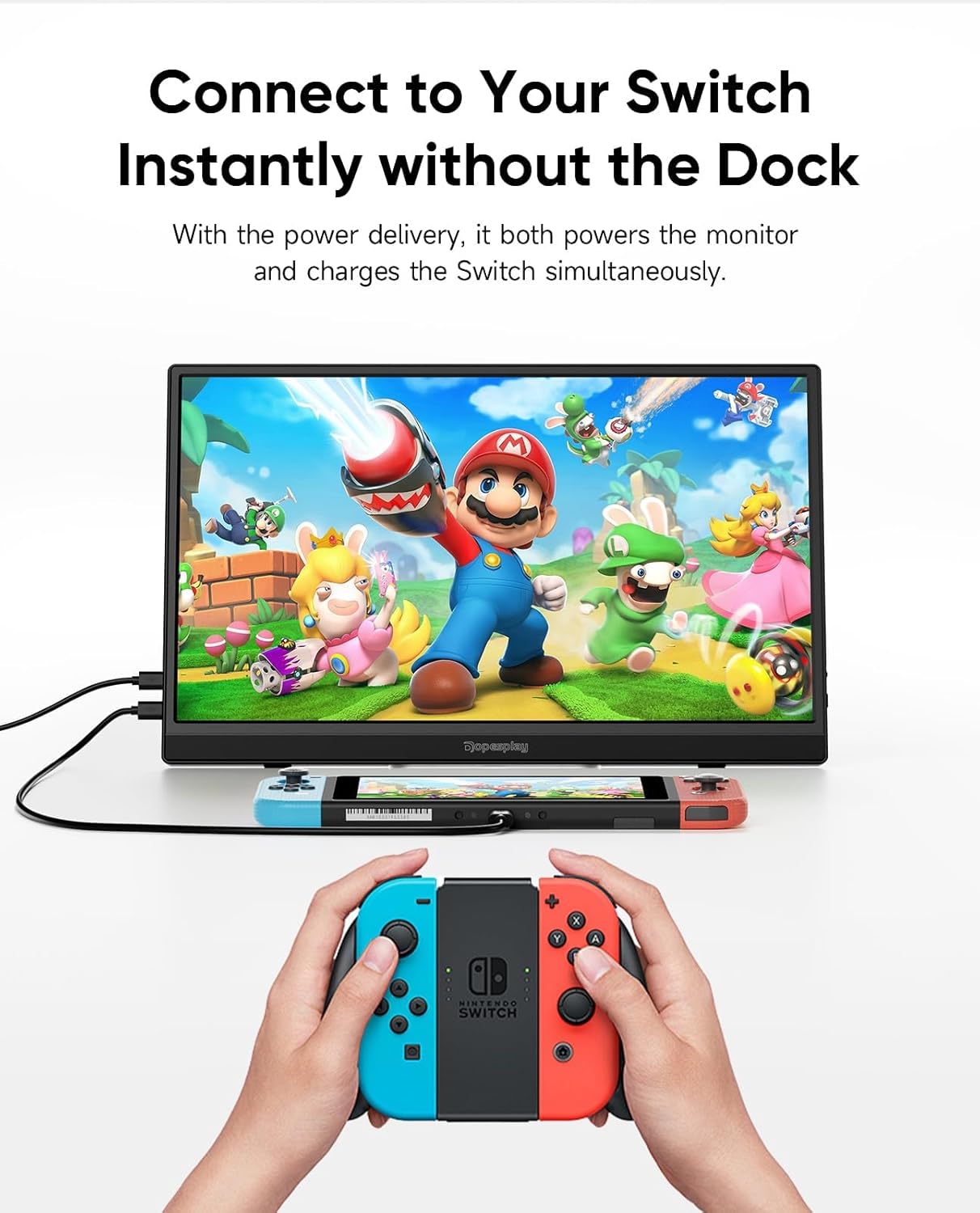
Image 6.1: Connecting the portable monitor to a Nintendo Switch.

Image 6.2: Extending iPhone display to the portable monitor.

Image 6.3: Playing games on a larger screen with the portable monitor and Xbox.

Image 6.4: Making your Mac Mini mobile with the portable monitor.
7. Penyelenggaraan
To ensure the longevity and optimal performance of your Dopesplay portable monitor, follow these maintenance guidelines:
- Pembersihan: Gently wipe the screen with a soft, lint-free cloth. For stubborn smudges, use a screen-specific cleaning solution applied to the cloth, not directly to the screen. Avoid harsh chemicals or abrasive materials.
- Storan: When not in use, store the monitor in a cool, dry place, away from direct sunlight and extreme temperatures. Utilize the original packaging or a protective sleeve to prevent scratches and damage.
- Pengendalian: Always handle the monitor by its edges. Avoid applying pressure to the screen or dropping the device.
- Ketersambungan: Ensure cables are connected and disconnected gently to prevent damage to the ports.
8. Penyelesaian masalah
Rujuk isu-isu lazim berikut dan penyelesaiannya:
- Q1: Why is the screen flickering or going black?
- A1: Check USB-C, USB-A, and HDMI Port Connection. Poor contact can easily lead to screen flickering.
A2: Insufficient Power Supply. Some devices may have a weaker power supply capacity for the screen extender, which can lead to insufficient power and screen flickering. Therefore, it is necessary to connect the charger for power supply when using it. - Q2: The screen displays "No Signal"
- A1: Check USB-C or HDMI Port Connection. Poor contact can easily lead to screen flickering.
A2: Display Compatibility Issues. You can try replacing the laptop to see if the "No Signal" issue persists. - Q3: Does it support Bluetooth, Wireless, Wi-Fi or Touch screen?
- A: Tidak.

Image 8.1: Common troubleshooting questions and answers.
9. Spesifikasi
| Ciri | Spesifikasi |
|---|---|
| Jenama | Dopesplay |
| Nama Model | DR1563 |
| Saiz Skrin | 15.6 Inci |
| Resolusi Paparan | 1920 x 1080 (FHD 1080p) |
| Teknologi Paparan | LCD, IPS |
| Kadar Segar Semula | 60 Hz |
| Masa Tindak Balas | 3 milisaat |
| Nisbah Aspek Imej | 16:9 |
| Kecerahan Imej | 220 cd/m² |
| sebenarnya Viewsudut | 178 Darjah |
| Antara Muka Perkakasan | USB, USB Type C, Mini HDMI |
| Ciri Khas | Portable, Lightweight, Ultra-Slim, Built-In Speakers, Eye Care |
| Dimensi Produk | 35.48 x 23.8 x 0.79 cm |
| Berat Barang | 1.31 kg (kira-kira 2.89 paun) |
10. Waranti dan Sokongan
Dopesplay is committed to providing high-quality products and customer satisfaction. Your Dopesplay Portable Monitor comes with a Jaminan kualiti 12 bulan dari tarikh pembelian.
Kami juga menawarkan sokongan teknikal seumur hidup for our products. If you encounter any issues, have questions about setup or operation, or require assistance with missing accessories or damaged items, please do not hesitate to contact our customer support team. We are here to help you.
For support, please visit the Dopesplay Store on Amazon or refer to the contact information provided in your product packaging.

Image 10.1: Dopesplay customer support team ready to assist.