pengenalan
This manual provides comprehensive instructions for the setup, operation, and maintenance of your Phomemo D520BT Bluetooth Thermal Printer. Designed for efficiency and ease of use, this printer is ideal for small businesses and home offices, supporting various label types and offering dual connectivity options.
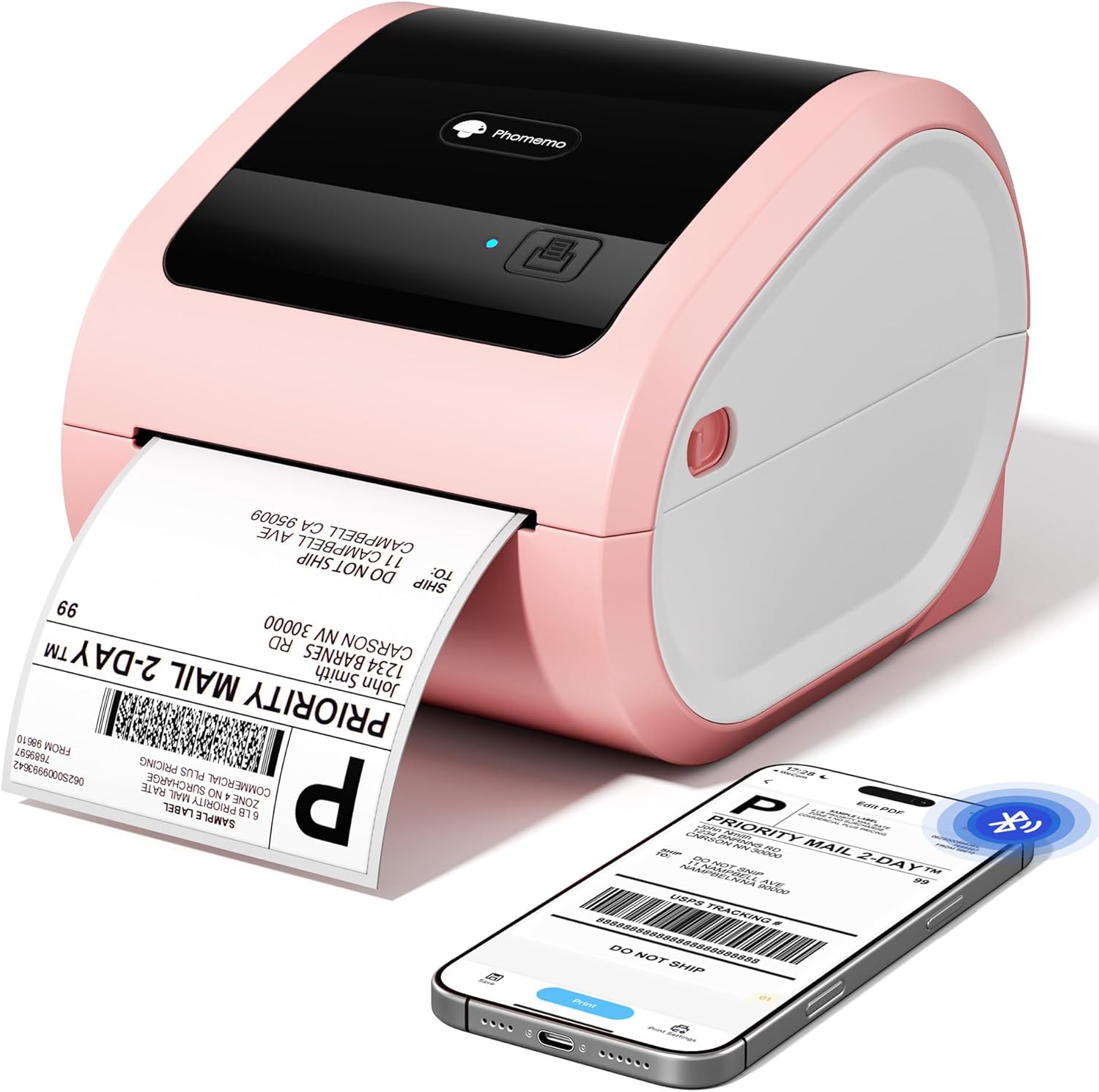
Image: The Phomemo D520BT thermal printer in pink, actively printing a shipping label. A smartphone nearby displays a digital label design, highlighting its wireless capabilities.
Apa yang ada dalam Kotak
Upon unboxing your Phomemo D520BT printer, you should find the following components:
- D520BT Thermal Label Printer
- 30 sheets 4X6 thermal label paper
- Penyesuai Kuasa dan Kord
- Type C Adapter and Use Cable
- Panduan Pengguna

Image: A visual representation of all items included in the Phomemo D520BT package: the printer unit, a roll of labels, a quick start guide, power cables, and adapters.
Ciri-ciri Produk
- Space-Saving Internal Paper Holder: Features a built-in paper holder, eliminating the need for an external label rack and optimizing desktop space.
- Wide Printing Range and High Speed: Supports printing widths of 1-4.6 inches and speeds up to 72 labels per minute (150mm/s), suitable for various tasks and high-volume needs.
- Pilihan Kesambungan Dwi: Offers both USB and Bluetooth connectivity for compatibility with Android, iOS, Windows, Mac, Chrome OS, and Linux systems.
- Ink-Free Thermal Printing Technology: Utilizes thermal printing to reduce ink costs, providing efficient, high-quality prints with 203 dpi resolution.
- Comprehensive App Support and Easy Setup: Comes with the "Labelife" app, offering free templates for customizing labels. Includes detailed video tutorials and user manuals for quick setup.

Image: The Phomemo D520BT printer showcasing its high efficiency and print quality, emphasizing a speed of 72 sheets per minute and a resolution of 203 DPI.
Panduan Persediaan
1. Physical Setup and Paper Loading
- Connect the power adapter and cord to the printer and a power outlet.
- Press the "Open Button" on the side of the printer to open the cover.
- Adjust the gray paper guides inside the printer to match the width of your labels.
- Insert the thermal labels (either fanfold or roll paper) into the paper bin, ensuring the printable side is facing up and the labels are straight and smooth.
- Tutup penutup pencetak dengan selamat.
- Press the feed button (square icon) to allow the printer to automatically detect and align the labels.

Image: The Phomemo D520BT printer demonstrating its upgraded built-in paper bin, capable of supporting both fanfold and roll labels, with automatic location detection and adjustable guide rolls.
2. Persediaan Kesambungan
The Phomemo D520BT offers both Bluetooth and USB connectivity.

Image: The Phomemo D520BT label printer illustrating its dual connectivity, with a Bluetooth connection to a smartphone and a USB connection to a laptop, enabling versatile use across different devices.
Sambungan Bluetooth (untuk Android/iOS)
- Download the "Labelife" app from your device's app store.
- Dayakan Bluetooth pada telefon pintar atau tablet anda.
- Open the "Labelife" app and follow the in-app instructions to pair with your D520BT printer.

Image: A smartphone screen displaying the "Labelife" app, illustrating the process of downloading, importing PDFs, selecting label sizes, and connecting to the Phomemo D520BT printer via Bluetooth for easy printing.
USB Connection (for Windows/Mac/Chrome OS/Linux)
- Sambungkan pencetak ke komputer anda menggunakan kabel USB yang disediakan.
- Install the printer driver from the official Phomemo website or the included user guide.
- Ikut arahan pada skrin untuk melengkapkan pemasangan pemacu.
Pemasangan Pemacu Windows:
Video: Official Phomemo guide on installing the D520BT thermal printer driver and setting it up for use on Windows operating systems.
Mac OS Driver Installation:
Video: Official Phomemo guide on installing the D520BT thermal printer driver and setting it up for use on Mac OS operating systems.
Arahan Operasi
1. Printing from the Labelife App (Mobile)
- Ensure your printer is connected via Bluetooth to your mobile device.
- Open the "Labelife" app.
- Select an existing template or create a new label design.
- Customize text, images, barcodes, and other elements as needed.
- Praview your label to ensure correct layout and size.
- Adjust print density and speed in the app settings if desired.
- Tap "Print" to send the label to your D520BT printer.
2. Printing from PC (Windows/Mac)
- Ensure your printer is connected via USB to your computer and the driver is installed.
- Buka dokumen atau label file you wish to print (e.g., PDF shipping label).
- Pilih "Cetak" daripada menu aplikasi anda.
- Choose "Phomemo D520BT" (or similar name) as your printer.
- In the printer preferences/properties, verify the label size (e.g., 4x6 inches). If your specific size is not listed, you may need to create a custom size.
- Adjust print settings such as darkness and speed if available in the driver options.
- Klik "Cetak" untuk menghantar kerja ke pencetak.

Image: The Phomemo D520BT label printer illustrating its compatibility with multi-size labels, ranging from small 2x1 inch labels to larger 4x6 inch shipping labels, suitable for diverse applications.
Penyelenggaraan
- Membersihkan Kepala Cetak: Regularly clean the print head with an alcohol wipe to ensure optimal print quality. Ensure the printer is off and cooled down before cleaning.
- Membersihkan Roller: Gunakan yang lembut, damp cloth to gently clean the paper roller to prevent paper jams and maintain smooth feeding.
- Storan: Simpan pencetak di tempat yang sejuk dan kering jauh dari cahaya matahari langsung dan suhu yang melampau.
- Storan Label: Store thermal labels in a cool, dark place to preserve their quality and prevent premature fading.
Menyelesaikan masalah
- Printer Not Connecting:
- Ensure the printer is powered on and the power light is solid blue.
- For Bluetooth, check that Bluetooth is enabled on your device and the printer is paired in the "Labelife" app.
- For USB, ensure the cable is securely connected and the correct driver is installed on your computer. Try a different USB port or cable.
- Poor Print Quality (Faint/Blurry):
- Adjust the print density setting in your app or printer driver to a higher value.
- Bersihkan kepala cetakan seperti yang diterangkan dalam bahagian Penyelenggaraan.
- Pastikan anda menggunakan label terma berkualiti tinggi.
- Labels Not Feeding Correctly/Jams:
- Ensure labels are loaded correctly, facing up, and aligned with the paper guides.
- Clean the paper roller.
- Check for any obstructions in the paper path.
- Press the feed button to re-calibrate the labels.
- Incorrect Label Size/Layout:
- Verify the label size settings in your printing application or printer driver match the physical labels being used.
- Use the "Labelife" app's customization features to adjust the layout.
Spesifikasi
| Ciri | Perincian |
|---|---|
| Jenama | Phomemo |
| Model | D520BT |
| Teknologi Percetakan | terma |
| Teknologi Ketersambungan | Bluetooth, USB |
| Saiz Media Maksimum | 4 x 6 inci |
| Ukuran Media yang Disokong | 1-4.6 inches width (various sizes including 4x6 inches) |
| Resolusi Cetakan Hitam dan Putih Maksimum | 203 dpi |
| Max Print Speed (Black & White) | 72 ppm (150mm/s) |
| Kapasiti Helaian Input Maks | 500 sheets (fanfold) |
| Peranti Serasi | Komputer Riba, PC, Telefon Pintar, Tablet |
| Dimensi Produk | 9.06 x 7.68 x 6.85 inci |
| Berat Barang | 2.43 paun |
| Output Pencetak | Monokrom |
Waranti dan Sokongan
The Phomemo D520BT Thermal Printer comes with a limited warranty. For specific details regarding warranty coverage and duration, please refer to the warranty card included in your product packaging or contact Phomemo customer support.
For further assistance, including detailed video tutorials and remote support, please refer to the contact information provided in your user manual or on the official Phomemo webtapak.


