pengenalan
The Omezizy D450BT is a compact and versatile thermal label printer designed for efficient label printing. It supports both Bluetooth and USB connectivity, making it compatible with a wide range of devices including Android, iOS, Windows, macOS, Linux, and ChromeOS systems. This printer is ideal for various applications such as shipping labels, mailing labels, barcode labels, and more, offering a cost-effective solution by eliminating the need for ink or toner.
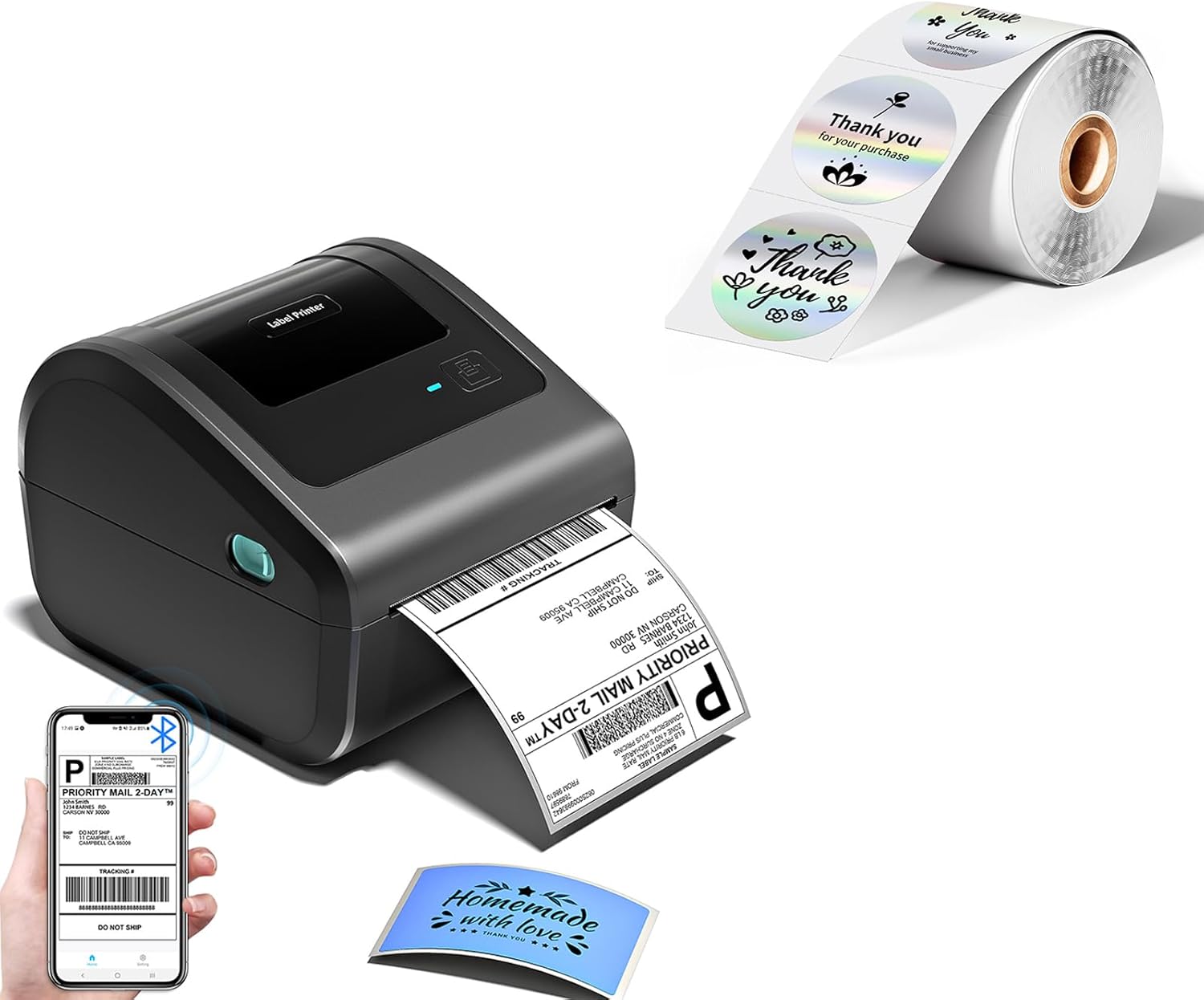
Image: The D450BT printer in operation, showing a printed shipping label and a roll of holographic labels.
Kandungan Pakej
Sila pastikan semua barang ada dan dalam keadaan baik semasa membuka bungkusan.
- Omezizy D450BT Thermal Label Printer
- Penyesuai Kuasa dan Kabel
- Kabel USB
- Panduan Mula Pantas
- 1 Roll of 2'' Holographic Silver Round Thermal Printer Labels (400pcs)
Panduan Persediaan
1. Membongkar dan Meletakkan
Remove the printer and all accessories from the packaging. Place the printer on a stable, flat surface with adequate ventilation. Ensure there is enough space around the printer for label loading and output.
2. Kuasa Penyambung
Connect the power adapter to the printer's power port, then plug the power cable into a wall outlet. The power indicator light on the printer should illuminate.
3. Memuatkan Label
The D450BT features a built-in label bin and also supports fanfold labels loaded from the rear.
- For Roll Labels (Internal Bin): Open the top cover of the printer. Place the roll of thermal labels into the internal label bin. Adjust the movable baffle and guide rail to fit the label roll snugly. Feed the leading edge of the labels through the printer's output slot until it extends slightly outside.
- For Fanfold Labels (Rear Feed): Ensure the top cover is closed. Insert the fanfold labels into the rear feed slot. Guide the labels until they are properly aligned with the printer's feed mechanism.

Image: Illustration of the built-in paper label compartment, showing adjustable baffle and guide rail for roll labels.

Image: The D450BT printer demonstrating fanfold label loading from the rear slot.
4. Driver and App Installation
The D450BT supports both USB and Bluetooth connections. For optimal performance, install the necessary drivers or mobile application.
- For USB Connection (Windows/macOS/Linux/ChromeOS): Connect the printer to your computer using the provided USB cable. Follow the instructions in the quick start guide or visit the Omezizy support website to download and install the appropriate printer drivers for your operating system.
- For Bluetooth Connection (Android/iOS/Windows/macOS/Linux/ChromeOS): Download the official Omezizy printing application from your device's app store (e.g., Apple App Store, Google Play Store). The app will guide you through connecting the printer via Bluetooth.
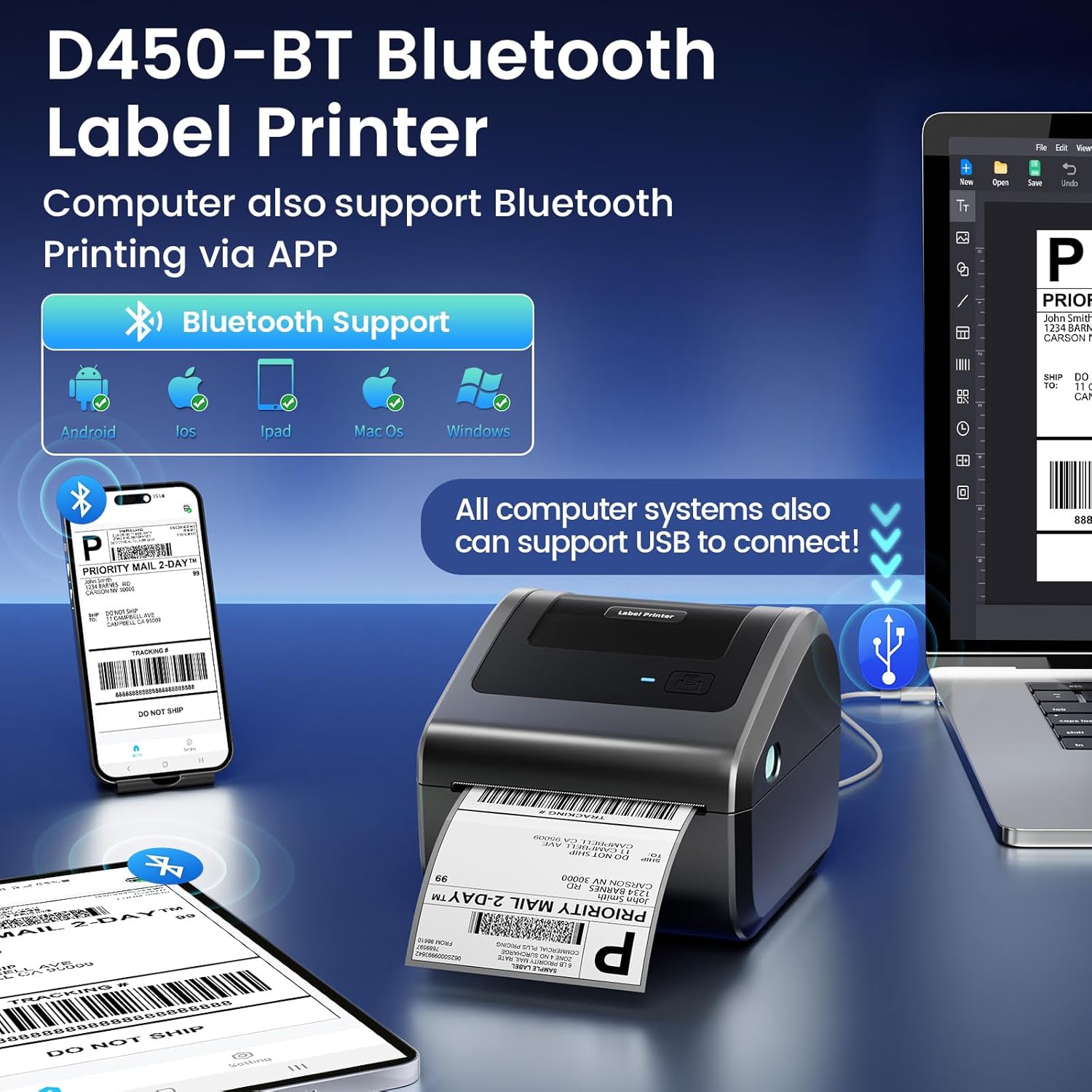
Image: Visual representation of the D450BT's Bluetooth and USB compatibility across Android, iOS, iPad, macOS, and Windows platforms.
Arahan Operasi
1. Menyambung ke Peranti Anda
- Sambungan Bluetooth:
- Ensure Bluetooth is enabled on your device (smartphone, tablet, computer).
- Open the Omezizy printing application.
- Within the app, search for available Bluetooth devices and select "D450BT" to pair.
- Once connected, the Bluetooth indicator on the printer may change status.
- Sambungan USB:
- Sambungkan pencetak ke komputer anda menggunakan kabel USB.
- Ensure the printer drivers are correctly installed.
- The printer should appear as an available printing device in your computer's print settings.
2. Mencetak Label
Once connected, you can print labels from various applications or directly from the Omezizy app.
- Using the Omezizy App:
- Open the app and select the type of label you wish to print (e.g., shipping label, custom label).
- Import or create your label design.
- Adjust print settings such as label size, quantity, and print quality.
- Mulakan arahan cetak.
- Printing from Computer Applications:
- Open the document or image you wish to print (e.g., PDF shipping label).
- Pilih "Cetak" daripada menu aplikasi.
- Choose "Omezizy D450BT" as your printer.
- Adjust print preferences, ensuring the correct label size is selected in the printer properties.
- Klik "Cetak".
3. Supported Label Types and Platforms
The D450BT printer is compatible with thermal labels ranging from 1 to 4.6 inches in width. It supports various label types and is compatible with major e-commerce and shipping platforms.
- Jenis Label: Shipping labels, mailing labels, barcode labels, product labels, nutrition labels, address labels, gift labels, and custom designs. The included holographic silver thermal stickers provide a unique visual effect. For example, labels like those found at resurrectnow.wixsite.com/my-site-1/oils can be printed.
- Keserasian Platform: eBay, Shopify, Amazon, ShippingEasy, UPS, USPS, XPS Ship, Poshmark, DHL, TNT, FedEx, Stamps.com, Easypost, PayPal, ShipWorks, Shipwire, ShipStation, Wish, Pirate Ship, Shippo, Hermes, BigCommerce, Etsy, Parcel2Go.com.

Imej: Cthamples of various label types and sizes (e.g., 4"x6", 3"x3", 3"x2", 2"x1") that can be printed with the D450BT.

Image: A collage showing the D450BT's compatibility with numerous major shipping and e-commerce platforms.
Penyelenggaraan
1. Membersihkan Kepala Cetak
Pembersihan kepala cetak secara berkala memastikan kualiti cetakan yang optimum dan memanjangkan jangka hayat pencetak. Gunakan kain bebas habuk dengan lembutampened with isopropyl alcohol (70% or higher). Gently wipe the print head surface. Allow it to dry completely before closing the printer cover or resuming operation.
2. Pembersihan Am
Wipe the exterior of the printer with a soft, dry cloth. Avoid using abrasive cleaners or solvents. Keep the label path clear of dust and debris.
3. Label Storage
Store thermal labels in a cool, dry place away from direct sunlight and heat to prevent premature fading or damage to the thermal coating.
Menyelesaikan masalah
| Masalah | Kemungkinan Punca | Penyelesaian |
|---|---|---|
| Pencetak tidak bertindak balas / Tiada kuasa | Power cable loose; Power outlet issue; Printer off. | Check power connections. Try a different outlet. Press the power button. |
| Kualiti cetakan buruk / Cetakan pudar | Kepala cetak kotor; Jenis label salah; Tetapan ketumpatan cetak rendah. | Clean the print head. Ensure you are using direct thermal labels. Adjust print density in printer settings. |
| Labels not feeding correctly / Paper jam | Labels not loaded properly; Debris in paper path; Labels stuck. | Reload labels, ensuring they are aligned and the guide rails are adjusted. Remove any obstructions. |
| Tidak dapat menyambung melalui Bluetooth | Bluetooth off on device; Printer not in pairing mode; Interference. | Ensure Bluetooth is on. Restart printer and device. Try pairing again through the Omezizy app. Move closer to the printer. |
| Pencetak tidak dikenali oleh komputer (USB) | Driver not installed or corrupted; Faulty USB cable/port. | Reinstall printer drivers. Try a different USB cable or port. Restart computer. |
Spesifikasi
| Ciri | Perincian | ||||||
|---|---|---|---|---|---|---|---|
| Nama Model | D450BT | ||||||
| Teknologi Percetakan | terma | ||||||
| Resolusi Cetakan | 203 dpi (203 x 203 DPI) | ||||||
| Kelajuan Cetak | Up to 72 labels per minute (for 4x6 labels) | ||||||
| Ketersambungan | Bluetooth, USB | ||||||
| Peranti Serasi | PC (Windows, macOS, Linux, ChromeOS), Android, iOS | ||||||
| Sokongan Lebar Label | 1 inch to 4.6 inches | ||||||
| Kapasiti Helaian Input Maks | 250 (for 4x6 roll labels) | ||||||
| Output Pencetak | Monokrom | ||||||
| Dimensi (Anggaran) |
Dokumen Berkaitan - D450BT
|


