1. Pengenalan
This manual provides comprehensive instructions for the installation, operation, and maintenance of your Leadfan Android 12 Car Stereo. This unit is specifically designed for Mazda 3 models manufactured between 2009 and 2013, offering an upgraded in-car entertainment and navigation experience with features like Wireless CarPlay, Android Auto, GPS, Bluetooth, and Wi-Fi connectivity.
Please read this manual thoroughly before installation and use to ensure proper function and to prevent damage to the unit or your vehicle.
2. Maklumat Keselamatan
- Pemasangan Profesional Disyorkan: Disebabkan kerumitan sistem elektrik kereta, pemasangan profesional sangat disyorkan.
- Bekalan Kuasa: Pastikan unit disambungkan kepada bekalan kuasa DC 12V dengan pembumian negatif.
- Pendawaian: Incorrect wiring can cause damage to the unit or vehicle. Follow the wiring diagram carefully.
- Keselamatan Memandu: Jangan kendalikan unit dengan cara yang mengalihkan perhatian anda daripada memandu. Sentiasa mengutamakan keselamatan jalan raya.
- Suhu: Elakkan daripada mendedahkan unit kepada suhu yang melampau atau cahaya matahari langsung untuk tempoh yang lama.
- Kelembapan: Keep the unit dry. Exposure to moisture can cause malfunction or damage.
3. Kandungan Pakej
Sahkan bahawa semua item yang disenaraikan di bawah disertakan dalam pakej anda:
- 1x Leadfan Car Touch Screen Radio
- 1x Antena GPS
- 1x Backup Camera
- 1x CAN Bus Decoder
- 1x Belakang View Kabel Input
- 1x RCA Cable Set
- 2x Kabel USB
- 1x Kabel Kuasa
- 1x Original USB Cable
- 1x Manual Pengguna (dokumen ini)

Rajah 3.1: Illustration of the car stereo's dimensions and the complete list of included accessories, such as the main unit, GPS antenna, backup camera, various cables (RCA, USB, power), CAN Bus, and user manual.
4. Produk Lebihview
The Leadfan Android 12 Car Stereo is an advanced multimedia system designed to integrate seamlessly into your Mazda 3 (2009-2013). It features a 9-inch IPS touchscreen, runs on Android 12, and includes 2GB RAM with 32GB ROM for smooth performance and amppenyimpanan le.

Rajah 4.1: The main unit displaying the Android 12 interface with various application icons. Below the main unit, smaller images illustrate Wireless CarPlay, Android Auto, the GPS antenna, and the waterproof backup camera.

Rajah 4.2: An installed view of the car stereo in a Mazda 3 dashboard, emphasizing its core specifications and functionalities.
Ciri-ciri Utama:
- Sistem Operasi Android 12
- 2GB RAM + 32GB ROM
- Skrin Sentuh IPS HD 9 inci
- Apple CarPlay & Android Auto Tanpa Wayar
- Built-in GPS Navigation (Online & Offline Maps)
- Kesambungan Wi-Fi
- Bluetooth 5.1 for Hands-Free Calling & Audio Streaming
- Mirror Link Functionality (iOS Wireless, Android Wireless/Wired)
- Steering Wheel Control (SWC) Support
- Penala Radio FM
- Backup Camera Input (1080P support)
- Kefungsian Skrin Pisah

Rajah 4.3: Visual representation of the primary functions available on the car stereo.
5. Pemasangan
This section outlines the general steps for installing the Leadfan Android 12 Car Stereo in a Mazda 3 (2009-2013). Ensure your vehicle's ignition is off and the battery is disconnected before beginning installation.
5.1 Semakan Pra-Pemasangan
- Keserasian Kenderaan: Confirm your Mazda 3 model year is between 2009 and 2013.
- Center Console Shape: Carefully compare the shape and size of your vehicle's center console with the product images to ensure a proper fit. This unit is designed for specific console configurations.
- Existing Audio System: Note that this unit does not support subwoofers or BOSE/SONY ampsistem penguat.
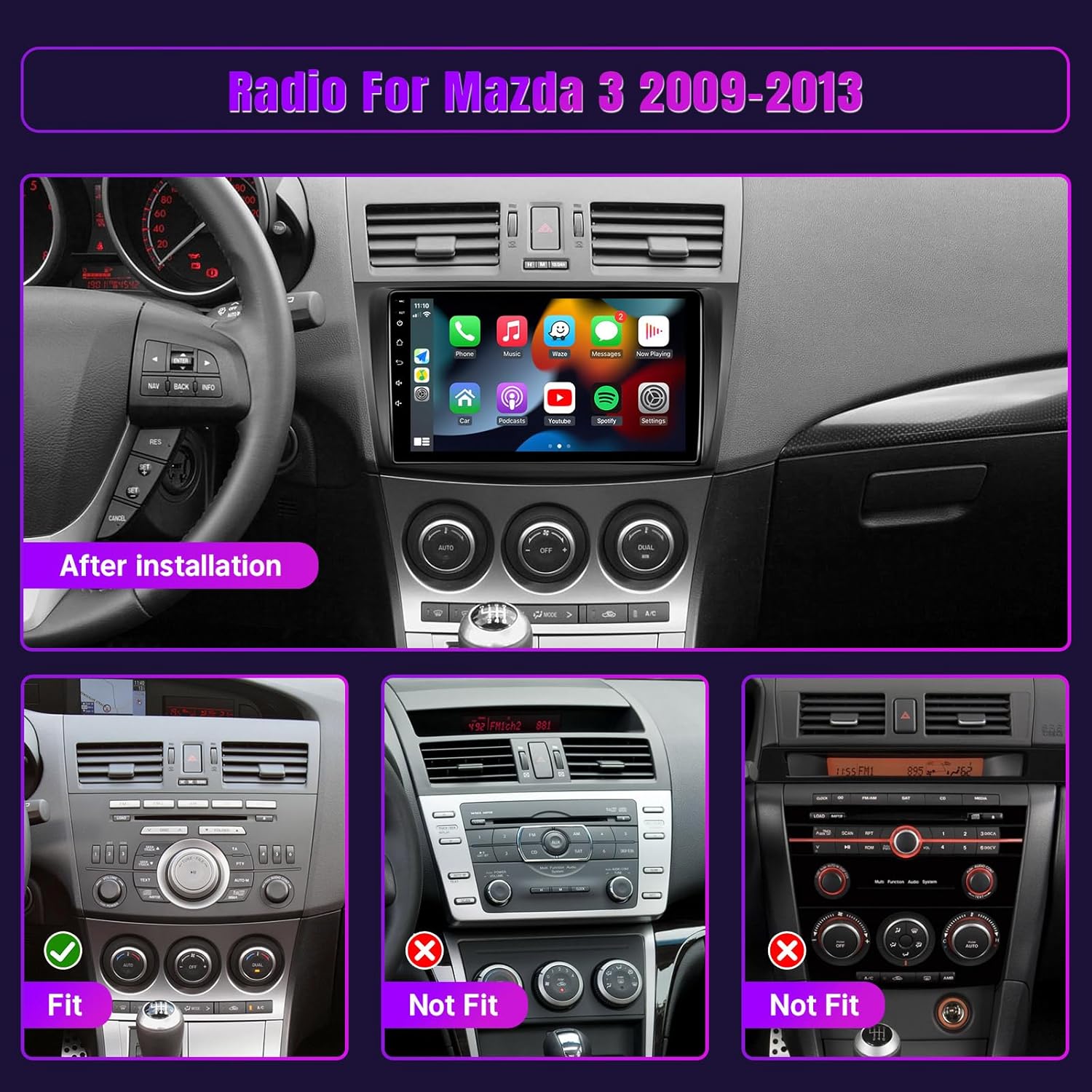
Rajah 5.1: Visual guide for checking compatibility with your Mazda 3 dashboard. The top image shows the stereo installed in a compatible dashboard. The bottom row illustrates 'Fit' and 'Not Fit' examples based on the original radio unit's design.

Rajah 5.2: Further visual comparison of compatible (2009-2013) and incompatible (2004-2009) Mazda 3 center console designs. Pay close attention to the circled areas indicating the specific fitment requirements.
5.2 Sambungan Pendawaian
The included wiring harness is designed for plug-and-play installation. Refer to the provided wiring diagram in the separate user manual for detailed connections. Key connections include:
- Kabel kuasa: Sambungkan kepada bekalan kuasa kenderaan.
- Kabel RCA: Untuk input/output audio/video.
- Kabel USB: For external USB devices and wired Android Auto.
- Antena GPS: Connect and position in a location with clear sky view.
- Input Kamera Sandaran: Sambungkan kamera sandaran yang disertakan.
- Bas BOLEH: Connect for vehicle data integration (e.g., steering wheel controls).
5.3 Pemasangan Fizikal
- Carefully remove the original car radio and trim panels.
- Connect all necessary wiring harnesses to the new Leadfan unit.
- Mount the GPS antenna in an optimal location, typically on the dashboard with a clear view dari langit.
- Install the backup camera (if applicable) and route its cable to the main unit.
- Secure the Leadfan car stereo into the dashboard opening.
- Pasang semula semua panel trim.
- Sambungkan semula bateri kenderaan dan uji unit.
6. Persediaan
After successful installation, perform the initial setup steps.
6.1 Hidupkan Kuasa Awal
Turn on your vehicle's ignition. The unit should power on automatically and display the Leadfan logo, followed by the Android 12 home screen.
6.2 Tetapan Asas
- Bahasa: Navigate to Settings > System > Languages & input to select your preferred language.
- Tarikh & Masa: Set the correct date and time, or enable automatic synchronization via GPS or network.
- Sambungan Wi-Fi: Go to Settings > Network & internet > Wi-Fi to connect to an available Wi-Fi network or mobile hotspot. This is essential for online maps, app downloads, and some features of Wireless CarPlay/Android Auto.
7. Arahan Operasi
This section details how to use the various functions of your Leadfan Android 12 Car Stereo.
7.1 Touchscreen Interface & Split Screen
The unit features a responsive 9-inch IPS touchscreen. Navigate by tapping, swiping, and pinching. The split-screen function allows two applications to run simultaneously, with each side independently operable. To activate, long-press an app icon and drag it to one side of the screen, then select another app for the other side.

Rajah 7.1: The touchscreen displaying two applications simultaneously in split-screen mode, demonstrating the independent operation of each section.
7.2 Bluetooth 5.1
Sambungkan telefon pintar anda melalui Bluetooth untuk panggilan bebas tangan dan penstriman audio.
- Enable Bluetooth on your smartphone and on the car stereo (via the Bluetooth app).
- Cari untuk available devices on your phone and select the car stereo's Bluetooth name.
- Sahkan kod gandingan pada kedua-dua peranti.
- Once paired, you can make/receive calls and play music from your phone through the car stereo.

Rajah 7.2: The Bluetooth application interface, illustrating hands-free calling functionality.
7.3 CarPlay Wayarles & Android Auto
Access your smartphone's features safely while driving.
- For Wireless CarPlay/Android Auto: Ensure your phone's Wi-Fi and Bluetooth are enabled. Connect your phone to the car stereo via Bluetooth first. The system will then prompt you to enable CarPlay/Android Auto.
- For Wired Android Auto: Connect your Android phone to the car stereo using a USB cable.
- Once connected, the CarPlay or Android Auto interface will appear on the screen, allowing access to navigation, music, messages, and voice assistants (Siri/Google Assistant).

Rajah 7.3: Demonstrates the Apple CarPlay and Android Auto interfaces, highlighting voice control capabilities for navigation, communication, and media playback.
7.4 GPS Navigation & Wi-Fi
The unit supports both online and offline navigation. Connect to Wi-Fi to download maps, update software, and access online services.
- Navigasi GPS: Open the pre-installed navigation app (e.g., Google Maps, Waze). For offline maps, download them via Wi-Fi beforehand.
- Sambungan Wi-Fi: Connect to your phone's hotspot or a public Wi-Fi network via Settings > Network & internet > Wi-Fi. This enables app downloads from the Play Store and real-time traffic updates for navigation.

Rajah 7.4: The top section illustrates Wi-Fi connectivity, enabling access to apps like YouTube and Spotify. The bottom section displays GPS navigation with both online and offline map functionalities.
7.5 Pautan Cermin
Cerminkan skrin telefon pintar anda pada paparan stereo kereta.
- Peranti iOS: Connect wirelessly via Wi-Fi.
- Peranti Android: Connect wirelessly via Wi-Fi or wired via USB.
- Follow the on-screen instructions in the 'Mirror Link' app on the stereo to establish the connection.
7.6 Radio FM
Access local radio stations.
- Open the 'FM Radio' application.
- Use the scan function to automatically find and save available stations, or manually tune to a specific frequency.

Rajah 7.5: The FM Radio application interface, displaying frequency tuning and audio controls.
7.7 Kawalan Roda Stereng (SWC)
Configure your vehicle's steering wheel buttons to control the car stereo.
- Ensure the CAN Bus is correctly connected during installation.
- Go to the 'Steering Wheel Control' or 'SWC Learning' section in the unit's settings.
- Follow the on-screen prompts to assign functions (e.g., volume up/down, track skip) to your steering wheel buttons.

Rajah 7.6: This image collage illustrates the Bluetooth 5.1 chip, the FM radio interface, the steering wheel control learning function, and the 1080P backup camera view.
7.8 Kamera Sandaran
Unit secara automatik memaparkan bahagian belakang view apabila kenderaan berada dalam gear undur.
- Ensure the backup camera is correctly installed and connected to the 'Reverse Input' on the stereo.
- When shifting into reverse, the screen will automatically switch to the camera feed, providing a 170° wide-angle view with IP68 waterproof and night vision capabilities.

Rajah 7.7: The backup camera display, showing parking assistance lines for safe maneuvering.
7.9 Tetapan EQ
Adjust audio equalization to customize your listening experience.
- Access the 'EQ' or 'Sound Settings' application.
- Adjust the frequency bands to enhance bass, treble, or mid-range frequencies according to your preference.

Rajah 7.8: The Equalizer settings screen, allowing users to fine-tune audio output.
8. Penyelenggaraan
Proper care ensures the longevity and optimal performance of your car stereo.
- Membersihkan Skrin: Gunakan kain lembut dan tidak berbulu untuk mengelap skrin sentuh dengan lembut. Untuk calitan degil, sedikit dampen kain dengan air atau pembersih selamat skrin. Elakkan bahan kimia yang keras atau bahan yang melelas.
- Kemas Kini Perisian: Periodically check for software updates via the system settings (if available) to ensure optimal performance and access to new features. A stable Wi-Fi connection is required for updates.
- Keadaan Persekitaran: Avoid exposing the unit to extreme heat or cold, as this can affect its electronic components.
9. Penyelesaian masalah
Rujuk jadual berikut untuk isu biasa dan penyelesaiannya.
| Masalah | Kemungkinan Punca | Penyelesaian |
|---|---|---|
| Unit tidak dihidupkan. | Incorrect power wiring; Blown fuse; Loose connection. | Check power cable connections; Inspect vehicle's fuse box; Ensure all harnesses are securely connected. |
| Tiada keluaran bunyi. | wayar pembesar suara terputus; Kelantangan terlalu rendah; Fungsi redam aktif. | Verify speaker wiring; Increase volume; Check if unit is muted. |
| Isyarat GPS hilang atau tidak tepat. | Antena GPS tidak diletakkan atau diputuskan dengan betul. | Pastikan antena GPS mempunyai jernih view langit dan disambungkan dengan selamat. |
| Isu sambungan Bluetooth. | Bluetooth not enabled; Device not paired; Interference. | Ensure Bluetooth is active on both devices; Re-pair the device; Move away from sources of interference. |
| Kamera sandaran tidak dipaparkan. | Kamera tidak disambungkan; Wayar pencetus terbalik tidak disambungkan. | Check camera and reverse input connections; Verify reverse trigger wire is correctly wired. |
| Kawalan Roda Stereng tidak berfungsi. | CAN Bus not connected; SWC learning not performed. | Ensure CAN Bus is connected; Perform SWC learning in settings. |
10. Spesifikasi
Technical specifications for the Leadfan Android 12 Car Stereo.
| Ciri | Perincian |
|---|---|
| Sistem Operasi | Android 12 |
| RAM | 2GB |
| ROM | 32GB |
| Saiz Skrin | 9 Inci |
| Jenis Paparan | Skrin Sentuh IPS |
| Ketersambungan | Bluetooth 5.1, Wi-Fi, USB |
| Ciri Khas | Wireless Apple CarPlay, Wireless Android Auto, GPS Navigation, Mirror Link, Steering Wheel Control, Backup Camera Input |
| Mod Keluaran Audio | Stereo |
| Jenis Pemasangan | Pemasangan Papan Pemuka |
| Berat Barang | 3.05 paun |
| Dimensi Pakej | 11.97 x 11.1 x 4.21 inci |
11. Waranti dan Sokongan
Leadfan is committed to providing quality products and customer service.
11.1 Maklumat Waranti
- Pulangan Percuma 30 Hari: You may return the product within 30 days of purchase for a full refund.
- Penggantian 12 Bulan: The product is covered by a 12-month replacement warranty for quality-related issues.
11.2 Sokongan Teknikal
Leadfan offers lifetime technical support for this product. If you encounter any issues or have questions, please contact our customer service team. We aim to respond to inquiries within 24 hours.

Rajah 11.1: Berakhirview of customer support and warranty benefits provided with your purchase.