pengenalan
The Dopesplay 15.6-inch Portable Monitor is designed to enhance your productivity and entertainment on the go. Featuring a high-resolution, clear display in a compact and lightweight form factor, it's an ideal companion for laptops, gaming consoles, and other compatible devices. Its easy setup, adjustable stand, and anti-glare matte screen make it versatile for various environments, from travel to home office setups. The monitor operates efficiently with low power consumption, capable of being powered by a single Type-C cable from a compatible phone or power bank.
Ciri-ciri Utama
- 15.6" FHD 1080P IPS Display: Experience crisp, vibrant visuals with excellent color accuracy and wide viewsudut-sudut.
- Sokongan HDR: Enjoy enhanced contrast and brilliant colors for an immersive viewpengalaman dalam.
- Kesambungan Plug-and-Play: Simple setup with USB-C and Mini HDMI inputs.
- Adjustable Integrated Stand: Provides stable support and allows for comfortable viewsudut-sudut.
- Matte Screen Surface: Reduces glare and reflections for improved visibility.
- Ultra-Slim and Lightweight Design: Easy to carry, fitting conveniently into laptop bags.
- Penggunaan Kuasa Rendah: Can be powered by a 5V USB source, including compatible smartphones.
- Pembesar Suara Terbina dalam: Audio bersepadu untuk kemudahan.
- Teknologi FreeSync: Reduces input lag, stuttering, and screen tearing for smoother visuals.
- Serasi VESA: Allows for flexible mounting options.
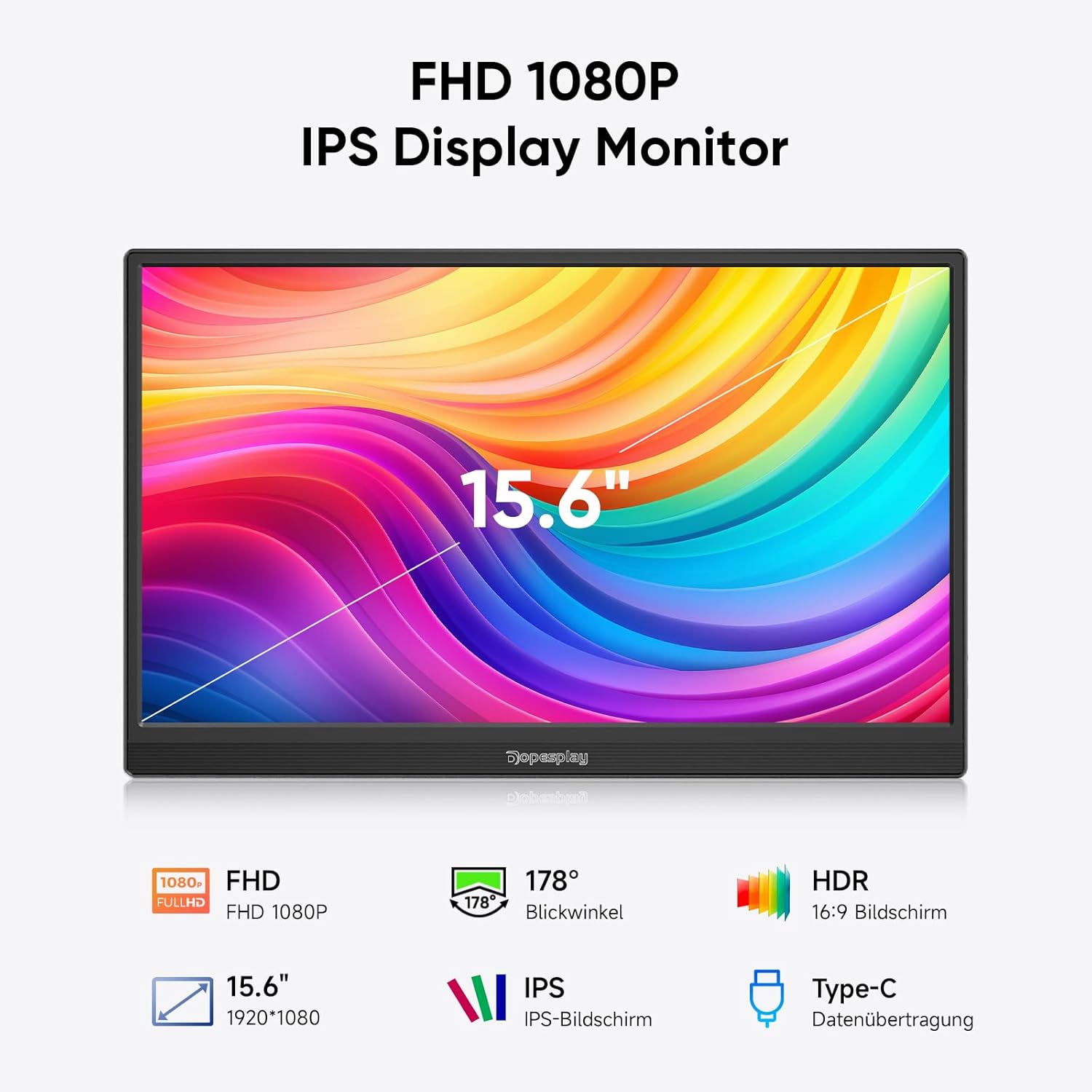
Figure 1: Key features of the Dopesplay 15.6" Portable Monitor.
Persediaan
Menyambungkan Peranti Anda
The Dopesplay portable monitor offers flexible connectivity options to suit various devices. Ensure your device's USB-C port supports full functionality (DisplayPort Alternate Mode and Power Delivery) for single-cable connection.
Option 1: Single USB-C Cable Connection (for compatible devices)
If your laptop or device has a full-featured USB-C port, you can connect the monitor using a single USB-C to USB-C cable. This cable will transmit both video signal and power to the monitor.

Figure 2: Connection options for the portable monitor. The top diagram illustrates a single USB-C connection, while the bottom shows HDMI and USB-A connections with external power.
Option 2: HDMI and USB-A Connection (for devices without full-featured USB-C)
For devices that do not support video output over USB-C or require separate power, use the Mini HDMI to HDMI cable for video signal and a USB-A to USB-C cable for power. An external power adapter (5V/3A or higher) may be required, especially if adjusting brightness above 80% or if the connected device cannot supply sufficient power.
Monitor Ports and Buttons
Familiarize yourself with the ports and buttons on the side of the monitor for optimal use.
- Mini HDMI Input: For video input from devices with HDMI output.
- USB-C Input (x2): For video, data, and power input from compatible devices.
- Jack fon kepala: Untuk menyambungkan peranti audio luaran.
- Butang Putar: To adjust screen orientation.
- Power On/Off / Back Button: Controls power and navigates menus.
Note: If you wish to adjust the brightness above 80%, an external power supply of 5V/3A or higher is required.
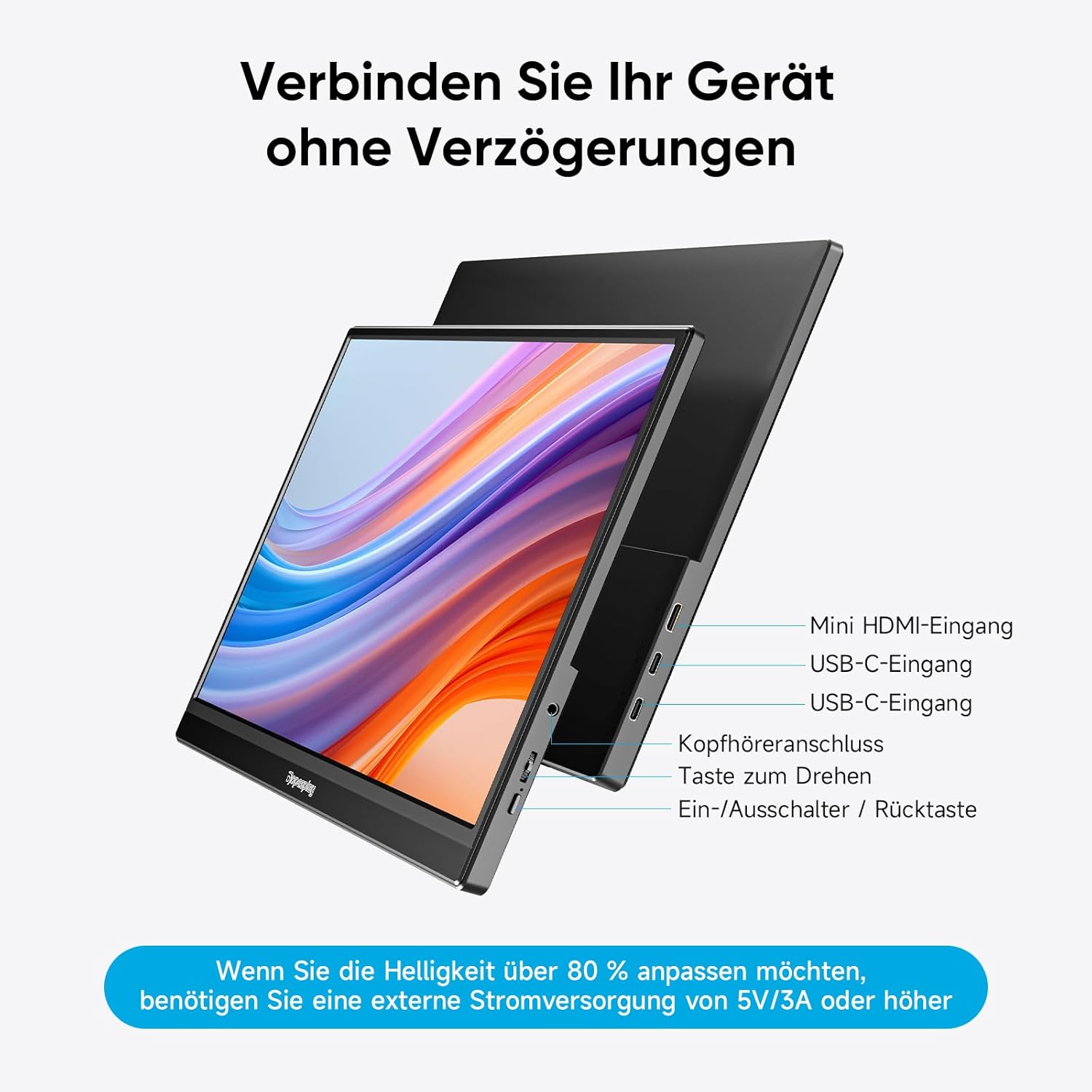
Gambar 3: Lebihview of monitor ports and controls.
Arahan Operasi
Display Modes (Mac & Windows)
The monitor supports both duplicate and extended display modes, allowing you to mirror your primary screen or expand your desktop workspace.
- Duplicate Display: Shows the same content on both your primary device and the portable monitor.
- Paparan Lanjutan: Expands your desktop across both screens, providing more space for multitasking.

Figure 4: Display modes for Mac and Windows devices.
Gaming Console Connection (e.g., Nintendo Switch)
Connect your gaming console directly to the monitor using a single USB-C cable (if supported by the console) or HDMI for video and a USB-C cable for power. The monitor can power both itself and the console simultaneously, eliminating the need for a separate dock.
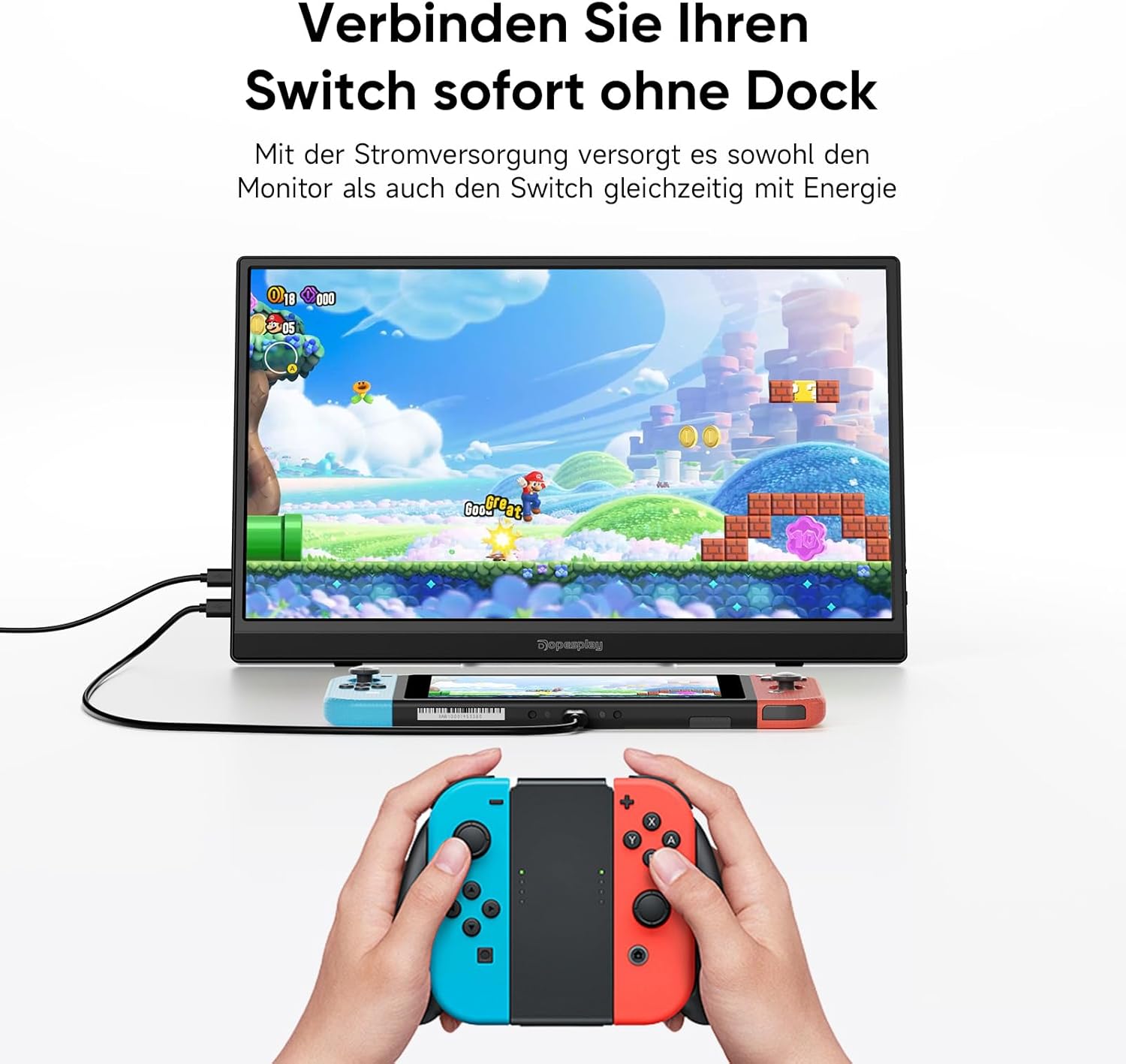
Figure 5: Connecting a Nintendo Switch to the portable monitor.
Pendirian Boleh Laras
The integrated stand allows you to adjust the monitor to your preferred viewing angle for maximum comfort and ergonomics.

Figure 6: Adjustable stand for optimal viewing.
Keserasian VESA
The monitor is VESA compatible, allowing it to be easily mounted on compatible monitor arms or wall mounts in both landscape and portrait orientations.
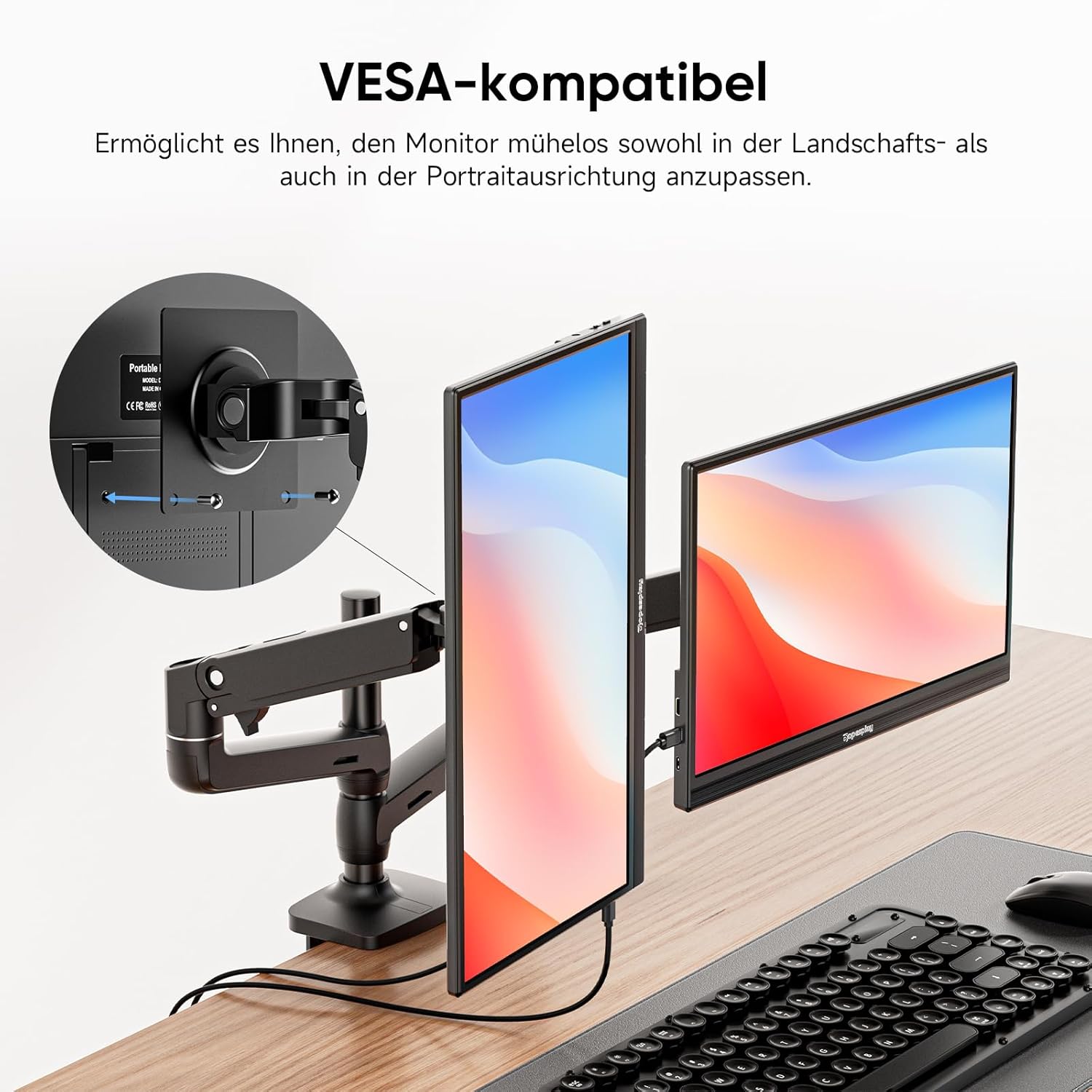
Figure 7: VESA mounting options.
Teknologi FreeSync
For a smoother visual experience, especially during gaming or fast-paced video playback, the monitor features FreeSync technology. This helps to reduce input lag, stuttering, and screen tearing.

Figure 8: FreeSync technology in action.
Penyelenggaraan
To ensure the longevity and optimal performance of your Dopesplay portable monitor, follow these maintenance guidelines:
- Pembersihan: Gently wipe the screen with a soft, lint-free cloth. For stubborn smudges, use a screen-specific cleaning solution applied to the cloth, not directly to the screen. Avoid abrasive cleaners or solvents.
- Storan: When not in use, store the monitor in a cool, dry place, preferably in its original packaging or a protective sleeve to prevent dust accumulation and scratches.
- Pengendalian: Sentiasa pegang monitor pada bahagian tepinya. Elakkan daripada memberi tekanan pada skrin.
- Kuasa: Disconnect the power cable during electrical storms or when unused for extended periods.
Menyelesaikan masalah
If you encounter issues with your Dopesplay portable monitor, refer to the following common troubleshooting steps:
| Masalah | Kemungkinan Punca | Penyelesaian |
|---|---|---|
| Tiada paparan/Tiada isyarat | Incorrect cable connection; Insufficient power; Device not outputting signal. |
|
| Skrin berkelip atau imej tidak stabil | Loose cable connection; Power fluctuations; Incompatible resolution/refresh rate. |
|
| Tiada suara dari pembesar suara | Kelantangan terlalu rendah; Diredam; Output audio yang dipilih pada peranti salah. |
|
| Brightness cannot be adjusted above 80% | Bekalan kuasa tidak mencukupi. |
|
Spesifikasi
| Ciri | Perincian |
|---|---|
| Jenama | Dopesplay |
| Nombor Model | DR1563 |
| Saiz Skrin | 15.6 Inci |
| Resolusi | FHD 1080p (1920 x 1080) |
| Nisbah Aspek | 16:9 |
| Permukaan Skrin | Matte |
| Nisbah Kontras | 1000:1 |
| Masa Tindak Balas | 3 milisaat |
| Kadar Segar Semula | 60 Hz |
| Sambungan | 2x USB Jenis-C, 1x Mini HDMI |
| Ciri Khas | Portable, Built-in Speaker, Ultra Slim, HDR, FreeSync, VESA Compatible |
| warna | Hitam |
Waranti dan Sokongan
For warranty information and technical support, please refer to the documentation included with your product or visit the official Dopesplay webtapak. Simpan resit pembelian anda sebagai bukti pembelian untuk tuntutan waranti.
Maklumat Kawal Selia
This product complies with relevant European Union regulations. For detailed product data and energy efficiency information, please refer to the EPREL database:

Figure 9: Product Data Sheet (EPREL).

Rajah 10: Label Kecekapan Tenaga.


