1. Pengenalan
This manual provides detailed instructions for the setup, operation, and maintenance of your BPXX Bluetooth Thermal Shipping Label Printer, Model D463B. This printer is designed for efficient and clear printing of various thermal labels, including 4x6 inch shipping labels, with a resolution of 203 DPI. It supports both Bluetooth connectivity via the 'Ezlabel' mobile application and USB connection to computers.
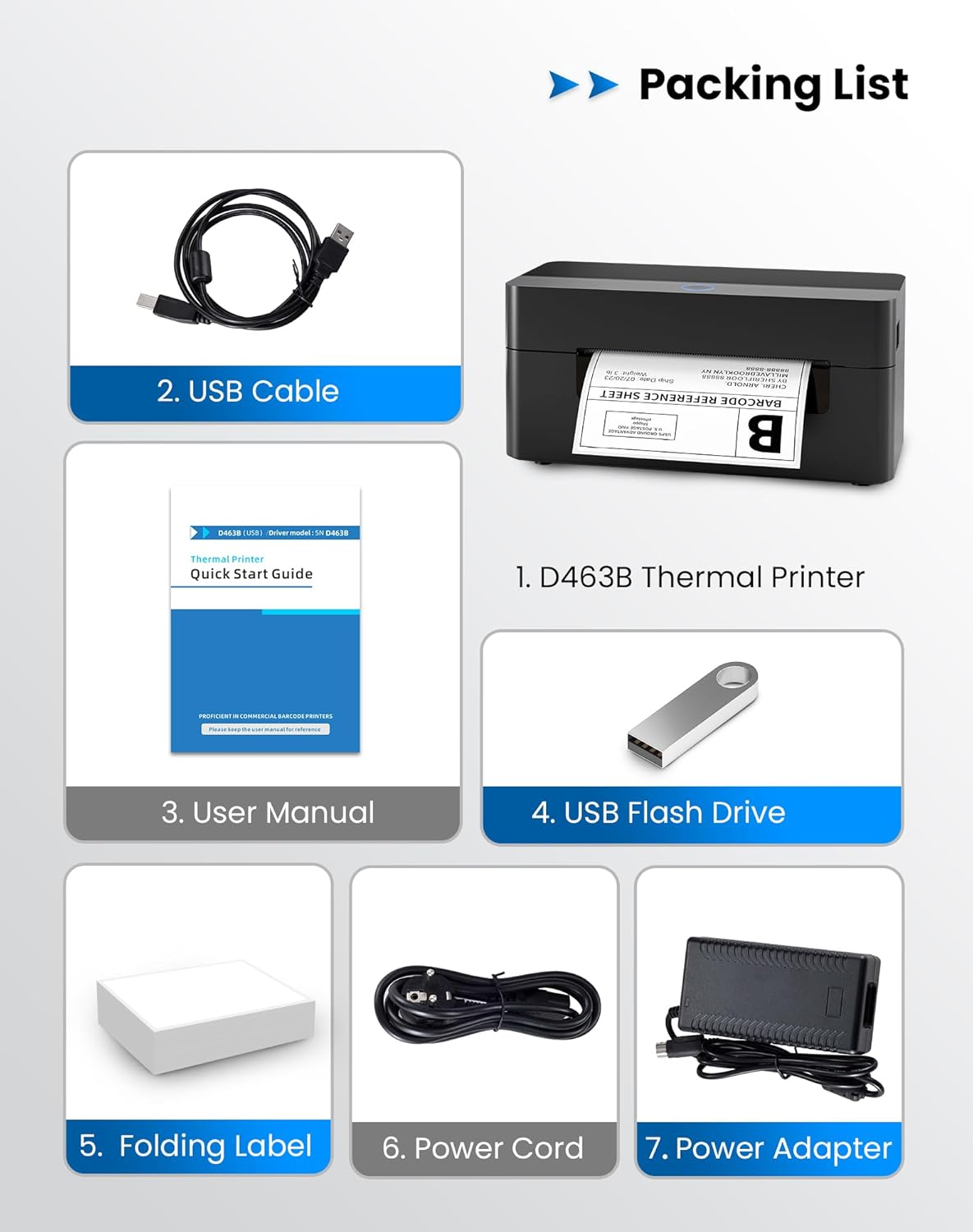
2. Senarai Pembungkusan
Sila sahkan bahawa semua item yang disenaraikan di bawah disertakan dalam pakej anda:
- 1 x BPXX D463B Thermal Printer
- 1 x Kabel USB
- 1 x Manual Pengguna
- 1 x USB Flash Drive (containing drivers)
- 1 x Folding Label (sample roll)
- 1 x Kuasa Kuasa
- 1 x Penyesuai Kuasa
3. Panduan Persediaan
3.1 Sambungan Perkakasan
- Connect the power adapter to the printer's power port and plug the power cord into an electrical outlet.
- Open the printer cover and load the thermal labels. Ensure the labels are facing the correct direction for printing and are properly aligned within the guide rails.
- Tutup penutup pencetak dengan selamat.

3.2 Pemasangan Perisian dan Pemacu
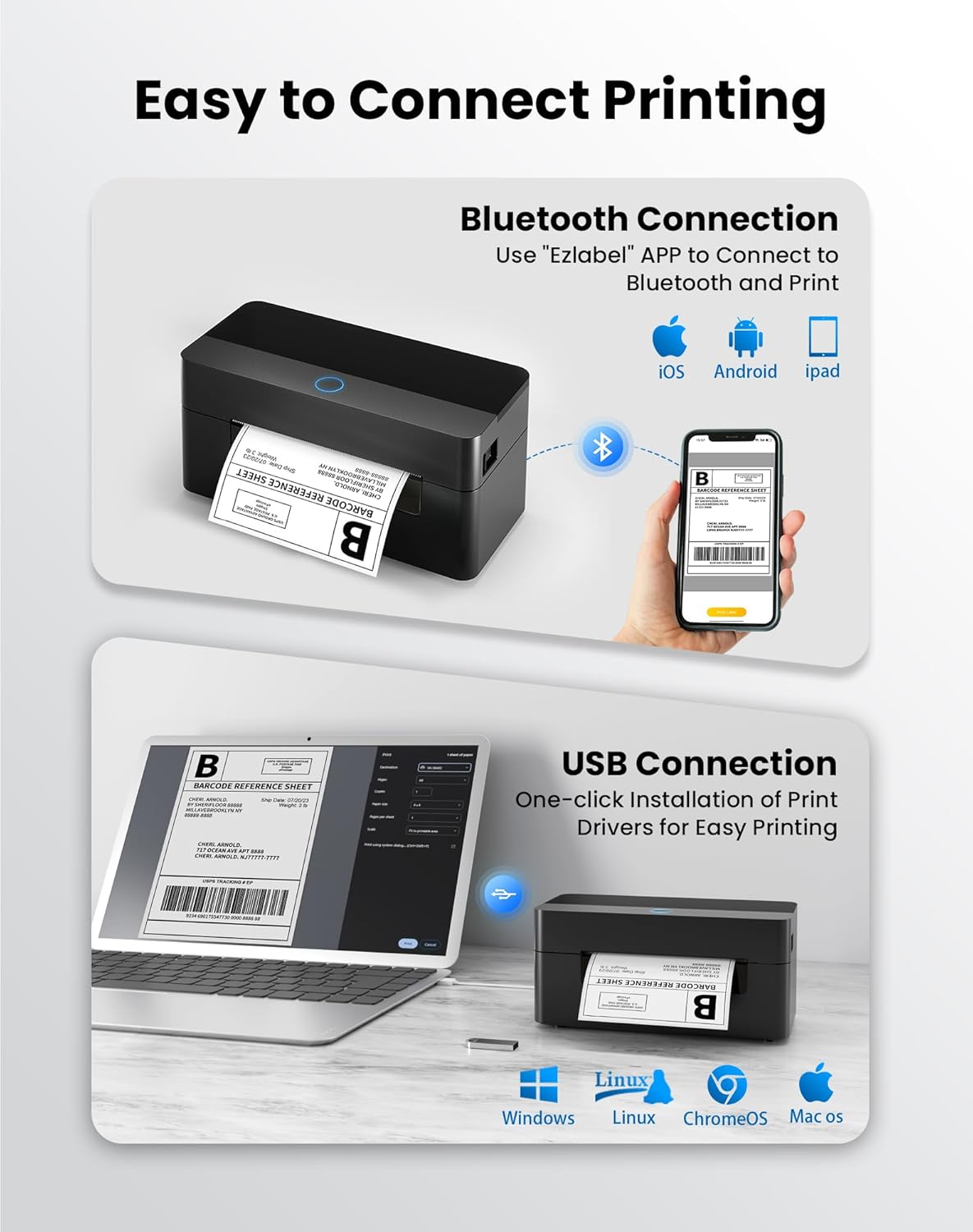
3.2.1 Mobile App (Bluetooth Connection)
For mobile printing, download the 'Ezlabel' application from your device's app store (available for iOS and Android).
- Cari untuk 'Ezlabel' in the App Store (iOS) or Google Play Store (Android).
- Muat turun dan pasang aplikasi.
- Dayakan Bluetooth pada peranti mudah alih anda.
- Open the 'Ezlabel' app and follow the in-app instructions to connect to your BPXX D463B printer via Bluetooth.
3.2.2 Computer Driver (USB Connection)
For computer printing, install the appropriate drivers for your operating system (Windows, Mac OS, Linux, ChromeOS). Drivers are provided on the included USB flash drive or can be downloaded from the official webtapak.
- Insert the provided USB flash drive into your computer.
- Locate and run the installer for your operating system.
- Ikut gesaan pada skrin untuk melengkapkan pemasangan pemacu.
- Alternatively, download drivers from: BPXX Driver Download
4. Arahan Operasi
4.1 Memuatkan Label
Ensure the thermal labels are loaded correctly for optimal printing. The printer supports thermal labels with widths ranging from 1 to 4.5 inches, including standard 4x6 inch shipping labels.
- Buka penutup atas pencetak.
- Place the roll of thermal labels into the label compartment, ensuring the printable side faces upwards.
- Feed the first label through the printer's output slot until it is slightly extended.
- Adjust the label guides to fit the width of your labels snugly, without being too tight.
- Close the top cover. The printer will automatically detect the label size and calibrate.

4.2 Printing via Bluetooth (Mobile App)
- Ensure the printer is powered on and connected to the 'Ezlabel' app via Bluetooth.
- Open the 'Ezlabel' app on your mobile device.
- Select or create your desired label design. The app includes preset templates for various label sizes.
- Confirm print settings such as label size and quantity.
- Initiate the print command from the app.
4.3 Printing via USB (Computer)
- Sambungkan pencetak ke komputer anda menggunakan kabel USB yang disediakan.
- Ensure the printer drivers are correctly installed.
- Open the document or application from which you wish to print (e.g., a PDF viewer, shipping software).
- Select the BPXX D463B printer from your printer options.
- Adjust print settings as needed (e.g., paper size to 4x6 inches for shipping labels).
- Send the print command.
4.4 Supported Platforms and Print Quality
The BPXX D463B printer is compatible with major shipping carriers and e-commerce platforms, facilitating the printing of shipping labels, return labels, and postage labels.
- Shipping Carriers: FedEx, UPS, USPS, DHL, EasyPost, etc.
- E-commerce Platforms: Amazon, Shopify, Etsy, eBay, Walmart, etc.
The printer utilizes a high-quality thermal print head and advanced algorithms to deliver clear and sharp barcodes and text at 203 DPI resolution. It achieves a high-speed output of 152mm/s, capable of printing approximately 72 4x6 inch shipping labels per minute.


5. Penyelenggaraan
Penyelenggaraan tetap memastikan prestasi optimum dan memanjangkan jangka hayat pencetak anda.
- Membersihkan Kepala Cetak: Use an alcohol swab or a specialized thermal printer cleaning pen to gently wipe the print head. Ensure the printer is off and cooled down before cleaning.
- Membersihkan Bahagian Luar: Lap bahagian luar pencetak dengan lembut, damp kain. Elakkan menggunakan bahan kimia yang keras atau bahan yang melelas.
- Penyingkiran habuk: Periodically use compressed air to clear any dust or paper debris from inside the label compartment.
6. Penyelesaian masalah
If you encounter issues with your BPXX D463B printer, refer to the following common problems and solutions:
- Pencetak Tidak Memberi Respons:
- Pastikan kord kuasa disambungkan dengan selamat dan pencetak dihidupkan.
- For Bluetooth connection, verify that Bluetooth is enabled on your device and the printer is paired within the 'Ezlabel' app.
- For USB connection, check the USB cable connection and ensure drivers are correctly installed. Try a different USB port or cable.
- Poor Print Quality (Faint/Streaky Prints):
- Bersihkan kepala cetakan seperti yang diterangkan dalam bahagian Penyelenggaraan.
- Pastikan anda menggunakan label terma berkualiti tinggi.
- Check print density settings in the 'Ezlabel' app or printer preferences on your computer.
- Label Tidak Memberi Makan Dengan Betul:
- Verify that labels are loaded correctly and aligned with the guide rails.
- Pastikan tiada halangan pada laluan label.
- Perform a label calibration from the printer settings or app if available.
- Printer Offline Error:
- Restart both the printer and your computer/mobile device.
- Re-establish the Bluetooth or USB connection.
- Check printer status in your operating system's printer settings.
7. Spesifikasi Produk
| Nama Model | D463B |
| Jenama | BPXX |
| Teknologi Percetakan | terma |
| Teknologi Ketersambungan | Bluetooth, USB |
| Resolusi Cetakan Maksimum | 203 x 203 Dots Per Inch (DPI) |
| Kelajuan Cetakan Maksimum | 152 mm/s (72 labels per minute) |
| Saiz Media Maksimum | 4 x 6 inci |
| Lebar Label yang Disokong | 1 - 4.5 inci |
| Peranti Serasi | PC (Windows, Mac OS, Linux, ChromeOS), Smartphones (iOS, Android) |
| Kaedah Kawalan | App ('Ezlabel'), USB |
| Dimensi Produk | 7.3"D x 3.3"W x 3.3"H |
| Berat Barang | 1.6 paun |
| Komponen yang Disertakan | Printer, USB Cable, User Manual, USB Flash Drive, Sample Labels, Power Cord, Power Adapter |
8. Waranti dan Sokongan
The BPXX D463B Thermal Shipping Label Printer comes with a limited warranty. For specific warranty terms and conditions, please refer to the documentation included with your product or contact BPXX customer support.
For technical assistance, troubleshooting, or any inquiries regarding your product, please contact BPXX customer support through the official webtapak atau maklumat hubungan yang diberikan dalam pembungkusan produk anda.


