1. Pengenalan
The H3C Magic NX15 is a high-performance Gigabit Wi-Fi 6 router designed to provide a fast and reliable internet experience. Featuring a vertical design, full gigabit network ports, and Wi-Fi 6 (802.11ax) technology on the 5GHz band, it ensures high-speed connectivity. Equipped with four high-gain external antennas and EasyMesh compatibility, it offers wide and flexible network signal coverage. Enhanced security is provided through WPA3 encryption. This manual provides essential information for setting up, operating, and maintaining your H3C Magic NX15 router.
2. Kandungan Pakej
Please check the package contents carefully. If any items are missing or damaged, please contact your retailer.
- H3C Magic NX15 AX1500 Dual Band Gigabit Wi-Fi 6 Router
- Penyesuai Kuasa
- Kabel Ethernet
- Panduan Pemasangan Ringkas (manual ini)
3. Produk Lebihview
Familiarize yourself with the components and interfaces of your H3C Magic NX15 router.
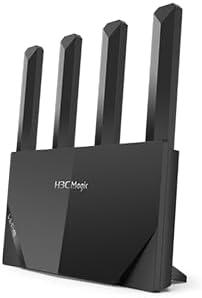
Rajah 3.1: Depan view of the H3C Magic NX15 router, showcasing its vertical design and four external antennas.
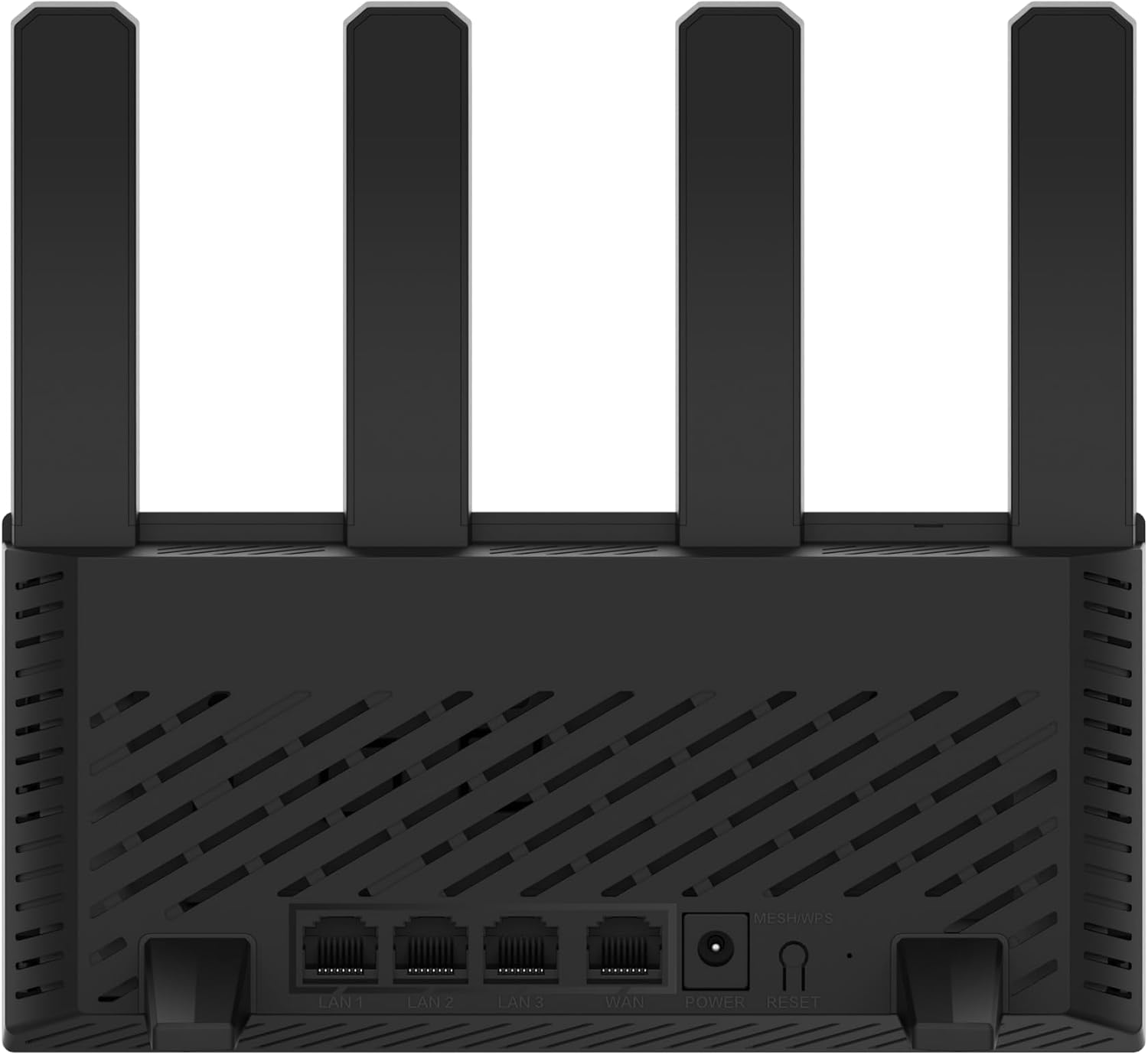
Rajah 3.2: belakang view of the H3C Magic NX15 router, displaying the LAN ports, WAN port, power input, and Reset/WPS button.

Rajah 3.3: Atas view of the H3C Magic NX15 router, highlighting the ventilation design for heat dissipation.

Rajah 3.4: sebelah view of the H3C Magic NX15 router, showing the sleek profile and additional ventilation slots.
Port and Button Descriptions:
- Pelabuhan WAN: Menyambung ke modem atau rangkaian penyedia perkhidmatan internet (ISP) anda.
- Port LAN (LAN1, LAN2, LAN3): Sambungkan ke peranti berwayar seperti komputer, konsol permainan atau TV pintar.
- Pelabuhan Kuasa: Menyambung kepada penyesuai kuasa yang disertakan.
- Butang Tetapkan Semula/WPS:
- Press briefly to activate WPS (Wi-Fi Protected Setup) for easy connection of compatible devices.
- Press and hold for approximately 5-10 seconds to restore the router to factory default settings.
- Antena: Four high-gain external antennas for optimal Wi-Fi signal coverage.
4. Panduan Persediaan
Follow these steps to set up your H3C Magic NX15 router for the first time.
- Buka bungkusan Penghala: Keluarkan penghala dan semua aksesori dengan berhati-hati daripada pembungkusan.
- Letakkan Penghala: Letakkan penghala di lokasi pusat di rumah atau pejabat anda, jauh daripada halangan dan sumber gangguan (cth., ketuhar gelombang mikro, telefon tanpa wayar). Pastikan pengudaraan yang baik.
- Sambung ke Kuasa: Connect the included power adapter to the router's power port and then plug the adapter into a power outlet. Wait for the router to power on and its indicator lights to stabilize.
- Sambungkan ke Modem: Connect one end of the provided Ethernet cable to the WAN port on your H3C Magic NX15 router and the other end to your modem's LAN port.
- Sambungkan Peranti (Pilihan): For wired connections, connect an Ethernet cable from one of the router's LAN ports to your computer or other network device.
- Sambung ke Wi-Fi:
- Pada komputer atau peranti mudah alih anda, cari rangkaian Wi-Fi yang tersedia.
- Pilih nama rangkaian Wi-Fi (SSID) yang dicetak pada label di bahagian bawah penghala anda.
- Enter the Wi-Fi password (also printed on the router's label) when prompted.
- Akses Halaman Pengurusan Penghala:
- Buka a web penyemak imbas (cth, Chrome, Firefox, Edge).
- Taip alamat IP lalai (biasanya
192.168.1.1orh3cmagic.com) into the address bar and press Enter. Refer to the router's label for the exact address. - Follow the on-screen instructions to complete the initial setup, including setting a new administrator password and configuring your internet connection type (e.g., PPPoE, DHCP, Static IP).
5. Arahan Operasi
This section details the key features and how to operate your H3C Magic NX15 router.
5.1 Operasi Wi-Fi Dwi-Jalur
The H3C Magic NX15 supports dual-band Wi-Fi (2.4GHz and 5GHz) for optimal performance. It features intelligent band steering, which automatically directs your devices to the best available band (2.4GHz for wider coverage, 5GHz for higher speeds) without manual selection.
- Jalur 2.4GHz: Provides wider coverage and better penetration through walls, suitable for general browsing and devices further from the router.
- Jalur 5GHz: Offers higher speeds and lower latency, ideal for streaming 4K video, online gaming, and high-bandwidth applications, typically for devices closer to the router.
5.2 Intelligent Management via Mobile App
Manage your router conveniently using the dedicated H3C mobile application. The app allows for easy network settings configuration, network speed optimization, and various other operations.
- Muat turun Apl: Cari untuk the "H3C Magic" app in your device's app store (Google Play Store for Android or Apple App Store for iOS).
- Pasang dan Lancarkan: Pasang apl dan bukanya.
- Log Masuk: Use your router's administrator credentials to log in to the app.
- Urus Tetapan: Dari aplikasi, anda boleh:
- Tukar nama dan kata laluan Wi-Fi.
- Pantau peranti yang disambungkan.
- Sediakan kawalan ibu bapa.
- Configure guest Wi-Fi networks.
- Optimize network performance.
5.3 EasyMesh for Whole-Home Wi-Fi
The H3C Magic NX15 supports EasyMesh technology, allowing you to expand your Wi-Fi coverage by adding additional compatible H3C mesh units. This creates a seamless whole-home Wi-Fi network, eliminating dead zones in large or complex house types.
- Refer to the EasyMesh setup guide provided with your additional mesh units for detailed instructions on expanding your network.
- Ensure all mesh units are compatible with the EasyMesh standard.
5.4 Ciri-ciri Keselamatan Rangkaian
The router includes multiple functions to enhance your private network's security:
- Penyulitan WPA3: Provides the latest and strongest Wi-Fi security protocol.
- Access Allowlist/Denylist: Kawal peranti mana yang boleh bersambung ke rangkaian anda berdasarkan alamat MAC mereka.
- Wi-Fi tetamu: Cipta rangkaian Wi-Fi berasingan untuk tetamu, pastikan rangkaian utama anda selamat dan peribadi.
- Kawalan Ibu Bapa: Manage internet access times and block inappropriate content for specific devices.
These security features can be configured via the router's web management interface or the H3C mobile app.
6. Penyelenggaraan
Proper maintenance ensures the longevity and optimal performance of your H3C Magic NX15 router.
- penempatan: Keep the router in a well-ventilated area, away from direct sunlight, heat sources, and moisture. The stereoscopic heat dissipation design with a large metal heat sink helps maintain stable operation.
- Pembersihan: Regularly dust the router's exterior and ventilation slots with a soft, dry cloth. Do not use liquid cleaners or aerosols.
- Kemas kini Firmware: Periksa dan pasang kemas kini perisian tegar secara berkala melalui penghala web management interface or the mobile app. Firmware updates often include performance improvements, new features, and security patches.
- But semula: Jika anda mengalami masalah rangkaian, cuba but semula penghala dengan mencabut plag penyesuai kuasa selama 10 saat dan kemudian pasangkannya semula.
- Keselamatan: Regularly change your Wi-Fi password and router administrator password to strong, unique combinations.
7. Penyelesaian masalah
Bahagian ini menangani isu biasa yang mungkin anda hadapi dan menyediakan penyelesaian.
| Masalah | Kemungkinan Punca | Penyelesaian |
|---|---|---|
| Tiada Akses Internet |
|
|
| Wi-Fi Signal Weak or Unstable |
|
|
| Tidak Dapat Mengakses Halaman Pengurusan Penghala |
|
|
| Forgot Router Administrator Password | Kata laluan hilang | Press and hold the Reset/WPS button on the router for 5-10 seconds to restore factory default settings. You will then need to reconfigure the router. |
8. Spesifikasi
Detailed technical specifications for the H3C Magic NX15 router.
| Ciri | Perincian |
|---|---|
| Nama Model | H3C Magic NX15 |
| Nombor Model Item | H3C Magic NX15-UK |
| Jenama | H3C |
| Standard Tanpa Wayar | 802.11ax (Wi-Fi 6) |
| Kelas Band Kekerapan | Dwi-Jalur (2.4GHz & 5GHz) |
| Antena | 4 High-Gain External Antennas |
| Pelabuhan | Gigabit WAN, Gigabit LAN (x3) |
| Ciri Khas | Access Point Mode, EasyMesh, WPA3 Security, Parental Control, Guest Wi-Fi, App Management |
| Dimensi (Pakej) | 21 x 19.4 x 6.3 cm |
| Berat (Pakej) | 500 g |
| Pengeluar | H3C |
| Negara Asal | China |
| Tarikh Tersedia Pertama | 24 Ogos 2024 |
9. Waranti dan Sokongan
The H3C Magic NX15 router comes with a standard manufacturer's warranty. For specific warranty terms and conditions, please refer to the warranty card included in your product packaging or visit the official H3C webtapak.
Sokongan Teknikal:
If you encounter any issues or have questions regarding your H3C Magic NX15 router, please contact H3C technical support.
- Sokongan dalam talian: Visit the official H3C support website for FAQs, troubleshooting guides, and driver/firmware downloads.
- Maklumat Hubungan: Refer to the H3C website or your product documentation for regional contact numbers and email support.
Please have your product model number (H3C Magic NX15-UK) and serial number ready when contacting support.


