1. Pengenalan
This manual provides essential information for the safe and efficient operation of your VISION VP-621 4K Ultra HD Multimedia Projector. Please read this manual thoroughly before using the projector and retain it for future reference.
The VISION VP-621 is a versatile smart projector featuring 4K Ultra HD support, 11000 lumens brightness, 5G WiFi, Bluetooth 5.0, Auto Focus, Wireless Miracast, and an integrated Android 9.0 operating system. It is designed for various applications including home entertainment, business presentations, and educational purposes.
2. Maklumat Keselamatan
- Jangan halang bukaan pengudaraan. Pastikan aliran udara yang mencukupi di sekitar projektor untuk mengelakkan terlalu panas.
- Jangan lihat terus ke dalam kanta projektor apabila lamp sedang dihidupkan. Cahaya terang boleh menyebabkan kerosakan mata.
- Letakkan projektor di atas permukaan yang stabil dan rata untuk mengelakkannya daripada jatuh.
- Jauhkan projektor daripada air, kelembapan dan suhu yang melampau.
- Gunakan hanya penyesuai kuasa yang dibekalkan dengan projektor.
- Jangan cuba membuka atau membaiki projektor sendiri. Rujuk semua servis kepada kakitangan yang berkelayakan.
- Cabut plag projektor semasa ribut petir atau apabila tidak digunakan untuk tempoh yang lama.
3. Kandungan Pakej
Sahkan bahawa semua item yang disenaraikan di bawah disertakan dalam pakej anda:
- VISION VP-621 Projector
- Kord Kuasa
- Penyesuai
- Alat Kawalan Jauh
- AV kabel
- Penutup Kanta Projektor
4. Produk Lebihview
Familiarize yourself with the main components and interfaces of your VISION VP-621 projector.

Imej: Depan dan sisi view of the VISION VP-621 projector, showcasing reka bentuk dan lensanya yang padat.
4.1 Panel Hadapan dan Atas
- Kanta Tayangan: Memancarkan imej.
- Penerima Inframerah: Untuk isyarat kawalan jauh.
- Butang Kawalan: Power, Navigation (OK, Up, Down, Left, Right), Back.
- Gril Pengudaraan: For cooling the internal components.

Imej: Atas view of the projector highlighting the integrated control buttons for power and navigation.
4.2 Rear Panel and Connectivity Ports
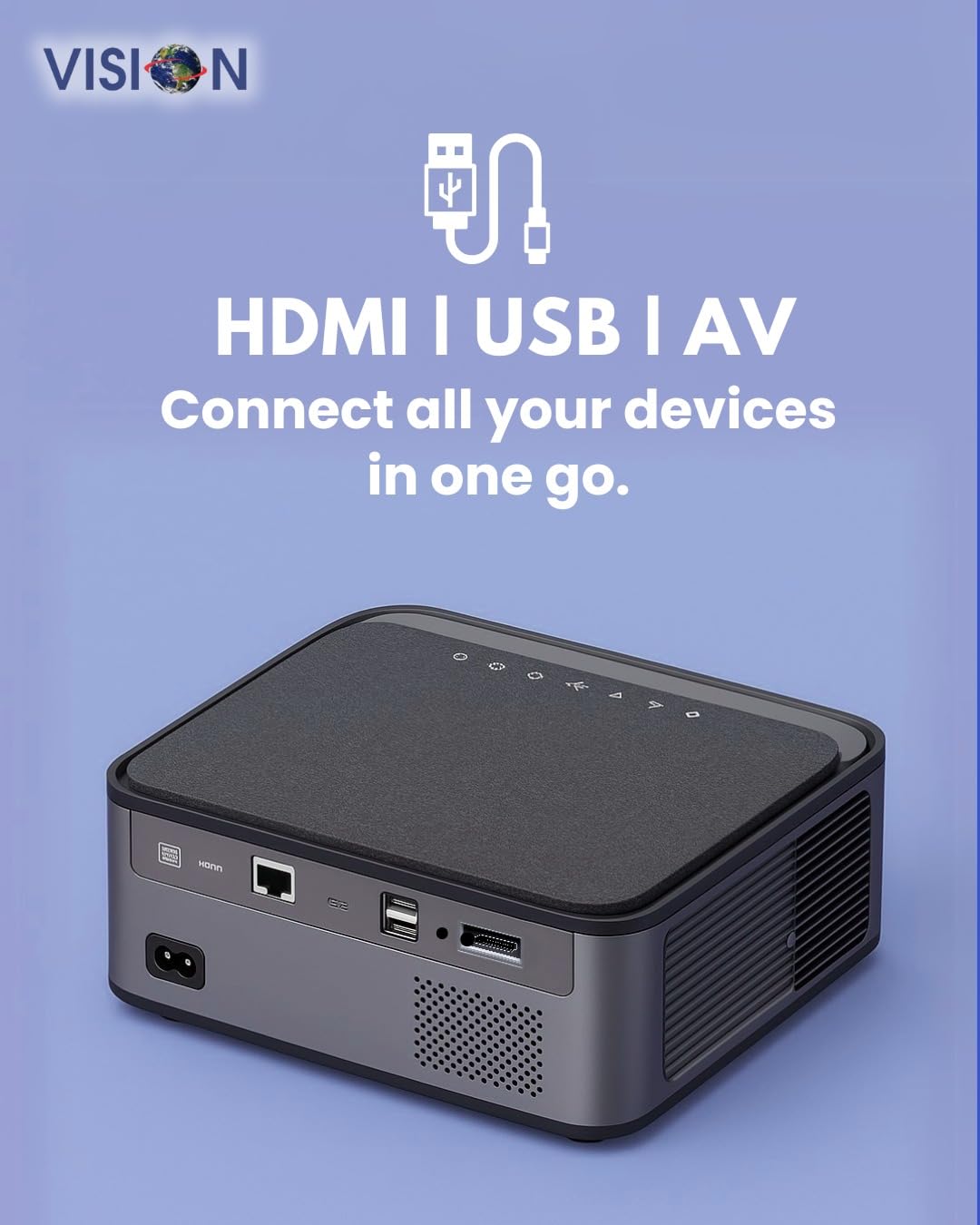
Imej: Belakang view of the projector displaying the various input and output ports, including HDMI, USB, and AV.
- Input Kuasa: Sambungkan penyesuai kuasa di sini.
- Port HDMI: Connect to HDMI-enabled devices (laptops, gaming consoles, streaming sticks).
- Port USB (x2): Connect USB drives for media playback or external devices.
- Input AV: Sambungkan ke peranti lama menggunakan kabel AV yang disediakan.
- Audio Keluar (3.5mm): Sambungkan pembesar suara atau fon kepala luaran.
- Port LAN: For wired internet connection (if available).
5. Persediaan
5.1 Penempatan Projektor
Choose a flat, stable surface for the projector. Ensure there are no obstructions in front of the lens and that the ventilation grilles are clear.

Image: A projector positioned on a desk, illustrating a typical setup environment.
5.2 Sambungan Kuasa
- Sambungkan penyesuai kuasa ke port input kuasa projektor.
- Palamkan kord kuasa ke salur keluar dinding.
- Lampu penunjuk kuasa pada projektor akan menyala.
5.3 Kuasa Awal Hidup
- Tekan butang kuasa pada projektor atau alat kawalan jauh untuk menghidupkannya.
- Projektor akan boot dan memaparkan skrin utama Android 9.0.
5.4 Pelarasan Fokus dan Keystone
The VISION VP-621 features automatic focus and 4D keystone correction for a clear and properly aligned image.

Image: Illustrates the projector's automatic focus and keystone correction capabilities, ensuring a sharp and aligned picture.
- Fokus Auto: The projector will automatically adjust the focus for a sharp image upon startup or movement.
- Pembetulan Keystone 4D: The projector automatically corrects image distortion when placed at an angle. Manual adjustments may be available in the settings menu if needed.
6. Arahan Operasi
6.1 Android 9.0 OS Pintar
The integrated Android 9.0 system allows direct access to streaming services and apps.
- Navigasi: Use the remote control's directional buttons and "OK" button to navigate the interface.
- Pemasangan Apl: Access the Google Play Store to download and install applications like YouTube, Netflix, and Prime Video.
- Sambungan Rangkaian: Go to Settings > Network to connect to a 5G WiFi network or a wired LAN connection.
6.2 Menyambung Peranti Luaran
Sambungan HDMI
- Connect an HDMI cable from your device (laptop, gaming console, Fire TV Stick) to the HDMI port on the projector.
- On the projector's home screen, select the HDMI input source.
Sambungan USB
- Insert a USB drive into one of the USB ports on the projector.
- The projector will typically prompt you to open the media player or file browser. If not, navigate to the file manager app on the Android home screen.
Sambungan AV
- Connect the provided AV cable to the AV input port on the projector and to your external device.
- Select the AV input source on the projector.
Bluetooth 5.0 Audio Output
- Go to Settings > Bluetooth on the projector.
- Dayakan Bluetooth dan cari peranti yang tersedia.
- Select your Bluetooth speaker or headphones from the list to pair and connect.
Wireless Miracast (Screen Mirroring)
Miracast allows you to wirelessly mirror the screen of your compatible smartphone, tablet, or laptop.
- On the projector's home screen, select the "Miracast" or "Screen Mirroring" application.
- On your mobile device, enable screen mirroring (often found in quick settings or display settings, named "Cast," "Smart View," "Wireless Display," etc.).
- Pilih projektor daripada senarai peranti yang tersedia untuk mewujudkan sambungan.
7. Penyelenggaraan
7.1 Membersihkan Projektor
- Kanta: Gunakan kain lembut dan bebas lin yang direka khusus untuk kanta optik. Jangan gunakan pembersih yang kasar.
- Casing: Lap projektor casindengan kain lembut dan kering. Untuk kotoran degil, lap sedikitampen kain dengan air dan kemudian lap kering.
- Pengudaraan: Regularly check and clean the ventilation grilles to ensure proper airflow and prevent dust buildup. Use a soft brush or compressed air.
7.2 Lamp kehidupan
The VISION VP-621 utilizes advanced LED technology, providing an estimated lamp jangka hayat sehingga 50,000 jam. Ini mengurangkan keperluan untuk l dengan ketaraamp penggantian berbanding projektor tradisional.
8. Penyelesaian masalah
| Masalah | Kemungkinan Punca | Penyelesaian |
|---|---|---|
| Tiada imej dipaparkan |
|
|
| Imej kabur |
|
|
| Tiada bunyi |
|
|
| Tidak dapat menyambung ke Wi-Fi |
|
|
9. Spesifikasi
| Jenama | PENGLIHATAN |
| Nama Model | VP-621 AN |
| Teknologi Paparan | LCD |
| Jenis Paparan | LED |
| Kecerahan | 11000 Lumen |
| Nisbah Kontras Imej | 18000:1 Pixels |
| Resolusi Asli | 1920 x 1280 (HD Penuh) |
| Resolusi Disokong | Sehingga 4K Ultra HD |
| Nisbah Aspek | 16:9, 4:3 |
| Sistem Operasi | Android 9.0 |
| Teknologi Ketersambungan | Bluetooth 5.0, HDMI, USB, Wi-Fi (5G) |
| Antara Muka Perkakasan | Bluetooth 5, HDMI, USB 3.0 |
| Ciri Khas | Built-In 3D, Built-In Cooling System, Built-In Speaker, Electric Focus, Wi-Fi Ready, Auto Focus, 4D Keystone Correction, Wireless Miracast |
| Dimensi Produk | 30 x 18 x 7 cm |
| Berat Barang | 8 kg |
| Lamp kehidupan | Sehingga 50,000 jam |

Image: Illustrates the projector's Full HD (1920x1080) resolution capability for crisp visuals.

Image: Highlights the projector's 11000 lumens brightness, ensuring clear visuals in various lighting conditions.
10. Waranti dan Sokongan
For warranty information and technical support, please contact the manufacturer:
- Pengeluar: Scorpio Infosolutions
- lokasi: Delhi, India
- telefon: +91-7982647130
- Webtapak: visionsheen.in
Please have your product model (VP-621) and purchase details ready when contacting support.


