pengenalan
This manual provides comprehensive instructions for the setup, operation, maintenance, and troubleshooting of your BPXX D463B Bluetooth Thermal Label Printer. Please read this manual thoroughly before using the printer to ensure proper function and longevity of the device.
Maklumat Keselamatan
- Use only the original power adapter provided with the printer.
- Jangan dedahkan pencetak kepada air atau kelembapan yang berlebihan.
- Elakkan meletakkan pencetak di bawah cahaya matahari langsung atau berhampiran sumber haba.
- Keep the printer away from dust and debris to prevent internal damage.
- Jangan cuba membuka atau membaiki pencetak sendiri. Hubungi khidmat pelanggan untuk mendapatkan bantuan.
- Pastikan pengudaraan yang betul di sekitar pencetak semasa operasi.
Kandungan Pakej
Sahkan bahawa semua item yang disenaraikan di bawah disertakan dalam pakej anda:
- BPXX D463B USB & Bluetooth Printer
- Kabel USB
- Penyesuai Kuasa
- Kord Kuasa
- U Disk (USB flash drive with drivers and guide)
- Penyesuai OTG
- Labels (sample roll)
- Panduan Mula Pantas

Image: Contents of the BPXX D463B Thermal Label Printer package.
Produk Selesaiview
The BPXX D463B is a compact and efficient thermal label printer designed for various labeling needs, including shipping labels, product labels, and more. It features both Bluetooth and USB connectivity for versatile use across different operating systems.

Imej: Depan view of the BPXX D463B Thermal Label Printer in operation.
Ciri-ciri Utama:
- Percetakan Berkualiti Tinggi: 203dpi resolution for clear images, text, and barcodes.
- Kesambungan Dwi: Supports Bluetooth for iOS, Android, and Windows, and USB for Windows, Mac OS, Linux, and ChromeOS.
- Keserasian Luas: Works with major e-commerce and shipping platforms like Amazon, Shopify, eBay, UPS, USPS, FedEx, and more.
- Kelajuan Cetakan Cepat: Up to 152mm/s (72 sheets of 4x6 labels per minute).
- Pengesanan Label Automatik: Automatically identifies label size for ease of use.
- Kepala Cetak Tahan Lama: Features an aluminum alloy print head with smart temperature control for prolonged service life.
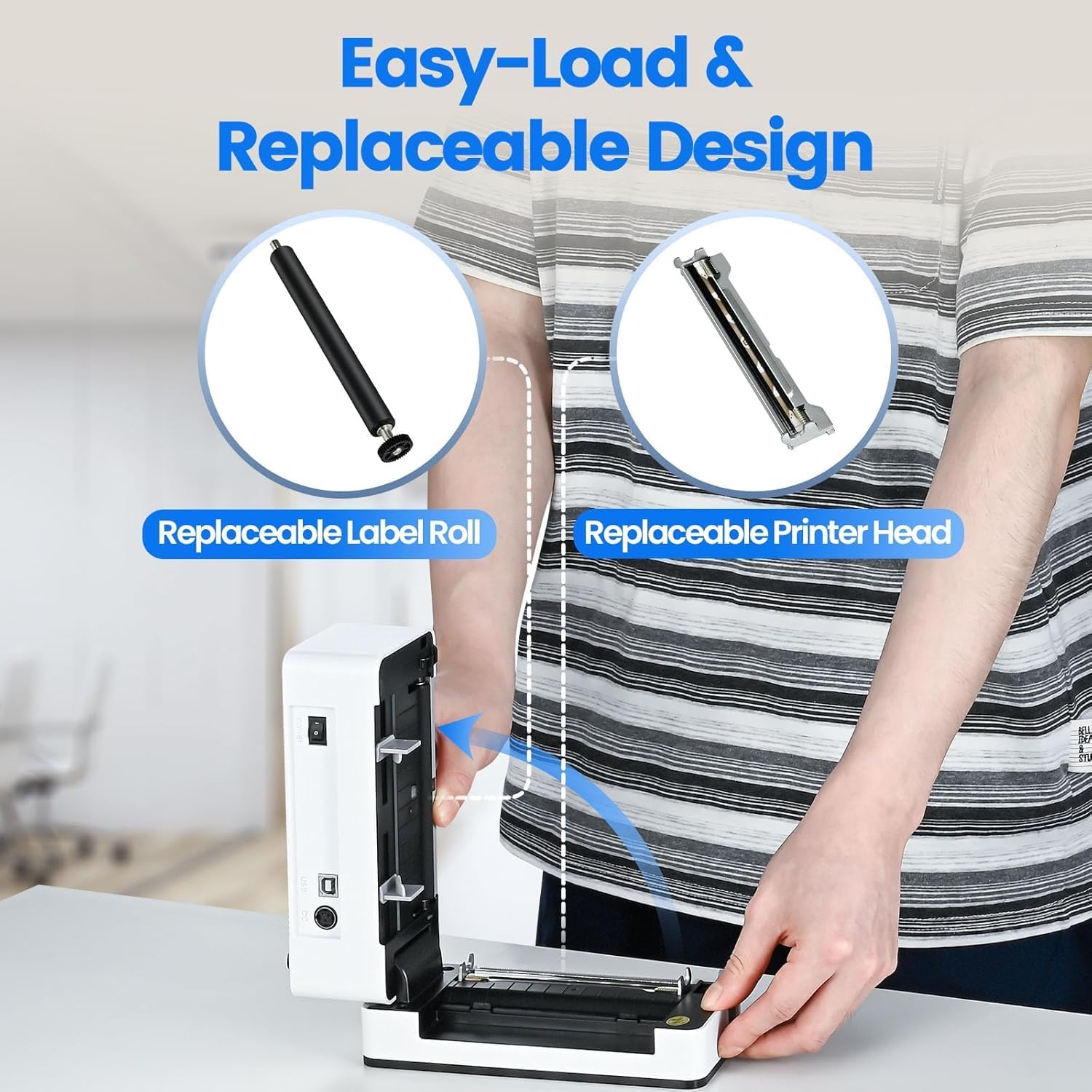
Image: The printer's aluminum alloy print head, designed for durability and extended service life.
Persediaan
1. Memuatkan Label
- Buka penutup atas pencetak.
- Insert the thermal labels into the label compartment, ensuring the printable side is facing up.
- Adjust the label guides to fit the width of your labels snugly.
- Close the top cover. The printer will automatically detect the label size and feed a few labels to calibrate.

Image: Illustration of the easy-load label mechanism.
2. Menyambung ke Peranti Anda
The D463B printer offers both Bluetooth and USB connectivity.

Image: Connectivity options for the BPXX D463B printer.
Bluetooth Connection (iOS, Android, Windows):
- Ensure the printer is powered on. The indicator light should be blue.
- Download the "4Barcode" APP from your device's app store (iOS/Android) or install the driver for Windows from the provided U Disk.
- Dayakan Bluetooth pada peranti mudah alih atau komputer anda.
- Open the "4Barcode" APP or the printer driver software.
- Cari untuk available Bluetooth devices and select "D463B" or a similar name.
- Pair the device. Once paired, you can begin printing wirelessly.
USB Connection (Windows, Mac OS, Linux, ChromeOS):
- Connect one end of the USB cable to the printer and the other end to your computer.
- Insert the provided U Disk into your computer.
- Follow the instructions on the U Disk to install the appropriate printer drivers for your operating system. A detailed installation guide video is included on the U Disk.
- Once drivers are installed, the printer will be recognized by your computer and ready for use.
Mengendalikan Pencetak
Proses Mencetak
After successful setup and connection, you can print labels from various applications and platforms.

Image: Demonstrating the printer's high-speed and high-definition printing capabilities.
- Buka dokumen atau label file you wish to print (e.g., a shipping label PDF).
- Pilih pilihan cetak dalam aplikasi anda.
- Choose the "BPXX D463B" printer from the list of available printers.
- Ensure the correct label size is selected in the print settings (e.g., 4x6 inches). The printer supports various label sizes up to 4.1 inches in width.
- Sahkan tetapan cetakan dan mulakan pencetakan.

Image: The printer's maximum 4.1-inch label width capability and auto-detection feature.
Keserasian Platform
The BPXX D463B is compatible with a wide range of e-commerce and shipping platforms, streamlining your workflow:
- Amazon
- Shopify
- eBay
- Shopee
- UPS
- USPS
- Shippo
- FedEx
- Etsy
- Stesen Kapal
- PayPal
- Dan banyak lagi.

Image: The printer's compatibility with major e-commerce and shipping platforms.
Penyelenggaraan
Membersihkan Pencetak
Regular cleaning ensures optimal print quality and extends the life of your printer.
- Matikan pencetak dan cabut plagnya daripada sumber kuasa sebelum membersihkannya.
- Gunakan kain lembut yang tidak berbulu dampened with isopropyl alcohol to clean the print head. Allow it to dry completely before use.
- Wipe down the exterior of the printer with a dry, soft cloth.
- Remove any dust or label debris from the label compartment.
Mengganti Komponen
The BPXX D463B is designed for easy replacement of key components to maximize its lifespan.
Image: Easy-load and replaceable design for label roll and printer head.
Replacing the Label Roll:
Follow the "Loading Labels" instructions in the Setup section to replace an empty label roll.
Replacing the Printer Head:
While the aluminum alloy print head is designed for durability, it is replaceable if needed. Refer to the detailed instructions provided on the U Disk or contact customer support for guidance on replacing the print head.
Menyelesaikan masalah
| Masalah | Kemungkinan Punca | Penyelesaian |
|---|---|---|
| Printer not powering on. | Kabel kuasa tidak disambungkan; masalah soket kuasa. | Pastikan kabel kuasa disambungkan dengan selamat. Cuba salur keluar kuasa yang berbeza. |
| Tidak dapat menyambung melalui Bluetooth. | Bluetooth not enabled; incorrect app/driver; printer not discoverable. | Ensure Bluetooth is on. Use the "4Barcode" APP. Restart printer and device. |
| Poor print quality (faded, unclear). | Print head dirty; incorrect label type; low-quality labels. | Clean the print head. Ensure you are using thermal labels. Try new labels. |
| Label tidak disumbat dengan betul. | Labels improperly loaded; label guides not adjusted. | Reload labels, ensuring they are straight and guides are snug. |
| Printer not recognized by computer (USB). | Drivers not installed; faulty USB cable/port. | Install drivers from the U Disk. Try a different USB cable or port. |
Spesifikasi
| Ciri | Perincian |
|---|---|
| Nama Model | D463B |
| Teknologi Percetakan | terma |
| Teknologi Ketersambungan | Bluetooth, USB |
| Resolusi Cetakan | 203 DPI (Titik Seinci) |
| Kelajuan Cetakan Maks (Monokrom) | 152mm/s (72 sheets 4x6 labels/min) |
| Lebar Label Maksimum | 4.1 inci |
| Compatible Label Sizes | 4"x6", 3"x2", 3"x1", 2"x1", 2-5/16" x 4" inches |
| Peranti Serasi | Laptops, PCs, Tablets, Smartphones |
| OS yang disokong | iOS, Android, Windows, Mac OS, Linux, ChromeOS |
| Dimensi Produk | 3.35"D x 3.35"W x 7.28"H |
| Berat Barang | 3.12 paun |
| Sumber Kuasa | Penyesuai AC (termasuk) |

Image: The compact size of the BPXX D463B printer.
Waranti
The BPXX D463B Thermal Label Printer comes with a waranti setahun from the date of purchase. This warranty covers manufacturing defects and malfunctions under normal use. It does not cover damage caused by misuse, accidents, unauthorized repairs, or natural disasters.
Sila simpan bukti pembelian anda untuk tuntutan waranti.
Sokongan Pelanggan
For any questions, technical assistance, or warranty claims, please contact BPXX customer support through the following channels:
- e-mel: Refer to the contact information provided in your product packaging or on the official BPXX webtapak.
- Sokongan dalam talian: Visit the BPXX official webtapak untuk Soalan Lazim, pemacu dan sumber sokongan.
When contacting support, please have your printer model (D463B) and purchase information ready.


