1. Pengenalan
The Phomemo M250 is a versatile and portable thermal label maker designed for a wide range of labeling needs, from business to home organization. This device offers inkless printing, high definition output, and supports various label sizes. It connects seamlessly with smartphones via Bluetooth and with PCs via USB, providing a flexible and efficient labeling solution.

Figure 1.1: Phomemo M250 Label Maker and example label.
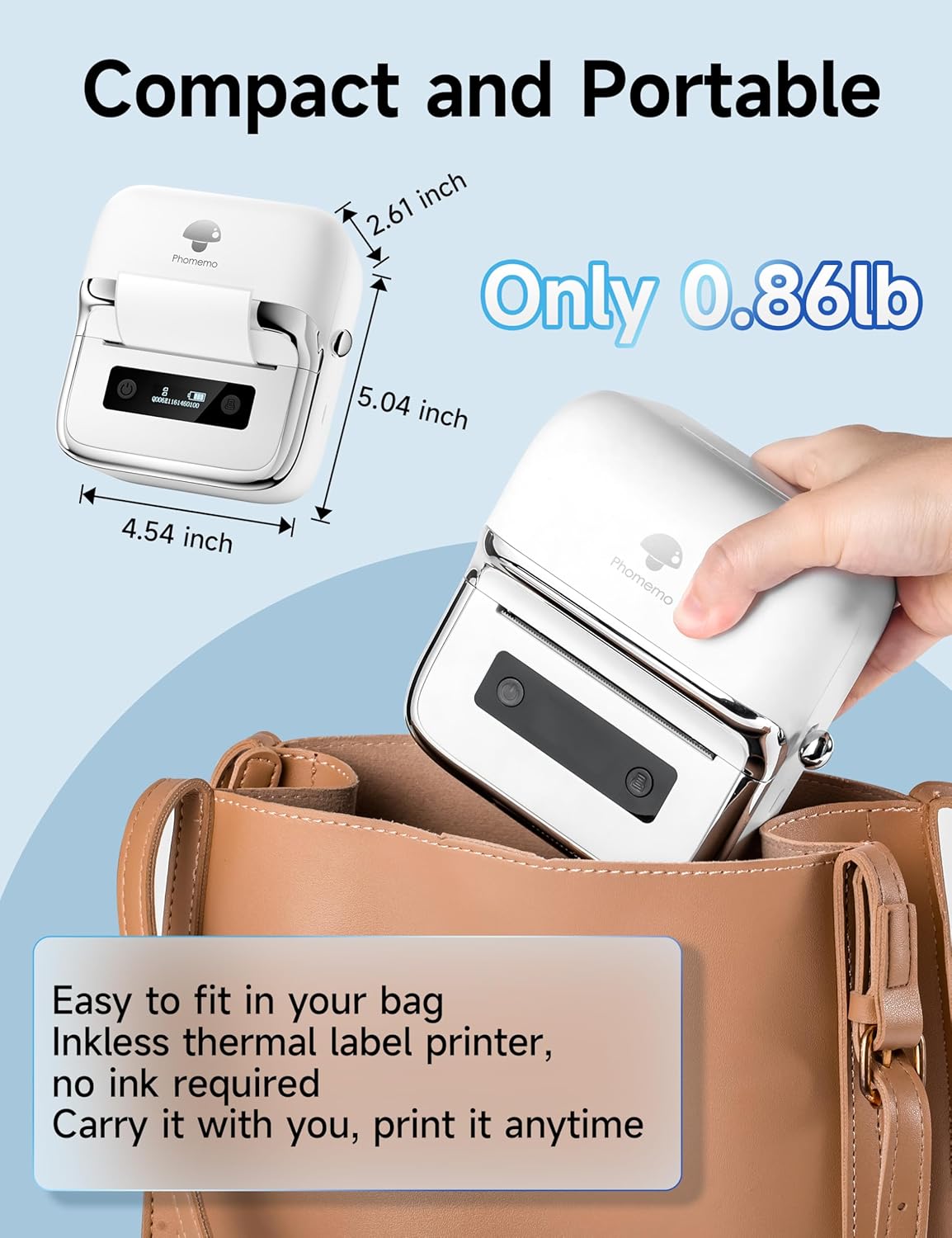
Figure 1.2: The compact and portable design of the Phomemo M250, easily fitting into a bag.
2. Panduan Persediaan
2.1. Apa yang ada di dalam Kotak
- 1 x Phomemo M250 Label Maker
- 100 Sheets x 1.57'' x 1.18'' Thermal Labels (Starter Roll)
- 1 x Manual Pengguna
- 1 x Kabel Data Jenis-C USB
2.2. Initial Setup and Label Loading
Follow these steps to prepare your Phomemo M250 for first use:
- Press the button to open the M250 top cover.
- Insert the label roll with the print side facing down and adjust it to the appropriate size. Ensure the roll is centered for proper printing.
- Tutup penutup atas dengan selamat.
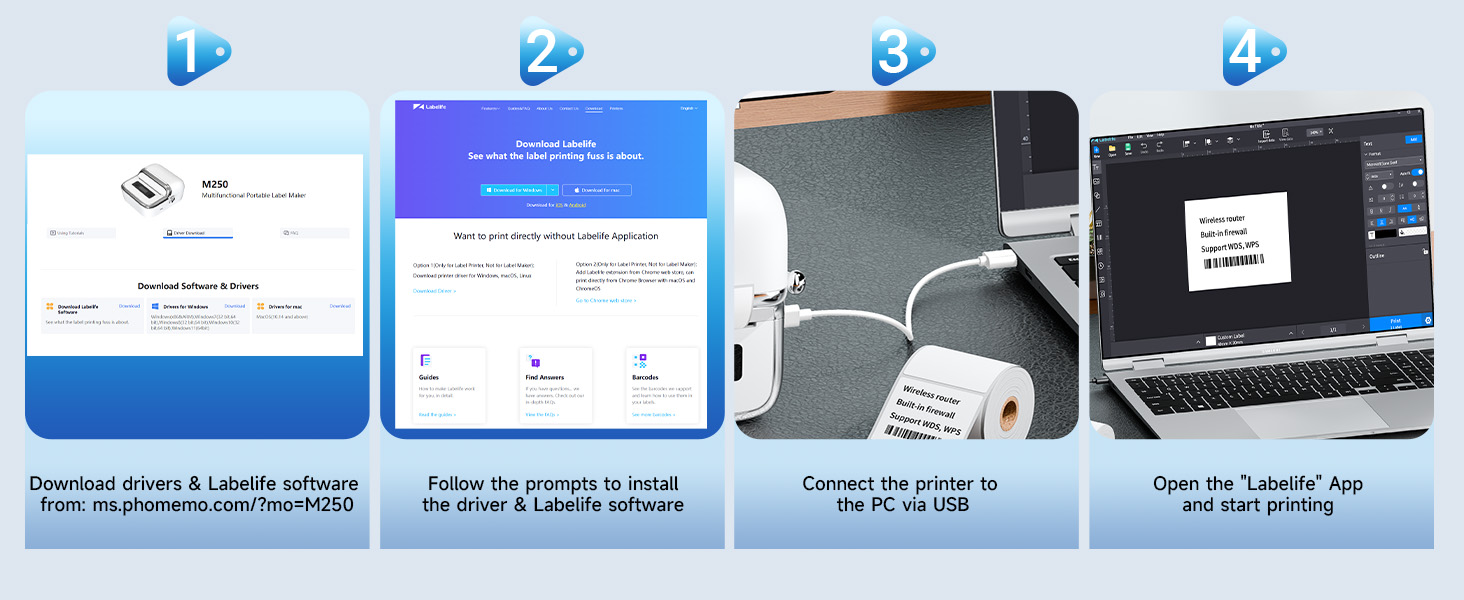
Figure 2.1: Easy setup steps for the Phomemo M250, including label installation.
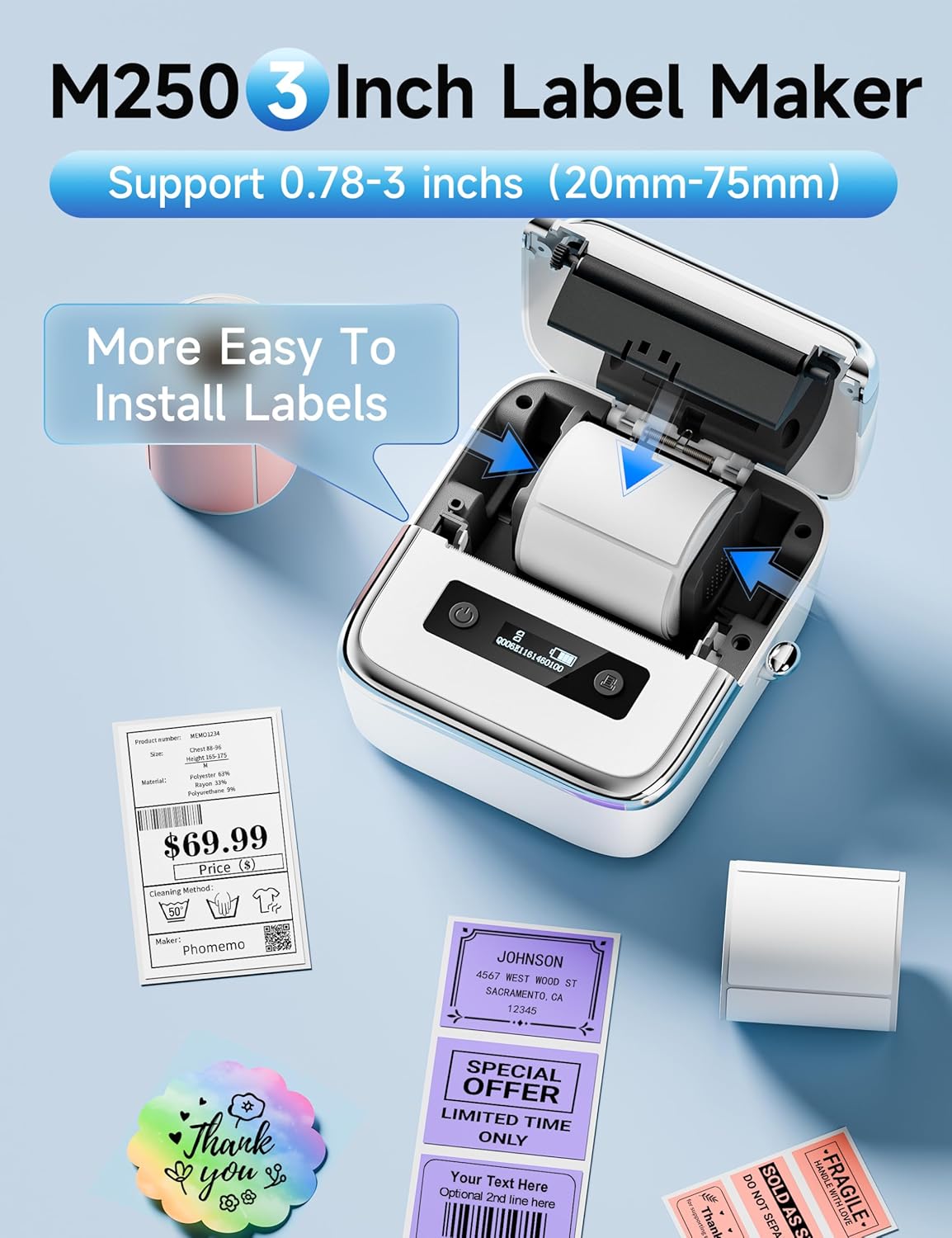
Rajah 2.2: Terperinci view of label installation within the M250 printer.
2.3. Mobile App Setup (Print Master)
The Phomemo M250 connects to your smartphone or tablet via Bluetooth using the 'Print Master' app. This app is compatible with Android and iOS devices.
- Download the 'Print Master' app from your device's app store (Google Play Store for Android, Apple App Store for iOS).
- Pastikan Bluetooth didayakan pada peranti mudah alih anda.
- Open the 'Print Master' app and follow the on-screen prompts to connect to your Phomemo M250 printer.
- Once connected, you can begin creating and printing labels.
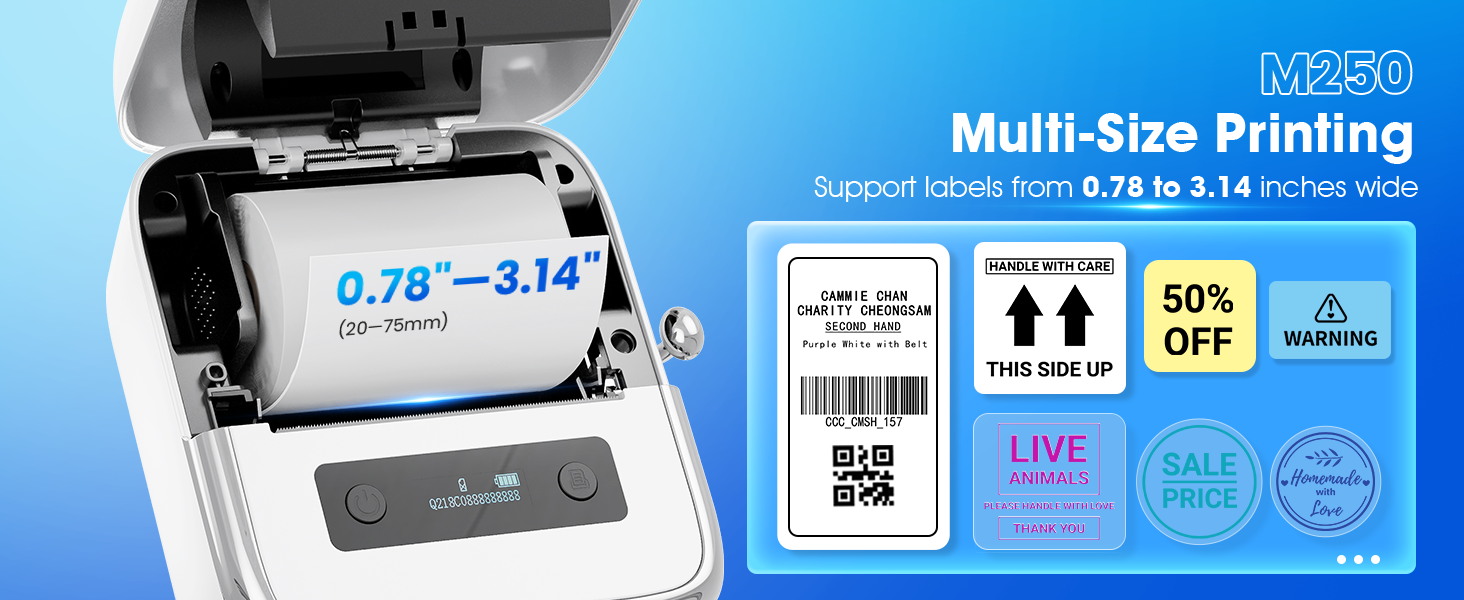
Figure 2.3: Steps for connecting and using the 'Print Master' app with the M250.
2.4. PC Software Setup (Labelife)
For computer connectivity, the Phomemo M250 uses the 'Labelife' software and requires driver installation. It is compatible with macOS and Windows 7 or above.
- Download the drivers and 'Labelife' software from the official Phomemo webtapak: ms.phomemo.com/?mo=M250.
- Follow the on-screen prompts to install the driver and software on your computer.
- Connect the Phomemo M250 printer to your PC using the provided USB Type-C cable.
- Open the 'Labelife' app and begin printing.
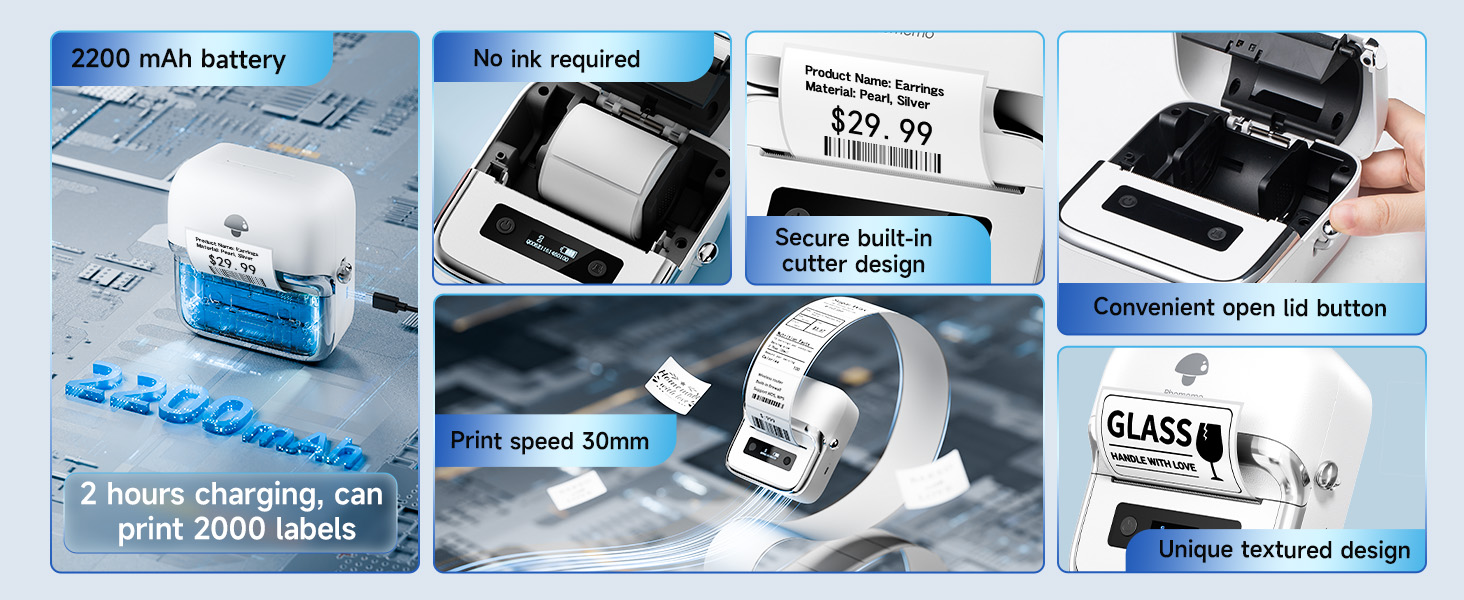
Figure 2.4: Steps for setting up the Phomemo M250 with a PC using the 'Labelife' software.

Figure 2.5: The M250 supports both Bluetooth for mobile devices and USB for PC connections.
3. Operasi
3.1. Percetakan Asas
Once connected to the 'Print Master' app or 'Labelife' software, you can design and print your labels. The M250 supports a wide printing width of 0.78"-3.14" (20mm-75mm).
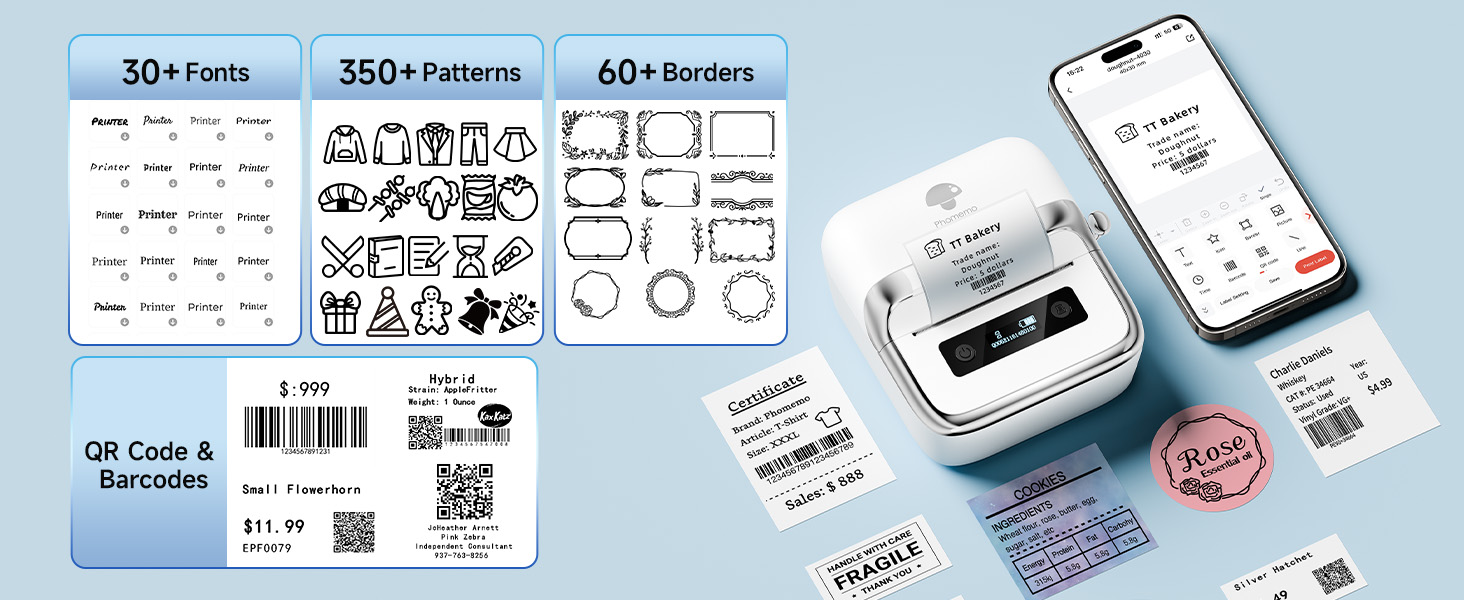
Figure 3.1: The M250 supports multi-size printing for labels ranging from 0.78 to 3.14 inches wide.
3.2. Advanced Features (Print Master App)
The 'Print Master' app offers extensive customization options for your labels:
- Penciptaan Kandungan: Generate QR codes, text, OCR (Optical Character Recognition), images, and utilize voice recognition for label content.
- Percetakan Berkelompok: Print multiple labels efficiently.
- Design Resources: Access over 1500 symbols, 200+ templates, 110+ fonts, and support for 20+ languages.
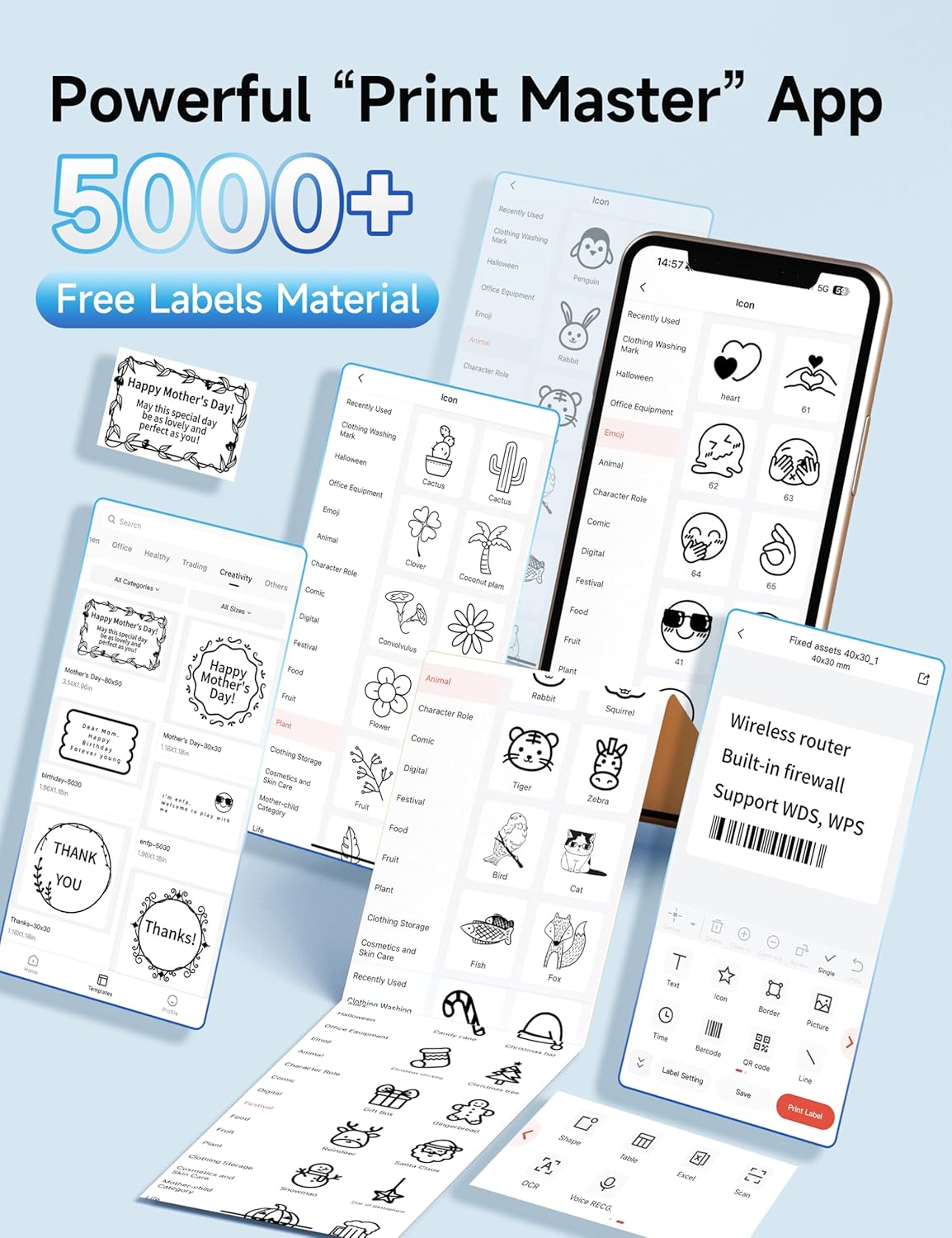
Figure 3.2: The 'Print Master' app provides a rich library of design elements and customization tools.

Figure 3.3: Customize labels with a variety of fonts, patterns, borders, and integrate QR codes or barcodes.
3.3. Battery and Performance
The Phomemo M250 features an extended 2200mAh battery, allowing it to print up to 5000 labels on a single charge. It boasts a printing speed of 30-50mm per second. An automatic sleep mode conserves energy by shutting down after 5 minutes of inactivity.

Figure 3.4: Key performance metrics of the M250, including battery life and print speed.
3.4. Senario Penggunaan
The M250 is suitable for various applications, including:
- Barcode and QR code printing
- Address and mailing labels
- Jar and food labels
- Office and home organization (e.g., files, storage bins)
- Product labeling for small businesses

Gambar 3.5: Cthamples of multiple usage scenarios for the Phomemo M250 label maker.
4. Penyelenggaraan
To ensure optimal performance and longevity of your Phomemo M250 label maker, regular maintenance is recommended.
4.1. Membersihkan Kepala Cetak
Dust and adhesive residue can accumulate on the print head, affecting print quality. Clean the print head periodically:
- Matikan pencetak dan cabut kabel kuasa.
- Buka penutup atas.
- Lap kepala cetak dengan lembut menggunakan kapasampditambah dengan isopropil alkohol.
- Biarkan kepala cetak kering sepenuhnya sebelum menutup penutup dan menyambung semula penggunaan.
4.2. Label Roll Handling and Storage
Proper handling of label rolls is crucial for consistent printing:
- Always ensure the label roll is properly centered when loading to prevent off-center prints.
- Store unused label rolls in a cool, dry place away from direct sunlight and excessive heat to preserve their adhesive and thermal properties.
- Avoid touching the thermal printing surface of the labels with bare hands, as oils can affect print quality.
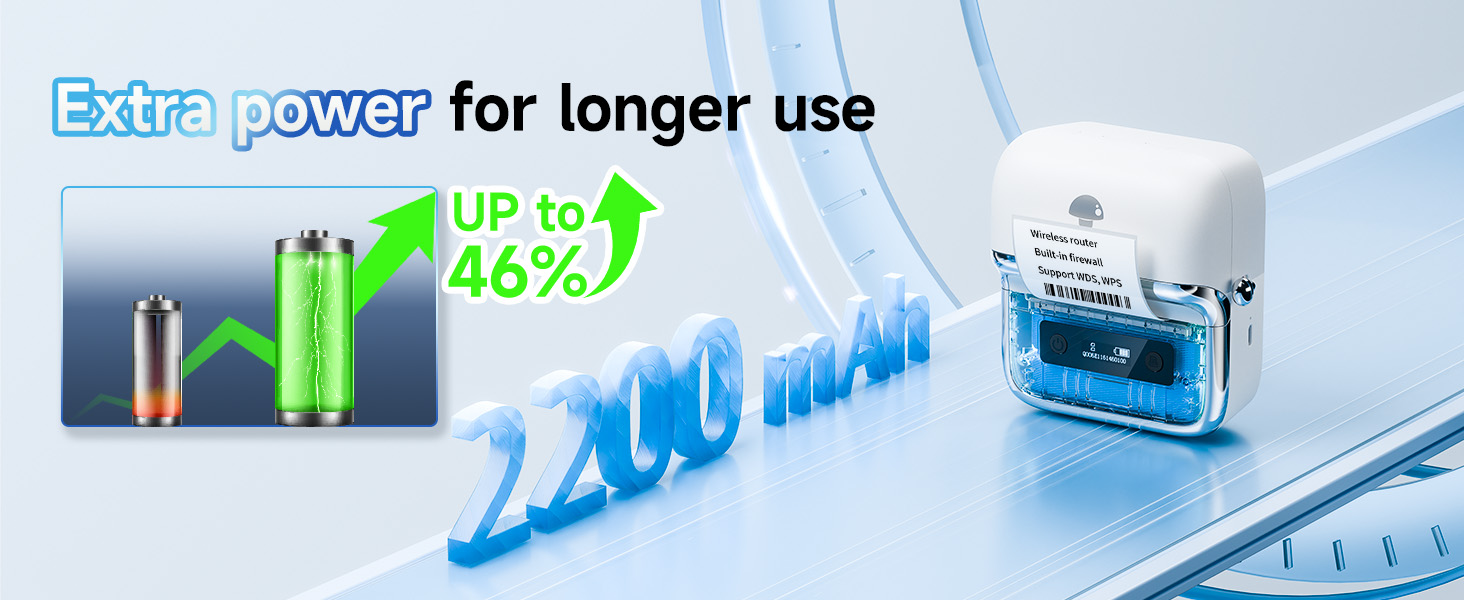
Figure 4.1: Features like the secure built-in cutter design contribute to ease of maintenance and use.
5. Penyelesaian masalah
If you encounter issues with your Phomemo M250, refer to the following common problems and solutions:
| Masalah | Kemungkinan Punca | Penyelesaian |
|---|---|---|
| Pencetak tidak bersambung melalui Bluetooth | Bluetooth is off on device; Printer is out of range; App not recognizing printer. | Ensure Bluetooth is on and the printer is within range. Restart the app and printer. Try re-pairing the device. |
| Poor print quality (faded, lines, incomplete) | Print head is dirty; Incorrect label orientation; Low battery. | Clean the print head (see Maintenance section). Ensure labels are inserted print-side down. Charge the printer fully. |
| Labels not feeding correctly or printing off-center | Label roll not centered; Labels jammed; Incorrect label size setting in app/software. | Open the cover and ensure the label roll is properly centered and not jammed. Verify the label size settings in the 'Print Master' or 'Labelife' app match your physical labels. |
| Pencetak tidak bertindak balas | Printer is off; Low battery; Software/app crash. | Turn on the printer. Charge the printer. Restart the app/software and the printer. |
6. Spesifikasi
Detailed technical specifications for the Phomemo M250 Label Maker:
| Ciri | Penerangan |
|---|---|
| Nama Model | Pembuat Label Phomemo M250 |
| Teknologi Percetakan | terma |
| Teknologi Ketersambungan | Bluetooth, USB Jenis-C |
| Peranti Serasi | Smartphones (iOS, Android), PC (macOS, Windows 7 or above), Tablets, Laptops |
| Saiz Media Maksimum | 0.78'' - 3.14'' (20mm - 75mm) width |
| Kelajuan Cetak | 30-50 mm/s |
| Output Pencetak | Monokrom (Hitam) |
| Bateri | Polimer Litium 2200mAh (termasuk) |
| Berat Barang | 13.8 auns (390.3 Gram) |
| Dimensi Produk | 6.3 x 6.3 x 3.54 inci (5.05"D x 4.54"W x 2.61"H) |
| Kapasiti Penyimpanan Memori | 64 MB |
| Kaedah Kawalan | Apl |
| Pengeluar | Phomemo |
7. Waranti dan Sokongan
The Phomemo M250 Label Maker comes with a Limited Warranty provided by the manufacturer, Phomemo. For specific warranty terms and conditions, please refer to the documentation included with your product or visit the official Phomemo webtapak.
For technical support, troubleshooting assistance, or inquiries regarding your product, please contact Phomemo customer service through their official channels. You can often find support contact information on the manufacturer's website or within the 'Print Master' or 'Labelife' applications.
Selain itu, pelan perlindungan mungkin tersedia untuk dibeli bagi melanjutkan perlindungan melebihi jaminan pengeluar standard. Sila semak dengan peruncit anda untuk pilihan yang tersedia.


