pengenalan
The Logitech POP Mouse is a compact and portable wireless Bluetooth mouse designed for modern workspaces. It features programmable buttons, quiet clicks, and the ability to easily switch between up to three devices. This manual provides instructions for setting up, operating, maintaining, and troubleshooting your POP Mouse.

Image: The Logitech POP Mouse in Off-White, showcasing its compact and contoured design.
Apa yang ada dalam Kotak
- Logitech POP Mouse
- 1 x bateri AA (prapasang)
- Dokumentasi pengguna
- Pelekat

Image: The contents of the Logitech POP Mouse packaging, including the mouse and a single AA battery.
Persediaan
1. Menghidupkan
The POP Mouse comes with a pre-installed AA battery. To power on the mouse, locate the power switch on the bottom of the mouse and slide it to the ON position.
2. Berpasangan Bluetooth
- Pastikan tetikus dihidupkan.
- Press and hold the Easy-Switch button on the bottom of the mouse for 3 seconds until the LED light starts blinking rapidly. This indicates the mouse is in pairing mode.
- On your device (laptop, tablet, PC), navigate to the Bluetooth settings.
- Select "Logitech POP Mouse" from the list of available devices to complete the pairing process.
- The LED light on the mouse will turn solid for 5 seconds to confirm successful pairing.
The POP Mouse can connect to up to 3 devices simultaneously. Use the Easy-Switch button to toggle between paired devices.
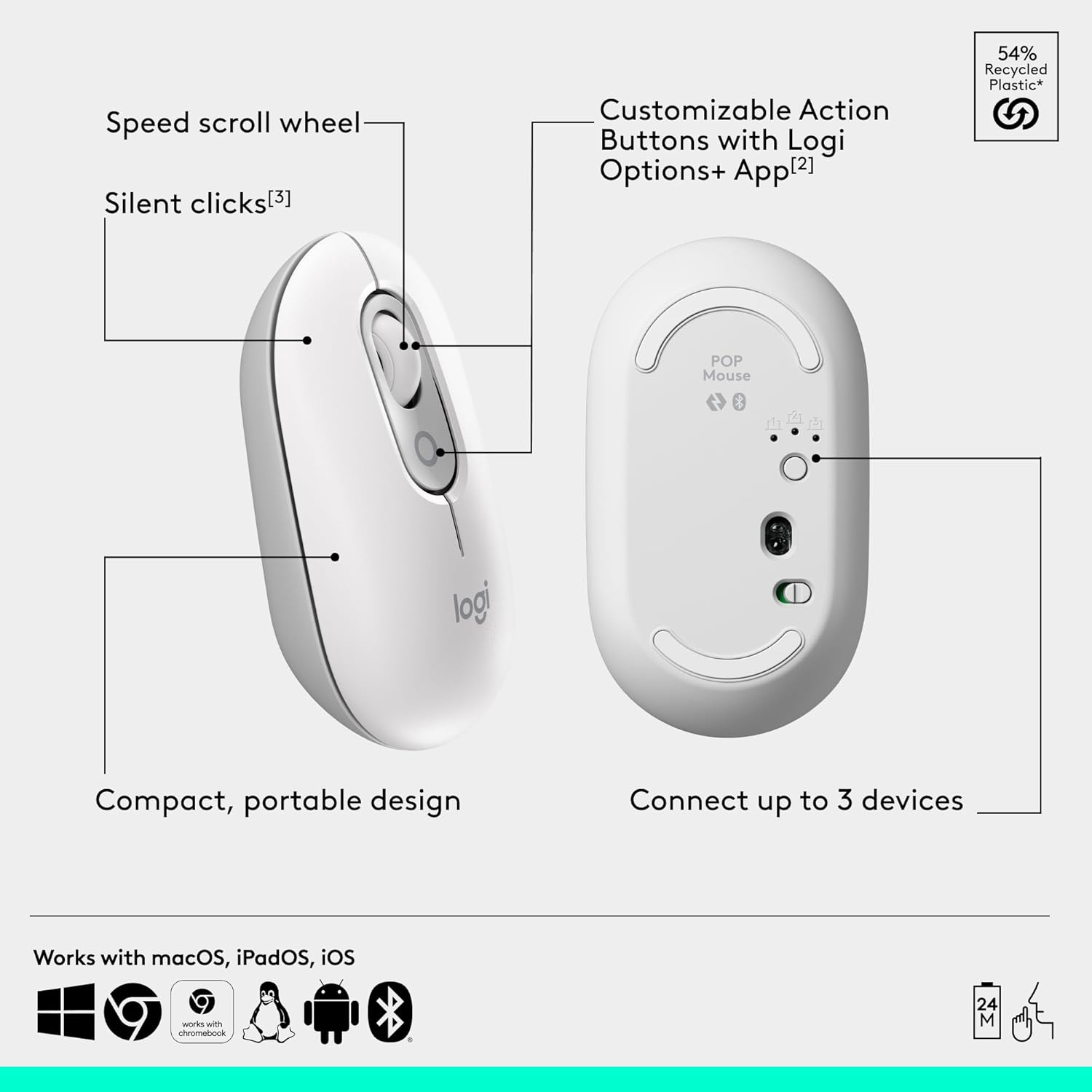
Image: A diagram illustrating the key features of the Logitech POP Mouse, including the speed scroll wheel, customizable action button, silent clicks, compact design, and multi-device connectivity.
Operating the POP Mouse
Smartwheel Speed Scroll
The Smartwheel allows you to switch between high-precision tracking and speed scrolling with a single flick. This feature enables quick navigation through documents and web muka surat.
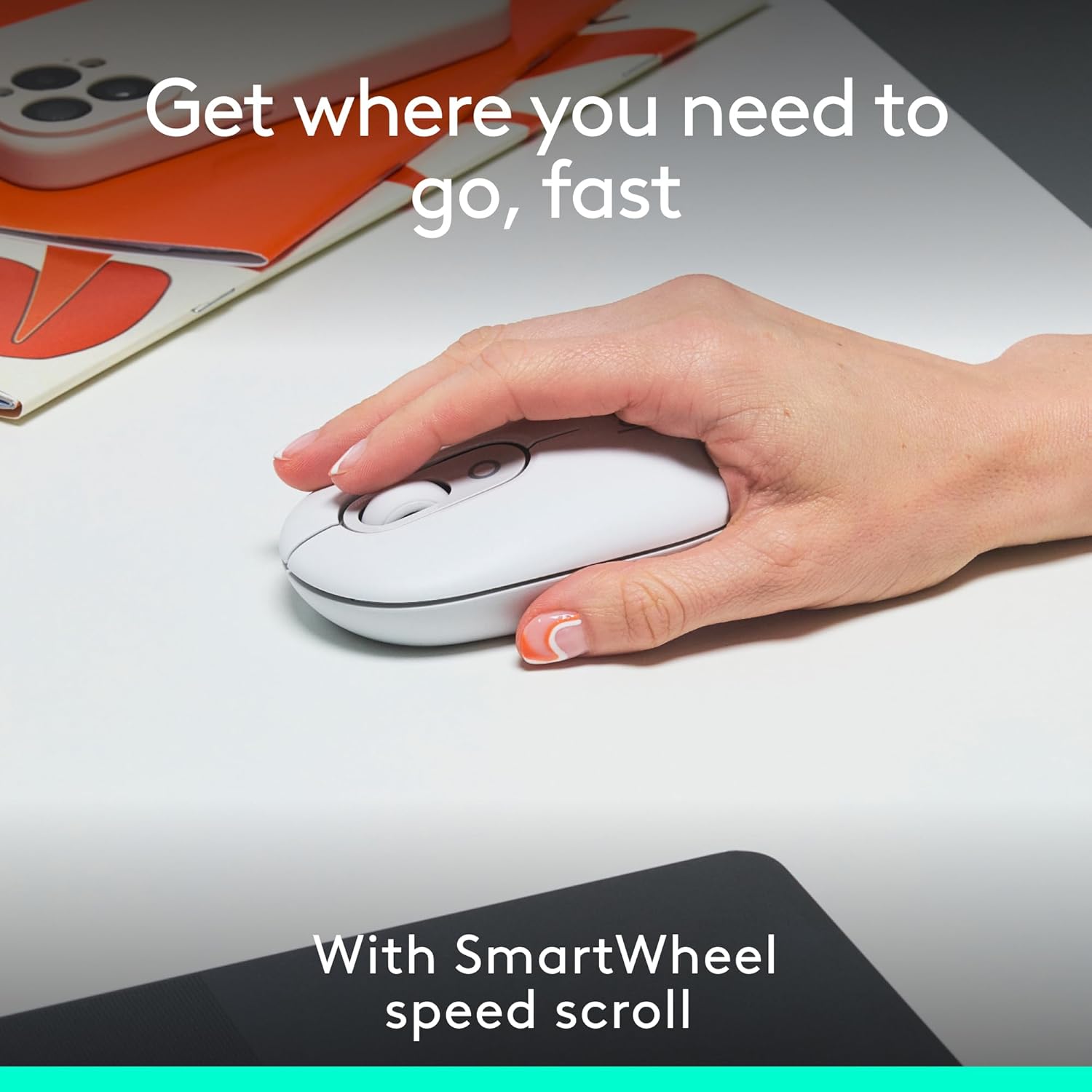
Image: A hand demonstrating the use of the Logitech POP Mouse, highlighting its Smartwheel for fast scrolling.
Customizable Action Buttons with Logi Options+ App
Enhance your productivity by customizing the action buttons on your POP Mouse using the Logi Options+ App. This application allows you to assign shortcuts for various functions, such as switching between work and entertainment modes (e.g., Spotify, Netflix) or accessing AI tools. The Logi Options+ App is available for recent versions of Windows and macOS.
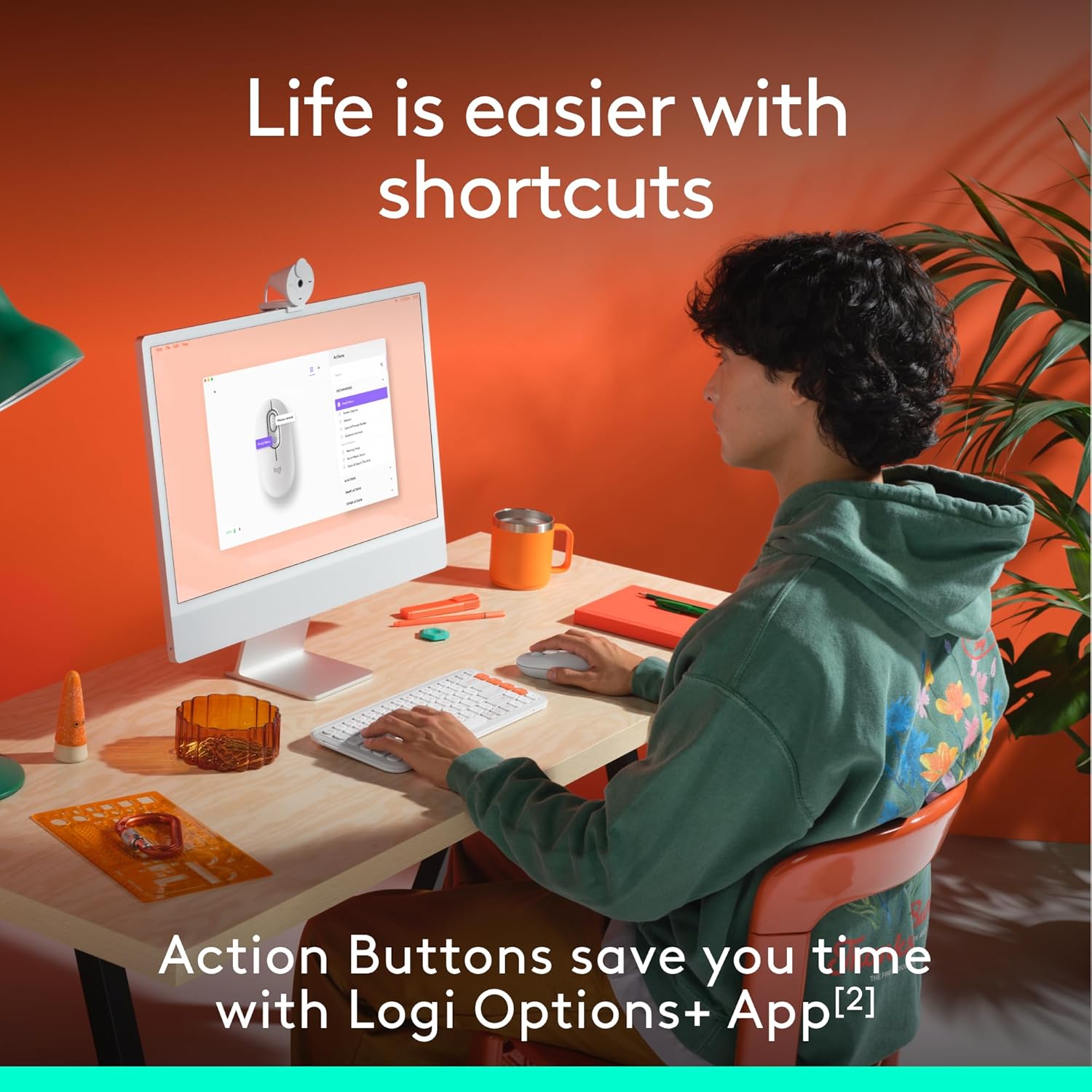
Image: A user interacting with a computer, demonstrating how the customizable action buttons on the Logitech POP Mouse can be configured via the Logi Options+ App.
Silent Touch Technology
The POP Mouse incorporates Silent Touch Technology, which reduces click noise by over 90% compared to standard mice. This feature ensures a quiet working environment.
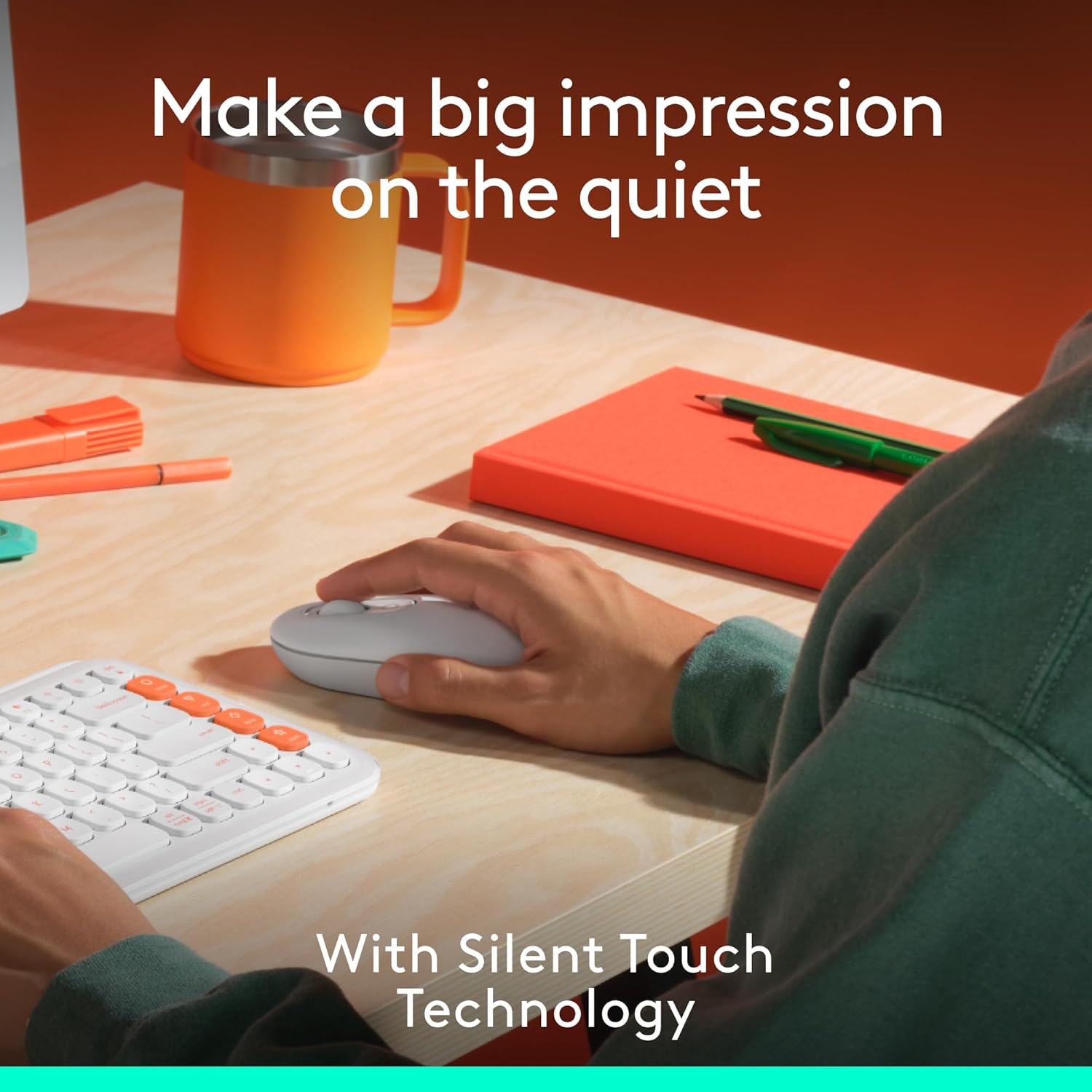
Image: A user operating the Logitech POP Mouse, illustrating the quiet clicking experience provided by Silent Touch Technology.
Kesambungan Berbilang Peranti
The Easy-Switch button on the bottom of the mouse allows you to seamlessly switch between up to three paired Bluetooth devices (Windows, macOS, iPadOS, ChromeOS). This is ideal for users who work across multiple platforms.
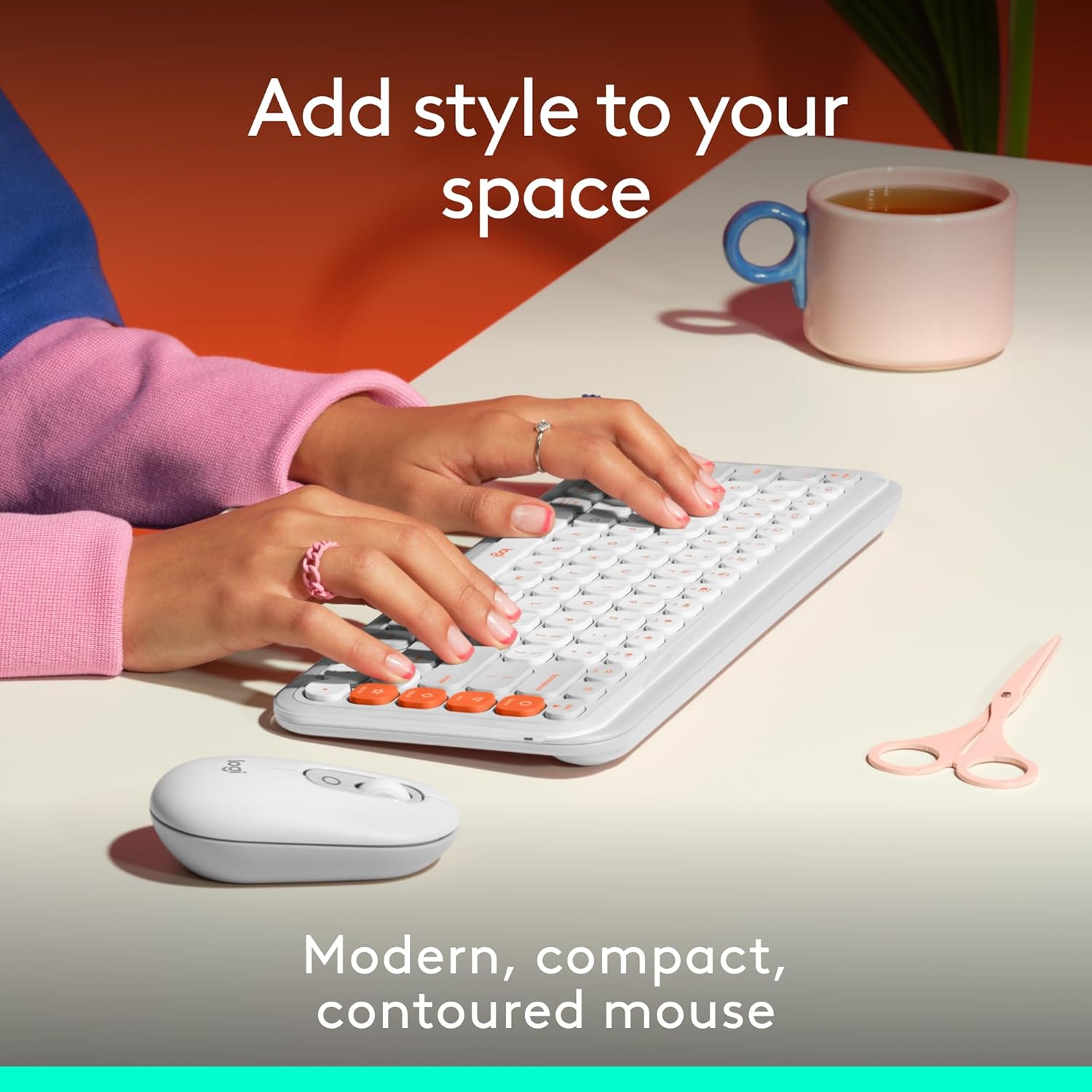
Image: The Logitech POP Mouse positioned next to a compatible keyboard on a desk, demonstrating its compact design and suitability for various setups.
Penyelenggaraan
Membersihkan Tetikus Anda
To maintain optimal performance and hygiene, regularly clean your POP Mouse. Use a soft, lint-free cloth lightly dampened with water or a mild cleaning solution. Avoid using abrasive cleaners or submerging the mouse in liquid.
Penggantian Bateri
The Logitech POP Mouse is powered by one AA battery, offering up to 2 years of battery life depending on usage. When the battery is low, the LED indicator on the mouse may flash. To replace the battery:
- Matikan tetikus menggunakan suis kuasa di bahagian bawah.
- Gently remove the top cover of the mouse. It is magnetically attached.
- Remove the old AA battery and insert a new one, ensuring correct polarity (+/-).
- Replace the top cover and turn the mouse back on.
Menyelesaikan masalah
Tetikus Tidak Bersambung/Bertindak balas
- Periksa Bateri: Pastikan bateri tidak habis. Gantikan jika perlu.
- Kitaran Kuasa: Matikan tetikus dan kemudian hidupkan semula.
- Pasang semula Bluetooth: Go to your device's Bluetooth settings, remove the POP Mouse, and then re-pair it following the "Bluetooth Pairing" steps in the Setup section.
- Keserasian Peranti: Ensure your device's operating system is compatible (Windows, macOS, iPadOS, ChromeOS, Linux).
- Gangguan: Move the mouse closer to your device and away from other wireless devices that might cause interference.
Cursor Movement is Erratic or Jumpy
- Penderia Bersih: Ensure the optical sensor on the bottom of the mouse is clean and free of debris.
- permukaan: Use the mouse on a clean, non-reflective, and uniform surface. Mouse pads are recommended.
- Tahap Bateri: Low battery can sometimes affect tracking performance. Replace the battery.
Action Button Not Working
- Logi Options+ App: Ensure the Logi Options+ App is installed and running on your computer.
- Konfigurasi: Verify that the action button is correctly configured within the Logi Options+ App.
Spesifikasi
| Ciri | Perincian |
|---|---|
| Jenama | Logitech |
| Nombor Model | 910-007408 |
| Teknologi Ketersambungan | Bluetooth |
| Teknologi Pengesanan Pergerakan | Optik |
| warna | Off White |
| Berat Barang | 4 auns (lebih kurang 113 gram) |
| Dimensi Pakej | 4.96 x 3.62 x 1.85 inci |
| Sumber Kuasa | Dikuasakan Bateri |
| Bateri Diperlukan | 1 bateri AA (termasuk) |
| Purata Hayat Bateri | Sehingga 2 tahun |
| Keserasian Sistem Pengendalian | Windows, macOS, Linux, iPadOS, ChromeOS |
| Ciri Khas | Lightweight, Portable, Soundless (Silent Touch Technology), Wireless, Programmable Buttons (via Logi Options+ App), Easy-Switch (up to 3 devices) |
| Kandungan Plastik Kitar Semula | Between 37% and 68% (depending on color, excluding PCB and packaging) |
Waranti dan Sokongan
Logitech products typically come with a limited hardware warranty. For specific warranty details, please refer to the warranty information provided with your product packaging or visit the official Logitech support webtapak.
For further assistance, technical support, or to download the latest version of the Logi Options+ App, please visit the Logitech support page:
Please note: No official product videos with "Seller" as creator type were found in the provided data to embed in this manual.


