1. Pengenalan
This manual provides essential instructions for the proper setup, operation, and maintenance of your Azpen A1083 10.36-inch Android Tablet. Please read this manual thoroughly before using your device to ensure optimal performance and longevity.
2. Kandungan Pakej
Sahkan bahawa semua item terdapat dalam pembungkusan produk anda:
- Azpen A1083 10.36-inch Android Tablet
- Surface Style Keyboard Folio Case
- Kabel Pengecasan
- Penyesuai Kuasa
- Panduan Mula Pantas

Image: The Azpen A1083 tablet and its accompanying keyboard folio, displayed alongside their retail packaging. This image illustrates the complete product set as it would appear upon unboxing.
3. Persediaan
3.1 Pengecasan Awal
- Connect the charging cable to the tablet's USB-C port.
- Plug the other end of the cable into the power adapter.
- Masukkan penyesuai kuasa ke dalam salur keluar dinding.
- Allow the tablet to charge until the battery indicator shows a full charge (approximately 3-4 hours for the first charge).
3.2 Menghidupkan/Mematikan
- Untuk Menghidupkan: Press and hold the Power button (located on the side of the tablet) until the Azpen logo appears on the screen.
- Untuk Mematikan: Press and hold the Power button until a menu appears. Select 'Power off' and confirm.
- Untuk Mulakan Semula: Press and hold the Power button until a menu appears. Select 'Restart' and confirm.
3.3 Connecting the Keyboard Folio
The included keyboard folio connects via a Pogo Pin connector, requiring no Bluetooth pairing.
- Align the tablet with the Pogo Pin connectors on the keyboard folio.
- Gently press the tablet onto the connectors until it securely snaps into place.
- The keyboard will automatically activate.
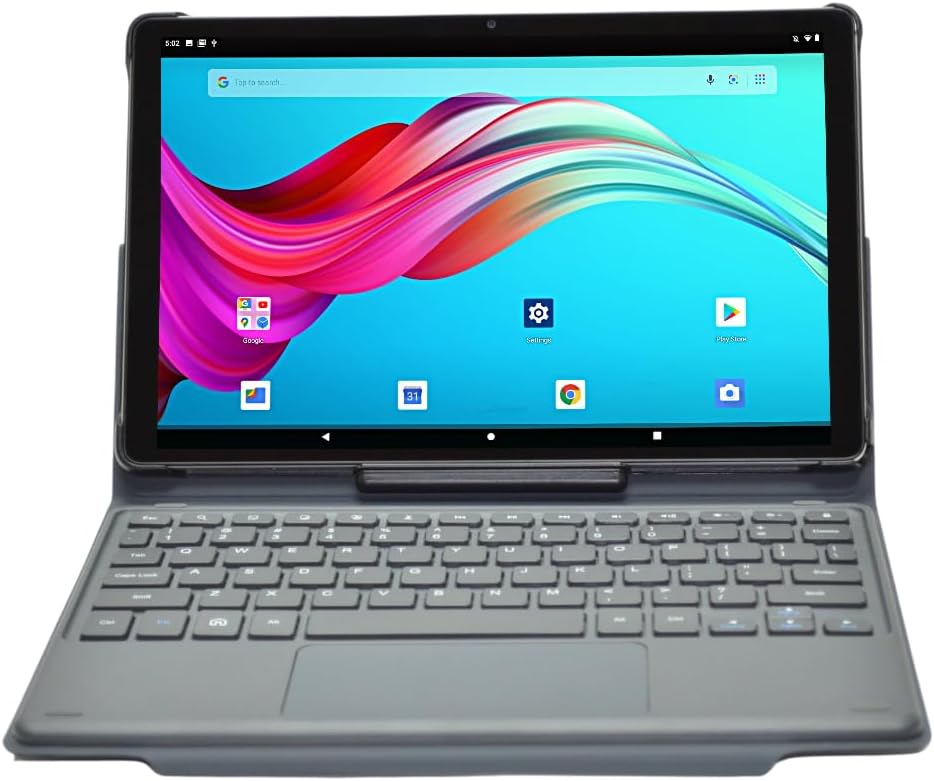
Image: The Azpen A1083 tablet securely attached to its Pogo Pin keyboard folio, displaying the Android home screen. This illustrates the tablet in its ready-to-use configuration.
4. Arahan Operasi
4.1 Basic Tablet Navigation
- Skrin sentuh: The tablet features a hypersensitive glass capacitive touchscreen for intuitive interaction.
- Leret: Swipe left, right, up, or down to navigate between screens, open notifications, or access quick settings.
- Ketik: Tap icons to open applications or select options.
- Cubit-untuk-Zum: Gunakan dua jari untuk mengezum masuk atau keluar pada imej dan web muka surat.

Image: An infographic highlighting key features of the Azpen A1083 tablet, including Android 13, 2K HD display, 6GB RAM, 128GB storage, Pogo Pin keyboard, and Google Assistant compatibility. This provides a visual summary of the tablet's capabilities.
4.2 Using the Keyboard Folio
The keyboard folio provides a physical keyboard and trackpad for enhanced productivity.
- Menaip: Use the physical keys for text input in documents, emails, and web melayari.
- Pad jejak: The integrated trackpad functions like a mouse, allowing for precise cursor control.
- Multi-Angle Case: The folio case allows for multiple viewing angles, providing flexibility for different tasks such as typing, viewing media, or drawing.

Imej: Berbilang views of the Azpen A1083 tablet within its multi-angle keyboard case, demonstrating various adjustable positions for typing and viewing. This highlights the versatility of the case design.
4.3 Fungsi Kamera
The tablet is equipped with a 5MP front camera and an 8MP rear camera.
- Open the 'Camera' application from the home screen or app drawer.
- Select between front and rear cameras using the camera switch icon.
- Ketik butang pengatup untuk menangkap foto atau memulakan/menghentikan rakaman video.
4.4 Pembantu Google
The Azpen A1083 supports Google Assistant for voice commands and smart assistance.
- Aktifkan: Say "Hey Google" or "Ok Google" to activate the assistant.
- Perintah: Use voice commands for tasks such as setting alarms, checking weather, playing music, or opening applications.
5. Penyelenggaraan
5.1 Membersihkan Tablet Anda
- Gunakan kain lembut dan tidak berbulu untuk membersihkan skrin dan badan tablet.
- Untuk calitan degil, ringan dampbilas kain dengan air atau larutan pembersih khusus skrin. Elakkan bahan kimia yang keras.
- Do not spray cleaning solutions directly onto the tablet.
5.2 Kemas Kini Perisian
Regularly check for and install software updates to ensure your tablet has the latest features and security patches.
- Go to 'Settings' > 'System' > 'System update'.
- Ikuti arahan pada skrin untuk memuat turun dan memasang sebarang kemas kini yang tersedia.
5.3 Penjagaan Bateri
The Azpen A1083 offers up to 8 hours of battery life under typical usage conditions.

Image: A graphic representation of a battery with the text "UP TO 8 HOURS BATTERY" prominently displayed, indicating the tablet's expected battery duration. This visually communicates the device's power autonomy.
- Elakkan suhu yang melampau, kerana ia boleh menjejaskan prestasi bateri.
- Jangan biarkan tablet dalam keadaan kosong sepenuhnya untuk tempoh yang lama.
- For optimal battery health, avoid constantly charging the tablet to 100% and letting it drain to 0%.
6. Penyelesaian masalah
| Masalah | Kemungkinan Punca | Penyelesaian |
|---|---|---|
| Tablet tidak dihidupkan | Bateri lemah; Ranap sistem | Cas tablet selama sekurang-kurangnya 30 minit. Tekan dan tahan butang Kuasa selama 10-15 saat untuk memaksa mulakan semula. |
| Papan kekunci tidak bertindak balas | Improper connection; Software glitch | Ensure the Pogo Pins are clean and securely connected. Detach and reattach the tablet to the keyboard. Restart the tablet. |
| Prestasi perlahan | Terlalu banyak aplikasi yang berjalan; Storan rendah | Close unnecessary applications. Clear cache and temporary files. Uninstall unused apps. |
| Isu sambungan Wi-Fi | Masalah penghala; Kata laluan salah | Restart your Wi-Fi router. Forget the network on the tablet and reconnect with the correct password. |
7. Spesifikasi

Imej: Bahagian belakang view of the Azpen A1083 tablet, clearly displaying the 'azpen' brand logo and 'Model: A1083' text. This image helps in identifying the specific model of the device.
| Ciri | Perincian |
|---|---|
| Nombor Model | A1083 |
| Saiz Paparan | 10.36 inci |
| Resolusi Skrin | 2000 x 1200 pixels (2K FHD IPS) |
| Pemproses | Mediatek 8183 Octa Core CPU 2.0 GHz |
| RAM | 6GB |
| Penyimpanan | 128GB |
| Sistem Operasi | Android 13 |
| Kamera Depan | 5MP |
| Kamera Belakang | 8MP |
| Kesambungan Wayarles | 802.11ac |
| Berat Barang | 3 paun |
| Dimensi Produk | 9.7 x 6.2 x 0.29 inci |
8. Maklumat Waranti
Azpen products typically come with a limited manufacturer's warranty. For detailed information regarding the warranty period, coverage, and terms and conditions for your Azpen A1083 tablet, please refer to the warranty card included in your product packaging or visit the official Azpen webtapak.
9. Sokongan Pelanggan
If you encounter any issues not covered in this manual or require further assistance, please contact Azpen customer support:
- Webtapak: Visit the official Azpen website for FAQs, support resources, and contact options.
- Kedai atas talian: Azpen Store on Amazon


