1. Pengenalan
The GAIM Clay Shooting Virtual Reality Simulator with Fixed Laminate Stock Edition provides an immersive and realistic training experience for clay shooting enthusiasts. This system is designed to enhance shooting skills in a virtual environment, replicating real-world conditions without the need for live ammunition. It is compatible with Meta Quest 2, 3, 3s, and Pro headsets (sold separately).
The simulator offers various training scenarios, including realistic American Trap, Olympic Skeet, and Olympic Trap. The SimPro module allows users to customize thrower settings, such as direction and speed, to prepare for diverse shooting courses. This manual provides essential information for setting up, operating, and maintaining your GAIM simulator.

Image: A user engaged in a virtual clay shooting session, demonstrating the GAIM simulator in action.
2. Apa yang ada di dalam Kotak
Upon opening your GAIM Clay Shooting Virtual Reality Simulator package, please verify that all the following components are present:
- Controller Holder: Designed to securely hold your Meta Quest controllers.
- Bluetooth Trigger: Connects wirelessly to your Meta Quest headset for firing actions.
- Rifle Stock: The fixed laminate stock component of the simulator.

Image: The GAIM product packaging displaying the included simulator components.
3. Arahan Persediaan
Follow these steps to set up your GAIM Clay Shooting Virtual Reality Simulator:
- Buka Pembungkusan Komponen: Carefully remove all items from the packaging and ensure no components are missing or damaged.
- Prepare Meta Quest Headset: Ensure your Meta Quest headset (sold separately) is charged and updated to the latest software version.
- Attach Controller Holder: Securely attach the controller holder to your Meta Quest controller(s) as per the instructions provided with the holder. This holder integrates the controller with the rifle stock.
- Connect Bluetooth Trigger: Pair the Bluetooth trigger with your Meta Quest headset. Refer to your Meta Quest headset's Bluetooth pairing instructions. The trigger will simulate the firing mechanism.
- Assemble Rifle Stock: Attach the Meta Quest controller(s) with the holder to the fixed laminate rifle stock. Ensure a firm and stable connection.
- Install GAIM Software: Download and install the GAIM Clay Shooting application from the Meta Quest Store onto your headset.
- Penentukuran Awal: Launch the GAIM application and follow any on-screen instructions for initial calibration of the stock and controllers to ensure accurate tracking and aiming within the virtual environment.
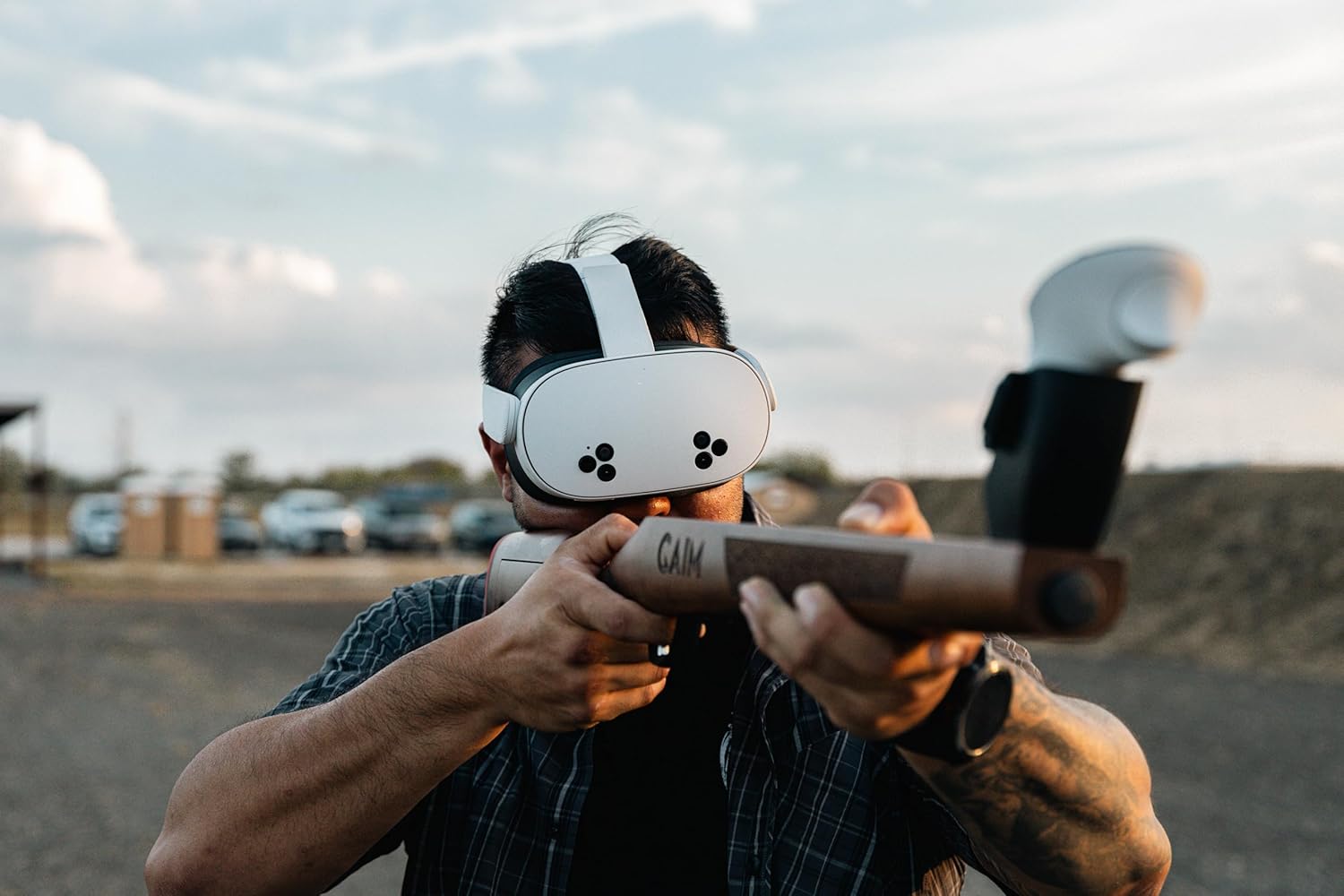
Image: A user demonstrating the correct posture and grip with the GAIM simulator and Meta Quest headset.
4. Arahan Operasi
Once your GAIM simulator is set up, you can begin your training sessions:
- Hidupkan kuasa: Turn on your Meta Quest headset and ensure the Bluetooth trigger is active and connected.
- Launch GAIM Application: Navigate to and launch the GAIM Clay Shooting application from your Meta Quest library.
- Navigate Interface: Use your Meta Quest controllers (integrated with the stock) to navigate the in-game menus.
- Select Training Scenario: Choose from available scenarios such as American Trap, Olympic Skeet, Olympic Trap, or the SimPro Clay Shooting module. The SimPro module allows for custom thrower configurations.
- Begin Simulation: Follow the on-screen prompts to start your chosen training session.
- Menggunakan Simulator: Hold the fixed laminate stock as you would a real shotgun. Aim by aligning your virtual sights with the target. Press the Bluetooth trigger to fire.
- Multiplayer Training: For American Trap, you can train with up to four additional participants, simulating a competitive environment.

Image: A virtual clay shooting range environment within the GAIM simulator, showcasing the training setup.
5. Penyelenggaraan
Proper maintenance ensures the longevity and optimal performance of your GAIM simulator:
- Cleaning the Stock: Wipe the fixed laminate stock with a soft, dry cloth. Avoid abrasive cleaners or solvents that could damage the finish.
- Controller Holder: Periodically check the controller holder for any wear or damage. Ensure it remains securely attached to the stock and controllers.
- Bluetooth Trigger: Keep the Bluetooth trigger clean and dry. Replace batteries as needed to ensure consistent connectivity.
- Storan: Store the simulator in a cool, dry place away from direct sunlight and extreme temperatures. Consider using the original packaging or a protective case when not in use.
- Kemas Kini Perisian: Regularly check for and install updates for the GAIM application and your Meta Quest headset's operating system to ensure compatibility and access to new features or bug fixes.
6. Penyelesaian masalah
If you encounter issues with your GAIM simulator, try the following troubleshooting steps:
- Tiada Kuasa/Peranti Tidak Menjawab:
- Ensure your Meta Quest headset is charged.
- Check the batteries in the Bluetooth trigger and replace if necessary.
- Restart your Meta Quest headset.
- Bluetooth Trigger Not Connecting:
- Ensure the trigger is powered on and within range of the headset.
- Re-pair the Bluetooth trigger with your Meta Quest headset via the headset's settings.
- Check for any interference from other Bluetooth devices.
- Tracking Issues/Inaccurate Aiming:
- Ensure your play area has adequate lighting.
- Recalibrate the GAIM simulator within the application settings.
- Clean the cameras on your Meta Quest headset.
- Ensure the controller holder is firmly attached and the controllers are correctly seated.
- Software Glitches/Crashes:
- Restart the GAIM application.
- Ensure your GAIM application and Meta Quest headset software are up to date.
- If the issue persists, try reinstalling the GAIM application.
For further assistance, please refer to the GAIM support resources or contact customer service.
7. Spesifikasi
| Ciri | Perincian |
|---|---|
| Model | Fixed Laminate Stock Edition |
| ASIN | B0D792QKHF |
| Dimensi Produk | 33.46 x 1.97 x 5.31 inci |
| Berat Barang | 4.48 paun |
| Pengeluar | GAIM |
| Tarikh Mula-mula Tersedia | 25 Julai 2023 |
| Keserasian | Meta Quest 2, 3, 3s, and Pro (headsets sold separately) |
8. Waranti dan Sokongan
For information regarding product warranty, please refer to the documentation included with your purchase or visit the official GAIM website. If you require technical support, have questions about product functionality, or need assistance with troubleshooting, please contact GAIM customer support through their official channels. Details for contacting support can typically be found on the GAIM website or within the GAIM application.


