1. Pengenalan
Thank you for choosing the CLABEL 221B Inkless Label Printer. This portable thermal printer is designed for versatile labeling needs across various applications, including small businesses, retail, and office organization. It offers convenient connectivity via Bluetooth for mobile devices and USB for computers, supporting a wide range of label types without the need for ink. This manual provides essential information for setting up, operating, maintaining, and troubleshooting your device.

Image 1.1: The CLABEL 221B Inkless Label Printer, shown in grey, alongside examples of printed labels such as a name tag with a barcode, a product information label, and a 'Thank you' sticker. A roll of thermal labels is also visible.
2. Maklumat Keselamatan
Sila baca semua arahan keselamatan dengan teliti sebelum menggunakan peranti ini bagi memastikan operasi yang selamat dan betul.
- Do not disassemble, repair, or modify the printer yourself. This may cause electric shock, fire, or damage to the device.
- Jauhkan pencetak daripada air, kelembapan dan cahaya matahari langsung.
- Use only the recommended power adapter and USB cable.
- Pastikan pencetak diletakkan pada permukaan yang stabil dan rata semasa operasi.
- Elakkan menyentuh kepala cetak sejurus selepas mencetak, kerana ia mungkin panas.
3. Kandungan Pakej
Sahkan bahawa semua item terdapat dalam pakej:
- CLABEL 221B Inkless Label Printer
- Kabel USB
- Roll of Labels (starter roll)
- Manual Pengguna
4. Produk Lebihview
The CLABEL 221B is a compact and portable thermal label printer. It features a simple design with a power button, status indicator light, and a label output slot. The device uses direct thermal technology, eliminating the need for ink cartridges.

Image 4.1: This image highlights key features of the CLABEL 221B, including its lightweight and portable design (8.4 oz), fast charging, ABS material for long service life, high-quality print head for clearer prints, inkless thermal printing, and up to 4 hours of continuous printing.

Image 4.2: An illustration detailing the layered structure of high-quality thermal paper, emphasizing properties such as water resistance, oil proofing, high temperature resistance, tear resistance, and wear resistance. Layers include protective, thermosensitive, base, isolation, and adhesive layers.
5. Persediaan
5.1 Pengecasan Awal
Before first use, fully charge the printer using the provided USB cable and a compatible power adapter (not included). The status indicator light will show charging status.
5.2 Memuatkan Label
Follow these steps to correctly load the thermal labels into your printer:
- Press both sides of the printer to open the cover.
- Set the jam protection to the 'OPEN' position.
- Insert the label roll, ensuring it is fixed to the left side.
- Pull out some of the labels and close the cover.

Image 5.1: A visual guide demonstrating the four steps for installing labels: 1. Press sides to open cover. 2. Set jam protection to 'OPEN'. 3. Insert label roll, fix to the left. 4. Pull out labels and close cover.
5.3 App Installation and Connection (Phone)
To print from your smartphone or tablet:
- Download the 'Clabel trade' app from your device's app store (App Store for iOS, Google Play for Android).
- Hidupkan Bluetooth pada telefon anda.
- Open the 'Clabel trade' app and connect to the printer. The app will typically detect nearby CLABEL printers.

Image 5.2: A three-step guide showing how to connect the printer to a phone: 1. Download the 'Clabel trade' app. 2. Turn on Bluetooth on the phone. 3. Connect the printer within the 'Clabel trade' app.
5.4 Sambungan PC
To print from your computer:
- Turn on the printer and connect it to your computer via the provided USB cable.
- Download the 'Clabel trade' software from the official CLABEL webtapak.
- Open the software, tap 'New' to create a label.
- Select the 'Clabel-CT221B' printer and click 'Print'.

Image 5.3: A four-step guide illustrating PC printing: 1. Turn on printer and connect via USB. 2. Download 'Clabel trade' software. 3. Create a new label. 4. Select printer and print.
6. Mengendalikan Pencetak
6.1 Percetakan Asas
Once connected via Bluetooth or USB, you can design and print labels using the 'Clabel trade' app or PC software. The app provides a user-friendly interface for creating various label types.

Image 6.1: The CLABEL 221B printer demonstrating its dual connectivity options, showing it connected to a laptop via a USB cable and wirelessly to a smartphone via Bluetooth. Both devices are displaying label design interfaces.
6.2 Ciri Apl
The 'Clabel trade' app offers extensive customization options:
- Free APP & No Privacy Need: The app is free to use and does not require login or privacy permissions.
- Berbilang Templat: Access a wide array of free icons, fonts, and frames.
- Content Types: Print text, barcodes, QR codes, tables, images, and logos.
- Advanced Printing Options: Utilize batch printing, scan printing, and PDF printing options.
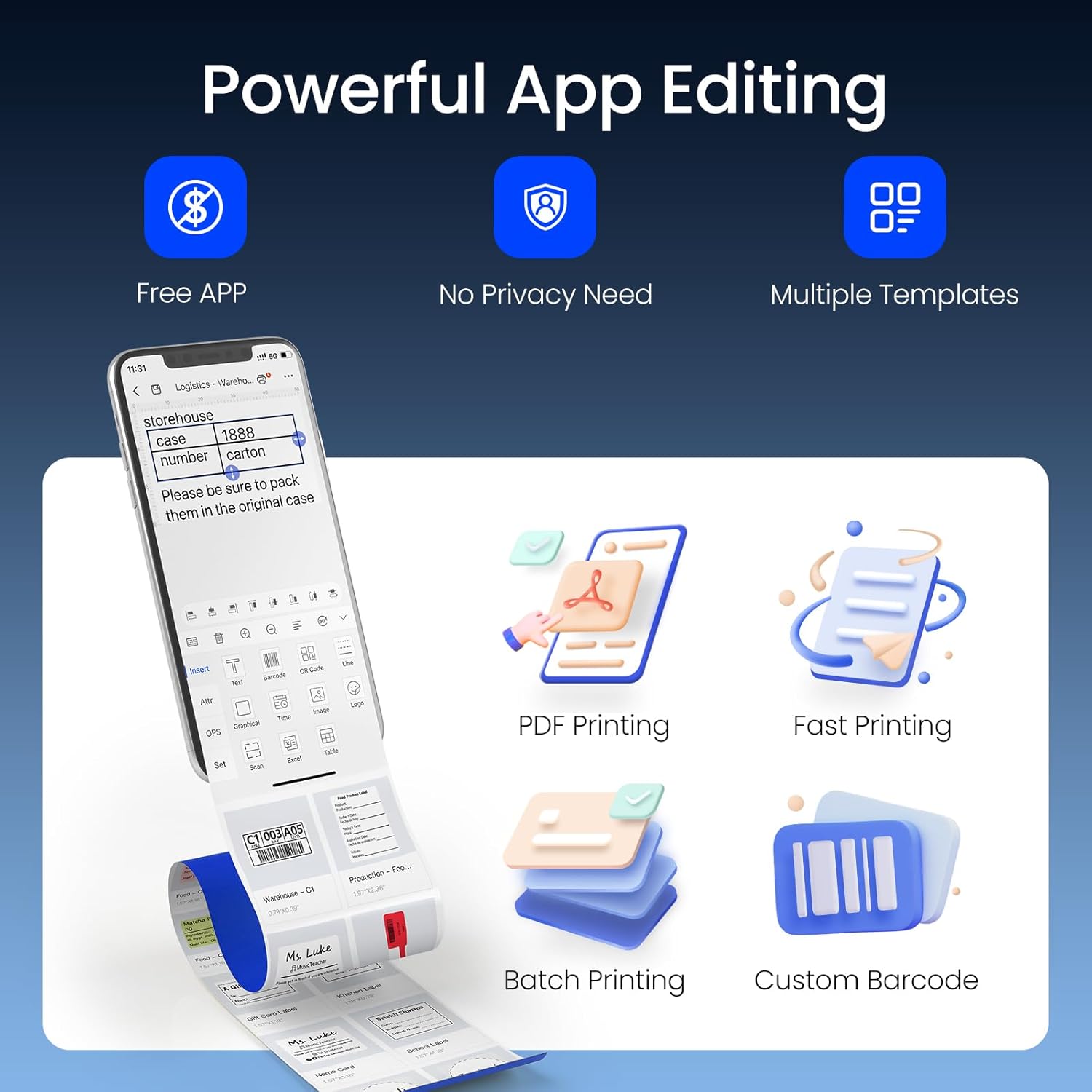
Image 6.2: A visual representation of the 'Clabel trade' app's capabilities, including PDF printing, fast printing, batch printing, and custom barcode generation. The app interface on a smartphone shows options for text, images, barcodes, and templates.
6.3 Keserasian Label
The CLABEL 221B supports thermal labels with a width of 0.78 inches (20mm) to 2 inches (50mm) and a maximum length of 3.93 inches (100mm). It is compatible with third-party thermal paper, offering flexibility and cost savings.

Image 6.3: The CLABEL 221B printer with its cover open, illustrating how different label roll sizes (25x78mm, 30x70mm, 40x30mm, 50x80mm) can be loaded, highlighting its support for 0.78"-2" width labels.
6.4 Aplikasi
The versatility of the CLABEL 221B allows for a wide range of applications:
- Perniagaan Kecil: Labeling for clothing, crafts, retail, jewelry, etc.
- Pelabelan Produk: Address, barcode, QR code, price, date, ingredients.
- Organisasi: File racks, seasoning jars, storage boxes.

Imej 6.4: Cthamples of label applications: labels on jewelry, handmade dessert packaging, florist bouquets, envelopes, cheese products, and wine bottles, demonstrating the printer's versatility.

Imej 6.5: Cthamples of label applications: labels for baked goods, address labels on packages, labels for file rack organization, labels on seasoning jars, and classification labels for storage containers.
7. Penyelenggaraan
Penyelenggaraan tetap memastikan prestasi optimum dan memanjangkan jangka hayat pencetak anda.
- Membersihkan Kepala Cetak: If print quality degrades, gently wipe the thermal print head with an alcohol swab. Ensure the printer is off and cooled down before cleaning.
- Membersihkan Bahagian Luar: Use a soft, dry cloth to clean the exterior of the printer. Do not use abrasive cleaners or solvents.
- Storan: Simpan pencetak di tempat yang sejuk dan kering jauh dari cahaya matahari langsung dan suhu yang melampau.
8. Penyelesaian masalah
If you encounter issues with your CLABEL 221B printer, refer to the following common problems and solutions:
| Masalah | Kemungkinan Punca | Penyelesaian |
|---|---|---|
| Pencetak tidak dihidupkan | Low battery; Power cable not connected | Charge the printer; Ensure power cable is securely connected. |
| Tidak dapat menyambung melalui Bluetooth | Bluetooth off on phone; Printer not discoverable; App issue | Ensure phone Bluetooth is on; Restart printer and app; Re-pair device in app settings. |
| Kualiti cetakan yang teruk (kabur/berjalur) | Print head dirty; Incorrect label type; Low battery | Clean the print head; Use high-quality thermal labels; Charge the printer. |
| Labels not feeding correctly/jamming | Labels incorrectly loaded; Label roll too wide/narrow | Re-load labels according to instructions (Image 5.1); Ensure label width is within 0.78"-2". |
| Pencetak tidak dikenali oleh PC | USB cable issue; Driver not installed; Printer off | Try a different USB port/cable; Install 'Clabel trade' software/drivers; Ensure printer is on. |
9. Spesifikasi
| Ciri | Perincian |
|---|---|
| Nama Model | CT221B-Gray |
| Dimensi Produk | 2.4"D x 3.4"W x 4.8"H |
| Berat Barang | 8.4 auns |
| Teknologi Percetakan | terma |
| Jenis Dakwat Pencetak | tanpa tinta |
| Teknologi Ketersambungan | Bluetooth, USB |
| Peranti Serasi | Android, iOS, Windows, MAC |
| Saiz Media Maksimum | 2" x 3.93" (50mm x 100mm) |
| Lebar Label yang Disokong | 0.78" - 2" (20mm - 50mm) |
| Resolusi Cetakan Hitam dan Putih Maksimum | 203 DPI |
| Monokrom Kelajuan Cetakan Maks | 35 ppm |
| Kaedah Kawalan | Apl |
| Ciri Khas | Ringan, Mudah Alih |
10. Waranti dan Sokongan
The CLABEL 221B Inkless Label Printer comes with a Limited Warranty. For specific warranty terms and conditions, please refer to the documentation included with your purchase or visit the official CLABEL webtapak.
For technical support, troubleshooting assistance, or inquiries regarding your product, please contact CLABEL customer service through their official channels. Details can typically be found on the CLABEL webtapak atau dalam pembungkusan produk.


