1. Pengenalan
The Microsoft Surface Pro 10 is a versatile 2-in-1 device designed to adapt to various work styles, offering the functionality of both a tablet and a laptop. It features an Intel Core Ultra 5 processor, providing robust performance for daily tasks and advanced applications. This manual provides essential information to help you set up, operate, and maintain your device, ensuring optimal performance and longevity.
2. Apa yang ada di dalam Kotak
Carefully unpack your Surface Pro 10 and ensure all items are present. The standard package includes:
- Microsoft Surface Pro 10 Device
- Unit Bekalan Kuasa
- Microsoft Surface Pro Keyboard
- Microsoft Surface Pro Slim Pen
- Panduan Mula Pantas
- Dokumen Keselamatan dan Waranti
3. Peranti Lebihview
Familiarize yourself with the physical components of your Surface Pro 10.

Rajah 3.1: Depan view of the Surface Pro 10 with the keyboard attached, showcasing the display and keyboard layout.

Rajah 3.2: sebelah view of the Surface Pro 10 in laptop configuration, highlighting the adjustable kickstand and connected keyboard.
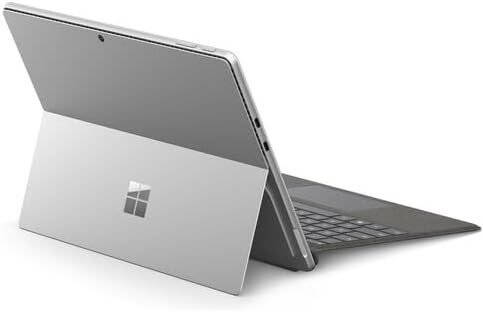
Rajah 3.3: belakang view of the Surface Pro 10 with the kickstand deployed, revealing the device's sleek design and the iconic Microsoft logo.
Komponen Utama:
- 13-inch PixelSense Flow Display: High-resolution touchscreen for vibrant visuals and touch interaction.
- Kamera menghadap hadapan: For video calls and facial recognition (Windows Hello).
- Kamera menghadap belakang: Untuk merakam foto dan video.
- Butang Kuasa: Terletak di sisi, digunakan untuk menghidupkan/mematikan peranti atau mematikannya.
- Butang Kelantangan: Located on the side, for adjusting audio levels.
- Port USB-C: For charging, data transfer, and connecting external displays or accessories.
- Port Sambung Permukaan: For charging and connecting to Surface Dock accessories.
- Kickstand: Integrated into the back, allows for multiple viewsudut-sudut.
- Mikrofon: For voice commands and audio recording.
4. Persediaan
4.1 Pengecasan Awal
- Connect the power supply to the Surface Connect port or one of the USB-C ports on your Surface Pro 10.
- Pasangkan bekalan kuasa ke soket dinding.
- Allow the device to charge for at least 30 minutes before first use, or until the battery indicator shows sufficient charge.
4.2 Menghidupkan/Mematikan
- Untuk Menghidupkan: Press and hold the Power button until the Microsoft logo appears on the screen.
- Untuk Mematikan: From the Windows desktop, select Mulakan > kuasa > tutup. Alternatively, press and hold the Power button for a few seconds, then slide down to shut down.
- Untuk Tidur: Briefly press the Power button. Press it again to wake the device.
4.3 Persediaan Windows Awal
Upon first power-on, you will be guided through the Windows 11 setup process. Follow the on-screen prompts to:
- Pilih bahasa dan wilayah anda.
- Sambung ke rangkaian Wi-Fi.
- Terima terma lesen.
- Log masuk dengan akaun Microsoft anda atau buat yang baharu.
- Set up Windows Hello (facial recognition or fingerprint, if available).
- Konfigurasikan tetapan privasi.
4.4 Attaching the Surface Pro Keyboard
Align the magnetic connector on the keyboard with the corresponding port at the bottom edge of your Surface Pro 10. The keyboard will snap into place magnetically. You can adjust the keyboard to lie flat or tilt it slightly for a more ergonomic typing experience.
4.5 Pairing the Surface Pro Slim Pen
The Surface Pro Slim Pen typically pairs automatically when first used with your Surface Pro 10. If not, follow these steps:
- Pergi ke Mulakan > tetapan > Bluetooth & peranti > Tambah peranti > Bluetooth.
- Press and hold the top button on your Slim Pen for 5-7 seconds until the LED light flashes white.
- Select your Surface Slim Pen from the list of available devices and follow any on-screen prompts.
5. Operating Your Surface Pro 10
5.1 Switching Between Tablet and Laptop Modes
- Mod Komputer Riba: Attach the Surface Pro Keyboard and adjust the kickstand for a traditional laptop experience.
- Mod Tablet: Detach the keyboard or fold it back completely. Windows will automatically switch to Tablet Mode, optimizing the interface for touch input.
5.2 Menggunakan Skrin Sentuh
The PixelSense Flow Display supports multi-touch gestures:
- Ketik: Pilih item atau buka apl.
- Ketik dan Tahan: Access context menus (right-click equivalent).
- Cubit untuk Zum: Zum masuk atau keluar pada imej dan web muka surat.
- Swipe from Edges: Access quick settings, notifications, or switch between apps.
5.3 Using the Surface Pro Slim Pen
The Slim Pen allows for precise input and creative tasks:
- Menulis/Melukis: Use the pen directly on the screen in compatible apps like Microsoft Whiteboard or OneNote.
- Memilih: Tap with the pen to select items.
- Pemadam: Use the eraser button on the pen to erase digital ink.
- Butang Atas: Customizable for quick access to apps like OneNote or screenshots.
5.4 Basic Windows 11 Navigation
- Menu Mula: Access apps, settings, and power options.
- Bar tugas: Pin frequently used apps and view buka aplikasi.
- Pusat Tindakan: Swipe in from the right edge (or click the icon) for quick settings and notifications.
- Widget: Swipe in from the left edge (or click the icon) for personalized information.
6. Penyelenggaraan
6.1 Membersihkan Peranti Anda
- Gunakan kain lembut dan tidak berbulu sedikit dampened with water or an approved screen cleaner to wipe the display.
- For the body of the device and keyboard, use a soft, dry cloth.
- Avoid harsh chemicals, abrasive cleaners, or excessive moisture.
6.2 Penjagaan Bateri
- Elakkan menyahcas sepenuhnya bateri dengan kerap.
- Simpan peranti di tempat yang sejuk dan kering apabila tidak digunakan untuk tempoh yang lama.
- Use only the official Microsoft power supply or certified compatible chargers.
6.3 Kemas Kini Perisian
Regularly check for and install Windows updates to ensure your device has the latest security patches, features, and performance improvements. Go to Mulakan > tetapan > Kemas Kini Windows.
7. Penyelesaian masalah
7.1 Peranti Tidak Dihidupkan
- Ensure the device is charged. Connect the power supply and wait a few minutes before attempting to power on.
- Perform a force restart: Press and hold the Power button for 15-20 seconds, then release and press it again briefly to turn on.
7.2 Screen Issues (No Display, Flickering)
- Mulakan semula peranti.
- Ensure display drivers are up to date via Windows Update.
- If connected to an external display, try disconnecting it.
7.3 Masalah Kesambungan Wi-Fi atau Bluetooth
- Check if Wi-Fi or Bluetooth is enabled in Quick Settings or Windows Settings.
- Restart your Surface Pro 10 and your router/modem.
- Forget the network/device and try reconnecting.
- Update network drivers via Windows Update.
7.4 Performance Issues (Slowdowns, Freezes)
- Tutup aplikasi yang tidak perlu berjalan di latar belakang.
- Semak dan pasang semua kemas kini Windows yang tersedia.
- Run a disk cleanup and optimize drives.
- Pastikan ruang storan kosong mencukupi.
8. Spesifikasi
The following table outlines the key technical specifications for the Microsoft Surface Pro 10 (Intel Core Ultra 5, 16GB RAM, 256GB SSD) model:
| Ciri | Spesifikasi |
|---|---|
| Nama Model | Surface Pro 10 (ZEA-00001) |
| Saiz Paparan Skrin Berdiri | 13 inci |
| Resolusi Skrin | 2880 x 1920 piksel |
| Resolusi Skrin Maks | 2880x1920 |
| Pemproses | 1.4 GHz Intel Core Ultra 5 |
| Pemacu Keras | 256 GB SSD |
| Saiz Terpasang Memori RAM | 16 GB DDR5 RAM |
| Sistem Operasi | Windows 11 Pro |
| Jenama Chipset | Intel |
| Penerangan Kad Grafik | Bersepadu |
| Jenis Wayarles | 802.11ax |
| warna | Platinum |
| Dimensi Produk | 11.3 x 8.2 x 0.4 inci |
| Bateri | 1 bateri Lithium Ion (termasuk) |
9. Waranti dan Sokongan
Your Microsoft Surface Pro 10 comes with a limited hardware warranty. For detailed warranty information, please refer to the documentation included with your device or visit the official Microsoft Support website. For technical assistance, troubleshooting guides, and driver downloads, please visit support.microsoft.com/surface.


