1. Pengenalan
This manual provides detailed instructions for the installation, operation, and maintenance of your TESmart USB 3.0 HDMI+DP+USB C KVM Switch (Model HDC403-P23). This device allows you to control up to four computers (three desktops and one USB-C laptop) from a single set of keyboard, mouse, and three monitors, supporting 4K@60Hz resolution. It integrates KVM functionality with a USB 3.0 docking station, offering enhanced connectivity and display management.
2. Maklumat Keselamatan
Sila baca dan fahami langkah berjaga-jaga keselamatan berikut sebelum mengendalikan peranti ini:
- Ensure the power adapter is correctly connected and matches the specified voltage.
- Jangan dedahkan peranti kepada air, lembapan atau suhu yang melampau.
- Elakkan meletakkan objek berat pada peranti.
- Jangan cuba membuka atau membaiki peranti sendiri. Rujuk semua servis kepada kakitangan yang berkelayakan.
- Gunakan hanya penyesuai kuasa dan kabel yang disediakan untuk mengelakkan kerosakan.
- Disconnect power before cleaning the device. Use a soft, dry cloth.
3. Kandungan Pakej
Sahkan bahawa semua item terdapat dalam pakej:

Image: A diagram illustrating the contents of the product package, including the KVM switch, various cables, power adapter, and accessories.
- 1x TESmart 4x3 KVM Switch (Model HDC403-P23)
- 1x Penyesuai Kuasa 20V DC
- 2x KVM Cables (USB-B to USB-A, HDMI, DP)
- 4x Kabel HDMI
- 1x Kabel DisplayPort
- 1x Kabel USB-C
- 1x Manual Pengguna (dokumen ini)
- Alat kawalan jauh IR 1x
- 1x Kabel USB 3.0 Jenis-A ke Jenis-B
- 2x Rack-Ears
4. Produk Lebihview dan Spesifikasi
4.1. Ciri-ciri Utama
- 4-Port Triple Monitor KVM Switch: Manages up to four computers (3 desktops + 1 USB-C laptop) with three monitors.
- Integrated USB 3.0 Docking Station: Features 4x USB 3.0 ports (two with power delivery), 2x USB 2.0 ports, 1x LAN port, 1x 3.5mm headphone jack, and 3 HDMI outputs.
- Ultra HD 4K Visuals: Supports resolutions up to 3840x2160 (4K) @60Hz, 3440x1440@100Hz, and 2560x1440@144Hz. Compatible with 3D, HDR, HDCP, and Dolby Vision, delivering clear and authentic video.
- EDID Emulators: Ensures consistent display settings across all connected computers, preventing resolution changes or window rearrangement during switching.
- MST Mode Support: For Windows laptops, a single USB-C cable can transmit audio, video, and USB data.
- Wired Network Sharing: Allows all four connected PCs to share a single wired network connection via the built-in USB Ethernet adapter.
- Multiple Switching Modes: Switch between computers using keyboard hotkeys, IR remote control, or front panel buttons.
- K&M Pass-through Mode: Ensures compatibility with various keyboard and mouse types, including wired, wireless, mechanical, and gaming peripherals.
4.2. Spesifikasi Teknikal
| Ciri | Spesifikasi |
|---|---|
| Nombor Model | HDC403-P23 |
| Dimensi Produk | 16.5 x 8.7 x 4.7 inci |
| Berat badan | 6.94 paun |
| Input Video | HDMI, DisplayPort, USB-C |
| Output Video | 3x HDMI |
| Resolusi Maks | 4K@60Hz (3840x2160), 3440x1440@100Hz, 2560x1440@144Hz |
| Port USB | 4x USB 3.0 (2 with power delivery), 2x USB 2.0 |
| Port Rangkaian | 1x LAN (RJ45) |
| Port Audio | Bicu Fon Kepala 1x 3.5mm |
| Vol Operasitage | 20V DC |
| Penilaian Semasa | 5 Amps |
| Mod Operasi | HIDUP |
5. Persediaan dan Sambungan
5.1. Gambarajah Sambungan
Refer to the diagram below for a visual guide on connecting your computers and monitors to the KVM switch.
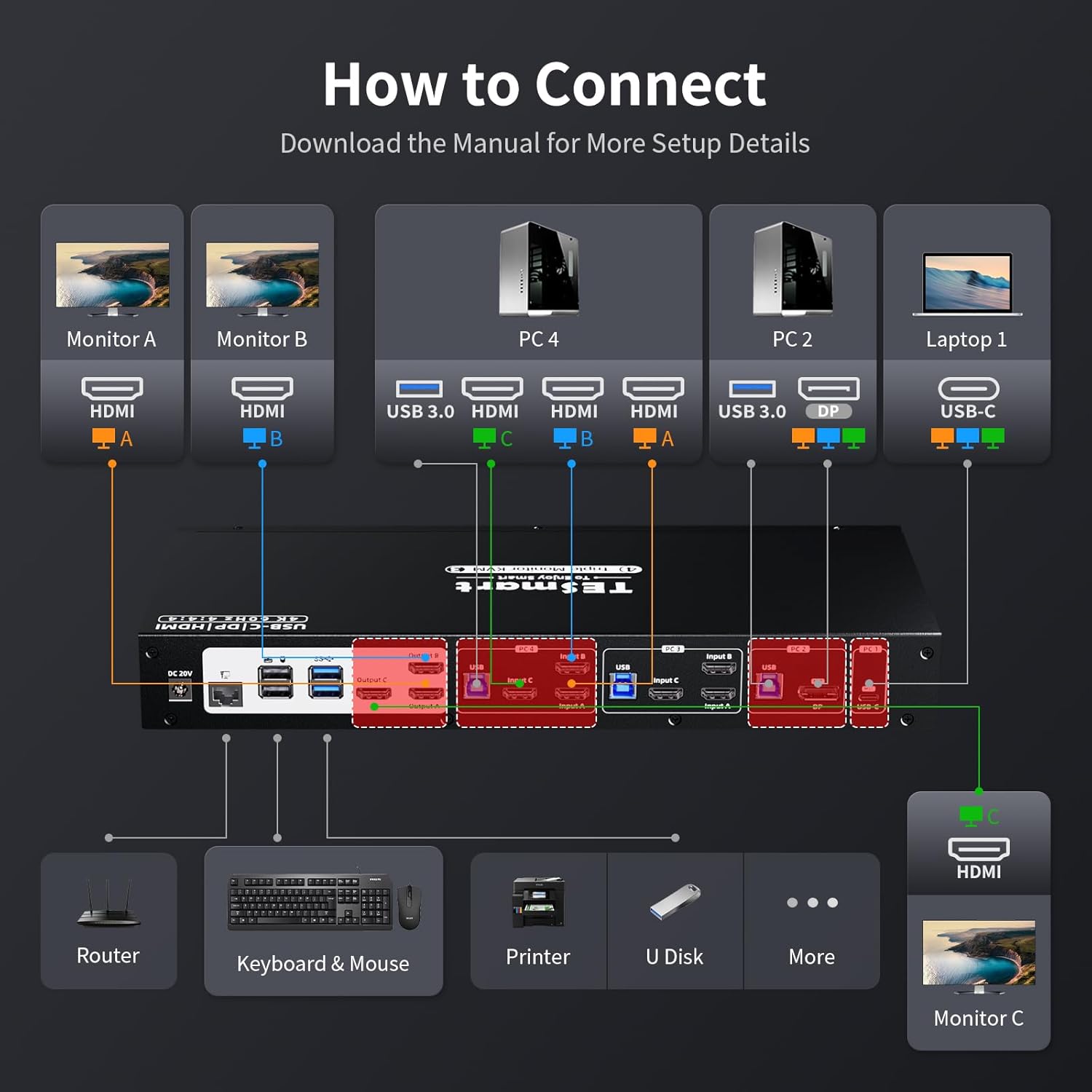
Image: A detailed diagram illustrating how to connect monitors (A, B, C) and various PCs (PC4, PC2, Laptop1) to the KVM switch, along with peripherals like keyboard, mouse, printer, and router.
5.2. Step-by-Step Connection
- Matikan Peranti: Ensure all computers and monitors are powered off before making any connections.
- Sambungkan Monitor: Connect your three monitors to the KVM switch's HDMI Output A, B, and C ports using the provided HDMI cables.
- Sambungkan Komputer:
- For each desktop PC, connect the video outputs (HDMI, DisplayPort) and a USB 3.0 cable from the PC to the corresponding Input A, B, C, and USB ports on the KVM switch.
- For a USB-C laptop, connect a USB-C cable from the laptop to the USB-C input on the KVM switch. This single cable can handle video, audio, and USB data for Windows systems supporting MST.
- Sambung Peranti:
- Connect your keyboard and mouse to the dedicated USB 2.0 ports on the KVM switch.
- Connect other USB devices (e.g., printer, USB drive) to the USB 3.0 ports.
- Connect your headset or speakers to the 3.5mm audio jack.
- Connect an Ethernet cable from your router to the LAN port on the KVM switch to enable wired network sharing for all connected PCs.
- Hidupkan kuasa: Connect the DC 20V power adapter to the KVM switch and then plug it into a power outlet. Power on the KVM switch, followed by your monitors and computers.
5.3. EDID Emulators
The KVM switch features built-in EDID emulators. These emulators store the display information of your monitors, ensuring that your computers always receive the correct display settings. This prevents issues like resolution changes or window rearrangement when switching between inputs.

Image: A comparison showing how display settings can change without EDID emulators, and how they remain stable with EDID emulators enabled.
5.4. MST Mode and Wired Network
The KVM switch supports Multi-Stream Transport (MST) mode, particularly beneficial for Windows notebooks. With MST, a single USB-C connection to the KVM switch can transmit audio, video, and USB data, simplifying cable management.

Image: An illustration of MST mode, demonstrating how a single USB-C connection from a laptop to the KVM can manage multiple monitors.
Additionally, the integrated USB Ethernet adapter allows all connected PCs to share a single wired network connection, eliminating the need for separate network cables for each computer.

Image: A diagram showing a router connected to the KVM switch's LAN port, providing network access to all connected PCs.
6. Arahan Operasi
6.1. Bertukar Antara Komputer
The KVM switch offers three methods for switching between connected computers:
- Kekunci Panas Papan Kekunci: Use predefined key combinations on your connected keyboard to switch inputs. Refer to the specific hotkey commands in the full user manual for details (e.g., Right-Ctrl + Scroll Lock).
- Butang Panel Depan: Press the corresponding input button on the front panel of the KVM switch to select a computer.
- Kawalan Jauh IR: Use the included IR remote control to switch between inputs. Ensure the remote has a clear line of sight to the KVM switch's IR receiver.

Image: Visual representation of the three switching methods: keyboard hotkeys, front panel buttons, and IR remote control.
6.2. Mod Paparan
The KVM switch supports two primary display modes for managing your triple monitors:
- Shared Display Mode (Display Mode 1): All three monitors display content from the currently selected PC, extending the desktop across them or duplicating content as configured on the PC.
- Independent PC Views (Display Mode 2): Each monitor can display content from a different PC, allowing for a multi-computer, multi-monitor setup where you can view outputs from various sources simultaneously.

Image: Illustrations of Display Mode 1 (all monitors showing one PC) and Display Mode 2 (monitors showing different PCs).
6.3. USB 3.0 Docking Station Functionality
The integrated USB 3.0 docking station allows you to share various USB peripherals across all connected computers. This includes:
- Pemindahan Data: Connect USB drives, external hard drives, and other storage devices for shared access.
- mengecas: Two USB 3.0 ports offer power delivery for charging devices like smartphones.
- Peranti: Connect printers, scanners, webcams, and other USB accessories.

Image: A visual guide to the KVM's docking station capabilities, showing connections for phone, hard disk drive, printer, USB driver, headset, audio splitter, speaker, and microphone.
The K&M pass-through mode ensures broad compatibility with various keyboard and mouse types, including specialized gaming or mechanical keyboards, by directly passing through their signals.
7. Penyelenggaraan
Untuk memastikan jangka hayat dan prestasi optimum suis KVM anda, ikut garis panduan penyelenggaraan ini:
- Pembersihan: Regularly wipe the device with a soft, dry, anti-static cloth. Avoid using liquid or aerosol cleaners, as they may damage the casing atau komponen dalaman.
- Pengudaraan: Pastikan suis KVM diletakkan di kawasan yang mempunyai pengudaraan yang baik untuk mengelakkan terlalu panas. Jangan sekat sebarang bukaan pengudaraan.
- Pengurusan Kabel: Keep cables organized and free from kinks or excessive bending to prevent signal degradation or damage.
- Kitaran Kuasa: If the device becomes unresponsive, disconnect the power adapter, wait a few seconds, and then reconnect it.
8. Penyelesaian masalah
Jika anda menghadapi masalah dengan suis KVM anda, rujuk kepada masalah dan penyelesaian biasa berikut:
| Masalah | Kemungkinan Punca / Penyelesaian |
|---|---|
| No display on monitors after switching. |
|
| Papan kekunci atau tetikus tidak bertindak balas. |
|
| Display resolution or arrangement changes after switching. |
|
| USB devices (e.g., external drive, printer) not detected. |
|
| Isu sambungan rangkaian. |
|
| MacBook Pro/Air second monitor not working. |
|
9. Waranti dan Sokongan
9.1. Maklumat Waranti
The TESmart KVM Switch (Model HDC403-P23) comes with a standard Waranti 1 tahun, which can be extended by an additional 2 tahun upon product registration, totaling a 3-year warranty period. Please refer to the warranty card included in your package or visit the official TESmart webtapak untuk terma dan syarat terperinci.
9.2. Sokongan Teknikal
For any technical assistance, troubleshooting, or inquiries regarding your TESmart KVM switch, please contact TESmart customer support. Sokongan teknikal 24/7 sedia membantu anda.
Contact information can typically be found on the TESmart official webtapak atau dalam pembungkusan produk.
10. Pematuhan Peraturan
This device complies with relevant regulatory standards. For specific compliance details, please refer to the product packaging or the official TESmart webtapak.


