1. Pengenalan
Thank you for choosing the ZZB 10-Inch Android Tablet. This manual provides essential information for setting up, operating, maintaining, and troubleshooting your new device. Please read it thoroughly to ensure optimal performance and longevity of your tablet.
2. Produk Lebihview
The ZZB 10-Inch Android Tablet is designed for daily use, featuring a vibrant 10.1-inch IPS HD display, a powerful quad-core processor, and ample storage. It is equipped with dual cameras for capturing moments and video calls, and supports Wi-Fi 6 and Bluetooth connectivity.
2.1. Tablet Components

Rajah 2.1: Depan dan belakang view of the ZZB 10-Inch Android Tablet, showcasing its sleek silver design and camera module.
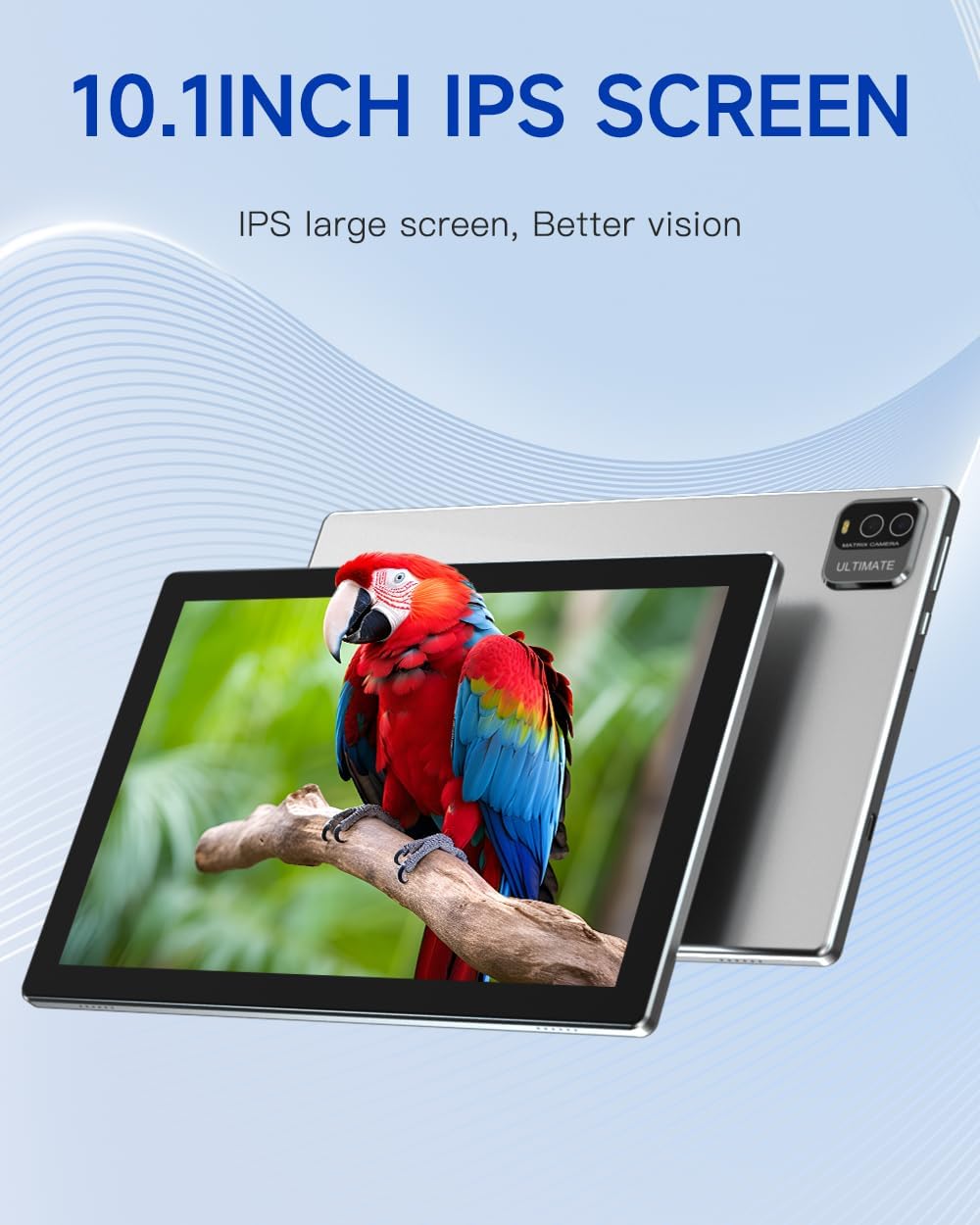
Rajah 2.2: The 10.1-inch IPS display, highlighting its wide viewing angles and vibrant color reproduction for an enhanced visual experience.
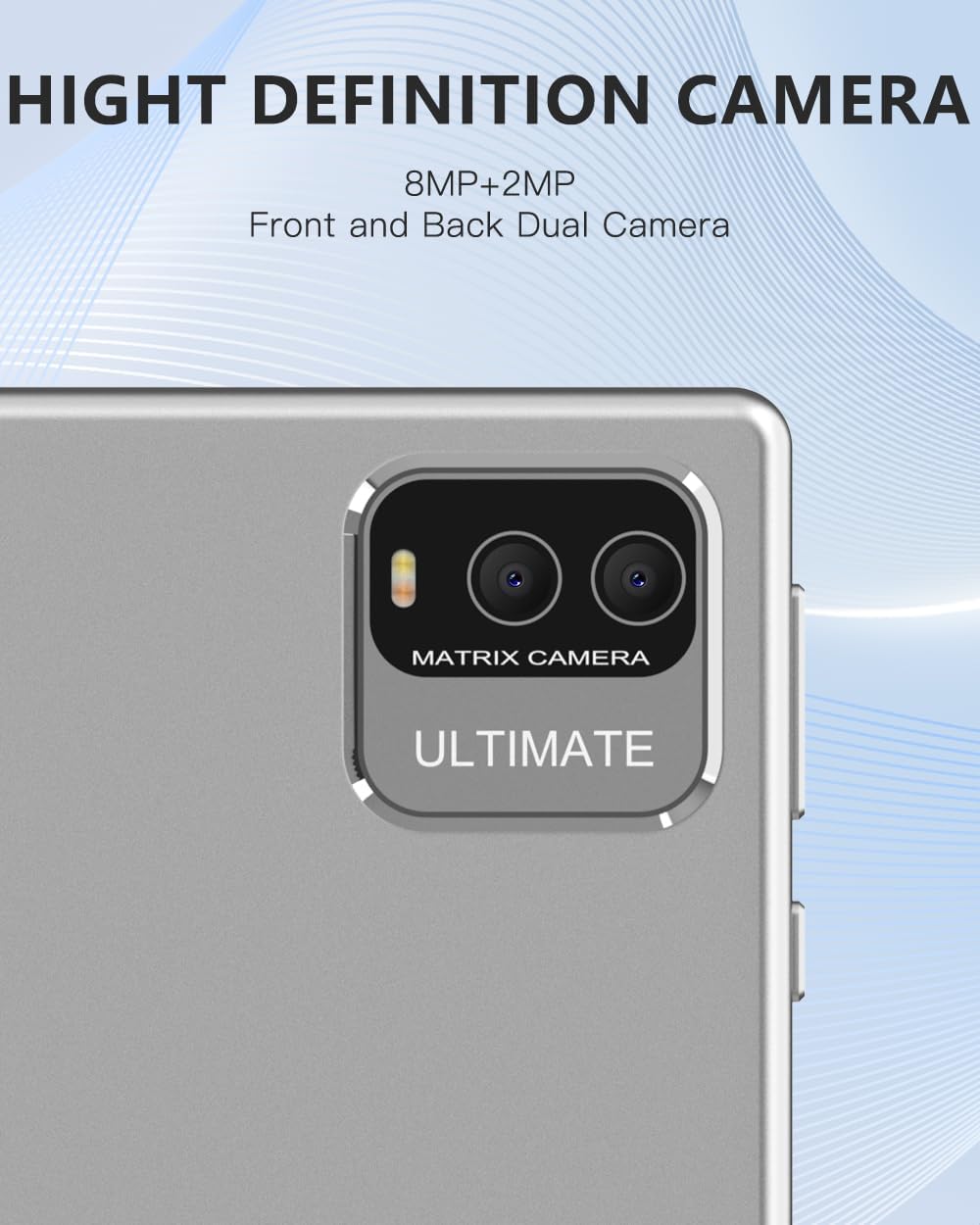
Rajah 2.3: Terperinci view of the tablet's dual camera system, featuring an 8MP rear camera and a 2MP front camera for photography and video calls.

Rajah 2.4: An illustration demonstrating the tablet's efficient charging and the long-lasting 6000mAh battery, providing hours of usage.
3. Persediaan
3.1. Pengecasan Awal
Before first use, fully charge your tablet. Connect the included USB cable to the tablet's charging port and the other end to a compatible power adapter (not always included) or a computer's USB port. The battery indicator on the screen will show charging progress.
3.2. Menghidupkan/Mematikan
- Untuk Menghidupkan: Tekan dan tahan butang Kuasa yang terletak di sisi tablet sehingga skrin menyala.
- Untuk Mematikan: Press and hold the Power button until a power-off menu appears. Select 'Power off' to shut down the device.
- Untuk Mulakan Semula: From the power-off menu, select 'Restart' to reboot the device.
3.3. Wizard Persediaan Awal
Sebaik sahaja dihidupkan buat kali pertama, tablet akan membimbing anda melalui proses persediaan awal. Ikuti arahan pada skrin untuk:
- Pilih bahasa pilihan anda.
- Sambung ke rangkaian Wi-Fi.
- Terima terma dan syarat.
- Sediakan akaun Google anda (pilihan, tetapi disyorkan untuk muat turun aplikasi).
- Konfigurasikan tetapan tarikh dan masa.
3.4. Memasukkan Kad MicroSD
The tablet supports up to 1TB of expandable storage via a microSD card. Locate the microSD card slot on the side of the tablet. Gently insert the microSD card into the slot until it clicks into place. Ensure the card is oriented correctly as indicated by the diagram near the slot.
4. Arahan Operasi
4.1. Navigasi Skrin Sentuh
The tablet features a responsive touch screen. Use the following gestures:
- Ketik: Untuk memilih item atau membuka aplikasi.
- Ketik dan Tahan: Untuk mengakses menu kontekstual atau mengalihkan ikon.
- Leret: Untuk menatal halaman atau senarai.
- Cubit-untuk-Zum: Untuk mengezum masuk atau keluar pada imej atau web muka surat.
4.2. Kesambungan Wi-Fi
Untuk menyambung ke rangkaian Wi-Fi:
- Pergi ke tetapan > Rangkaian & internet > Wi-Fi.
- Togol Wi-Fi On.
- Pilih rangkaian yang anda inginkan daripada senarai.
- Masukkan kata laluan jika digesa, kemudian ketik Sambung.
4.3. Berpasangan Bluetooth
Untuk berpasangan dengan peranti Bluetooth:
- Pergi ke tetapan > Peranti yang disambungkan > Bluetooth.
- Togol Bluetooth On.
- The tablet will scan for available devices. Select the device you wish to pair with.
- Sahkan kod pasangan jika digesa.
4.4. Penggunaan Kamera
The tablet has an 8MP rear camera and a 2MP front camera. Open the Camera app to take photos or record videos. You can switch between front and rear cameras using the icon on the screen.
4.5. Pengurusan Storan
Your tablet comes with 32GB of internal storage. To manage storage or check usage:
- Pergi ke tetapan > Penyimpanan.
- Here you can see how much space is used by apps, photos, videos, and other files.
- To free up space, consider uninstalling unused apps or moving files ke kad microSD.
4.6. Pengoptimuman Bateri
Bateri 6000mAh menyediakan penggunaan yang lebih lama. Untuk memaksimumkan hayat bateri:
- Laraskan kecerahan skrin.
- Disable Wi-Fi and Bluetooth when not in use.
- Tutup aplikasi latar belakang.
- Enable battery saver mode in tetapan > Bateri.
5. Penyelenggaraan
5.1. Membersihkan Tablet
Gunakan kain lembut dan tidak berbulu untuk membersihkan skrin dan badan tablet. Untuk calitan degil, sedikit dampLap kain dengan air atau pembersih skrin. Elakkan menggunakan bahan kimia yang keras atau bahan yang melelas.
5.2. Kemas Kini Perisian
Periodically check for system updates to ensure your tablet has the latest features and security patches. Go to tetapan > Sistem > Kemas kini sistem.
5.3. Pengoptimuman Storan
Kosongkan data cache daripada aplikasi secara berkala dan padamkan yang tidak perlu files to maintain optimal performance. You can do this through tetapan > Apl & pemberitahuan > [Nama Apl] > Storan & cache > Kosongkan cache.
6. Penyelesaian masalah
If you encounter issues with your ZZB tablet, refer to the following common solutions:
| Masalah | Penyelesaian yang Mungkin |
|---|---|
| Tablet tidak boleh dihidupkan | Ensure the battery is charged. Connect the charger and wait a few minutes before attempting to power on again. If it still doesn't turn on, try holding the power button for 10-15 seconds. |
| Prestasi perlahan atau pembekuan | Close unused applications. Clear app caches. Restart the tablet. Ensure sufficient free storage space. |
| Isu sambungan Wi-Fi | Ensure Wi-Fi is enabled. Restart your Wi-Fi router. Forget the network in tablet settings and reconnect. Check if other devices can connect to the same network. |
| Bateri cepat habis | Reduce screen brightness. Disable Wi-Fi, Bluetooth, and GPS when not in use. Close background apps. Limit push notifications. |
| Apps crashing or not responding | Clear the app's cache and data (Settings > Apps > [App Name] > Storage > Clear cache/data). Uninstall and reinstall the app. Ensure the app is updated to its latest version. |
7. Spesifikasi
Key technical specifications for the ZZB 10-Inch Android Tablet (Model: ZZBNV10):
| Ciri | Perincian |
|---|---|
| Nama Model | ZZBNV10 |
| Sistem Operasi | Android |
| Saiz Skrin | 10.1 Inci |
| Resolusi Skrin | 1280 x 800 pixels (IPS HD) |
| Pemproses | Pemproses Empat Teras |
| RAM | 2GB |
| Storan Dalaman | 32GB |
| Storan Boleh Dikembangkan | Up to 1TB (microSD card) |
| Kamera Belakang | 8 MP |
| Kamera Depan | 2 MP |
| Kapasiti Bateri | 6000mAh (up to 12 hours video playback) |
| Kesambungan Wayarles | Wi-Fi 802.11ax, Bluetooth |
| Dimensi (LxWxH) | 9.6 x 6.4 x 0.3 inci |
| Berat Barang | 1 paun |
| warna | Perak |
8. Waranti dan Sokongan
Your ZZB tablet comes with a Polisi pemulangan 90 hari dan a Waranti 1 tahun dari tarikh pembelian. Waranti ini meliputi kecacatan pembuatan dan isu-isu yang timbul daripada penggunaan biasa.
For technical support, warranty claims, or any questions not covered in this manual, please contact ZZB customer service through the retailer's platform or the contact information provided with your purchase. Please have your model number (ZZBNV10) and purchase details ready when contacting support.


