1. Pengenalan
Thank you for choosing the X9 Performance Ergonomic Wireless Keyboard with Trackball. This keyboard is designed to enhance your typing comfort and efficiency with its split ergonomic layout, integrated trackball, and convenient features. This manual provides detailed instructions to help you set up, operate, and maintain your new keyboard.

Image: The X9 Performance Ergonomic Wireless Keyboard with Trackball, showcasing its split design and integrated trackball.
2. Persediaan
2.1. Apa yang ada di dalam Kotak
- X9 Performance Ergonomic Wireless Keyboard
- USB-A 2.4GHz Wireless Adapter
- Kabel Pengecas USB-C
- Manual Pengguna (dokumen ini)
2.2. Menyambung Papan Kekunci Anda
The X9 Performance keyboard uses a 2.4GHz wireless connection via a USB-A adapter. No software installation is required for basic functionality.
- Locate the USB-A wireless adapter. It is typically stored in a compartment on the underside of the keyboard for safekeeping.
- Plug the USB-A wireless adapter into an available USB-A port on your computer (PC or Chrome device).
- Turn on the keyboard using the power switch, usually located on the underside or side of the keyboard. The keyboard should automatically connect to your computer.

Image: The keyboard's underside showing the USB-A dongle storage and the USB-C charging port, highlighting its wireless and rechargeable capabilities.
2.3. Mengecas Papan Kekunci
The keyboard features a built-in 2000mAh rechargeable battery. To charge:
- Connect the provided USB-C charging cable to the USB-C port on the keyboard.
- Connect the other end of the USB-C cable to a USB power source (e.g., computer USB port, USB wall adapter).
- The charging indicator light on the keyboard will illuminate during charging and turn off when fully charged. A full charge can provide up to 12 months of use.
3. Arahan Operasi
3.1. Reka Bentuk dan Keselesaan Ergonomik
The keyboard's split and sloped structure, combined with an integrated wrist rest, is designed to promote a natural hand and wrist posture, reducing strain during extended typing sessions.

Image: The keyboard's ergonomic split design and integrated wrist rest, illustrating how it promotes comfortable typing posture.
3.2. Integrated Trackball and Mouse Controls
The keyboard features a centralized trackball for thumb-controlled navigation, eliminating the need for a separate mouse. It includes dedicated mouse buttons and a scroll wheel.
- Bola jejak: Use your thumb to control the cursor movement.
- Butang Klik Kiri: Located to the left of the trackball.
- Butang Klik Kanan: Located to the right of the trackball.
- Roda Tatal: Positioned above the trackball for vertical scrolling.

Image: Close-up of the keyboard's central area, highlighting the thumb-controlled trackball for precise navigation.

Image: Diagram showing the scroll wheel, right click, left click, and trackball components on the keyboard.
3.3. Adjusting Trackball Sensitivity
You can fine-tune the trackball's cursor speed through your computer's operating system settings.
- Untuk Windows PC:
- Buka tetapan.
- Navigasi ke Bluetooth & peranti.
- Pilih tetikus.
- Laraskan Mouse pointer speed slider to your preferred sensitivity.

Image: Step-by-step visual guide on how to adjust trackball sensitivity within Windows settings.
3.4. Pelarasan Lampu Latar
The keyboard features white backlighting with 3 adjustable brightness levels for optimal visibility in various lighting conditions.
- To cycle through brightness levels (Off, Low, Medium, High), press the dedicated backlight control key (often indicated by a light bulb icon or similar).
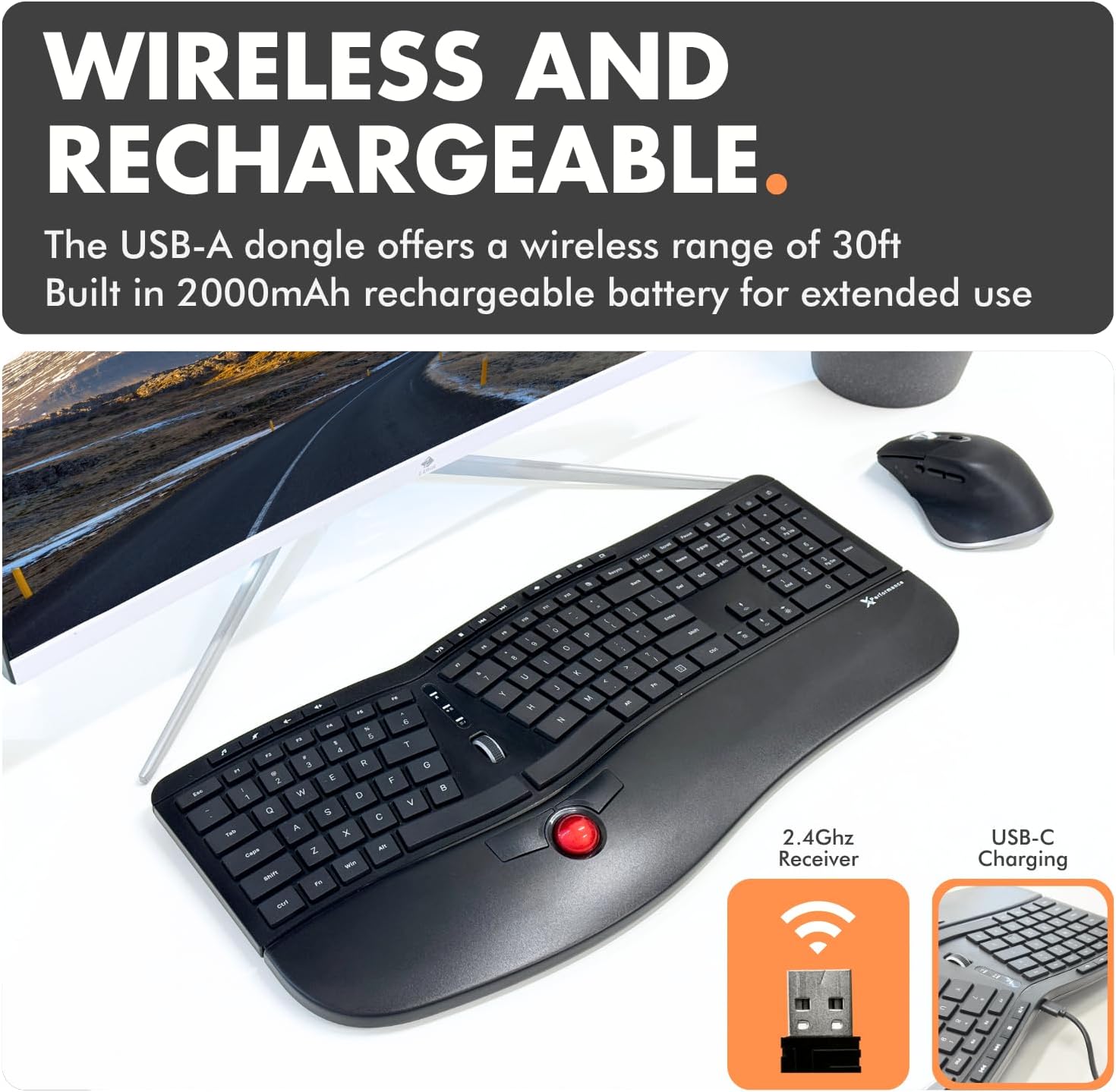
Image: The keyboard with its white backlit keys illuminated, demonstrating visibility in a dim setting.
3.5. Kekunci Pintasan
The keyboard includes 19 dedicated shortcut keys for quick access to various functions, such as volume control, media playback, and application management. Refer to the key legends for specific functions.

Imej: Overhed view of the keyboard, pointing out the split 128-key layout, media keys, and 19 shortcut keys.
3.6. Produk Lebihview Video
Tonton video produk rasmi ini untuk visual seterusnyaview of the X9 Performance Ergonomic Wireless Keyboard with Trackball, demonstrating its key features and benefits.
Video: Tamatview of the X9 Split Wireless Keyboard with Thumb-Controlled Trackball, demonstrating its ergonomic design, integrated trackball, and other features.
4. Penyelenggaraan
4.1. Membersihkan Papan Kekunci
To ensure longevity and optimal performance, clean your keyboard regularly:
- Putuskan sambungan papan kekunci daripada komputer anda sebelum membersihkan.
- Gunakan kain lembut dan tidak berbulu sedikit dampdisapu dengan air atau larutan pembersih yang lembut dan tidak melelas.
- Elakkan menyembur cecair terus ke papan kekunci.
- Untuk habuk dan serpihan di antara kunci, gunakan udara termampat.
4.2. Pembersihan Bebola Trek
If the trackball's movement becomes rough or inaccurate, it may need cleaning:
- Gently remove the trackball from its housing (refer to product diagrams if available for specific removal instructions).
- Clean the trackball and the inside of its housing, especially the small rollers or sensors, with a clean, lint-free cloth.
- Masukkan semula bebola trek ke dalam perumahnya.
4.3. Penjagaan Bateri
- Elakkan menyahcas sepenuhnya bateri dengan kerap untuk memanjangkan jangka hayatnya.
- Simpan papan kekunci di tempat yang sejuk dan kering apabila tidak digunakan untuk tempoh yang lama.
5. Penyelesaian masalah
If you encounter issues with your X9 Performance keyboard, try the following solutions:
5.1. Keyboard Not Responding / Connectivity Issues
- Semak Kuasa: Ensure the keyboard is turned on and fully charged. Connect the USB-C charging cable to verify if the battery is low.
- Penyesuai USB: Ensure the 2.4GHz USB-A adapter is securely plugged into a working USB port on your computer. Try a different USB port.
- pasangan semula: If connection is lost, try unplugging and re-plugging the USB adapter. Turn the keyboard off and on again.
- Gangguan: Move the keyboard closer to the USB adapter or away from other wireless devices that might cause interference.
5.2. Trackball Not Moving Smoothly or Inaccurately
- Bola Jejak Bersih: Refer to Section 4.2 for trackball cleaning instructions. Dust or debris can affect performance.
- Laraskan Kepekaan: The trackball sensitivity might be too low or too high for your preference. Refer to Section 3.3 for instructions on adjusting trackball sensitivity in your operating system settings.
5.3. Lampu Latar Tidak Berfungsi
- Check Brightness Level: Press the backlight control key (often with a light bulb icon) to cycle through brightness levels and ensure it's not set to 'Off'.
- Tahap Bateri: Ensure the keyboard has sufficient battery charge. Low battery might disable backlighting to conserve power.
6. Spesifikasi
| Ciri | Perincian |
|---|---|
| Jenama | Prestasi X9 |
| Nombor Model | X9RFBLERGBAL |
| Dimensi Produk | 18.3"P x 8.7"L x 0.3"T (18.3 x 8.7 x 0.3 inci) |
| Berat Barang | 2.42 paun |
| Teknologi Ketersambungan | RF 2.4G |
| Peranti Serasi | PC (Windows), Chrome |
| Penerangan Papan Kekunci | Built-in Trackball and Mouse Keys, Multi Functional, Multimedia, Full Size, Rechargeable, Split Ergonomic |
| Ciri Khas | Backlit wireless ergonomic keyboard, carpal tunnel keyboard, full size trackball keyboard for PC, rechargeable split keyboard, wireless keyboard with trackball |
| Bilangan Kunci | 128 |
| Sokongan Warna Lampu Latar Papan Kekunci | Warna Tunggal (Putih) |
| Komponen yang Disertakan | Keyboard, USB-A adapter, USB-C charging cable, user manual |

Image: Technical drawing showing the dimensions of the X9 Performance Ergonomic Wireless Keyboard.
7. Waranti dan Sokongan
X9 Performance products are designed for reliability and performance. For specific warranty information regarding your keyboard, please refer to the warranty card included with your product or visit the official X9 Performance webtapak.
If you require technical assistance, troubleshooting, or have questions about your product, please contact X9 Performance customer support through their official channels. Contact information can typically be found on the product packaging or the brand's webtapak.


