1. Pengenalan
Welcome to the Koiiko Wireless Gaming Controller Z01 user manual. This guide provides detailed instructions for setting up, operating, maintaining, and troubleshooting your new gaming controller. The Koiiko Z01 is designed for multi-platform compatibility, offering an enhanced gaming experience across various devices.
2. Produk Lebihview
2.1 Ciri-ciri Utama
- Keserasian Pelbagai Platform: Compatible with iOS (iPhone, iPad), Android (phones, tablets), PC, Nintendo Switch/Switch OLED/Switch Lite, PlayStation 4/3, and various cloud gaming services (Steam Link, Play Space, Nvidia GeForce Now, Xbox Game Pass, Amazon Luna, Google Stadia, Rainway, Moonlight). Note: Not compatible with Apple TV, iPod, Fire TV/TV Box.
- Advanced Control: Features clickable thumbsticks, turbo function, 6-axis gyro, responsive Hall Effect linear triggers, and Hall Effect rockers for precise input.
- Pencahayaan yang boleh disesuaikan: Dazzling 7-color RGB breathing light with 5 adjustable RGB light modes.
- Butang Boleh Aturcara: Equipped with LB, RB, M1, M2 buttons, offering up to 30 customizable actions.
- Kesambungan Tanpa Wayar: Connects via Bluetooth, eliminating the need for a 2.4G adapter.
- Bateri Tahan Lama: Built-in 600mAh lithium battery provides over 10 hours of continuous gameplay.
- Reka Bentuk Mudah Alih: Small and lightweight for easy carrying and storage.
2.2 Kandungan Pakej
- 1 x Koiiko Wireless Gaming Controller Z01
- 1 x Kabel Pengecas USB
- 1 x Manual Pengguna
3. Spesifikasi

Product Information Table for Koiiko Wireless Gaming Controller Z01
| Atribut | Perincian |
|---|---|
| Nama Produk | Pengawal Permainan Tanpa Wayar |
| Model | Z01 |
| Jarak Penghantaran Bluetooth | ≤ 8 Meter |
| Bekerja Voltage | DC3.7V |
| Bekerja Semasa | <35mA |
| Tempoh Penggunaan | Lebih kurang 10-15 Jam |
| Masa Mengecas | Lebih kurang 2 Jam |
| Kapasiti Bateri | 600mAh |
| Dimensi | 143mm x 90mm x 49mm |
| Berat Barang | 4 auns |
4. Persediaan & Sambungan
Before connecting, ensure your Koiiko Wireless Gaming Controller Z01 is powered off.
4.1 PC Wireless Connection
- Hold down the 'R' key and then press the 'Home' key for 2 seconds. The 'Home' key will show a BLUE light and flash quickly, indicating pairing mode.
- On your PC, turn on the Bluetooth function.
- Cari untuk and select the Bluetooth device named "Xbox Wireless Controller".
- Once connected, the 'Home' key will remain BLUE.
Video demonstrating how to connect the Koiiko Wireless Gaming Controller to a PC via Bluetooth and how to set up Steam Link for PC streaming.
4.2 iOS Wireless Connection (iPhone/iPad)
- Hold down the 'R' key and then press the 'Home' key for 2 seconds. The 'Home' key will show a BLUE light and flash quickly, indicating pairing mode.
- On your iOS device, turn on the Bluetooth function.
- Cari untuk and select the Bluetooth device named "Xbox Wireless Controller".
- Once connected, the 'Home' key will remain BLUE.
Video guide for connecting the Koiiko Wireless Gaming Controller to an iOS device (iPhone/iPad) via Bluetooth.
4.3 Android Wireless Connection
- Hold down the 'Y' key and then press the 'Home' key for 2 seconds. The 'Home' key will show an ORANGE light and flash quickly, indicating pairing mode.
- On your Android device, turn on the Bluetooth function.
- Cari untuk and select the Bluetooth device named "Z01".
- Once connected, the 'Home' key will remain ORANGE.
Video tutorial on connecting the Koiiko Wireless Gaming Controller to an Android device via Bluetooth.
4.4 Nintendo Switch Wireless Connection
- On your Nintendo Switch, navigate to System Settings > Controllers and Sensors > Change Grip/Order.
- Hold down the 'ZR' key and then press the 'Home' key for 2 seconds. The 'Home' key will show a GREEN light and flash quickly, indicating pairing mode.
- The controller will automatically connect to the console. Once connected, the 'Home' key will remain GREEN.
Video instructions for pairing the Koiiko Wireless Gaming Controller with a Nintendo Switch console.
4.5 PC Streaming (Steam Link)
- Ensure your PC and iOS/Android device are connected to the same network.
- Download and open the Steam Link app on your mobile device.
- Sign in to your Steam account on both your PC and the Steam Link app.
- The app will automatically scan for connectable computers. After selecting your PC, enter the PIN code displayed in the app into Steam on your PC.
- Once the connection and speed test are complete, click 'Start Running' in the app to access your Steam library and play games.
5. Arahan Operasi
5.1 Fungsi Butang
- Butang ABXY: Butang tindakan standard.
- D-Pad: Input arah.
- Kayu Joy Kiri/Kanan: Pergerakan analog dan kawalan kamera.
- LB/RB Buttons: Left and Right Bumper buttons.
- LT/RT Triggers: Left and Right Analog Triggers (Hall Effect for precision).
- Butang rumah: Power on/off, return to home screen.
- Butang Pilih/Mula: Menu navigation and in-game actions.
- Butang M1/M2: Butang belakang yang boleh diprogramkan.
5.2 ABXY Key-Value Interchange
To switch the ABXY key values between Xbox and Switch layouts, press the 'Y + A + HOME' keys simultaneously. This allows you to adapt the button mapping without physically removing buttons.

ABXY Key-Value Interchange Diagram
5.3 Kawalan Pencahayaan RGB
The controller features a dedicated light adjustment button. Press this button to cycle through 7-color RGB breathing light effects and 5 different RGB light modes, allowing you to choose your preferred lighting style.

RGB Lighting Modes Illustration
5.4 Fungsi Turbo
The turbo function allows for rapid, continuous input of a button press. Refer to the detailed instructions in the included physical user manual for specific button combinations to activate and customize turbo settings.
5.5 Butang Belakang Boleh Diprogram (M1, M2)
The M1 and M2 back buttons are highly customizable, supporting up to 30 action keys. Consult the included physical user manual for detailed programming instructions to set up your preferred macros and functions.
5.6 6-Axis Gyro and Vibration
The controller features 6-axis gyro and vibration feedback for immersive gameplay. Please note that these functions are supported only on PC, PlayStation 3, PlayStation 4, and Nintendo Switch platforms.
5.7 Kayu Ria dan Pencetus Kesan Hall
The Koiiko Z01 is equipped with e-sports level Hall Effect 3D joysticks and linear triggers. This technology greatly reduces joystick drift, providing smooth handling and precise positioning for an enhanced gaming experience.
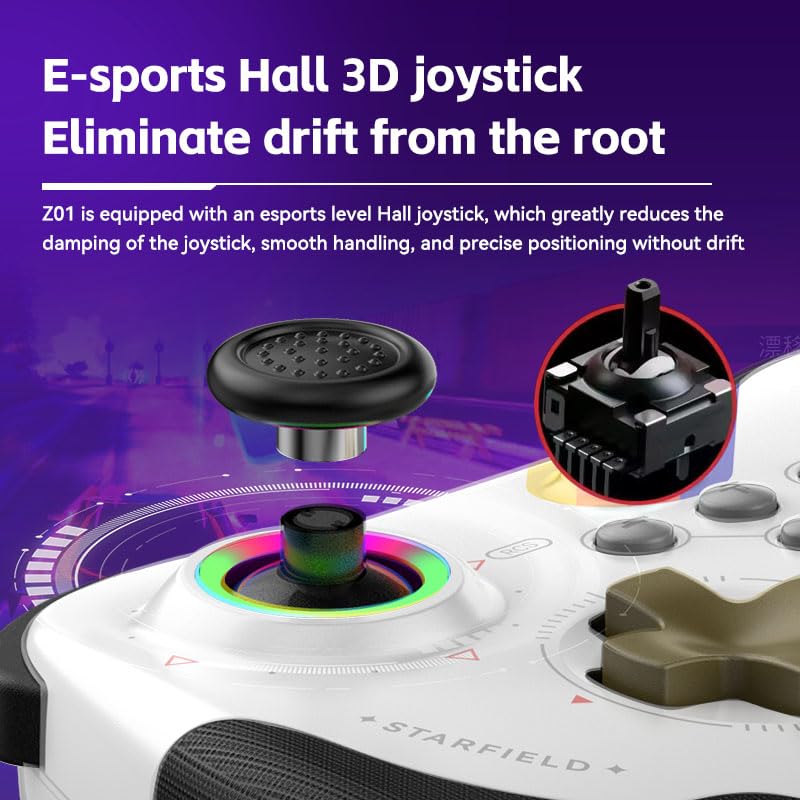
Hall Effect 3D Joystick Detail
6. Penyelenggaraan
- Pembersihan: Gunakan kain lembut dan kering untuk membersihkan pengawal. Elakkan menggunakan bahan kimia yang keras atau bahan yang melelas.
- Storan: Simpan pengawal di tempat yang sejuk dan kering jauh dari cahaya matahari langsung dan suhu yang melampau.
- Penjagaan Bateri: Untuk memanjangkan hayat bateri, elakkan daripada menyahcas sepenuhnya pengawal dengan kerap. Mengecasnya dengan kerap, walaupun tidak digunakan untuk tempoh yang lama.
- Elakkan Titisan: Walaupun tahan lama, titisan berulang boleh merosakkan komponen dalaman. Kendalikan dengan berhati-hati.
7. Penyelesaian masalah
- Pengawal Tidak Bersambung:
- Pastikan pengawal dicas sepenuhnya.
- Verify you are using the correct button combination for your device's pairing mode (e.g., 'R + Home' for PC/iOS, 'Y + Home' for Android, 'ZR + Home' for Switch).
- Pastikan Bluetooth didayakan pada peranti anda.
- Remove any previous pairings of the controller from your device's Bluetooth settings and try pairing again.
- Mulakan semula kedua-dua pengawal dan peranti anda.
- Butang Tidak Menjawab:
- Check if the controller is properly connected to your device.
- Ensure the game you are playing supports controller input.
- If playing on PC, ensure 'Xbox Configuration Support' is enabled in Steam settings if using Steam.
- Test the controller with another game or device to isolate the issue.
- Isu Pengecasan:
- Gunakan kabel pengecas USB yang disediakan.
- Ensure the charging port on the controller and the USB port on your power source are clean and free of debris.
- Cuba port USB atau penyesuai kuasa yang berbeza.
- Drift Kayu Ria:
- The Koiiko Z01 uses Hall Effect joysticks designed to minimize drift. If you experience drift, try recalibrating the controller through your device's settings if available.
- Pastikan firmware pengawal dikemas kini (semak firmware pengilang weblaman web untuk kemas kini).
8. Waranti & Sokongan
Your Koiiko Wireless Gaming Controller Z01 comes with a standard manufacturer's warranty. Please refer to the warranty card included in your package for specific terms and conditions.
For any questions, technical support, or assistance with your product, please contact our dedicated technology team. We are committed to providing comprehensive support to ensure your satisfaction.
Maklumat Hubungan: Please refer to the contact details provided on the product packaging or the official Koiiko webtapak.