1. Pengenalan
This manual provides essential information for the safe and efficient use of your Mediacom SmartPad 4 4G Azimut 4 tablet. Please read this manual thoroughly before operating the device and retain it for future reference.
2. Maklumat Keselamatan
- Keselamatan Bateri: Do not attempt to replace the internal battery. Do not expose the device to extreme temperatures or direct sunlight.
- Tahan Air: Peranti ini tidak kalis air. Elakkan pendedahan kepada cecair.
- mengecas: Gunakan hanya pengecas dan kabel asal yang disediakan bersama peranti.
- Perlindungan Pendengaran: Elakkan mendengar berpanjangan pada tahap kelantangan tinggi untuk mengelakkan kerosakan pendengaran.
- Pelupusan: Dispose of the device and its battery according to local regulations. Do not dispose of with household waste.
3. Kandungan Pakej
Pastikan semua item ada dalam pakej:
- Mediacom SmartPad 4 4G Azimut 4 Tablet
- Kabel Pengecas USB-C
- Penyesuai Kuasa
- Panduan Mula Pantas (jika disertakan)
- Alat Ejector SIM (jika disertakan)
4. Reka Letak Peranti
Biasakan diri anda dengan komponen fizikal tablet anda.
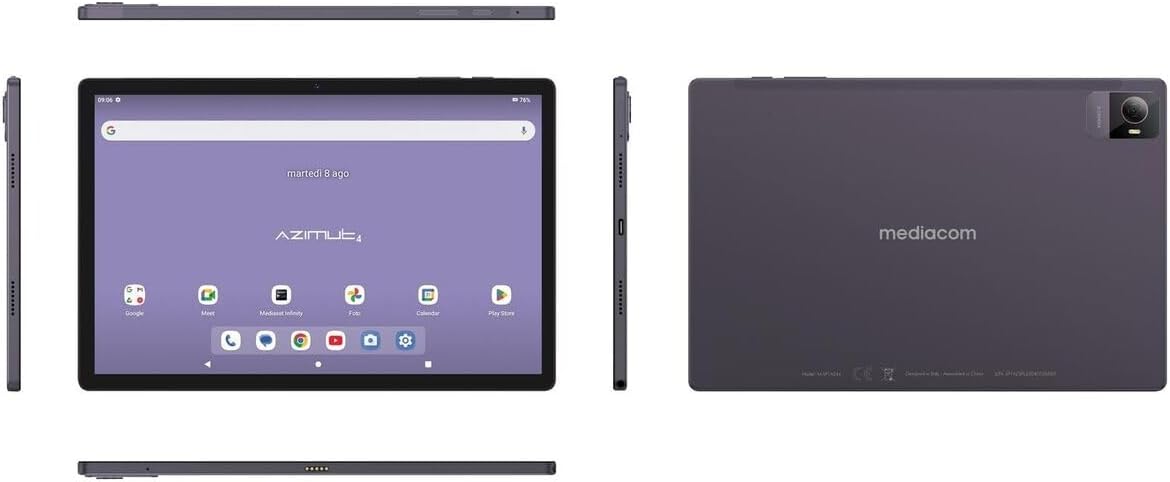
Imej 4.1: Berbilang views of the Mediacom SmartPad 4 4G Azimut 4 tablet, illustrating the front display, rear camera, and various side ports and buttons. This includes the power button, volume rocker, USB-C port, headphone jack, and SIM/microSD card slot.
- Kamera Depan: Located at the top center of the display when held in landscape orientation.
- paparan: 10.51-inch IPS screen.
- Butang Kuasa: Typically located on the side, used to turn the device on/off or wake/sleep the screen.
- Butang Kelantangan: Located near the power button, used to adjust audio volume.
- Port USB-C: Untuk pengecasan dan pemindahan data.
- Jack fon kepala: Output audio standard 3.5mm.
- Slot Kad SIM/microSD: Combined slot for Nano-SIM and microSD cards.
- Kamera Belakang: Located on the back of the tablet, typically with a flash.
- Penceramah: Four speakers for immersive audio.
5. Persediaan
5.1 Mengecas Peranti
Before first use, fully charge your tablet. Connect the USB-C cable to the tablet's USB-C port and the power adapter. Plug the adapter into a wall outlet. The battery indicator on the screen will show charging status.
5.2 Memasukkan Kad SIM dan MicroSD
- Locate the SIM/microSD card slot on the side of the tablet.
- Gunakan alat ejektor SIM yang disediakan untuk membuka dulang.
- Carefully place your Nano-SIM card and/or microSD card into the designated slots on the tray. Ensure correct orientation.
- Tolak dulang perlahan-lahan ke dalam slot sehingga ia berbunyi klik pada tempatnya.
5.3 Hidupkan dan Persediaan Awal
- Press and hold the Power button until the Mediacom logo appears.
- Follow the on-screen prompts to select your language, connect to a Wi-Fi network, set up your Google account, and configure other initial settings.
6. Arahan Operasi
6.1 Navigasi Asas
The Mediacom SmartPad 4 4G Azimut 4 uses a multi-touch capacitive touchscreen. Common gestures include:
- Ketik: Untuk memilih item atau membuka aplikasi.
- Ketik dan Tahan: Untuk mengakses menu kontekstual atau mengalihkan ikon.
- Leret: Untuk menatal halaman atau senarai.
- Cubit: Untuk mengezum masuk atau keluar pada imej dan web muka surat.
6.2 Menyambung ke Wi-Fi
- Pergi ke tetapan > Rangkaian & internet > Wi-Fi.
- Togol Wi-Fi On.
- Pilih rangkaian yang anda inginkan daripada senarai dan masukkan kata laluan jika digesa.
6.3 Connecting to 4G Cellular Network
If a Nano-SIM card is inserted and activated, your tablet will automatically connect to the 4G network. Ensure mobile data is enabled in tetapan > Rangkaian & internet > Rangkaian mudah alih.
6.4 Menggunakan Kamera
Open the Camera app from your home screen or app drawer. You can switch between the 8 MP front camera and the 13 MP rear camera. Tap the shutter button to take photos or record videos.
6.5 Mengurus Storan
Your tablet has 64 GB of internal storage. You can expand this by up to 128 GB using a microSD card. To view storage usage, go to tetapan > Penyimpanan.
6.6 Kesambungan Bluetooth
Untuk menyambungkan peranti Bluetooth:
- Pergi ke tetapan > Peranti yang disambungkan > Bluetooth.
- Togol Bluetooth On.
- Select your device from the list of available devices and follow pairing instructions.
7. Penyelenggaraan
7.1 Membersihkan Peranti
Gunakan kain lembut dan tidak berbulu untuk membersihkan skrin dan badan tablet. Elakkan menggunakan bahan kimia yang keras atau bahan yang melelas.
7.2 Penjagaan Bateri
- Elakkan menyahcas sepenuhnya bateri dengan kerap.
- Jangan biarkan tablet mengecas untuk tempoh yang lama selepas ia dicas sepenuhnya.
- Store the tablet in a cool, dry place when not in use for long periods.
7.3 Kemas Kini Perisian
Semak kemas kini perisian secara berkala untuk memastikan prestasi dan keselamatan yang optimum. Pergi ke tetapan > Sistem > Kemas kini sistem.
8. Penyelesaian masalah
- Peranti tidak dihidupkan: Pastikan bateri telah dicas. Sambungkan pengecas dan cuba lagi.
- Skrin tidak bertindak balas: Try restarting the device by holding the Power button for about 10-15 seconds.
- Isu sambungan Wi-Fi: Mulakan semula tablet dan penghala Wi-Fi anda. Pastikan anda berada dalam julat dan telah memasukkan kata laluan yang betul.
- Apl ranap: Kosongkan cache aplikasi yang bermasalah (Tetapan > Aplikasi > [Nama Aplikasi] > Storan & cache > Kosongkan cache). Jika masalah berterusan, cuba pasang semula aplikasi tersebut.
- Prestasi perlahan: Close unused apps, clear cache, or consider performing a factory reset (backup your data first).
9. Spesifikasi
| Ciri | Spesifikasi |
|---|---|
| Nama Model | Azimut 4 |
| Sistem Operasi | Android 13 |
| Paparan | 10.51" IPS, 1920 x 1200 pixels, Multi-touch 5 points |
| Pemproses | Spreadtrum Tiger T606 (8-core, 1.6 GHz) |
| RAM | 4 GB |
| Storan Dalaman | 64 GB |
| Storan Boleh Dikembangkan | microSD sehingga 128 GB |
| Kamera Belakang | 13 Megapixels (with flash) |
| Kamera Depan | 8 Megapiksel |
| Teknologi Selular | 4G (GSM, WCDMA, FDD-LTE) |
| Jalur Selular | W-CDMA 900/2100, GSM 850/900/1800/1900, LTE B1/B20/B3/B7 |
| Kesambungan Wayarles | Wi-Fi (802.11n), Bluetooth 5.0 |
| Pelabuhan | 1 x Nano-SIM/microSD combo, 1 x Headphone (3.5mm), 1 x USB-C |
| Bateri | 6000 mAh Li-Po |
| Ciri Khas | 4G Cellular Technology, Ergonomic and Contemporary Design |
10. Waranti dan Sokongan
For warranty information and technical support, please refer to the warranty card included in your product packaging or visit the official Mediacom webtapak. Simpan bukti pembelian anda untuk tuntutan waranti.
11. Pematuhan Peraturan
This device complies with relevant regulatory standards. For detailed compliance information, please refer to the product packaging or the official Mediacom webtapak.


