1. Pengenalan
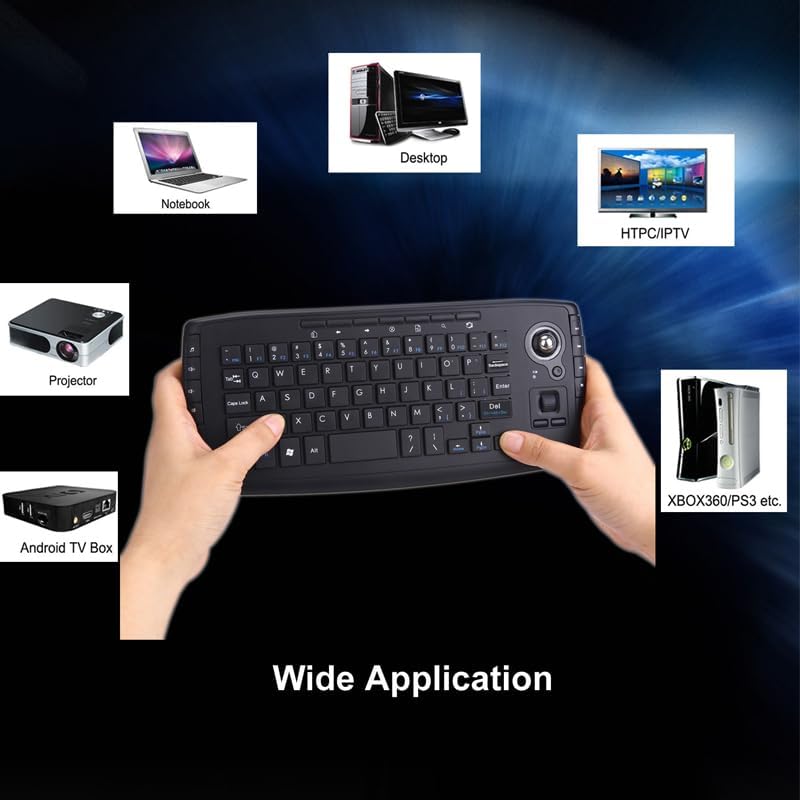
Thank you for choosing the JOMAA Mini Ergonomic Keyboard Trackball Air Mouse. This compact and versatile device combines the functionality of a keyboard and a trackball mouse, offering seamless control for various systems including Android, Windows, and Linux OS. It is ideal for use with laptops, personal computers, televisions, XBOX 360, PS3, HTPC/IPTV, and Android TV Boxes.
This manual provides detailed instructions for setup, operation, and maintenance to ensure you get the most out of your new device.
2. Kandungan Pakej
Sila pastikan semua item ada dalam pakej anda:
- JOMAA Mini Ergonomic Keyboard Trackball Air Mouse (Model TK5)
- 2.4G Wireless USB Receiver
- Kabel Pengecasan USB (Mikro USB ke USB-A)
- Manual Pengguna
Nota: 2 bateri AA diperlukan untuk operasi dan tidak disertakan.
3. Persediaan
3.1 Pemasangan Bateri
The keyboard requires 2 AA batteries. Locate the battery compartment on the underside of the keyboard. Open the battery cover, insert the batteries according to the polarity markings, and close the cover securely.

3.2 2.4G Wireless USB Connection
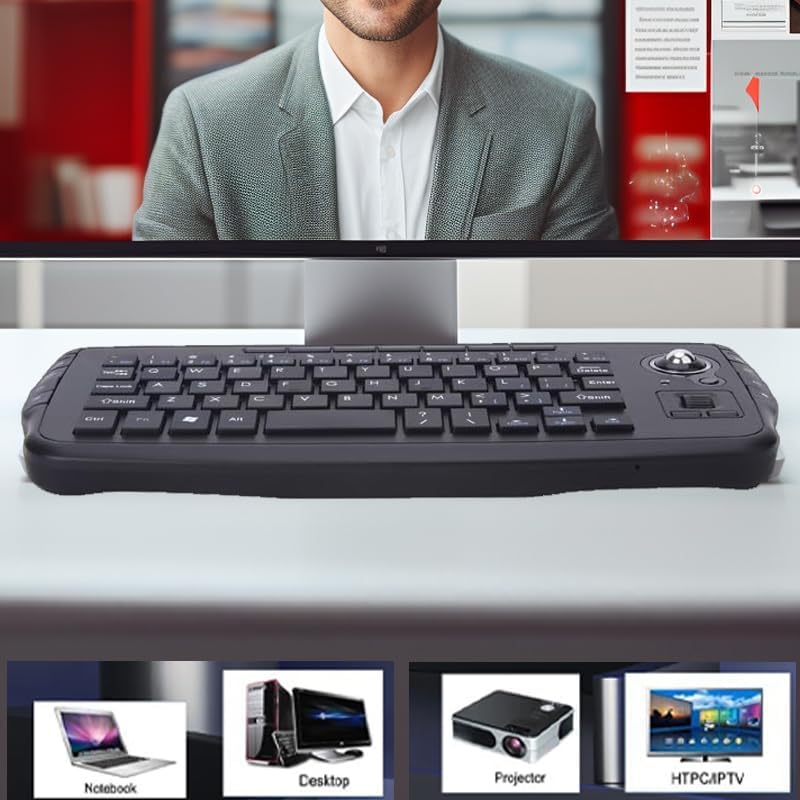
For 2.4G wireless connection, locate the USB nano receiver stored in its dedicated port at the bottom of the keyboard. Plug this receiver into an available USB port on your computer, TV, or other compatible device. The keyboard is plug-and-play, requiring no additional drivers.
3.3 Bluetooth Pairing (If applicable to your model)
Some models may support Bluetooth connectivity. To pair via Bluetooth, ensure your device's Bluetooth is enabled. Press and hold the designated Bluetooth pairing button (refer to your specific model's markings, often indicated by a Bluetooth icon) until the indicator light flashes, signifying it's in pairing mode. Select "JOMAA Keyboard" or similar from your device's Bluetooth list to connect.
3.4 Penukaran Berbilang Peranti
The keyboard supports connecting to multiple devices. Use the dedicated device switching buttons (e.g., USB, BT1, BT2) to seamlessly switch control between your paired devices without re-pairing.
4. Arahan Operasi
4.1 Fungsi Papan Kekunci
The keyboard features a standard QWERTY layout with additional function keys. Keys are designed for a soft and silent touch, minimizing noise during use.

4.2 Trackball and Mouse Buttons
The integrated trackball allows for precise cursor movement. Below the trackball, you will find physical buttons that replicate the left and right mouse clicks, as well as a scroll wheel function for easy navigation through documents and web muka surat.

4.3 Kekunci Multimedia dan Pintasan
The keyboard includes various multimedia keys and shortcut keys, typically located on the sides and top, providing quick access to functions such as volume control, media playback, and more.

4.4 Aplikasi Luas
This keyboard is compatible with a wide range of operating systems and devices, including Android, Windows, and Linux. It is suitable for XBOX 360, PS3, HTPC/IPTV, Android TV Box, Laptops, and Projectors.
5. Penyelenggaraan
5.1 Membersihkan Bebola Jejak
To maintain optimal performance, periodically clean the trackball. Gently remove the trackball from its housing (some models may have a small opening on the underside to push it out). Wipe the trackball and the inside of its housing with a soft, lint-free cloth. Reinsert the trackball securely.
5.2 Penggantian Bateri
When the low battery indicator illuminates or performance degrades, replace the 2 AA batteries. Follow the instructions in Section 3.1 for proper battery installation.
6. Penyelesaian masalah
- Tiada sambungan: Ensure the USB receiver is properly plugged in or Bluetooth is paired correctly. Check battery levels.
- Lagging cursor: Replace batteries. Clean the trackball as described in Section 5.1. Ensure no obstructions between the keyboard and receiver.
- Kunci tidak bertindak balas: Check battery levels. Ensure the keyboard is powered on.
- Gangguan: Move the keyboard closer to the receiver or away from other wireless devices that may cause interference.
7. Spesifikasi
| Jenama | JOMAA |
| Nombor Model | TK5 |
| Teknologi Ketersambungan | 2.4G Wayarles |
| Peranti Serasi | Laptop, Personal Computer, Television, XBOX 360, PS3, HTPC/IPTV, Android TV Box, Projector |
| Sumber Kuasa | 2 bateri AA (tidak termasuk) |
| Berat Barang | 10.2 auns |
| Dimensi Pakej | 11.14 x 5 x 1.34 inci |
| Ciri Khas | Portable, Integrated Trackball, Multimedia Keys, Silent Keys |
8. Waranti dan Sokongan
For warranty information or technical support, please refer to the documentation included with your product or visit the official JOMAA webtapak. Simpan resit pembelian anda untuk tuntutan waranti.