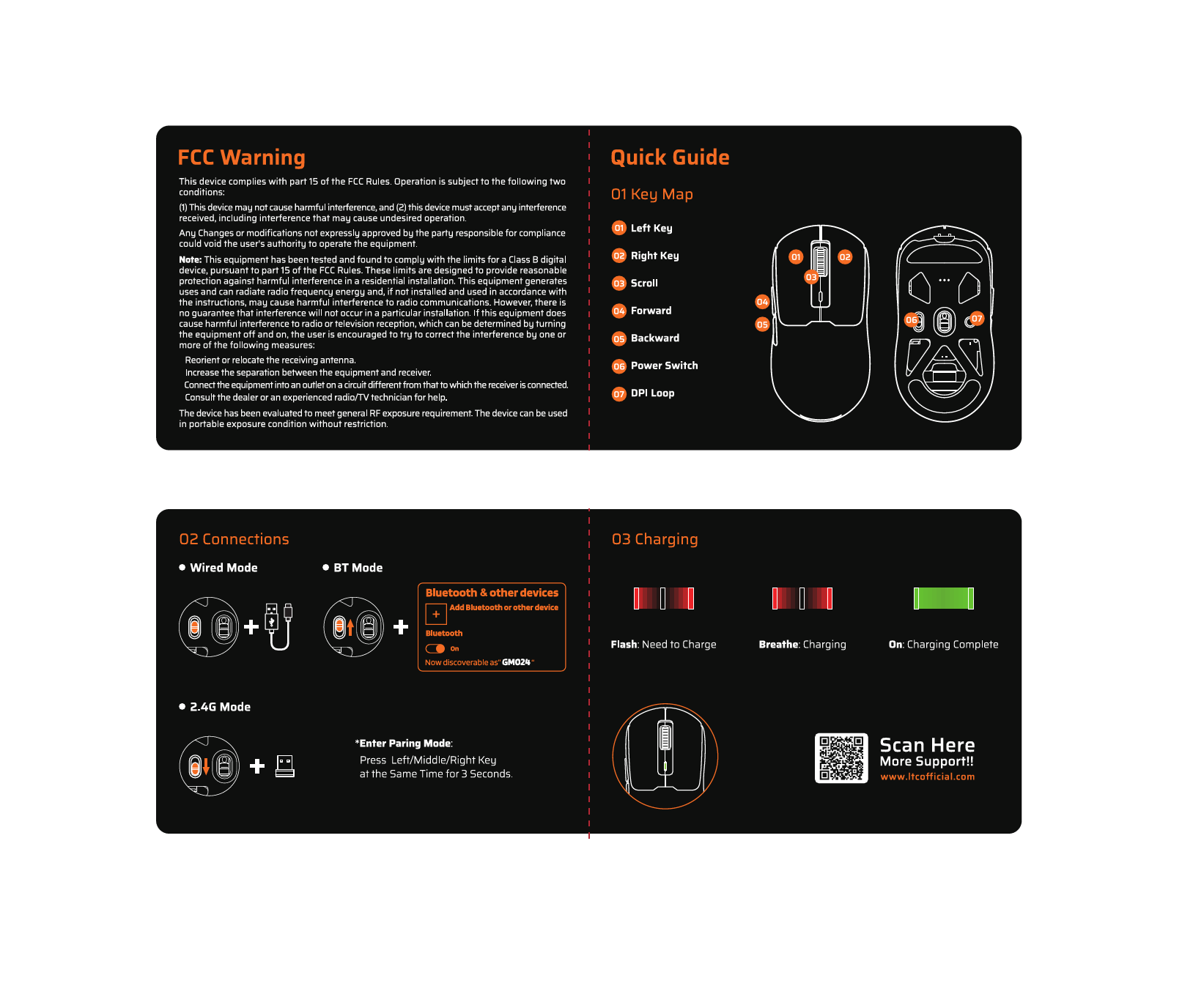
1. Pengenalan
The LTC GM022 is an ultralight 3-mode wireless gaming mouse designed for precision and versatility. It features a high-performance PAW3395 sensor, multiple connectivity options, and a convenient RGB charging dock. This manual provides instructions for setting up, operating, maintaining, and troubleshooting your GM022 mouse.
Kandungan Pakej
- LTC GM022 Gaming Mouse
- Dok Pengecasan RGB
- Kabel USB-C
- 2.4G USB Receiver (stored in mouse)

LTC GM022 Wireless Gaming Mouse with RGB Charging Dock and 2.4G USB Receiver.
2. Persediaan dan Ketersambungan
The LTC GM022 mouse offers three connectivity modes: 2.4GHz wireless, Bluetooth 5.0, and wired USB-C. Select the mode that best suits your needs.

Diagram illustrating the three connectivity modes: 2.4GHz wireless, Bluetooth 5.1, and USB-C wired connection.
2.1. Mod Tanpa Wayar 2.4GHz
- Cari penerima USB 2.4G yang disimpan di dalam petak di bahagian bawah tetikus.
- Palamkan penerima USB ke dalam port USB yang tersedia pada komputer anda.
- Luncurkan suis mod di bahagian bawah tetikus ke kedudukan "2.4G".
- Tetikus harus bersambung secara automatik ke komputer anda.
2.2. Mod Bluetooth 5.0
- Luncurkan suis mod di bahagian bawah tetikus ke kedudukan "BT".
- Pada komputer atau peranti anda, buka tetapan Bluetooth dan cari peranti baharu.
- Select "LTC GM022" from the list of available devices to pair.
2.3. Wired USB-C Mode
- Connect the provided USB-C cable to the front port of the mouse.
- Sambungkan hujung kabel USB-C yang satu lagi ke port USB yang tersedia pada komputer anda.
- Tetikus akan berfungsi dalam mod berwayar dan dicas secara serentak.

Underside of the LTC GM022 mouse with labels for mode switch, dongle storage, PTFE feet, and DPI loop button.
3. Arahan Operasi
3.1. Fungsi Butang
The LTC GM022 mouse features 5 programmable buttons:
- Klik Kiri: Tindakan utama.
- Klik kanan: Menu tindakan/konteks sekunder.
- Klik Tengah (Roda Skrol): Scroll up/down, click for universal scroll or other assigned function.
- Butang ke hadapan: Navigasi ke hadapan web pelayar atau file penjelajah.
- Butang ke belakang: Navigasi ke belakang web pelayar atau file penjelajah.

Illustration of the LTC GM022 mouse highlighting its five programmable buttons and their default assignments.
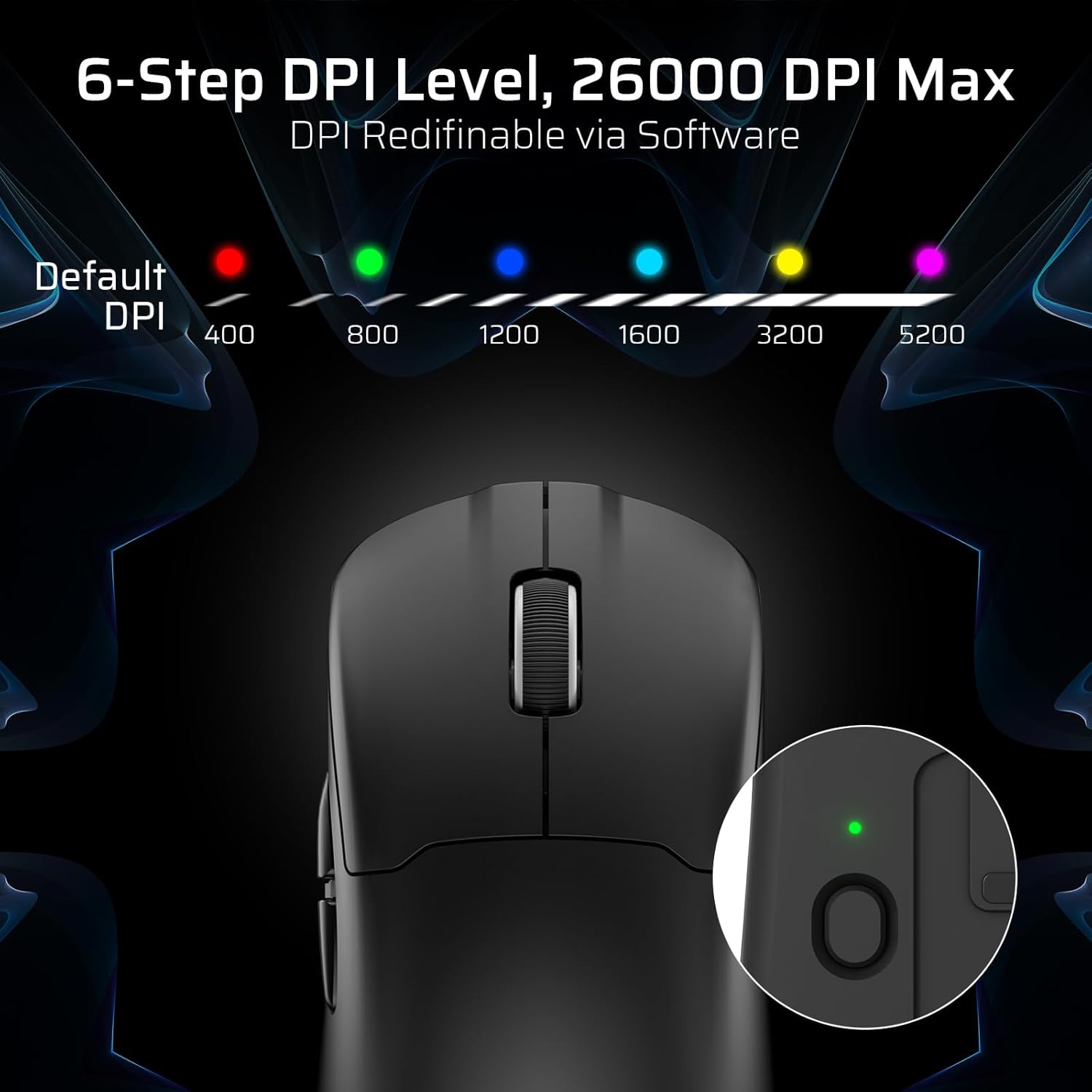
3.2. Pelarasan DPI
The mouse has a dedicated DPI button on its underside, allowing you to cycle through 6 preset DPI levels. Each level is indicated by a different LED color:
- 400 DPI (Merah)
- 800 DPI (Hijau)
- 1200 DPI (Biru)
- 1600 DPI (Cyan)
- 3200 DPI (Kuning)
- 5200 DPI (Magenta)
These DPI levels can be further customized and redefined up to 26000 DPI using the LTC software.

Visual representation of the 6-step DPI levels (400, 800, 1200, 1600, 3200, 5200) and the corresponding LED indicator colors.
3.3. Software Customization
Download and install the official LTC software from the manufacturer's website to unlock full customization options. The software allows you to:
- Tetapkan makro pada butang.
- Petakan semula fungsi utama.
- Redefine 6-step DPI levels up to 26000 DPI.
- Adjust polling rate (up to 1000Hz).
- Modify click and scroll speed.
- Monitor battery status.

Screenshot of the LTC software interface for customizing mouse settings, including key assignments, DPI, polling rate, and battery monitoring.
4. Mengecas Tetikus
The LTC GM022 mouse is equipped with a 400mAh battery and can be charged using the included magnetic RGB charging dock or directly via the USB-C cable.
4.1. Using the Magnetic Charging Dock
- Connect the USB-C cable to the charging dock and then to a power source (e.g., computer USB port, USB wall adapter).
- Place the mouse onto the charging dock. The magnetic connection will secure it in place, and charging will begin automatically.
- The RGB lighting on the dock will indicate charging status.
4.2. Direct USB-C Charging
- Connect the USB-C cable directly to the mouse's front port.
- Sambungkan hujung kabel USB-C yang satu lagi ke sumber kuasa.
- The mouse can be used in wired mode while charging.

The LTC GM022 mouse magnetically charging on its RGB illuminated dock, indicating a 400mAh battery.
5. Penyelenggaraan dan Penjagaan
To ensure the longevity and optimal performance of your LTC GM022 mouse, follow these maintenance guidelines:
- Pembersihan: Gunakan kain lembut dan kering untuk mengelap permukaan tetikus. Untuk kotoran degil, sedikit dampen kain dengan air atau larutan pembersih lembut. Elakkan bahan kimia yang keras atau bahan yang melelas.
- Penjagaan Sensor: Pastikan sensor optik di bahagian bawah tetikus bersih dan bebas daripada habuk atau serpihan untuk mengekalkan ketepatan penjejakan.
- Kaki PTFE: The mouse comes with durable PTFE feet for smooth gliding. If they show significant wear, replacement feet may be available from the manufacturer.
- Storan: When not in use for extended periods, store the mouse in a clean, dry environment.
Close-up of the mouse's underside, detailing the PTFE feet for smooth gliding and the inclusion of backup feet.
6. Penyelesaian masalah
If you encounter issues with your LTC GM022 mouse, refer to the following common problems and solutions:
| Masalah | Penyelesaian yang Mungkin |
|---|---|
| Mouse not responding in 2.4G wireless mode | Ensure the USB receiver is securely plugged in. Check if the mouse mode switch is set to "2.4G". Try a different USB port. Ensure the mouse battery is charged. |
| Tetikus tidak bersambung melalui Bluetooth | Ensure the mouse mode switch is set to "BT". Make sure Bluetooth is enabled on your device. Remove previous pairings and re-pair the mouse. Ensure the mouse battery is charged. |
| Tetikus tidak dicas | Ensure the USB-C cable is properly connected to both the dock/mouse and the power source. Verify the power source is active. Clean the charging contacts on the mouse and dock. |
| Inaccurate tracking or cursor lag | Clean the optical sensor on the underside of the mouse. Ensure you are using the mouse on a suitable surface (e.g., a mouse pad). Check for interference in wireless modes. Adjust DPI settings. |
| Butang tidak bertindak balas | Ensure the mouse is powered on and connected. If using software, check button assignments. Try restarting your computer. |
If the issue persists after trying these solutions, please contact LTC customer support for further assistance.
7. Spesifikasi
Key technical specifications for the LTC GM022 Ultralight 3-Mode Wireless Gaming Mouse:
- model: GM022
- Ketersambungan: Tanpa Wayar 2.4GHz, Bluetooth 5.0, Berwayar USB-C
- Penderia: Penderia Optik PixArt PAW3395
- DPI maks: 26000 DPI (6-step re-definable via software)
- Kadar Pengundian: 1000Hz
- Kelajuan Penjejakan: 650IPS
- Pecutan: 50G
- Butang: 5 Butang Boleh Aturcara
- Tukar Jangka Hayat: 80 Juta Klik
- Bateri: Polimer Lithium 400mAh
- Berat: Kira-kira 55 gram (2.01 auns)
- Dimensi: 4.7 x 2.44 x 0.04 inci
- Ciri Khas: RGB Charging Dock, Ultralight Design, PTFE Feet

Terperinci view of the PixArt PAW3395 sensor specifications including 26K DPI Max, 1000Hz Polling Rate, 650 IPS Tracking Speed, and 50G Acceleration.

Illustration highlighting the durable switches with an 80 million click lifespan.
8. Waranti dan Sokongan
LTC products are designed and manufactured to the highest quality standards. For information regarding warranty coverage, technical support, or to download the latest software and drivers, please visit the official LTC webtapak atau hubungi bahagian perkhidmatan pelanggan mereka.
Simpan resit pembelian anda sebagai bukti pembelian untuk tuntutan waranti.