1. Pengenalan
This manual provides comprehensive instructions for setting up, operating, maintaining, and troubleshooting your Cudy AX3000 Multi Gigabit Dual Band WiFi 6 Mesh Router, Model WR3000H. This router is designed to deliver high-speed, reliable wireless connectivity with advanced features for your home or office network.
2. Apa yang ada di dalam Kotak
- WR3000H Router
- Penyesuai Kuasa
- Kabel Ethernet
- Panduan Pemasangan
3. Produk Lebihview
3.1 Panel Depan
The front panel of the WR3000H router features LED indicators that provide status information about the device's operation.

Depan view of the Cudy AX3000 WR3000H router, displaying LED indicators for System, Internet, WPS, 2.4G, 5G, LAN, and WAN status.
3.2 Panel Belakang
The rear panel contains all the physical ports and control buttons necessary for connecting and managing the router.

belakang view of the Cudy AX3000 WR3000H router, showing the Power port, ON/OFF button, Reset button, WPS button, 2.5G WAN port, and four Gigabit LAN ports (LAN1-LAN4).
4. Persediaan
4.1 Sambungan Perkakasan Awal
Ikuti langkah ini untuk menyambungkan penghala anda:
- Sambungan Kuasa: Connect the provided power adapter to the router's power port and plug it into an electrical outlet.
- Sambungan WAN: Connect your modem's Ethernet cable to the 2.5G WAN port on the router.
- Sambungan LAN (Pilihan): For initial setup or wired devices, connect an Ethernet cable from a LAN port (LAN1-LAN4) on the router to your computer.
- Hidupkan kuasa: Press the ON/OFF button to power on the router. Wait for the System LED indicator to stabilize.
4.2 Mengakses ke Web Antara muka
To configure your router settings:
- Pastikan komputer anda disambungkan ke penghala (berwayar atau tanpa wayar).
- Buka a web penyemak imbas (cth, Chrome, Firefox, Edge).
- Taip alamat IP lalai (biasanya
192.168.1.1orcudy.net) ke dalam bar alamat dan tekan Enter. - Enter the default login credentials (typically
adminfor both username and password, or as specified in the included Installation Guide). You will be prompted to change the password for security.
4.3 Persediaan Rangkaian Wi-Fi
Sebaik sahaja log masuk ke web interface, navigate to the Wireless settings to configure your Wi-Fi network:
- Change the default Wi-Fi Network Name (SSID) for both 2.4GHz and 5GHz bands.
- Tetapkan kata laluan yang kukuh dan unik untuk rangkaian Wi-Fi anda.
- Save your settings. Your devices can now connect using the new Wi-Fi name and password.
4.4 Cudy App Setup
For a simplified setup and management experience, download the Cudy App.

The Cudy App provides a user-friendly interface for quick setup and remote management of your network.
The Cudy App is available on both the Apple App Store and Google Play Store. Follow the in-app instructions for a guided setup process.
5. Arahan Operasi
5.1 Wi-Fi 6 Performance
The Cudy AX3000 WR3000H router utilizes Wi-Fi 6 technology to deliver superior wireless performance.

The router supports AX3000 speeds with dual-band operation (2402 Mbps on 5GHz and 574 Mbps on 2.4GHz) and 160MHz bandwidth, ensuring efficient data transmission and reduced latency.
With features like MU-MIMO and OFDMA, the router can communicate with multiple devices simultaneously, improving overall network efficiency and reducing congestion, especially in environments with many connected devices.
5.2 2.5Gbps WAN Port
The dedicated 2.5Gbps WAN port allows you to take full advantage of high-speed internet connections.

The 2.5Gbps WAN port supports internet speeds up to 2.5 Gbps, ideal for demanding applications like 4K streaming, online gaming, and large file pemindahan.
5.3 Fungsi VPN
The WR3000H router supports multiple VPN protocols, enabling secure remote access and privacy.

The router supports PPTP, L2TP, WireGuard, OpenVPN, IPsec, and Zerotier VPN protocols, allowing you to share a VPN subscription across your network or host your own VPN server.
5.4 Mesh Network Configuration
The WR3000H can be integrated into a Cudy Mesh network to provide seamless whole-home Wi-Fi coverage.
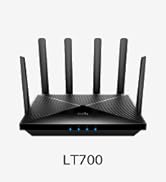
Combine multiple Cudy Mesh devices to create a unified Wi-Fi network, eliminating dead zones and ensuring consistent connectivity throughout your property. Both Ethernet and wireless backhaul options are supported.
5.5 Menyambung Berbilang Peranti
The router is designed to handle a large number of connected devices efficiently.

The WR3000H can support up to 256 devices, making it suitable for smart homes with numerous IoT devices, streaming, and gaming.
6. Penyelenggaraan
6.1 Kemas Kini Perisian Tegar
Regularly check for and install the latest firmware updates for your router. Firmware updates often include security patches, performance improvements, and new features. You can usually find firmware updates on the Cudy official weblaman web atau melalui penghala web antara muka.
6.2 Penempatan Penghala
Optimal placement of your router is crucial for maximizing Wi-Fi coverage and performance. Cudy recommends placing the router at the center of your home or office. Ensure there are no more than two wooden or brick walls, or one concrete wall, between the router and your devices to minimize signal degradation.
6.3 Pembersihan dan Penjagaan
To ensure the longevity and optimal performance of your router, keep it in a clean, dry environment. Avoid placing it near heat sources or in direct sunlight. Gently clean the exterior with a soft, dry cloth. Do not use liquid cleaners or abrasive materials.
7. Penyelesaian masalah
7.1 Isu Lazim
- Tiada sambungan internet: Check all cable connections (WAN, LAN). Verify your modem is working correctly. Restart both the modem and the router.
- Kelajuan Wi-Fi Perlahan: Ensure your devices are connected to the appropriate band (5GHz for faster speeds, 2.4GHz for longer range). Check for interference from other electronic devices. Consider router placement.
- Tidak Boleh Akses Web Antara muka: Verify your device is connected to the router's network. Ensure you are typing the correct IP address or domain (e.g.,
192.168.1.1orcudy.net). Clear your browser's cache or try a different browser.
7.2 Menetapkan Semula Penghala
If you encounter persistent issues, you may need to reset the router to its factory default settings. Locate the Reset button on the rear panel. With the router powered on, use a paperclip or a thin object to press and hold the Reset button for approximately 5-10 seconds until the LED indicators flash. The router will then restart with factory settings.
7.3 Penyelesaian Masalah Lanjutan
For more complex issues or if the above steps do not resolve your problem, refer to the Cudy official support website for detailed FAQs and troubleshooting guides. You may also contact Cudy customer support for personalized assistance.
8. Spesifikasi
| Ciri | Perincian |
|---|---|
| Dimensi Produk | 12.2 x 10.63 x 2.36 inci |
| Berat Barang | 14.1 auns |
| ASIN | B0CYT61NFZ |
| Nombor Model Item | WR3000H |
| Pengeluar | Shenzhen Cudy Technology Co., Ltd. |
| Pelabuhan WAN | 1 x 2.5Gbps RJ45 Port |
| Pelabuhan LAN | 4 x Gigabit RJ45 Ports |
| Antena | 4 x 5dBi Antennas |
| Wi-Fi Standard | Wi-Fi 6 (802.11ax) |
| Kelajuan Wi-Fi | AX3000 (2400Mbps on 5GHz, 574Mbps on 2.4GHz) |
| Pemproses | 1.3GHz Dual Core Cortex-A53 |
| Ingatan | ROM 128 MB, RAM 256 MB |
| Protokol VPN | PPTP, L2TP, WireGuard, OpenVPN, Ipsec, Zerotier |
9. Maklumat Waranti
Cudy products are covered by a limited warranty from the date of purchase. The specific terms and duration of the warranty may vary by region and product. Please refer to the official Cudy website or the warranty card included with your product for detailed warranty information and conditions. Keep your proof of purchase for warranty claims.
10. Sokongan
For further assistance, technical support, or to access additional resources, please utilize the following options:
- Cudy Official Webtapak: melawat www.cudy.com for product information, FAQs, firmware downloads, and support contact details.
- Cudy App: Use the Cudy mobile application for convenient network management and access to support features.
- Perkhidmatan Pelanggan: Contact Cudy customer support directly through the channels provided on their official webtapak.


