1. Pengenalan
Thank you for choosing the Mecer 23.8 Inch Full HD LED Monitor. This manual provides essential information for setting up, operating, and maintaining your monitor. Please read it thoroughly before use to ensure proper functionality and longevity of your device.
This monitor features a 23.8-inch Full HD (1920 x 1080) display, offering crisp and clear visuals. It incorporates TFT LED panel technology for energy efficiency and vibrant colors, with a 16:9 aspect ratio suitable for widescreen viewing. Connectivity options include VGA and HDMI, making it compatible with various devices. Built-in speakers provide basic audio, and wide 178° viewing angles ensure comfortable use. With a 2ms response time, it is suitable for general computing and multimedia consumption.
2. Maklumat Keselamatan
- Sumber Kuasa: Use only the power adapter supplied with the monitor. Ensure the power outlet is properly grounded.
- Pengudaraan: Jangan sekat bukaan pengudaraan. Benarkan ruang yang mencukupi di sekeliling monitor untuk aliran udara yang betul untuk mengelakkan terlalu panas.
- penempatan: Place the monitor on a stable, flat surface. Avoid placing it in direct sunlight, near heat sources, or in environments with excessive dust or humidity.
- Pembersihan: Disconnect the power cord before cleaning. Use a soft, dry cloth for the screen and a slightly damp cloth for the casing. Elakkan menggunakan pembersih atau pelarut yang kasar.
- Pendedahan Cecair: Keep liquids away from the monitor. If liquid enters the monitor, disconnect power immediately and contact qualified service personnel.
- Pembongkaran: Jangan cuba membuka atau membaiki monitor sendiri. Rujuk semua servis kepada kakitangan servis yang berkelayakan.
3. Kandungan Pakej
Sila semak kandungan pakej untuk memastikan semua item ada:
- Mecer 23.8 Inch LED Monitor
- Stand Monitor (Asas dan Leher)
- Penyesuai Kuasa dan Kabel
- Kabel HDMI
- Kabel VGA
- Manual Pengguna (dokumen ini)
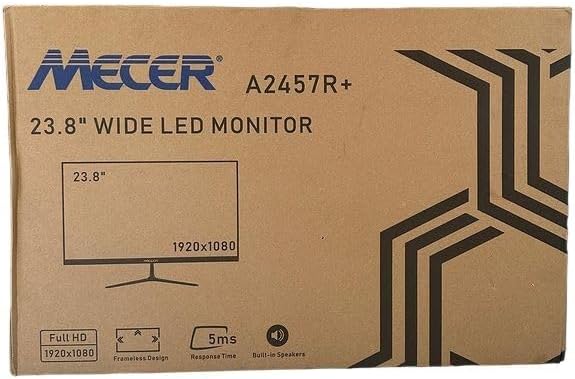
Imej 3.1: The monitor packaging box, indicating the model A2457R+ and key features like 23.8" display, Full HD 1920x1080 resolution, frameless design, 5ms response time, and built-in speakers.
4. Persediaan
4.1. Memasang Stand Monitor
- Keluarkan komponen monitor dan berdiri dengan berhati-hati daripada pembungkusan.
- Pasangkan leher penyangga pada panel monitor dengan meluruskan tab dan tekan dengan kuat sehingga ia terkunci pada tempatnya.
- Attach the stand base to the stand neck, securing it with the provided screw (usually hand-tightened).
- Letakkan monitor yang dipasang pada permukaan yang stabil dan rata.

Imej 4.1: Depan view of the Mecer 23.8 Inch LED Monitor with its stand assembled, ready for connection.
4.2. Menyambung ke Komputer
The monitor supports both HDMI and VGA connections. Choose the appropriate cable for your computer.
- Sambungan HDMI: Connect one end of the HDMI cable to the HDMI port on your computer's graphics card and the other end to the HDMI port on the monitor. HDMI transmits both video and audio signals.
- Sambungan VGA: Connect one end of the VGA cable to the VGA port on your computer's graphics card and the other end to the VGA port on the monitor. VGA transmits only video signals.

Imej 4.2: belakang view of the Mecer 23.8 Inch LED Monitor, showing the input ports including HDMI and VGA, as well as the power input.
4.3. Sambungan Kuasa
- Connect the power adapter cable to the DC IN port on the back of the monitor.
- Palamkan penyesuai kuasa ke salur keluar dinding.
5. Arahan Operasi
5.1. Menghidupkan/Mematikan
Press the power button, typically located on the bottom right side or rear of the monitor, to turn the monitor on or off. The power indicator light will illuminate when the monitor is on.
5.2. Pemilihan Sumber Input
If you have multiple devices connected, you may need to manually select the input source. Use the monitor's control buttons (usually located near the power button) to navigate to the input selection menu and choose between HDMI or VGA.
5.3. Menu Paparan Pada Skrin (OSD).
The OSD menu allows you to adjust various display settings. Use the monitor's control buttons to:
- Akses menu OSD.
- Navigate through menu options (e.g., Brightness, Contrast, Color Settings, Input Source).
- Adjust values or select options.
- Keluar dari menu OSD.
Common adjustable settings include:
- Kecerahan/Kontras: Laraskan pencahayaan keseluruhan dan perbezaan antara kawasan terang dan gelap.
- Tetapan Warna: Adjust color temperature, RGB values, or select preset color modes.
- Nisbah Aspek: Change between 16:9, 4:3, or other available options.
- Audio: Adjust volume for the built-in speakers.
5.4. Pembesar Suara Terbina dalam
The monitor includes built-in speakers for basic audio output. If using an HDMI connection, audio will be transmitted automatically. For VGA connections, ensure your computer's audio output is configured correctly. Adjust the volume through the OSD menu or your computer's operating system.
6. Penyelenggaraan
6.1. Membersihkan Monitor
- Sentiasa cabut plag monitor dari salur keluar kuasa sebelum membersihkan.
- Skrin: Lap skrin perlahan-lahan dengan kain lembut yang tidak berbulu. Untuk tanda degil, ringankan dampen the cloth with water or a specialized screen cleaner (ensure it's alcohol-free and ammonia-free) and wipe carefully. Do not spray liquid directly onto the screen.
- Casing: Gunakan kain lembut dan kering untuk mengelap monitor casing. If necessary, a slightly damp kain boleh digunakan, diikuti dengan kain kering.
6.2. Penyimpanan
Jika menyimpan monitor untuk tempoh yang lama, putuskan sambungan semua kabel, bungkuskannya dalam pembungkusan asalnya (jika ada), dan simpan di tempat yang sejuk dan kering, jauh daripada cahaya matahari langsung dan suhu yang melampau.
7. Penyelesaian masalah
Jika anda menghadapi masalah dengan monitor anda, rujuk kepada masalah dan penyelesaian biasa berikut:
- Tiada Kuasa:
- Pastikan kabel kuasa disambungkan dengan kukuh pada monitor dan soket dinding.
- Sahkan alur keluar kuasa berfungsi dengan memasang peranti lain.
- Check if the power adapter is working correctly.
- Tiada isyarat:
- Ensure the video cable (HDMI or VGA) is securely connected to both the monitor and the computer.
- Verify that the correct input source is selected on the monitor (via the OSD menu).
- Check if your computer is powered on and outputting a video signal.
- Cuba kabel video lain jika tersedia.
- Imej Kabur atau Herot:
- Pastikan resolusi monitor ditetapkan kepada resolusi asalnya (1920 x 1080) dalam tetapan paparan komputer anda.
- Adjust the monitor's OSD settings for brightness, contrast, and sharpness.
- For VGA connections, use the 'Auto Adjust' function in the OSD menu if available.
- Tiada Audio daripada Pembesar Suara Terbina Dalam:
- Ensure the monitor's volume is not muted or set too low in the OSD menu.
- Semak tetapan output audio komputer anda untuk memastikan monitor dipilih sebagai peranti main balik.
- If using VGA, ensure your computer's audio is routed to an external speaker system, as VGA does not carry audio.
8. Spesifikasi
| Ciri | Spesifikasi |
|---|---|
| Jenama | Mecer |
| Nombor Model | A2457R+ |
| Saiz Paparan | 23.8 Inci |
| Resolusi | 1920 x 1080 Piksel (HD Penuh) |
| Jenis Paparan | LED (TFT LED Panel) |
| Nisbah Aspek | 16:9 |
| Masa Tindak Balas | 2 milisaat |
| Kadar Segar Semula | 75 Hz |
| Viewsudut | 178° Mendatar / 178° Menegak |
| Ketersambungan | 1x HDMI, 1x VGA |
| Pembesar Suara Terbina dalam | ya |
| warna | Hitam |
| Dimensi Produk (D x W x H) | 560D x 42W x 410H millimetres |
| Ciri Khas | High performance intelligent multi-frequency scanning, Micro Computer digital technology control, no radiation, no glare, Comply with VESA DPMS international power saving regulation, Support DDC 1/2B and Windows PNP Plug and Play |
9. Waranti dan Sokongan
This Mecer monitor comes with a Waranti Terhad 1 Tahun dari tarikh pembelian. Sila simpan bukti pembelian anda untuk tuntutan waranti.
For technical support, service, or warranty inquiries, please contact your retailer or the authorized Mecer service center in your region. Do not attempt to repair the product yourself, as this may void your warranty.


