1. Pengenalan
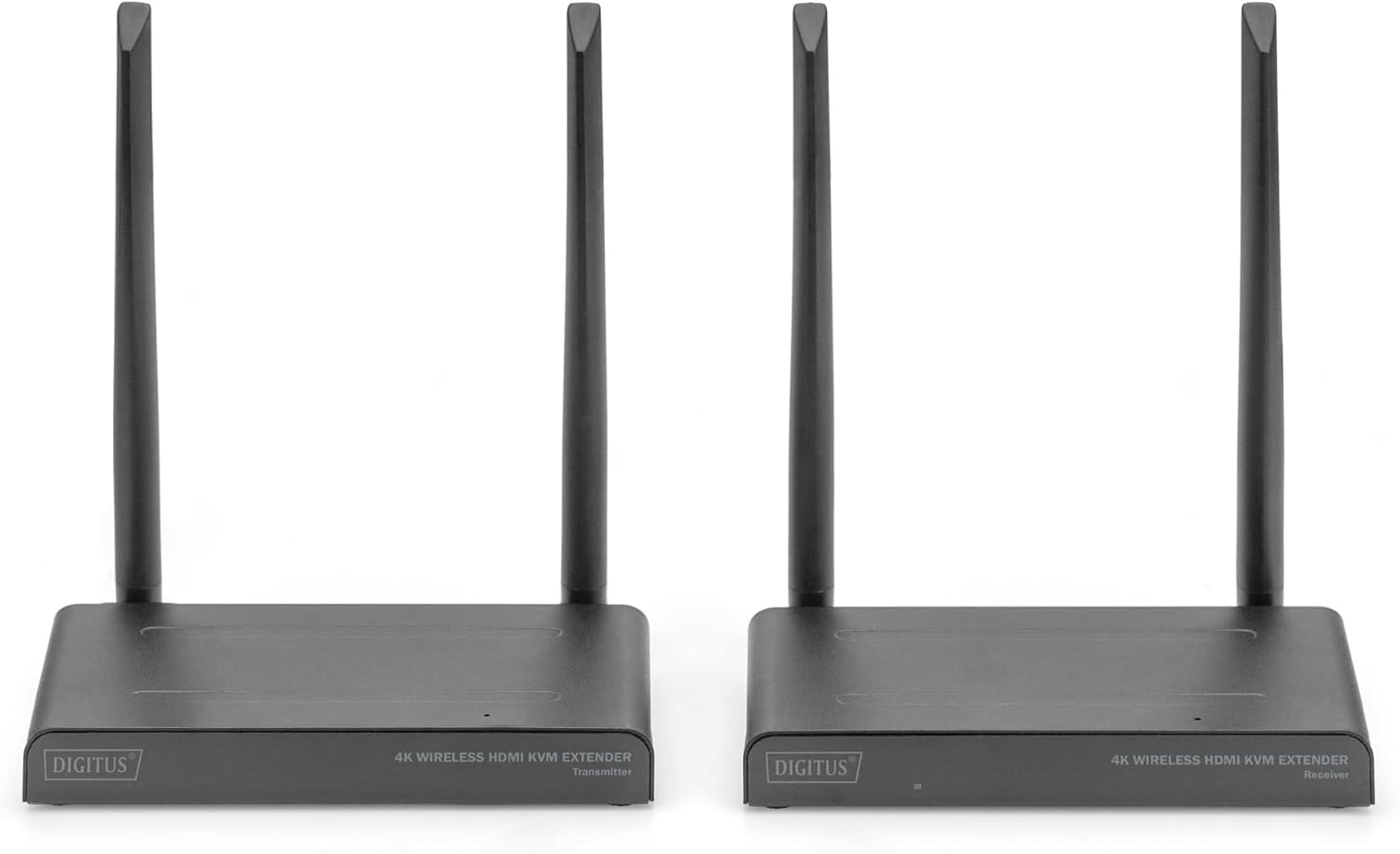
The DIGITUS DS-55328 Wireless HDMI KVM Extender Kit is designed to transmit HDMI video and audio signals wirelessly. This kit supports UHD 4K/30Hz resolution over distances up to 150 meters in an unobstructed environment. It consists of a sending unit (Transmitter) and a receiving unit (Receiver).
Key features include KVM functionality, allowing control of the signal source from the receiver unit using a connected mouse and keyboard. An HDMI Loop-Out port on the sending unit enables a local monitor connection for monitoring the output. The system supports point-to-multipoint connections, allowing one transmitter to connect with up to four receivers (additional receivers, model DS-55329, are sold separately).
- Wireless transmission of HDMI signals up to 150 meters (with free view).
- Point-to-multipoint connection: 1 sender (source) + up to 4 receivers (output devices).
- Supports wireless transmission of AV signals with resolutions up to 4K UHD (2160p/30Hz).
- Mematuhi HDMI 2.0 dan HDCP 2.2.
- KVM functionality for mouse/keyboard control at the receiver.
- HDMI Loop-Out on the transmitter for local monitoring.
- Easy plug & play operation, no drivers or software required.
- Touch Screen Back Control compatible via USB connection on receiver.
- Power via USB-C connection and included power supply.
- 128-bit AES encoding and WPA2 protocol for secure transmission.
2. Kandungan Pakej
Sila sahkan bahawa semua item yang disenaraikan di bawah disertakan dalam pakej anda. Jika ada barang yang hilang atau rosak, hubungi peruncit anda.
- 1x DIGITUS DS-55328 Transmitter Unit
- 1x DIGITUS DS-55328 Receiver Unit
- 2x Power Adapters (USB-C)
- 2x Kabel HDMI
- 2x USB-C Power Cables
- 1x IR Link Cable
- Manual Pengguna (dokumen ini)
Imej 2.1: Contents of the DS-55328 package, including the transmitter, receiver, power adapters, HDMI cables, USB-C cables, and an IR link cable.
3. Produk Lebihview
Familiarize yourself with the ports and indicators on both the Transmitter and Receiver units.
3.1. Unit Pemancar (TX)
- HDMI DALAM: Connects to your HDMI source device (e.g., PC, laptop, media player).
- HDMI OUT (Loop-Out): Connects to a local monitor for direct display of the source signal.
- USB-C: Port input kuasa.
- IR Link: Connects to the IR blaster cable for controlling the source device.
- Butang: For pairing or mode selection.
- Suis kuasa: Untuk menghidupkan atau mematikan unit.
3.2. Unit Penerima (RX)
- KELUAR HDMI: Connects to your display device (e.g., TV, monitor, projector).
- Port USB: Connects to a keyboard, mouse, or touch screen panel for KVM functionality.
- USB-C: Port input kuasa.
- Paparan Status: Indicates connection status and other operational information.
- Butang: For pairing or mode selection.
- Suis kuasa: Untuk menghidupkan atau mematikan unit.

Imej 3.1: Detailed diagram showing the various ports and features on both the Transmitter and Receiver units of the DS-55328.

Imej 3.2: Depan view of the DS-55328 Transmitter and Receiver units, highlighting their compact design.

Imej 3.3: belakang view of the DS-55328 Transmitter and Receiver units, showing all input and output ports.
4. Arahan Persediaan
Follow these steps to set up your Wireless HDMI KVM Extender Kit.
4.1. Sambungan Titik ke Titik
- Connect Source to Transmitter: Use an HDMI cable to connect your source device (e.g., PC, laptop) to the HDMI DALAM port on the DS-55328 Transmitter unit.
- Connect Local Monitor (Optional): If you wish to monitor the source locally, connect an HDMI cable from the HDMI OUT (Loop-Out) port on the Transmitter to your local monitor.
- Kuasakan Pemancar: Connect one of the provided USB-C power cables to the USB-C port on the Transmitter, and then plug the power adapter into an electrical outlet.
- Connect Receiver to Display: Use an HDMI cable to connect your display device (e.g., TV, monitor) to the HDMI KELUAR port on the DS-55328 Receiver unit.
- Connect KVM Peripherals (Optional): For KVM functionality, connect your USB keyboard and mouse to the Port USB on the Receiver unit.
- Kuasakan Penerima: Connect the second USB-C power cable to the USB-C port on the Receiver, and then plug the power adapter into an electrical outlet.
- Hidupkan kuasa: Turn on both the Transmitter and Receiver units using their respective power switches. Ensure your source device and display are also powered on.
- Berpasangan (jika perlu): The units should automatically pair. If not, refer to the operating instructions for manual pairing.

Imej 4.1: Diagram illustrating a typical point-to-point connection setup for the DS-55328, showing connections from a source to the transmitter and from the receiver to a display with KVM peripherals.
4.2. Sambungan Titik-ke-Berbilang Titik
The DS-55328 supports connecting one Transmitter to up to four Receiver units (DS-55329, sold separately).
- Follow steps 1-3 from the Point-to-Point Connection for setting up the Transmitter unit.
- For each additional Receiver unit (DS-55329), follow steps 4-6 from the Point-to-Point Connection.
- Ensure all Transmitter and Receiver units are powered on. The Transmitter will broadcast the signal to all paired Receivers.

Imej 4.2: Diagram showing a point-to-multipoint connection setup, where one DS-55328 Transmitter sends signals to multiple DS-55329 Receiver units.
5. Arahan Operasi
5.1. Hidupkan/Mati Kuasa
Use the power switch on each unit to turn it on or off. Ensure both Transmitter and Receiver units are powered on for operation.
5.2. Kefungsian KVM
Once a USB keyboard and mouse are connected to the Receiver's USB ports, you can control the source device connected to the Transmitter. This allows for remote operation of your computer or other KVM-compatible source.
5.3. Kawalan IR
Connect the IR Link cable to the IR port on the Transmitter. Position the IR blaster head near the IR receiver of your source device. This enables you to use the source device's remote control from the location of the Receiver unit.
5.4. Penunjuk Status
The Status Display on the Receiver unit provides visual feedback on the connection status. Refer to the device's LED indicators for specific states (e.g., power, signal, connection status).
5.5. Berpasangan
In most cases, the Transmitter and Receiver units will automatically pair upon power-up. If pairing does not occur, press the 'Button' on both the Transmitter and Receiver units simultaneously for a few seconds until the status indicators confirm a successful connection.
6. Penyelenggaraan
To ensure optimal performance and longevity of your DIGITUS DS-55328, follow these maintenance guidelines:
- Pembersihan: Use a soft, dry cloth to clean the units. Do not use liquid or aerosol cleaners, as they may damage the casing atau komponen dalaman.
- Persekitaran: Operate the device in a well-ventilated area. Avoid exposing the units to extreme temperatures, high humidity, or direct sunlight.
- Storan: When not in use for extended periods, store the units in a cool, dry place, away from dust and moisture.
- Kabel: Ensure all cables are connected securely and are not bent or crimped, which could lead to signal loss or damage.
7. Penyelesaian masalah
If you encounter issues with your DS-55328, refer to the following troubleshooting steps:
| Masalah | Kemungkinan Punca | Penyelesaian |
|---|---|---|
| No image or black screen on display. |
|
|
| Poor image quality or flickering. |
|
|
| KVM (keyboard/mouse) not responding. |
|
|
| Kawalan IR tidak berfungsi. |
|
|
| Audio delay/synchronization issues. |
|
|
8. Spesifikasi
| Ciri | Perincian |
|---|---|
| Nombor Model | DS-55328 |
| Jarak Penghantaran | Up to 150 meters (unobstructed viewing) |
| Resolusi Disokong | UHD 4K/30Hz (2160p/30Hz) |
| Versi HDMI | HDMI 2.0 |
| Versi HDCP | HDCP 2.2 |
| Fungsi KVM | Yes (Keyboard/Mouse via USB) |
| Loop-Out | Yes (on Transmitter) |
| Kawalan IR | ya |
| Point-to-Multipoint | 1 Transmitter to up to 4 Receivers (DS-55329) |
| Keselamatan | 128-bit AES encryption, WPA2 protocol |
| Bekalan Kuasa | USB-C (5V DC) |
| Dimensi Produk | 3.11 x 6.06 x 0.87 inci |
| Berat Barang | 2.64 paun |
| Pengeluar | DIGIT |
9. Waranti dan Sokongan
For warranty information, please refer to the documentation provided with your purchase or visit the official DIGITUS website. Technical support may be available through your retailer or the manufacturer's support channels.
Sila simpan bukti pembelian anda untuk tuntutan waranti.


