1. Produk Lebihview
The Brother DCP-L2680DW is a versatile multi-function mono laser printer designed for efficient printing, scanning, and copying. This device offers high-speed monochrome printing, automatic duplex printing, and various connectivity options including Ethernet, USB, and Wi-Fi.
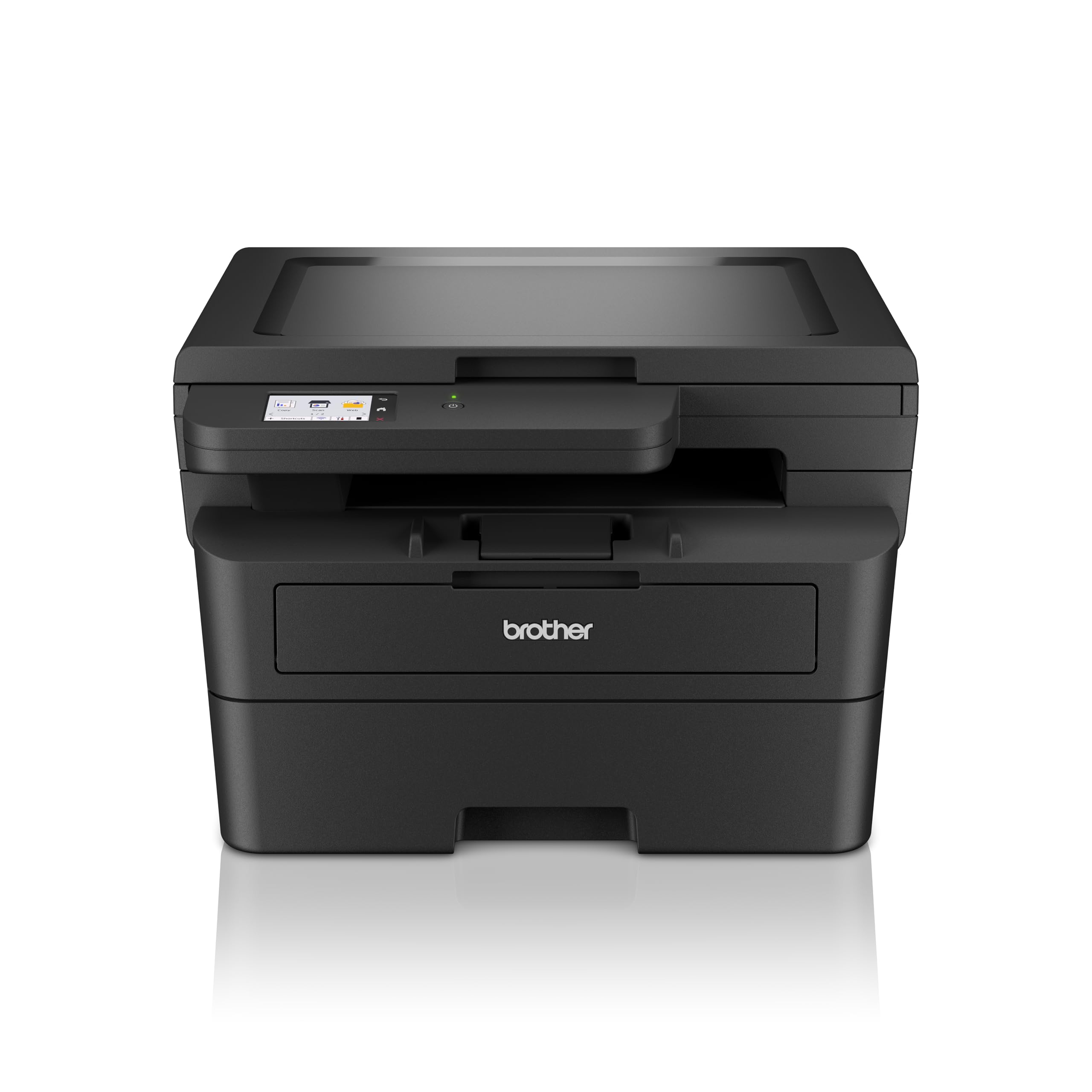
Imej 1.1: Depan view of the Brother DCP-L2680DW printer.
Ciri-ciri Utama:
- Print, Scan, Copy: Integrated functionality for diverse office tasks.
- Up to 36 ppm: Fast monochrome printing speed.
- Automatic 2-sided (Duplex) Print: Saves paper and time.
- Percetakan Mudah Alih: Print directly from compatible mobile devices.
- Ketersambungan: Supports Ethernet, USB, and Wi-Fi connections.
- 2.7" Touchscreen Colour LCD Display: Intuitive control panel for easy navigation.
2. Persediaan Awal
Follow these steps to set up your Brother DCP-L2680DW printer for the first time.
2.1 Membongkar Pembungkusan Pencetak
- Keluarkan pencetak dengan berhati-hati daripada pembungkusannya.
- Keluarkan semua pita pelindung dan bahan pembungkusan dari bahagian luar dan dalam pencetak.
- Letakkan pencetak di atas permukaan yang stabil dan rata dengan pengudaraan yang mencukupi.
2.2 Installing the Toner Cartridge and Drum Unit
- Buka kulit hadapan pencetak.
- Remove the drum unit and toner cartridge assembly from its protective bag.
- Masukkan kartrij toner dengan kuat ke dalam unit dram sehingga ia terkunci di tempatnya.
- Slide the drum unit and toner cartridge assembly back into the printer until it clicks.
- Tutup penutup hadapan.
2.3 Memuatkan Kertas
- Tarik keluar dulang kertas sepenuhnya.
- Laraskan panduan kertas agar sesuai dengan saiz kertas yang anda muatkan.
- Load paper into the tray, ensuring it is flat and below the maximum paper mark.
- Tolak dulang kertas kembali ke dalam pencetak dengan lembut.
2.4 Menyambungkan Kuasa dan Hidupkan Kuasa Awal
- Connect the power cord to the printer and then to a grounded electrical outlet.
- Tekan butang kuasa untuk menghidupkan pencetak.
- Follow the on-screen instructions on the LCD display to select your language and region.
2.5 Connecting to a Computer/Network
The DCP-L2680DW supports USB, Ethernet, and Wi-Fi connectivity.
- Sambungan USB: Sambungkan kabel USB dari pencetak ke komputer anda.
- Sambungan Ethernet: Sambungkan kabel Ethernet dari pencetak ke penghala atau suis rangkaian anda.
- Sambungan Wi-Fi: On the printer's control panel, navigate to Network settings, then WLAN, and follow the instructions to connect to your wireless network.
After connecting, install the printer drivers from the official Brother support webtapak (www.brother.com) or the included installation CD (if applicable).
3. Arahan Operasi
This section covers basic operations of your multi-function printer.
3.1 Mencetak Dokumen
- Pastikan pencetak dihidupkan dan disambungkan ke peranti anda.
- Buka dokumen yang ingin anda cetak pada komputer atau peranti mudah alih anda.
- Pilih pilihan cetak daripada aplikasi anda.
- Choose the Brother DCP-L2680DW from the list of available printers.
- Adjust print settings (e.g., number of copies, paper size, duplex printing) as needed.
- Klik "Cetak".
3.2 Mengimbas Dokumen
- Letakkan dokumen menghadap ke bawah pada kaca pengimbas.
- On the printer's control panel, select "Scan".
- Choose your desired scan destination (e.g., PC, Email, USB).
- Adjust scan settings such as resolution, color mode, and file format.
- Tekan "Mula" untuk mula mengimbas.
3.3 Menyalin Dokumen
- Letakkan dokumen menghadap ke bawah pada kaca pengimbas.
- Pada panel kawalan pencetak, pilih "Salin".
- Enter the number of copies required using the numeric keypad or arrow buttons.
- Adjust copy settings (e.g., reduce/enlarge, quality) if necessary.
- Tekan "Mula" untuk mula menyalin.
4. Penyelenggaraan
Penyelenggaraan tetap memastikan prestasi optimum dan jangka hayat pencetak anda.
4.1 Menggantikan Kartrij Toner
When the "Toner Low" or "Replace Toner" message appears on the display:
- Buka penutup hadapan.
- Tanggalkan unit dram dan pemasangan kartrij toner.
- Press the green lock lever and pull the toner cartridge out of the drum unit.
- Unpack a new toner cartridge and shake it gently side to side several times.
- Insert the new toner cartridge firmly into the drum unit until it locks.
- Slide the drum unit and new toner cartridge assembly back into the printer.
- Tutup penutup hadapan.
4.2 Menggantikan Unit Dram
The drum unit is a consumable item that needs replacement after a certain number of pages. The printer will indicate when replacement is due.
- Follow steps 1-3 from "Replacing the Toner Cartridge" to remove the old toner and drum unit.
- Unpack a new drum unit.
- Insert the existing toner cartridge into the new drum unit until it locks.
- Slide the new drum unit and toner cartridge assembly back into the printer.
- Tutup penutup hadapan.
- Reset the drum counter via the printer's menu (refer to the on-screen instructions or full manual for specific steps).
4.3 Membersihkan Pencetak
- Luaran: Lap bahagian luar pencetak dengan kain lembut dan tidak berbulu. Jangan gunakan pembersih atau pelarut yang melelas.
- Kaca Pengimbas: Use a soft, dry cloth or a cloth dampened with glass cleaner (non-ammonia based) to clean the scanner glass.
5. Penyelesaian masalah
Bahagian ini menangani isu biasa yang mungkin anda hadapi dengan pencetak anda.
5.1 Kesesakan Kertas
If a paper jam occurs, the printer's display will show an error message and indicate the location of the jam.
- Matikan pencetak dan cabut palam kord kuasa.
- Open the indicated cover or tray.
- Carefully pull out the jammed paper in the direction of the paper path. Avoid tearing the paper.
- Ensure all paper fragments are removed.
- Close all covers and plug in the power cord, then turn on the printer.
5.2 Isu Kualiti Cetakan
- Faded Prints: Check the toner cartridge level. Replace if low.
- Streaks or Spots: Clean the drum unit. Refer to the full user manual for detailed cleaning instructions for the drum unit's corona wire.
- Uneven Density: Ensure the paper type setting matches the paper loaded in the tray.
5.3 Masalah Kesambungan
- USB: Ensure the USB cable is securely connected to both the printer and the computer. Try a different USB port or cable.
- Ethernet: Verify the Ethernet cable is properly connected to the printer and the network device. Check network settings on the printer.
- Wi-Fi: Confirm the printer is connected to the correct wireless network. Restart your router and the printer. Ensure the printer is within range of the Wi-Fi signal.
6. Spesifikasi
Detailed technical specifications for the Brother DCP-L2680DW printer.

Image 6.1: Dimensions of the Brother DCP-L2680DW printer (H: 272mm, W: 410mm, D: 399mm).
| Ciri | Spesifikasi |
|---|---|
| Jenama | Abang |
| Nama Model | DCP-L2680DW |
| Teknologi Ketersambungan | Ethernet, USB, Wi-Fi |
| Teknologi Percetakan | Laser |
| Output Pencetak | Monokrom |
| Max Monochrome Printing Speed | 36 ppm |
| Berat Barang | 9 Kilogram |
| Dimensi Produk (D x W x H) | 41D x 27.2W x 39.9H sentimeter |
| Jenis Pengimbas | Katil rata |
| Jenis Paparan | LCD |
| Resolusi | 1200 x 1200 dpi |
| Kaedah Kawalan | Sentuh |
| Kapasiti Helaian Maksimum | 250 helai |
| Pencetakan dua muka | Yes (Automatic Duplex) |
7. Maklumat Waranti
The Brother DCP-L2680DW printer comes with a 3-year onsite warranty. Please retain your proof of purchase for warranty claims. For detailed terms and conditions, refer to the warranty documentation included with your product or visit the official Brother webtapak.
8. Sokongan Pelanggan
For further assistance, technical support, or product-related information, please contact Brother customer service.

Image 8.1: Brother customer support contact details.
Maklumat Hubungan:
- Nombor Bebas Tol:
- 1-800-222-422 (For MTNL and BSNL users)
- 1-800-209-8904 (For Others and all Mobiles)
- Sokongan E-mel: customercare@brother.in
- Sokongan WhatsApp: 7045 450 450
- Chatbot: Tersedia pada www.brother.in
- Webtapak: www.brother.in
Support hours are typically Monday to Friday: 8:30 AM - 6:30 PM, and Saturday: 9:00 AM - 6:00 PM (local time).


