pengenalan
Thank you for choosing the Akko AG325W Wireless Gaming Mouse. This manual provides detailed instructions for setting up, operating, and maintaining your mouse to ensure optimal performance and longevity. The AG325W offers versatile connectivity with both 2.4G wireless and Bluetooth modes, adjustable DPI settings, and a comfortable ergonomic design, making it suitable for various computing tasks and gaming.

Imej: Atas view of the Akko AG325W Wireless Gaming Mouse, showcasing its sleek black design and central scroll wheel and DPI button.
Kandungan Pakej
Sila sahkan bahawa semua item terdapat dalam pakej anda:
- Akko AG325W Wireless Gaming Mouse
- Penerima USB 2.4G
- Kabel Pengecas USB (Jenis-C)
- Manual Pengguna (dokumen ini)

Image: The Akko AG325W mouse positioned next to its USB 2.4G wireless receiver.
Arahan Persediaan
1. Mengecas Tetikus
Before first use, it is recommended to fully charge the mouse. Connect the provided USB charging cable to the mouse's Type-C port and the other end to a USB power source (e.g., computer USB port, USB wall adapter). The mouse's indicator light will show charging status.
2. Menyambung melalui Mod Wayarles 2.4G
- Locate the USB 2.4G receiver. It is typically stored in a compartment on the bottom of the mouse.
- Tanggalkan penerima dari slot storannya.
- Palamkan penerima USB ke dalam port USB yang tersedia pada komputer anda.
- Turn on the mouse using the switch on the bottom. Select the "2.4G" mode.
- Tetikus harus bersambung secara automatik ke komputer anda.

Image: The underside of the Akko AG325W mouse, showing the circular compartment where the USB 2.4G receiver is stored.
3. Menyambung melalui Mod Bluetooth
- Turn on the mouse using the switch on the bottom. Select the "BT" (Bluetooth) mode.
- Pada komputer atau peranti anda, buka tetapan Bluetooth.
- Cari untuk new devices. The mouse should appear as "Akko AG325W" or similar.
- Select the mouse to pair. Follow any on-screen prompts if a pairing code is required (usually not for mice).
- Once paired, the mouse is ready for use.
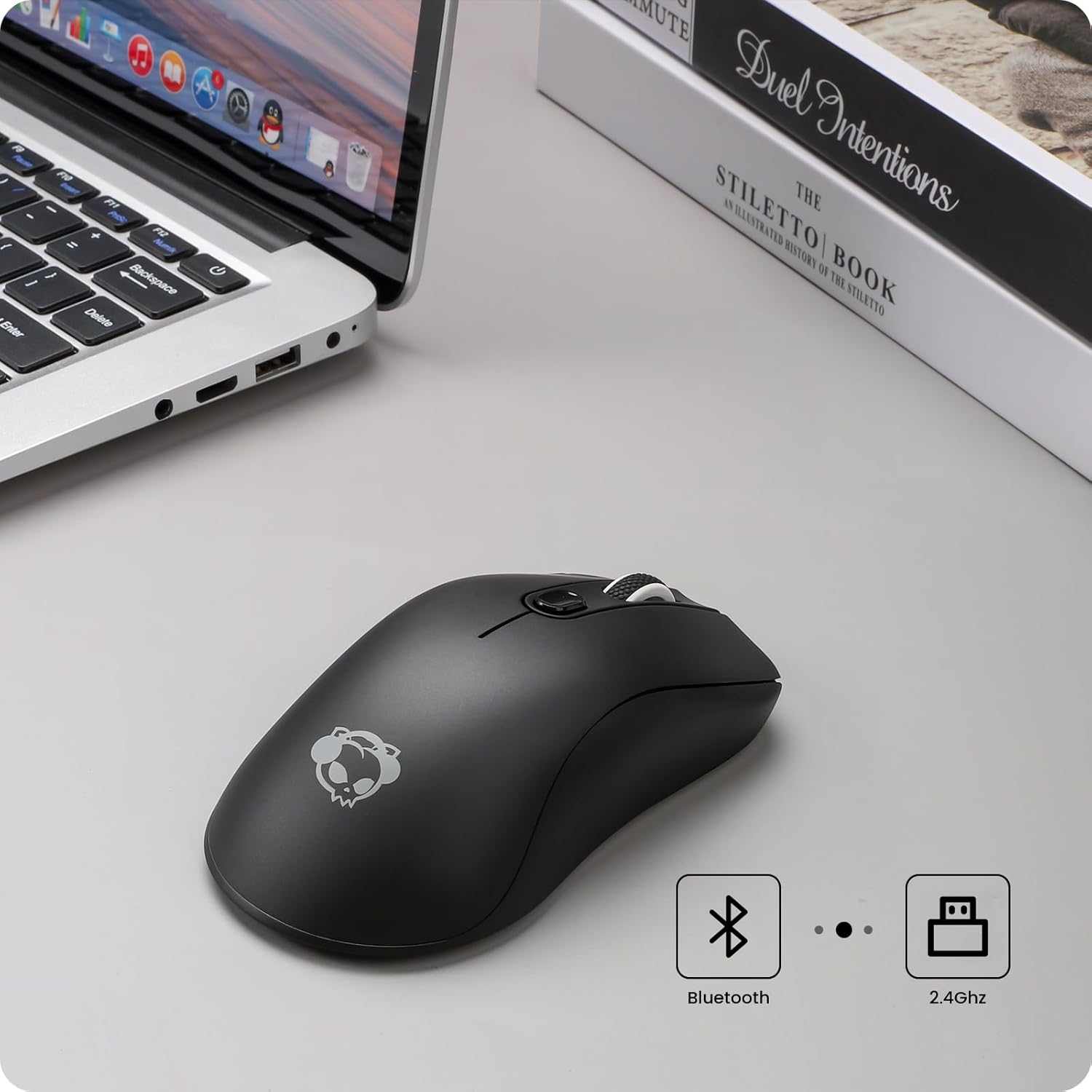
Image: The Akko AG325W mouse on a desk next to a laptop, with icons indicating Bluetooth and 2.4GHz wireless connectivity.
Arahan Operasi
Pelarasan DPI
The Akko AG325W mouse features 3 adjustable DPI (Dots Per Inch) levels, allowing you to change cursor sensitivity on the fly. To cycle through the DPI settings, simply press the dedicated DPI button located behind the scroll wheel.
- 800 DPI: Suitable for precise tasks or slower cursor movement.
- 1200 DPI: Standard setting for general use.
- 1600 DPI: Ideal for faster cursor movement, common in gaming or large displays.

Image: An illustration showing the Akko AG325W mouse and an arrow pointing to the DPI button, with a graph depicting the three adjustable DPI levels (800, 1200, 1600).
Fungsi Butang
The mouse is equipped with standard buttons for intuitive control:
- Butang Klik Kiri: Tindakan utama.
- Butang Klik Kanan: Menu tindakan/konteks sekunder.
- Roda Tatal: Tatal kandungan ke atas/bawah. Boleh juga ditekan untuk fungsi klik tengah.
- Butang DPI: Berkitar melalui tetapan DPI (800/1200/1600).
- Butang Sisi (Ke Hadapan/Ke Belakang): Biasanya digunakan untuk navigasi dalam web pelayar atau file penjelajah.
Ergonomics and Grip Styles
The Akko AG325W is designed with an ergonomic shape to provide a comfortable fit for various hand sizes and grip styles, reducing fatigue during extended use.

Image: Diagrams illustrating three common mouse grip styles: Palm Grip, Fingertip Grip, and Claw Grip, demonstrating how the mouse accommodates each.
Penyelenggaraan
Pengecasan Bateri
The Akko AG325W mouse is equipped with a rechargeable Lithium Ion battery. To charge, connect the USB-C cable to the mouse and a power source. A small LED indicator on the mouse will typically illuminate while charging and turn off when fully charged. For optimal battery life, avoid completely draining the battery frequently.
Pembersihan
To maintain the mouse's appearance and functionality, clean it regularly:
- Gunakan kain lembut dan tidak berbulu sedikit dampdisapu dengan air atau larutan pembersih lembut.
- Elakkan menggunakan bahan kimia yang keras, pembersih yang melelas, atau kelembapan berlebihan.
- Clean the optical sensor on the bottom of the mouse periodically to ensure accurate tracking.
Menyelesaikan masalah
| Masalah | Kemungkinan Punca | Penyelesaian |
|---|---|---|
| Mouse not responding (2.4G) | Low battery; USB receiver not plugged in; Incorrect mode selected; Interference. | Charge the mouse; Ensure receiver is securely plugged in; Set mouse switch to "2.4G"; Try a different USB port; Move closer to the receiver; Reduce other wireless interference. |
| Mouse not responding (Bluetooth) | Low battery; Bluetooth not enabled on device; Not paired; Incorrect mode selected. | Charge the mouse; Enable Bluetooth on your device; Re-pair the mouse in Bluetooth settings; Set mouse switch to "BT". |
| Cursor movement is erratic or "drifting" | Dirty optical sensor; Uneven surface; Software issues. | Clean the optical sensor on the bottom of the mouse; Use on a clean, flat mouse pad or surface; Restart your computer. |
| Mouse goes to sleep too quickly / requires click to wake | Power saving feature. | This is a design feature to conserve battery. A click is required to wake the mouse. Consider adjusting power settings on your operating system if available, though direct mouse settings are not provided. |
| No precise battery indicator | Had reka bentuk. | The mouse uses a simple LED for charging status (on while charging, off when full). Monitor battery life by charging regularly or observing performance degradation. |
Spesifikasi
| Ciri | Perincian |
|---|---|
| Model | AG325W |
| Ketersambungan | Wayarles 2.4G, Bluetooth |
| Tahap DPI | 800 / 1200 / 1600 (Adjustable) |
| Teknologi Pengesanan Pergerakan | Optik |
| Suis | Kailh GM 8.0 BLACK MAMBA Switches |
| Tukar Jangka Hayat | Over 80 million cycles |
| Jenis Bateri | 1 bateri Lithium Ion (termasuk) |
| Keserasian | Mac/Win (PCs, Laptops, iPads, Macbooks) |
| Berat Barang | 6.4 auns (lebih kurang 181g) |
| Dimensi (L x W x H) | Lebih kurang 125mm x 67mm x 37mm (4.92 x 2.64 x 1.46 inci) |
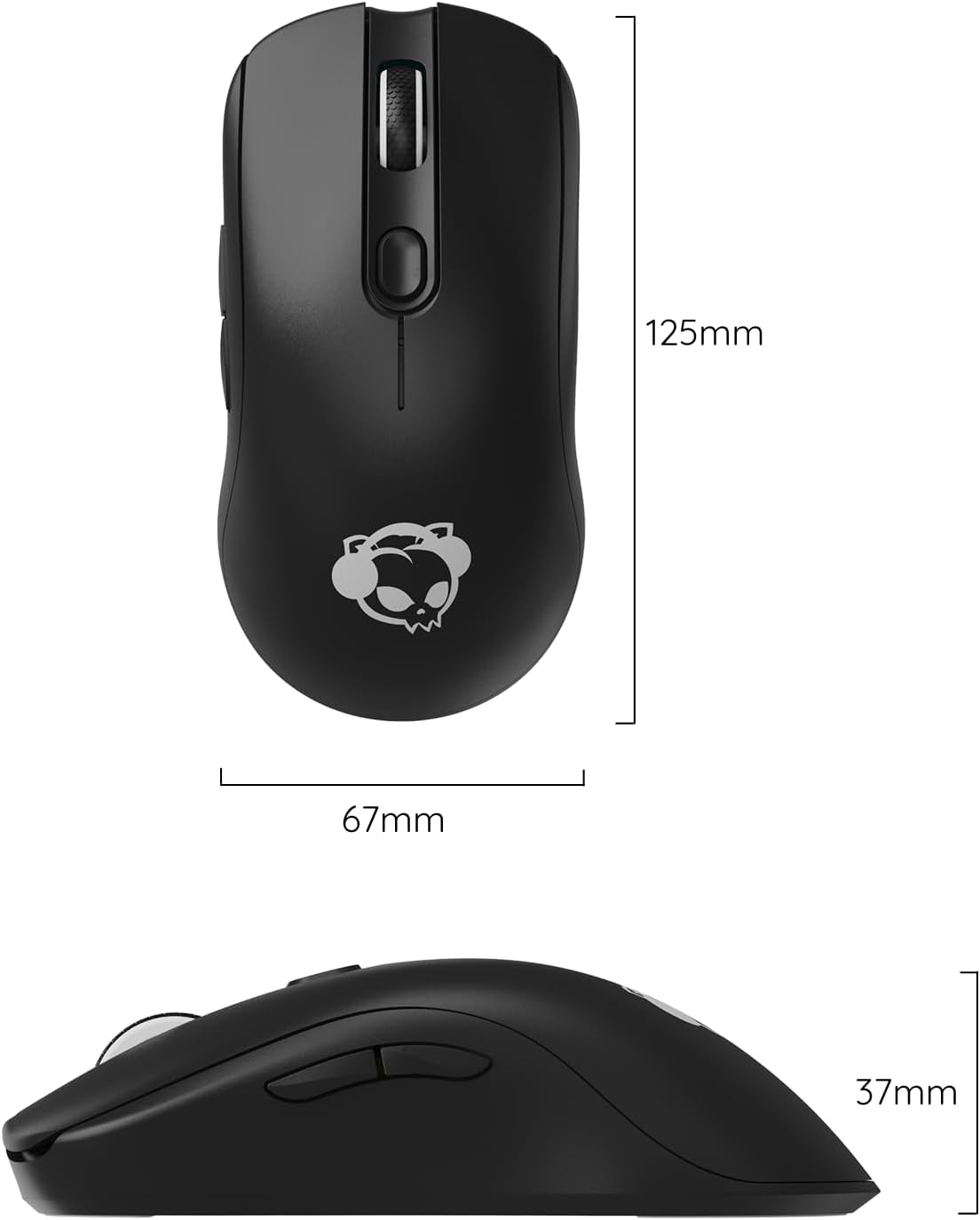
Image: Technical drawing showing the dimensions of the Akko AG325W mouse: 125mm length, 67mm width, and 37mm height.
Waranti dan Sokongan
Akko products are manufactured to high quality standards. For specific warranty information, please refer to the warranty card included with your product or visit the official Akko website. If you encounter any issues or require technical assistance, please contact Akko customer support through their official channels. Keep your purchase receipt as proof of purchase for warranty claims.
Akko Rasmi Webtapak: www.akkogear.com


