pengenalan
Thank you for choosing the TECH PAD R10 Tablet. This manual provides essential information for setting up, operating, and maintaining your device. The TECH PAD R10 features a 10.1-inch HD+ IPS display, an Allwinner A133 Quad Core processor, 4GB RAM, 64GB internal storage, and runs on Android 13. It includes 8.0MP rear and 2.0MP front cameras, Wi-Fi, Bluetooth connectivity, and a 6000mAh battery, all housed in a metallic casing.
Kandungan Pakej
Pastikan semua item ada dalam pakej anda:
- TECH PAD R10 Tablet
- Kabel Pengecasan USB Jenis-C
- Penyesuai Kuasa (mungkin berbeza mengikut wilayah)
- Panduan Mula Pantas (dokumen ini)
Reka Letak Peranti
Familiarize yourself with the physical features of your TECH PAD R10 Tablet.
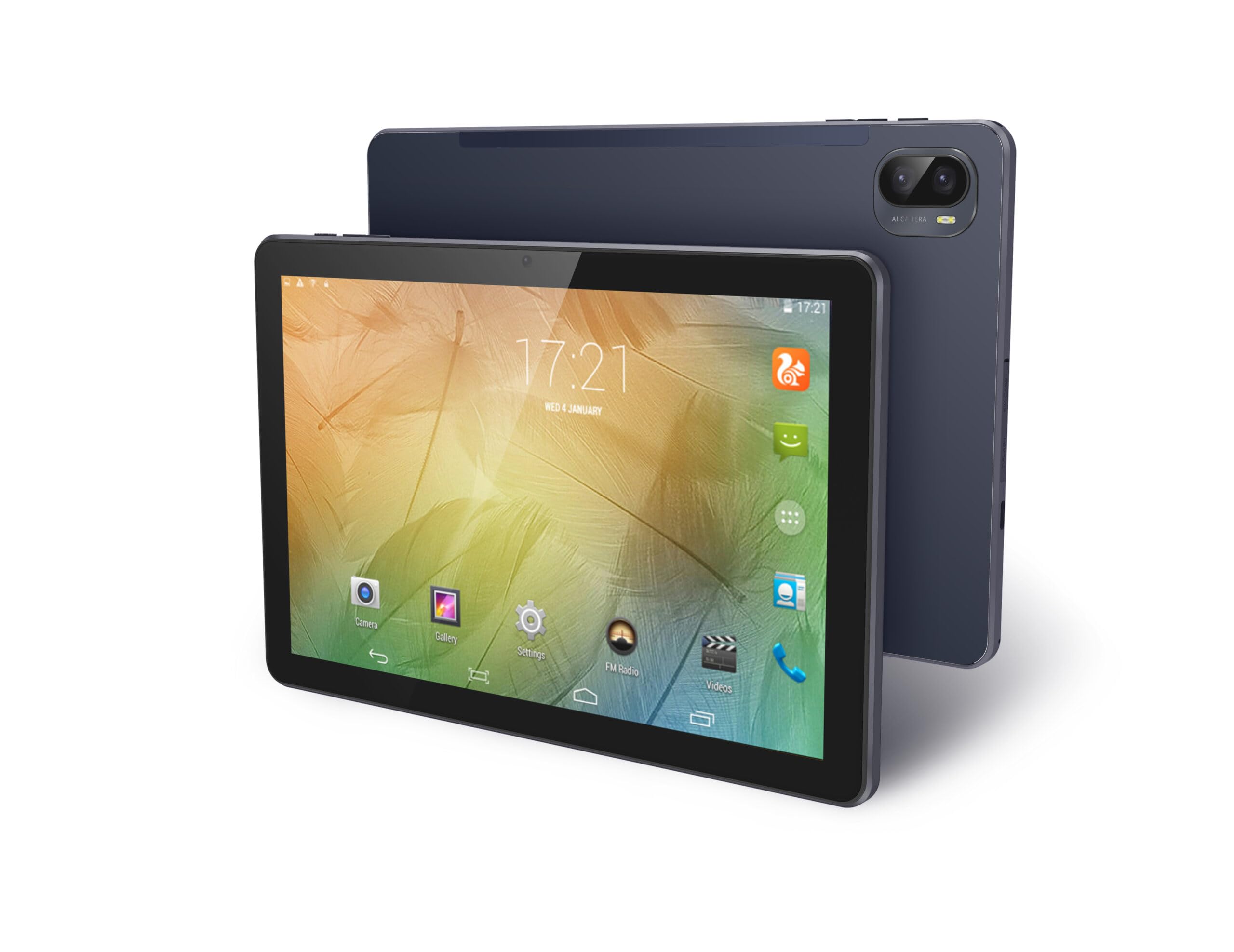
Rajah 1: Depan view of the TECH PAD R10 Tablet, showing the display and front camera.

Rajah 2: belakang view of the TECH PAD R10 Tablet, featuring the 8.0MP main camera.
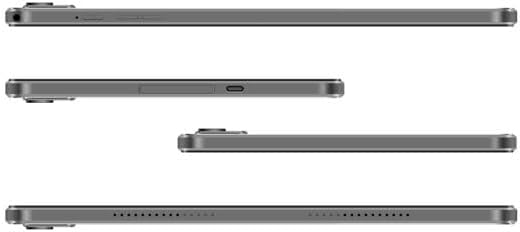
Rajah 3: sebelah views illustrating the 3.5mm audio jack, USB Type-C port, and Micro SD card slot.
Persediaan
1. Mengecas Bateri
Before first use, fully charge your tablet. Connect the USB Type-C cable to the tablet's charging port and the other end to the power adapter. Plug the adapter into a wall outlet. The charging indicator will show the charging status. A full charge typically takes several hours.
2. Menghidupkan/Mematikan
- Untuk Menghidupkan: Press and hold the Power button until the TECH PAD logo appears on the screen.
- Untuk Mematikan: Press and hold the Power button until a menu appears. Select 'Power off' and confirm.
- Untuk Mulakan Semula: Press and hold the Power button until a menu appears. Select 'Restart' and confirm.
3. Persediaan Awal
Sebaik sahaja dihidupkan buat kali pertama, ikuti arahan pada skrin untuk mengkonfigurasi tablet anda:
- Pilih bahasa pilihan anda.
- Sambung ke rangkaian Wi-Fi.
- Sediakan akaun Google anda (pilihan, tetapi disyorkan untuk muat turun aplikasi).
- Review dan menerima terma dan syarat.
4. Memasukkan Kad SD Mikro
The tablet supports Micro SD cards up to 256GB for expanded storage. Locate the Micro SD card slot on the side of the tablet. Gently insert the card with the gold contacts facing down until it clicks into place. To remove, push the card in slightly until it springs out.
Beroperasi
1. Navigasi Asas
The TECH PAD R10 uses a touch panel for interaction:
- Ketik: Untuk memilih item atau membuka aplikasi.
- Ketik dan Tahan: Untuk mengakses menu kontekstual atau mengalihkan ikon.
- Leret: Untuk menatal halaman atau senarai.
- Cubit: Untuk mengezum masuk atau keluar pada imej dan web muka surat.
2. Menyambung ke Wi-Fi
Untuk menyambung ke rangkaian Wi-Fi:
- Pergi ke tetapan > Rangkaian & internet > Wi-Fi.
- Togol Wi-Fi On.
- Pilih rangkaian yang anda inginkan daripada senarai.
- Masukkan kata laluan jika digesa dan ketik Sambung.
3. Berpasangan Bluetooth
Untuk berpasangan dengan peranti Bluetooth:
- Pergi ke tetapan > Peranti yang disambungkan > Bluetooth.
- Togol Bluetooth On.
- Pastikan peranti Bluetooth anda berada dalam mod berpasangan.
- Select the device from the 'Available devices' list and follow any on-screen prompts to complete pairing.
4. Menggunakan Kamera
Tablet ini mempunyai kamera belakang 8.0MP dan kamera hadapan 2.0MP.
- Buka Kamera app from the home screen or app drawer.
- Ketik ikon suis kamera untuk menogol antara kamera hadapan dan belakang.
- Ketik butang pengatup untuk mengambil foto atau memulakan/menghentikan rakaman video.
5. Ciri Audio
The tablet is equipped with two integrated 1W speakers. For private listening, connect headphones to the 3.5mm audio jack.
Penyelenggaraan
1. Membersihkan Peranti
Use a soft, lint-free cloth to clean the screen and body of the tablet. Avoid using harsh chemicals, abrasive cleaners, or aerosol sprays, as these can damage the device's finish or screen coating.
2. Penjagaan Bateri
Untuk memanjangkan hayat bateri:
- Elakkan suhu yang melampau.
- Jangan biarkan bateri habis sepenuhnya dengan kerap.
- Gunakan pengecas asal atau pengecas serasi yang diperakui.
3. Kemas Kini Perisian
Semak dan pasang kemas kini sistem secara berkala untuk memastikan prestasi, keselamatan dan akses kepada ciri baharu yang optimum. Pergi ke tetapan > Sistem > Kemas kini sistem.
Menyelesaikan masalah
Jika anda menghadapi masalah dengan tablet anda, cuba penyelesaian berikut:
- Tablet tidak boleh dihidupkan: Pastikan bateri dicas. Sambungkan pengecas dan tunggu beberapa minit sebelum cuba menghidupkan semula.
- Isu sambungan Wi-Fi: Restart your tablet and your Wi-Fi router. Ensure you are within range of the Wi-Fi signal and have entered the correct password.
- Prestasi perlahan: Close unused applications, clear cache, or restart the tablet. Consider uninstalling apps you no longer use.
- Apl ranap: Ensure apps are updated to their latest versions. Clear the app's cache and data in tetapan > Apl > [Nama Apl] > Storan & cache.
- Tetapan Semula Kilang (Pilihan Terakhir): Jika masalah berterusan, anda mungkin perlu melakukan tetapan semula kilang. Ini akan memadamkan semua data pada tablet anda. Pergi ke tetapan > Sistem > Tetapkan semula pilihan > Padam semua data (set semula kilang). Back up important data before proceeding.
Spesifikasi
| Ciri | Spesifikasi |
|---|---|
| Pemproses | Allwinner A133 Quad Core A-53 up to 1.5GHz |
| Paparan | 10.1" IPS HD+ LCD (800x1280 pixels), G+G Touch Panel |
| Memori (RAM) | 4GB |
| Storan (ROM) | 64GB |
| Storan Boleh Dikembangkan | Kad SD mikro sehingga 256GB |
| Kamera Belakang | 8.0MP |
| Kamera Depan | 2.0MP |
| Ketersambungan | Wi-Fi b/g/n, Bluetooth |
| Pelabuhan | 1x 3.5mm Audio Jack, 1x USB Type-C (charging), 1x Micro SD Card Slot |
| Bateri | 6000mAh |
| Sistem Operasi | Android 13 |
| Penceramah | 2x 1W Integrated Speakers |
| Berat badan | 340 g |
Maklumat Keselamatan
Please read the following safety guidelines carefully to ensure safe and proper use of your tablet:
- Jangan dedahkan tablet kepada suhu yang melampau, cahaya matahari langsung atau kelembapan yang tinggi.
- Elakkan daripada menjatuhkan atau meletakkan tablet kepada kesan yang teruk.
- Do not attempt to disassemble or repair the tablet yourself. This may void your warranty and cause damage.
- Gunakan hanya pengecas dan aksesori yang diluluskan.
- Jauhkan tablet daripada air dan cecair lain.
- Buang tablet dan baterinya secara bertanggungjawab mengikut peraturan tempatan.
Waranti dan Sokongan
For warranty information, please refer to the documentation included with your purchase or visit the official TECH PAD website. If you require technical support or have questions not covered in this manual, please contact TECH PAD customer service through their official channels.