1. Pengenalan
Thank you for choosing the VIMTAG Light Bulb Security Camera Model 847. This device is designed to provide reliable surveillance for your home, offering 2.5K/4MP high-definition video, pan/tilt functionality, night vision, two-way audio, and smart detection features. This manual will guide you through the setup, operation, and maintenance of your camera to ensure optimal performance.
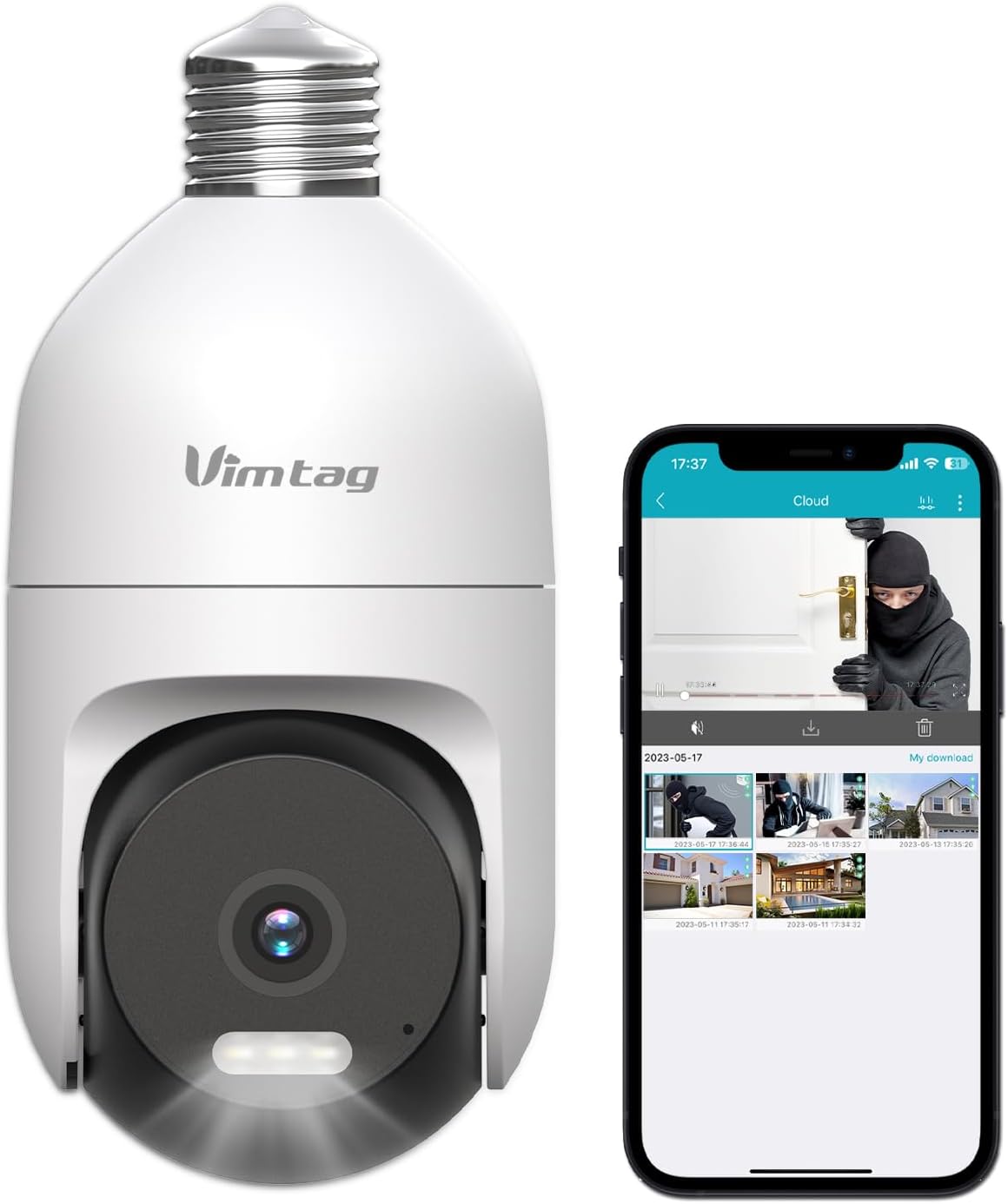
Image: The VIMTAG Light Bulb Security Camera Model 847, shown alongside a smartphone displaying its live feed.
2. Maklumat Keselamatan
- Ensure the power is off before installing or removing the camera from a light socket.
- Install the camera in a standard E27/E26 light bulb socket.
- Jangan dedahkan kamera kepada suhu atau kelembapan yang melampau di luar julat operasinya.
- Jauhkan kamera daripada medan magnet yang kuat.
- Jangan cuba membuka atau membaiki kamera sendiri. Hubungi khidmat pelanggan untuk mendapatkan bantuan.
- This camera is rated IP66 for weather resistance, suitable for outdoor use, but avoid submerging it in water.
3. Kandungan Pakej
The VIMTAG Light Bulb Security Camera package includes:
- VIMTAG Light Bulb Security Camera (Model 847)
- Manual Arahan (dokumen ini)
Note: An SD card for local storage is not included and must be purchased separately if desired.
4. Produk Lebihview
The VIMTAG Light Bulb Security Camera features a compact design that fits into a standard light bulb socket. Key components include:
- Kanta Kamera: Captures 2.5K/4MP video.
- Infrared (IR) LEDs: Untuk penglihatan malam hitam putih.
- Tumpuan: Provides color night vision and acts as a deterrent.
- mikrofon: For audio input during two-way talk and sound detection.
- Penceramah: For audio output during two-way talk and siren alarms.
- Slot Kad Mikro SD: Untuk storan video tempatan (menyokong sehingga 512GB).
- Butang Tetapkan Semula: Used for factory reset (usually a small pinhole).
- E27/E26 Base: Standard light bulb screw-in base for power and mounting.
5. Persediaan
5.1 Pemasangan Fizikal
- Matikan: Ensure the power to the light socket is turned off at the circuit breaker before installation.
- Skru Masuk: Carefully screw the VIMTAG Light Bulb Camera into a standard E27/E26 light bulb socket. Ensure it is securely fastened.
- Hidupkan kuasa: Restore power to the light socket. The camera will power on and initiate its startup sequence.

Image: Illustration of screwing the camera into a light bulb socket.
5.2 Muat Turun Apl dan Pembuatan Akaun
- Muat turun Aplikasi: Cari untuk "Vimtag" in your smartphone's app store (iOS App Store or Google Play Store) and download the official VIMTAG apl.
- Daftar Akaun: Open the app and follow the on-screen instructions to register a new account using your email address or phone number.

Image: A smartphone screen showing the VIMTAG app icon, indicating the app download step.
5.3 Pemasangan Kamera dan Sambungan Wi-Fi
- Tambah Peranti: In the VIMTAG app, tap the "+" icon (usually in the top right or center) to add a new device.
- Select Camera Type: Choose "Light Bulb Camera" from the list of device types.
- Ikut Gesaan Dalam Aplikasi: The app will guide you through connecting the camera to your 2.4GHz Wi-Fi network. This typically involves scanning a QR code generated by the app with the camera lens or listening for an audio prompt.
- Pengesahan Sambungan: Once connected, the camera will indicate successful pairing (e.g., a voice prompt or LED indicator change), and its live feed will appear in the app.

Image: A smartphone screen showing the process of adding a new device, specifically selecting the light bulb camera.

Image: A smartphone displaying the live video feed from the VIMTAG camera after successful setup.
6. Mengendalikan Kamera
6.1 Langsung View dan Kawalan Pan/Tilt
Once connected, open the VIMTAG app and select your camera to view the live feed. Use the on-screen controls to pan (horizontal 355°) and tilt (vertical 100°) the camera lens to adjust the viewing angle. The camera offers 8x digital zoom for closer inspection.

Image: Multiple devices (phone, tablet, laptop, desktop) displaying the live feed from the VIMTAG camera, illustrating multi-terminal viewing.
6.2 Audio Dua Hala
The camera features a built-in microphone and speaker. Tap the microphone icon in the app to speak through the camera, and listen to audio from the camera's location. This allows for real-time communication with visitors or to deter intruders.

Image: A person speaking into a phone to communicate with a delivery person at the door via the VIMTAG camera's two-way audio.
6.3 Mod Penglihatan Malam
Kamera ini menyokong dua mod penglihatan malam:
- Penglihatan Malam IR: Defaults to black and white infrared vision in low light conditions.
- Color Night Vision with Spotlight: When the spotlight mode is activated (manually or via motion detection settings), the camera will switch to full-color night vision.
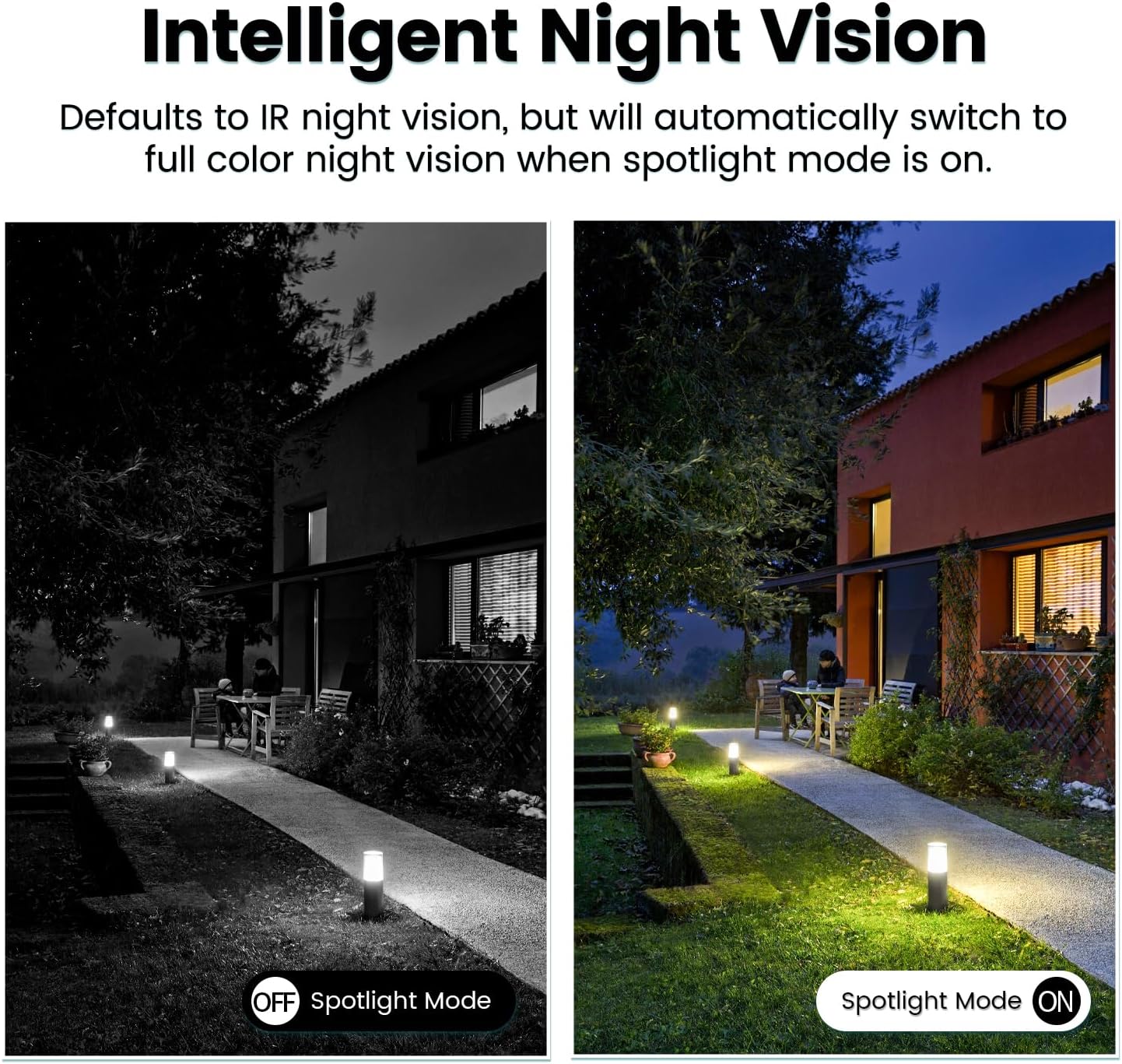
Image: Comparison of IR night vision (black and white, spotlight off) and color night vision (full color, spotlight on) from the VIMTAG kamera.
6.4 AI Human/Motion/Sound Detection and Alarms
Configure detection settings in the VIMTAG app. The camera can detect human shapes, general motion, and sounds. Upon detection, you will receive notifications on your phone, and the camera can trigger a siren alarm or activate its spotlight to deter unwanted activity.

Image: An illustration of the VIMTAG camera detecting an intruder, triggering a spotlight and sending an alert to a smartphone.

Image: A smartphone displaying a "Motion Detection Alert" notification from the VIMTAG apl.
6.5 Rakaman dan Penyimpanan Video
The camera supports two storage options:
- Storan Setempat: Insert a Micro SD card (up to 512GB, not included) into the camera's SD card slot for continuous 24/7 recording. Recorded footage can be accessed and managed through the VIMTAG apl.
- Storan Awan: An optional cloud storage service is available through the VIMTAG app for secure, encrypted video storage. Subscription details can be found within the app.
6.6 Integrasi Alexa
The VIMTAG camera is compatible with Amazon Alexa. To integrate:
- Enable the VIMTAG kemahiran dalam aplikasi Alexa.
- Link your VIMTAG akaun.
- Temui peranti.
You can then use voice commands such as, "Alexa, show me the [camera name]" to view the live feed on compatible Alexa-enabled devices with screens (e.g., Echo Show).

Image: A person interacting with an Amazon Echo Show to view the VIMTAG camera feed using voice commands.
7. Penyelenggaraan
- Pembersihan: Lap kanta dan badan kamera dengan lembut menggunakan kain lembut dan kering. Jangan gunakan bahan kimia yang keras atau pembersih yang kasar.
- Kemas kini Firmware: Regularly check the VIMTAG app for available firmware updates. Keeping your camera's firmware updated ensures optimal performance, security, and access to new features.
- Pengurusan Kad SD: Jika menggunakan kad SD, semula secara berkalaview dan sandarkan foo pentingtage. Format the SD card through the app if you experience recording issues or to clear old data.
8. Penyelesaian masalah
| Masalah | Kemungkinan Punca | Penyelesaian |
|---|---|---|
| Camera fails to power on. | No power to the light socket; camera not screwed in properly. | Check the light socket's power supply; ensure the camera is securely screwed in. |
| Tidak dapat menyambung ke Wi-Fi. | Incorrect Wi-Fi password; camera too far from router; 5GHz Wi-Fi network used. | Verify Wi-Fi password; move camera closer to router; ensure you are connecting to a 2.4GHz Wi-Fi network. |
| Kualiti video yang teruk. | Isyarat Wi-Fi lemah; kanta kotor. | Improve Wi-Fi signal strength; clean the camera lens. |
| Pengesanan gerakan tidak berfungsi. | Detection settings disabled or sensitivity too low; camera positioned incorrectly. | Check and adjust motion detection settings in the app; ensure camera has a clear view kawasan itu. |
| Kad SD tidak merakam. | SD card full or corrupted; incorrect recording settings. | Format the SD card via the app; check recording schedule and settings. Replace SD card if necessary. |
9. Spesifikasi
| Ciri | Perincian |
|---|---|
| Nama Model | 847 |
| Resolusi Video | 2.5K / 4MP (1440p) |
| Julat Pan/Sendeng | 355° Mendatar, 100° Menegak |
| Zum Digital | 8x |
| Penglihatan Malam | IR Night Vision & Color Night Vision with LED Spotlight |
| Audio Dua Hala | Yes (Built-in Microphone & Speaker) |
| Pengesanan | AI Human, Motion, Sound Detection |
| Ketersambungan | Wi-Fi 2.4GHz (IEEE 802.11b/g/n) |
| Pilihan Storan | Micro SD Card (up to 512GB), Cloud Storage (optional subscription) |
| Sumber Kuasa | Corded Electric (E27/E26 Light Bulb Socket) |
| Penggunaan Dalaman/Luar | Yes (IP66 Weatherproof) |
| Peranti Serasi | iOS, Android, Mac, iPad, Windows, Amazon Alexa |
| Dimensi (L x W x H) | 3.07 x 3.07 x 5.31 inci |
| Berat Barang | 9.1 auns |
| Kadar Bingkai | 25 bingkai sesaat |
| Pengekodan Video | H.264/H.265 |
10. Waranti dan Sokongan
VIMTAG products come with a standard manufacturer's warranty. For specific warranty terms and conditions, please refer to the warranty card included with your product or visit the official VIMTAG website. For technical support, troubleshooting assistance, or any product-related inquiries, please contact VIMTAG customer service through the VIMTAG app or their official webtapak.
Sumber Dalam Talian:
- VIMTAG rasmi Webtapak: Visit the VIMTAG Kedai di Amazon
- In-App Support: Access support features directly within the VIMTAG aplikasi mudah alih.


