1. Pengenalan
The Phomemo D520BT Thermal Label Printer is designed for efficient and high-quality label printing, suitable for small businesses and home offices. It supports a wide range of label sizes and offers versatile connectivity options including USB and Bluetooth.

Image: The Phomemo D520BT printer in black, actively printing a shipping label. A smartphone nearby shows a digital label, indicating Bluetooth connectivity. This illustrates the printer's primary function for shipping and package labeling.
2. Apa yang ada di dalam Kotak
Selepas membuka pakej, sila sahkan bahawa semua komponen berikut disertakan:
- Phomemo D520BT Thermal Label Printer
- 30 sheets of 4x6 inch thermal label paper
- Penyesuai Kuasa dan Kord
- Type C Adapter and USB Cable
- Panduan Pengguna

Image: A flat lay of all items included in the Phomemo D520BT printer package, clearly showing the printer, a roll of labels, the user guide, power accessories, and connectivity cables.
3. Produk Lebihview
Familiarize yourself with the key components of your Phomemo D520BT printer:
- Butang Penutup: Used to open the printer cover for loading labels.
- Butang Suapan: Advances the label paper.
- Slot Keluar Kertas: Tempat label bercetak muncul.
- Large Paper Bin: Internal compartment for holding label rolls or fan-fold labels.
- Printer Bracket: Supports the label roll within the paper bin.
- Paper Guide: Ensures labels are fed straight.
- Port USB: For wired connection to computers.
- Pelabuhan Kuasa: Menyambung kepada penyesuai kuasa.
- Suis kuasa: Menghidupkan atau mematikan pencetak.
Video: This video provides a visual guide to the physical components of the Phomemo D520BT printer, including the cover button, ports, and internal paper handling mechanisms, and demonstrates initial setup steps like connecting power and loading paper.
4. Persediaan
4.1 Initial Setup (Power & Paper Loading)
- Pasangkan kord kuasa pada penyesuai kuasa.
- Sambungkan penyesuai kuasa ke port kuasa pencetak.
- Turn the printer ON using the power switch.
- Open the printer cover by pressing the cover button.
- Assemble the label roll onto the printer bracket.
- Adjust the paper guide to fit the label width, insert the label, and ensure it is straight and smooth.
- Tutup penutup pencetak.
- Press the feed button to print a test page and confirm proper paper loading.

Image: A visual demonstration of how to load two types of shipping labels into the Phomemo D520BT printer: fan-fold paper and roll paper, highlighting the internal paper holder design.
4.2 Pemasangan Pemacu (Windows)
Before installation, ensure your printer is connected via USB and turned on.
- Download the latest driver from the official Phomemo webtapak.
- Follow the on-screen installation steps until finished.
- Go to Control Panel > Devices and Printers.
- Right-click on your D520BT Printer and select "Printer properties".
- Click "Print Test Page" to verify the installation.
- For paper setup, right-click on your printer again and select "Printing preferences".
- Go to the "Page Setup" tab. Select the paper size in "Paper Name". If your size is not listed, click "New" to create a custom label size by inputting width and height, then click "OK" to save.
- To change print speed, density, or size units, go to the "Option" tab. Adjust "Print Speed" and "Print Density" as needed.
- Click "Adjust the sensor" to calibrate your printer sensor, then click "Study gap label" to allow the printer to learn the gap label.
- Click "Apply" and "OK" to save changes.
For detailed video tutorials on driver installation and setup for various operating systems, please refer to the official Phomemo YouTube channel.
4.3 Pilihan Kesambungan
The Phomemo D520BT offers flexible connectivity:
- Bluetooth: Compatible with Android and iOS devices via the "Labelife" app.
- USB: Supports connections to Windows, Mac, Chrome OS, and Linux systems.
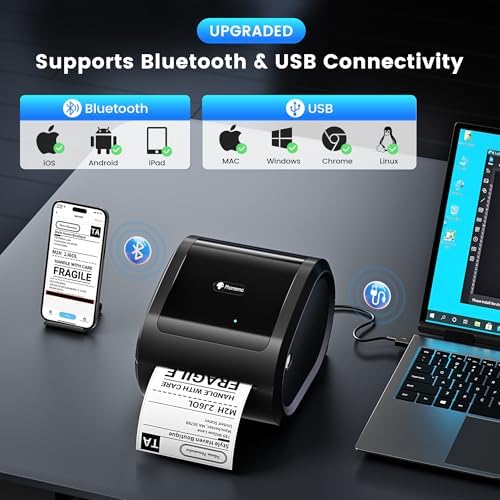
Image: The Phomemo D520BT printer connected to both a smartphone via Bluetooth and a laptop via USB, illustrating its broad compatibility across various operating systems and devices.
5. Beroperasi
5.1 Label Percetakan
Once the printer is set up and connected, you can print labels from various platforms and applications. For PDF files, buka file, click the print icon, select your D520BT printer, and ensure the preview and print size are correct before printing.

Image: A graphic illustrating the Phomemo D520BT printer's compatibility with a wide array of shipping and sales platforms, such as Amazon, Etsy, eBay, UPS, PayPal, and Shopify.

Imej: Tayangan kolajcasing diverse applications of the Phomemo D520BT printer, from standard shipping labels to specialized uses like barcode labels, thank you stickers, jar labels, QR codes, and document labels.
6. Penyelenggaraan
To ensure optimal performance and longevity of your Phomemo D520BT printer, regular maintenance is recommended:
- Membersihkan Kepala Cetak: Gunakan kain bebas bulu dengan ringanampened with isopropyl alcohol to gently wipe the print head. Ensure the printer is off and cooled down before cleaning.
- Membersihkan Penggelek Platen: Putarkan penggelek platen dan lapkannya denganamp kain untuk menanggalkan sebarang sisa pelekat atau habuk.
- Penyingkiran habuk: Regularly clean the exterior of the printer with a soft, dry cloth to prevent dust accumulation.
- Storan: Simpan pencetak di tempat yang sejuk dan kering jauh dari cahaya matahari langsung dan suhu yang melampau.
7. Penyelesaian masalah
If you encounter issues with your Phomemo D520BT printer, please refer to the following common solutions:
| Masalah | Kemungkinan Punca | Penyelesaian |
|---|---|---|
| Pencetak tidak bertindak balas | Power issue, loose cable, driver not installed. | Check power connection, ensure USB/Bluetooth is properly connected, reinstall printer drivers. |
| Poor print quality (faded, blurry) | Print head dirty, incorrect print density setting, low-quality labels. | Clean the print head, adjust print density in printer preferences, use high-quality thermal labels. |
| Label tidak memberi makan dengan betul | Paper jammed, paper guide not adjusted, incorrect label type. | Clear any paper jams, adjust paper guides to fit label width, ensure you are using thermal labels. |
| Isu sambungan Bluetooth | Bluetooth not enabled, incorrect pairing, app issues. | Ensure Bluetooth is enabled on both devices, unpair and re-pair the printer, restart the "Labelife" app. |
If the issue persists, please contact Phomemo customer support for further assistance.
8. Spesifikasi
| Ciri | Perincian |
|---|---|
| Nama Model | D520BT-BK |
| Teknologi Percetakan | terma |
| Kelajuan Cetakan Maks (Monokrom) | 72 ppm (labels per minute) / 150mm/s |
| Saiz Media Maksimum | 4 x 6 inci |
| Media Cetak | Label |
| Teknologi Ketersambungan | Bluetooth, USB |
| Peranti Serasi | Laptops, PC, Smartphones, Tablets (Android, iOS, Windows, Mac, Chrome OS, Linux) |
| Dimensi Produk | 9.06 x 7.28 x 6.85 inci |
| Berat Barang | 2.43 paun |
9. Waranti & Sokongan
Phomemo provides comprehensive customer support for the D520BT Thermal Label Printer. For any inquiries or technical assistance, please utilize the following resources:
- Sokongan Pelanggan: Available via phone, email, or remote support. Contact details are typically found in the included User Guide or on the official Phomemo webtapak.
- Tutorial Video: Detailed video tutorials for setup and troubleshooting are available on the official Phomemo YouTube channel.
- Maklumat Waranti: Please refer to the warranty card included with your product or the official Phomemo webtapak untuk terma dan syarat waranti tertentu.


