1. Pengenalan
Thank you for choosing the LENVII R800 Portable 2D Barcode Scanner. This device is designed for efficient and versatile barcode scanning, supporting both 1D and 2D barcodes. It offers multiple connection options including Bluetooth, 2.4G wireless, and wired USB, making it compatible with a wide range of devices and operating systems. This manual provides detailed instructions for setup, operation, and maintenance to ensure optimal performance.

Image 1.1: LENVII R800 Barcode Scanner and included accessories (USB cable, 2.4G wireless receiver).
2. Produk Lebihview
Familiarize yourself with the components and features of your LENVII R800 scanner.
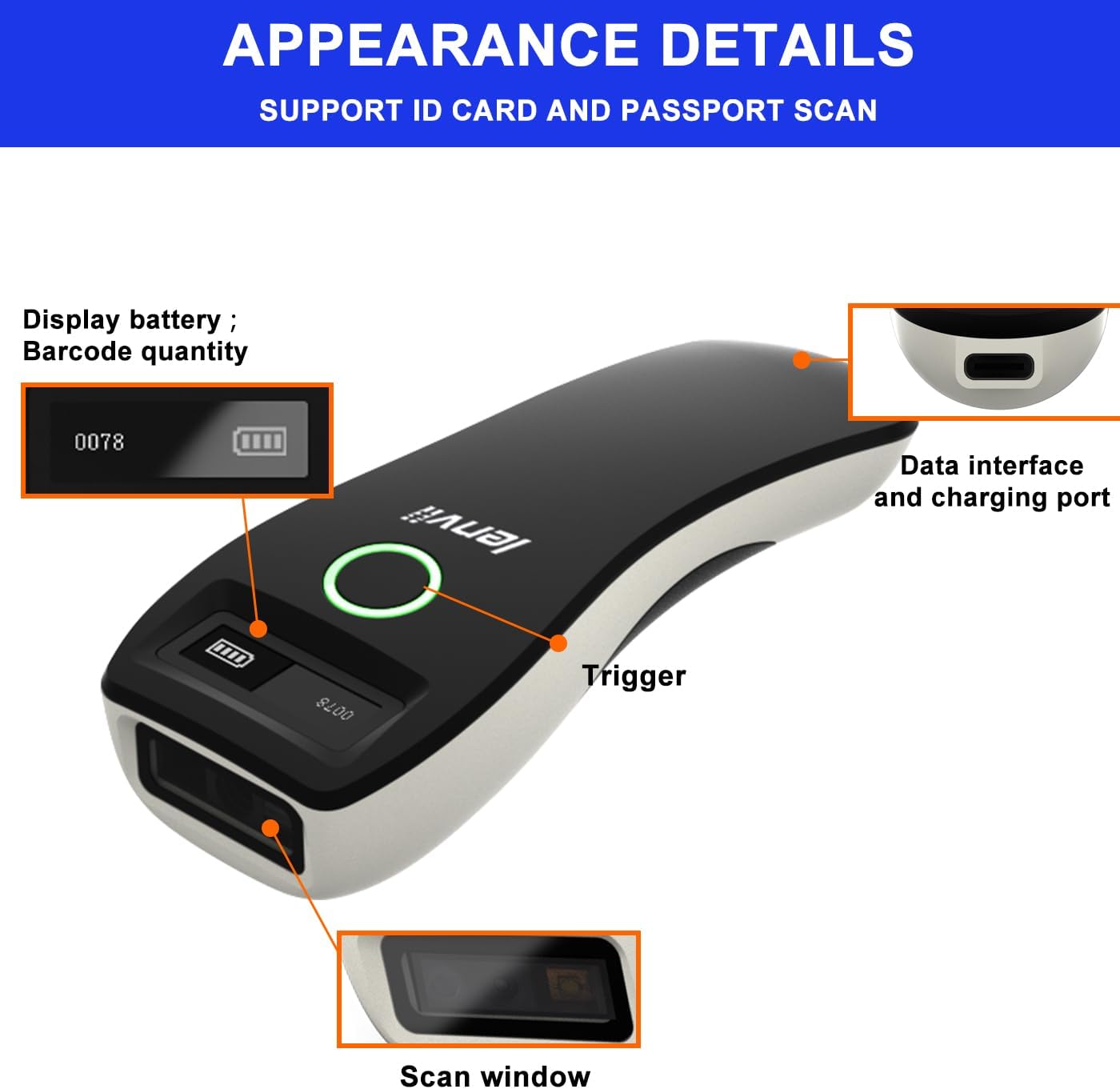
Imej 2.1: Terperinci view of the LENVII R800 scanner, highlighting the display (battery, barcode quantity), data interface/charging port, trigger button, and scan window.
- paparan: Shows battery level and scanned barcode quantity.
- Data Interface/Charging Port: Type-C port for wired connection and charging.
- Pencetus: Button to initiate scanning.
- Tetingkap Imbas: Area through which barcodes are read.
3. Persediaan
3.1 Mengecas Pengimbas
Before first use, fully charge the scanner. Connect the provided Type-C USB cable to the scanner's charging port and the other end to a USB power source (e.g., computer USB port, USB wall adapter). The charging indicator light will show the charging status.
The scanner is equipped with a 1500mAh rechargeable lithium battery.
3.2 Mod Sambungan
The LENVII R800 offers three connection methods:

Image 3.1: Illustration of the three connection modes: 2.4GHz Wireless, USB Wired, and Bluetooth.
3.2.1 Sambungan Wayarles 2.4G
- Insert the 2.4G wireless receiver into a USB port on your computer or host device.
- Turn on the scanner. It should automatically connect to the receiver.
- A successful connection is indicated by a specific sound or light on the scanner.
3.2.2 Sambungan Bluetooth
- Hidupkan pengimbas.
- Activate Bluetooth on your host device (e.g., smartphone, tablet, laptop).
- Scan the Bluetooth pairing barcode (usually found in the full manual or quick start guide). The scanner will enter pairing mode.
- On your host device, search for Bluetooth devices and select "LENVII R800" (or similar name) to pair.
- A successful connection is indicated by a specific sound or light on the scanner.
3.2.3 Sambungan Berwayar
- Connect the scanner to your computer using the provided Type-C USB cable.
- Pengimbas akan berfungsi sebagai peranti berwayar dan juga dicas secara serentak.
- No additional drivers are typically required for this plug-and-play connection.
3.3 Keserasian
The LENVII R800 scanner is compatible with various operating systems and devices:
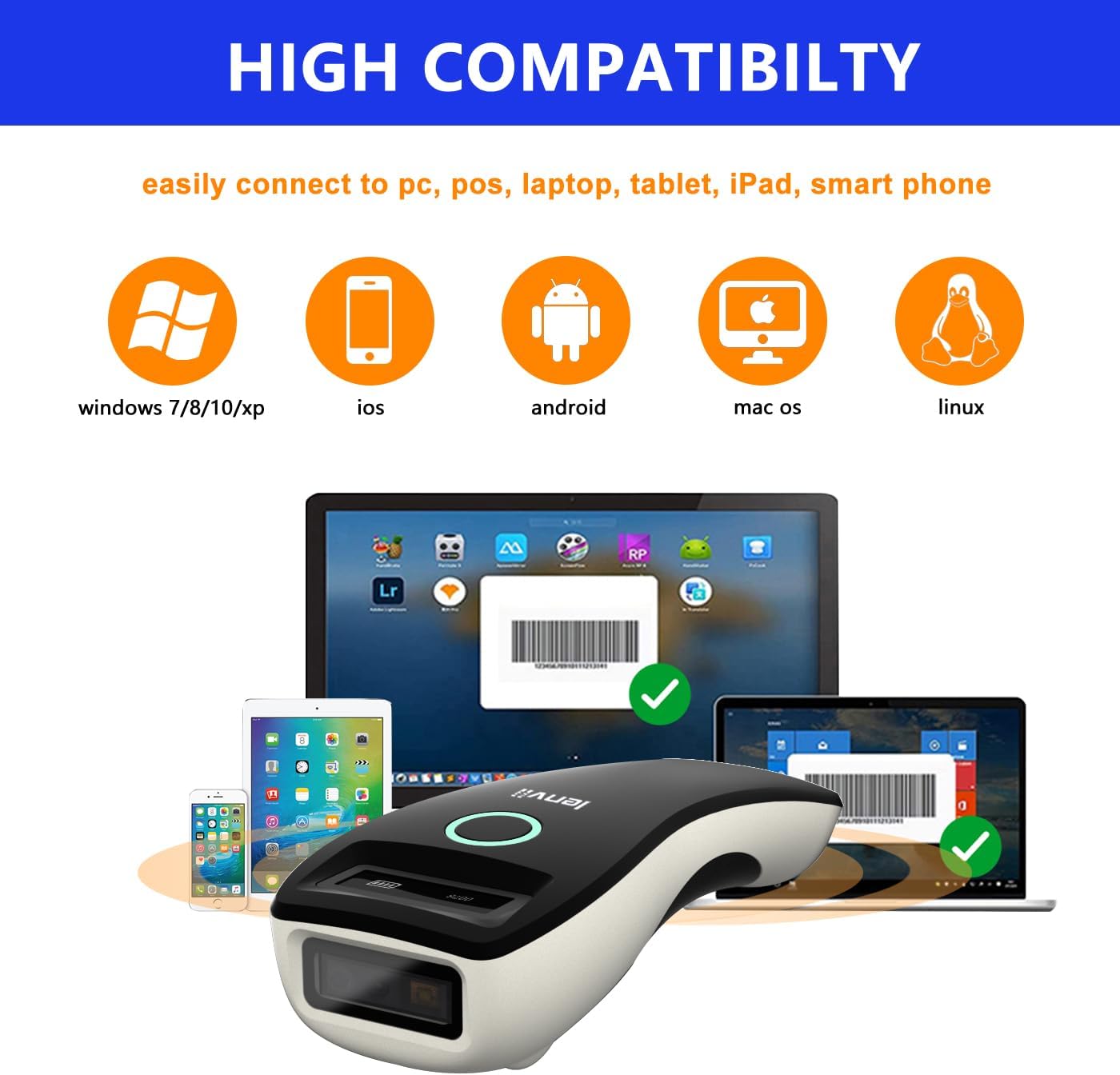
Image 3.2: Compatibility icons for Windows, iOS, Android, Mac OS, and Linux, indicating broad device support.
- Sistem Operasi: Windows XP/7/8/10, Mac OS, Windows Mobile, Android OS, iOS, Linux.
- Peranti: Laptops, PCs, mobile phones, tablets, iPhones, iPads, POS systems.
4. Arahan Operasi
4.1 Pengimbasan Asas
- Ensure the scanner is powered on and connected to your host device via your preferred method.
- Open an application on your host device where you want the scanned data to appear (e.g., a text editor, spreadsheet, or inventory software).
- Point the scan window of the scanner at the barcode.
- Press the trigger button. A successful scan will be indicated by a beep and/or a light confirmation.
- The scanned data will be transmitted to your host device.
4.2 Data Transfer Modes
The scanner supports two data upload modes:

Image 4.1: Depiction of Instant Upload Mode (data sent immediately) and Offline Storage Mode (data stored for later upload).
- Mod Muat Naik Segera: Barcodes are transmitted to the connected device immediately after scanning. This is the default mode.
- Storage Mode (Offline Mode): Barcodes are stored in the scanner's internal memory (up to 35,000 EAN 13 codes) and can be uploaded later. This mode is useful when working out of range of the host device. To switch to storage mode and upload data, refer to the full programming manual for specific barcode commands.
4.3 Jenis Kod Bar yang Disokong
The LENVII R800 is capable of scanning a wide array of 1D and 2D barcode symbologies:
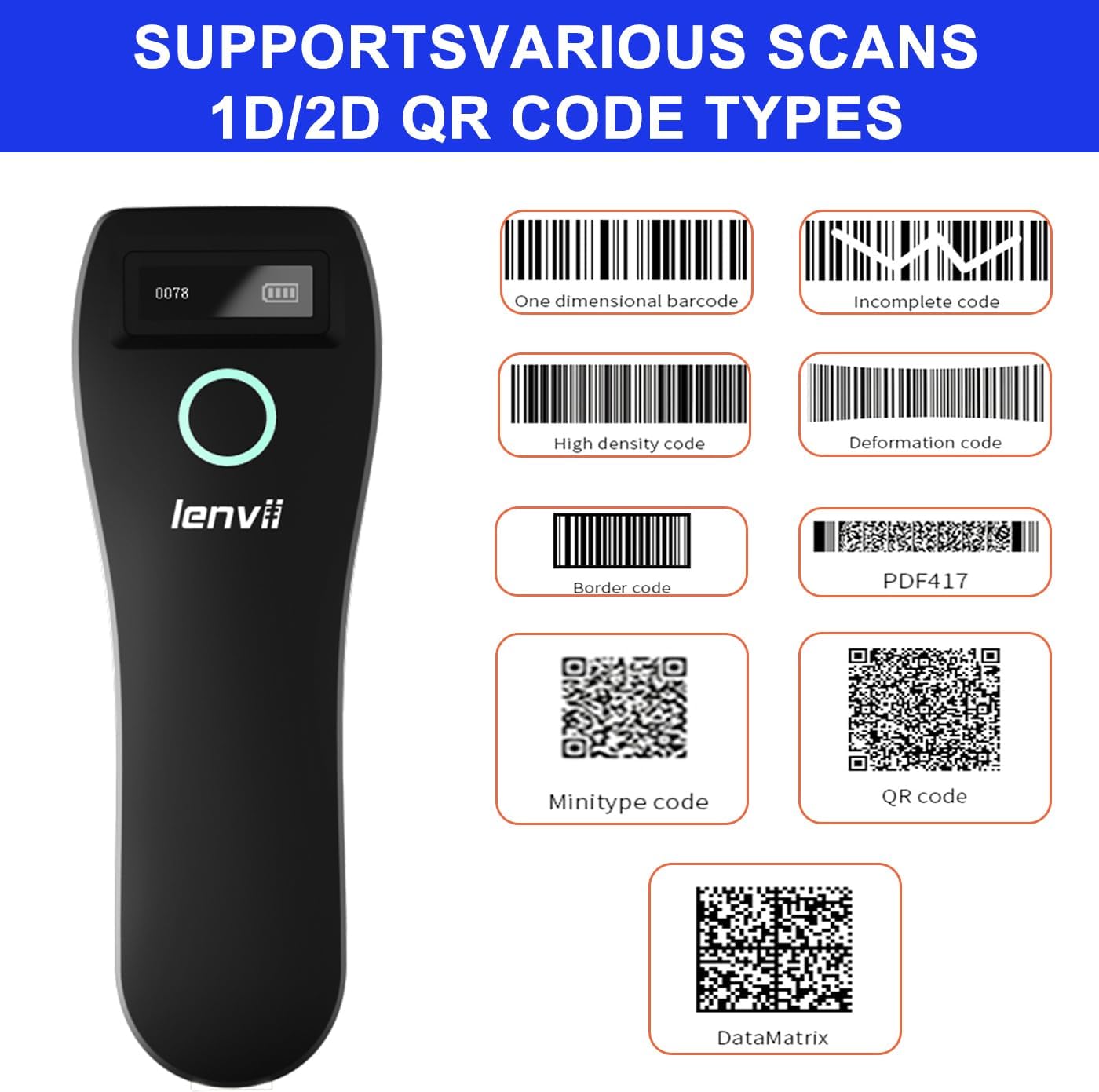
Imej 4.2: Cthamples of supported barcode types including 1D (e.g., Code 39, Code 128) and 2D (e.g., QR Code, Data Matrix, PDF417).
- Kod Bar 1D: UPC/EAN/JAN, UPC-A, UPC-E, EAN-8, EAN-13, JAN-8, JAN-13, ISBN/ISSN, Code 39 (with full ASCII), Codabar (NW7), Code 128 & EAN 128, Code 93, Interleaved 2 of 5 (ITF), Appendix 2 of 5 IATA code, MSI/Plessy, Chinese postal code, Code 32 (Italian Pharmacopoeia), RSS 14, RSS Limited, RSS Extension.
- Kod Bar 2D: QR Code, Data Matrix, PDF417, Aztec, Maxicode, GS1 DataBar Stack.
4.4 Ergonomik dan Kemudahalihan
The LENVII R800 is designed for comfortable, one-handed operation and easy portability, making it suitable for various mobile business applications.
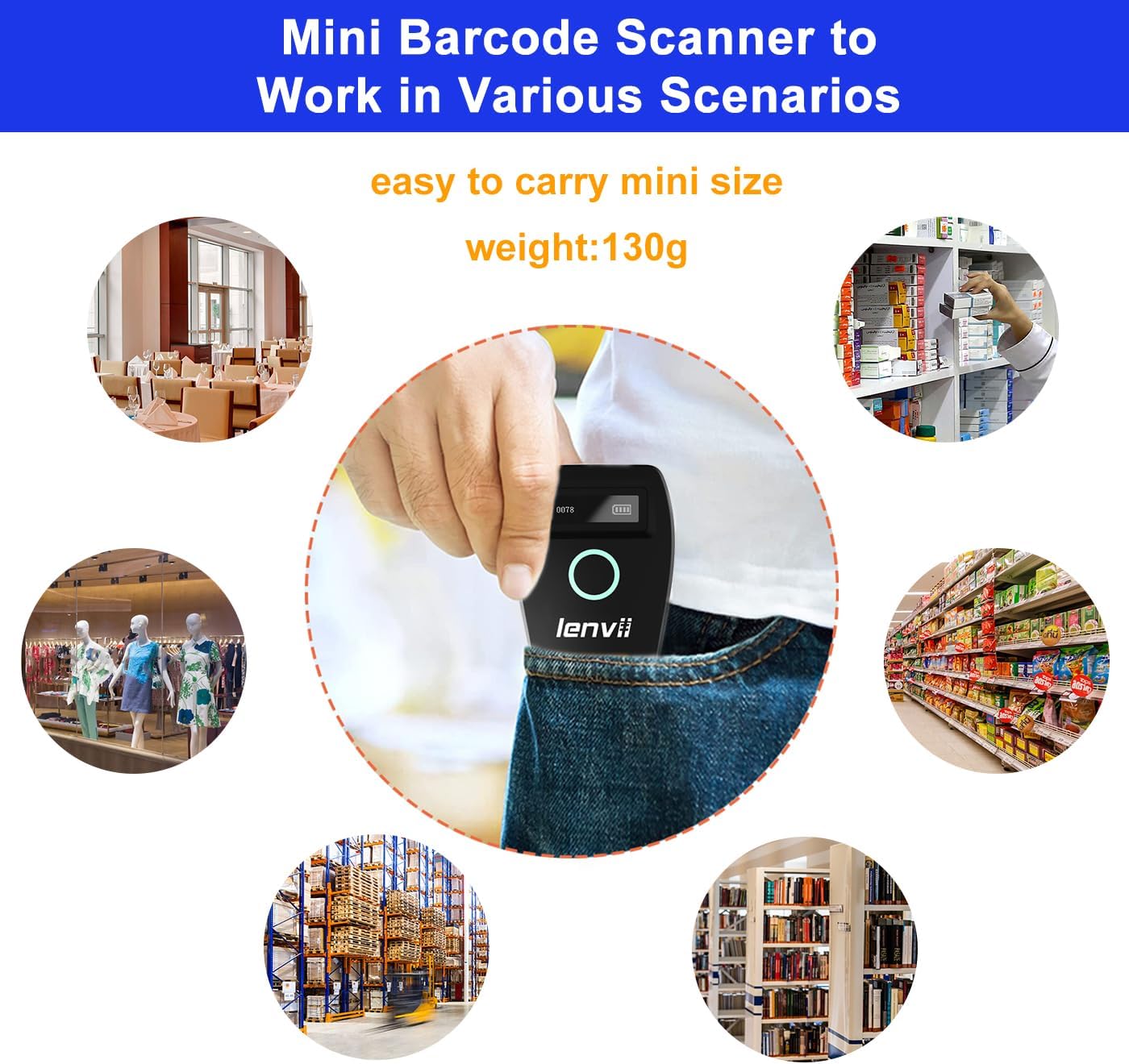
Image 4.3: The compact LENVII R800 scanner shown in different environments, emphasizing its portability and suitability for retail, inventory, and field service.
5. Penyelenggaraan
- Pembersihan: Use a soft, dry cloth to clean the scanner's exterior. For the scan window, use a soft, lint-free cloth lightly dampdicairkan dengan pembersih yang lembut dan tidak kasar. Elakkan bahan kimia yang keras atau bahan yang kasar.
- Storan: Simpan pengimbas di tempat yang sejuk dan kering, jauh daripada cahaya matahari langsung dan suhu yang melampau.
- Penjagaan Bateri: Untuk memanjangkan hayat bateri, elakkan daripada kerap mencas bateri sepenuhnya. Jika menyimpan untuk tempoh yang lama, cas bateri sehingga kira-kira 50% dan cas semula setiap beberapa bulan.
- Perlindungan Fizikal: While designed to withstand drops from 2 meters, avoid unnecessary impacts.
6. Penyelesaian masalah
-
Pengimbas tidak dapat dihidupkan:
- Ensure the battery is charged. Connect the scanner to a power source using the Type-C cable.
-
Scanner not connecting to device:
- Untuk Wayarles 2.4G: Ensure the USB receiver is properly inserted and the scanner is within range.
- Untuk Bluetooth: Ensure Bluetooth is enabled on your host device, the scanner is in pairing mode, and you have selected the correct device from the Bluetooth list.
- For Wired: Check the USB cable connection. Try a different USB port or cable.
-
Pengimbas tidak membaca kod bar:
- Ensure the barcode is clean, undamaged, and within the scanner's reading range.
- Periksa sama ada jenis kod bar disokong oleh pengimbas.
- Ensure there is sufficient lighting on the barcode.
- Clean the scan window if it is dirty.
-
Scanned data not appearing on screen:
- Ensure the scanner is successfully connected to your host device.
- Verify that an active input field or application is open on your host device to receive the data.
- Check if the scanner is in 'Storage Mode'. If so, switch to 'Instant Upload Mode' or upload stored data.
7. Spesifikasi
| Parameter | Perincian |
|---|---|
| Image (pixels) | 640 pixels (horizontal) * 480 pixels (vertical) |
| Sumber Cahaya | Aiming: 617 nm LED; Illumination: 4000K LED |
| Penderia Imej | CMOS |
| Kelajuan Mengimbas | 30 bingkai sesaat |
| Filling Depth | 40-200mm @ UPC / EAN13mil PCS = 90%; 20-250mm @ QR 20mil PCS = 100% |
| Sudut Pengimbasan | Elevation angle 65°, Tilt angle 30°, Deflection angle 55° |
| Bidang View | Mendatar 34°, Menegak 28° |
| Resolusi Membaca | Exceeds 5 million |
| Cetak Kontras | Exceeds 25% |
| Penunjuk Visual | Blue LED light, Red charging light, and Buzzer |
| Mod Komunikasi | 2.4G, Bluetooth BLE4.0, and Type-C (Wired) |
| Jarak Komunikasi | 2.4G: 100 meters (open air), Bluetooth: 40 meters (open air) |
| Kapasiti Memori | Up to 512,000 bits (approx. 35,000 EAN 13 codes) |
| Dimensi (L*W*H) | 135mm * 51mm * 40mm |
| Berat badan | 104 gram |
| bahan | ABS + PC |
| kabel | Kabel Jenis-C |
| Input Voltage | 5VDC ±10% |
| Bekerja Semasa | 400mA |
| Bateri | Bateri litium yang boleh dicas semula 1500mAh |
| Kaedah Pengecasan | Pengecasan kabel jenis-C |
| Ketahanan Gugur | Can withstand a drop of 2 meters |
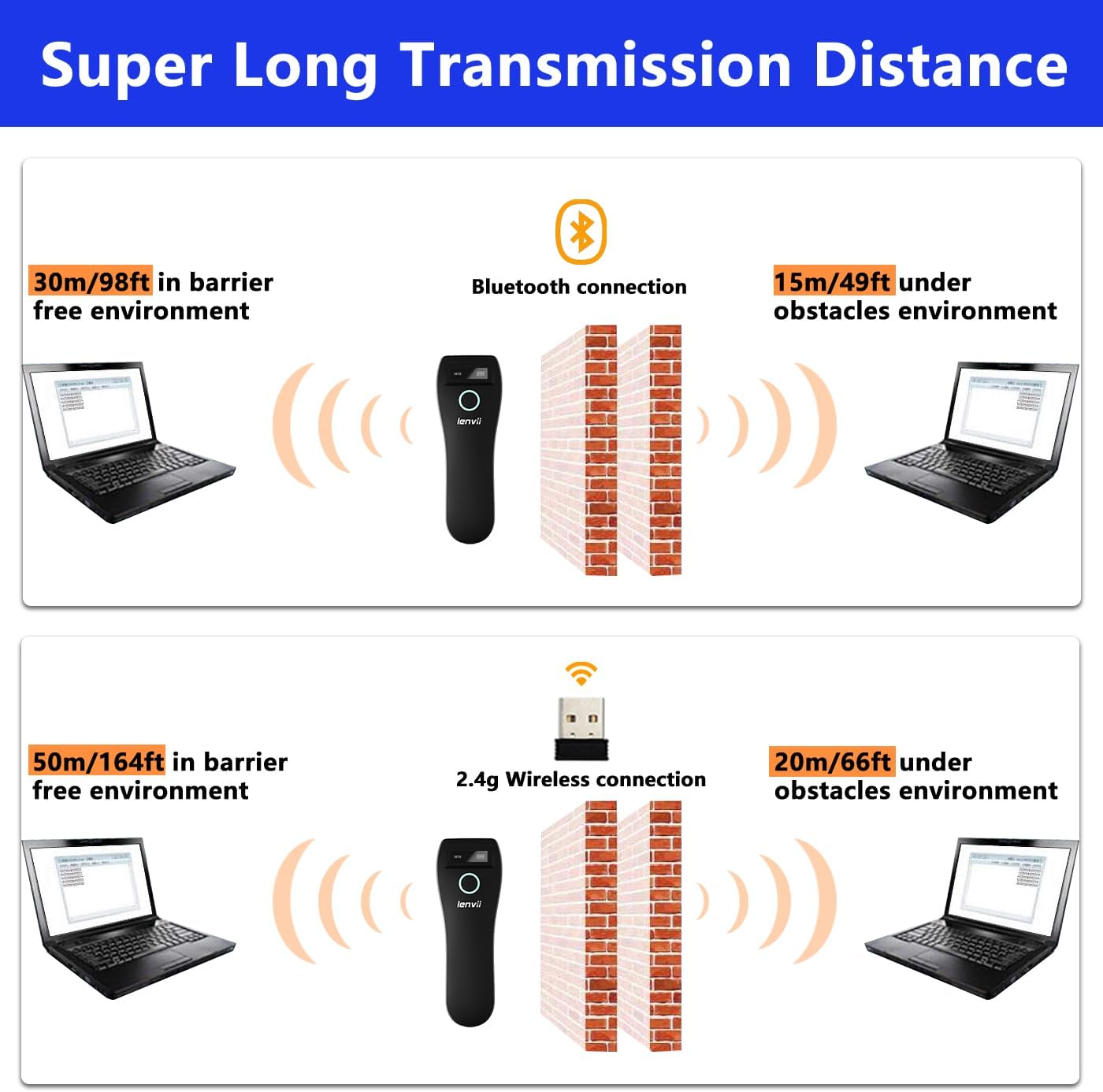
Image 7.1: Comparison of Bluetooth and 2.4G wireless transmission distances in barrier-free and obstacle environments.
8. Waranti dan Sokongan
LENVII products are manufactured to high-quality standards. For warranty information, please refer to the documentation included with your purchase or contact your retailer. For technical support or inquiries, please visit the official LENVII webtapak atau hubungi bahagian perkhidmatan pelanggan mereka.
Anda boleh mendapatkan lebih banyak maklumat dan sumber sokongan dengan melawati LENVII Store on Amazon.


