1. Pengenalan
This user manual provides detailed instructions for the setup, operation, maintenance, and troubleshooting of your Z-EDGE U28I4K 4K Monitor. Please read this manual thoroughly before using the product to ensure proper functionality and to prevent damage.
Ciri-ciri produk:
- Resolusi UHD 4K (3840x2160): Delivers stunningly clear and lifelike images with exceptional detail.
- Kadar Segar Semula 144Hz & Masa Respons 1ms: Ensures smooth, crisp visuals and reduces motion blur, ideal for gaming.
- Panel IPS: Provides wide 178° viewing angles and consistent, accurate color reproduction.
- Teknologi HDR10: Enhances picture quality with deeper blacks and brighter whites.
- Pelbagai Pilihan Kesambungan: Two HDMI inputs and two DisplayPort inputs for versatile device connection.
- Teknologi Penjagaan Mata: Features low blue light and flicker-free technology to reduce eye strain.
- VESA Mount Serasi: Supports 100x100mm VESA mounting for flexible installation.
2. Kandungan Pakej
Please check the package contents upon unboxing. If any items are missing or damaged, contact Z-EDGE customer support.
- Z-EDGE U28I4K 4K Monitor
- Stand Monitor (Asas dan Leher)
- Penyesuai Kuasa dan Kabel Kuasa
- Kabel HDMI
- DisplayPort Cable
- Manual Pengguna
- Screws and Screwdriver for stand assembly
3. Persediaan
3.1 Memasang Pendirian
- Carefully remove the monitor from its packaging, keeping it protected on a soft, flat surface.
- Attach the stand neck to the monitor's rear panel using the provided screws. Ensure it is securely fastened.
- Connect the stand base to the stand neck and tighten the thumb screw or use the provided screwdriver to secure it.
- Gently place the assembled monitor on a stable, flat desk.

3.2 Menyambung ke Peranti
The Z-EDGE U28I4K monitor supports multiple input types. Choose the appropriate cable for your device.
- Sambungan HDMI: Connect one end of the HDMI cable to the HDMI port on your computer/device and the other end to an HDMI input port (HDMI 1 or HDMI 2) on the monitor.
- Sambungan DisplayPort: Connect one end of the DisplayPort cable to the DisplayPort on your computer/device and the other end to a DisplayPort input port (DP 1 or DP 2) on the monitor.
- Output Audio: Connect external speakers or headphones to the 3.5mm audio output jack on the monitor if desired.

3.3 Sambungan Kuasa
Connect the power adapter to the DC 12V input on the monitor, then plug the power cable into a wall outlet.
Important: Use only the power adapter provided with your monitor.
4. Mengendalikan Monitor
4.1 Hidupkan/Mati Kuasa
Press the power button located on the back or bottom of the monitor to turn it on or off. The power indicator light will illuminate when the monitor is on.
4.2 Menu Paparan Pada Skrin (OSD).
The OSD menu allows you to adjust various monitor settings. Navigate the menu using the buttons typically found on the back or bottom right of the monitor.
Tetapan OSD Biasa:
- Kecerahan/Kontras: Laraskan nisbah pencahayaan dan kontras keseluruhan.
- Tetapan Warna: Ubah suai suhu warna, gamma dan tahap RGB individu.
- Sumber Input: Manually select between HDMI 1, HDMI 2, DP 1, or DP 2.
- Mod Gambar: Pilih mod paparan pratetap (cth., Standard, Permainan, Filem, Teks).
- Response Time/Overdrive: Adjust the pixel response time for faster transitions.
- Penyegerakan Bebas/Penyegerakan Adaptif: Enable or disable adaptive synchronization technology.
- Cahaya Biru Rendah: Reduce blue light emission to minimize eye strain.
- Tanpa Kelipan: Ensure the display is free from visible flickering.
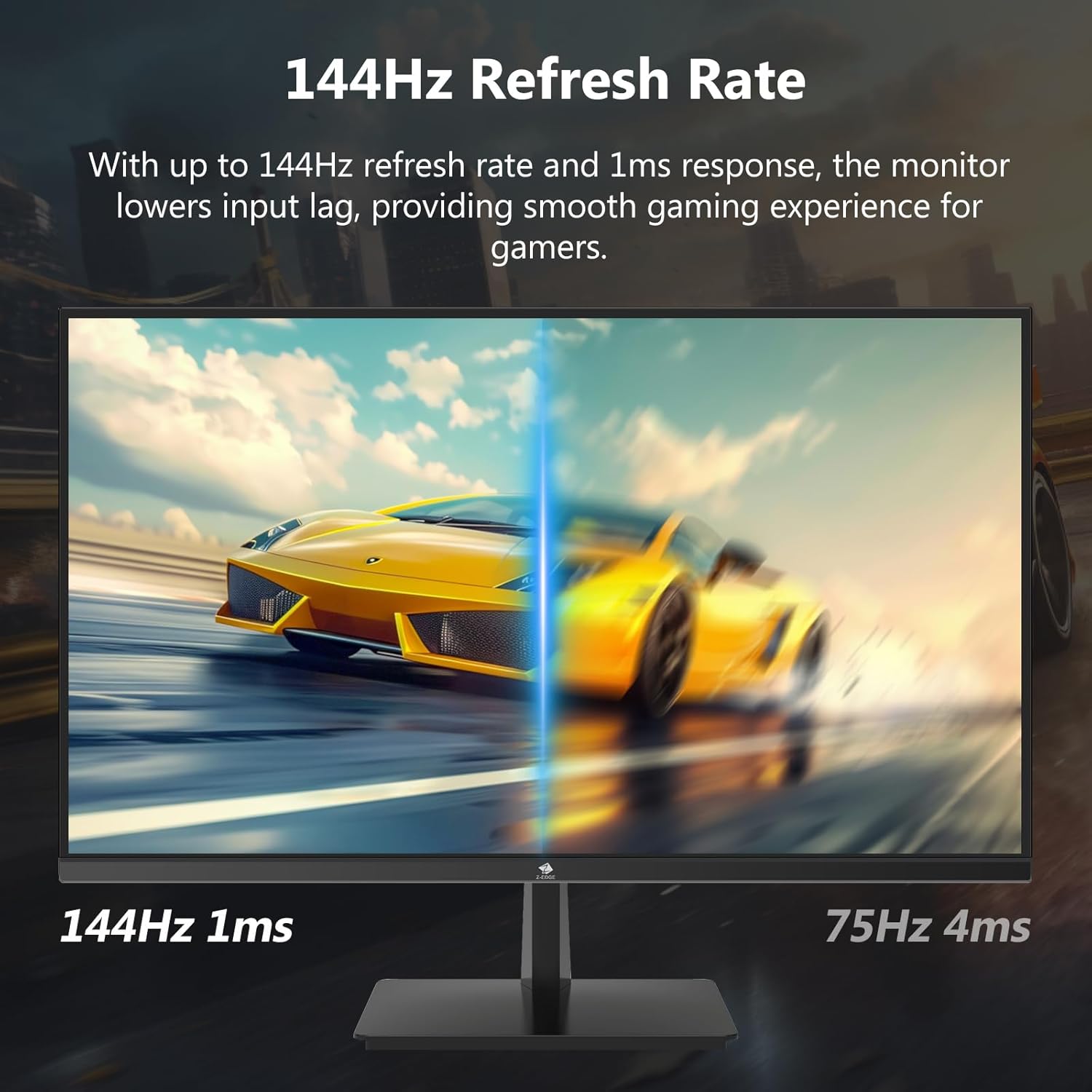

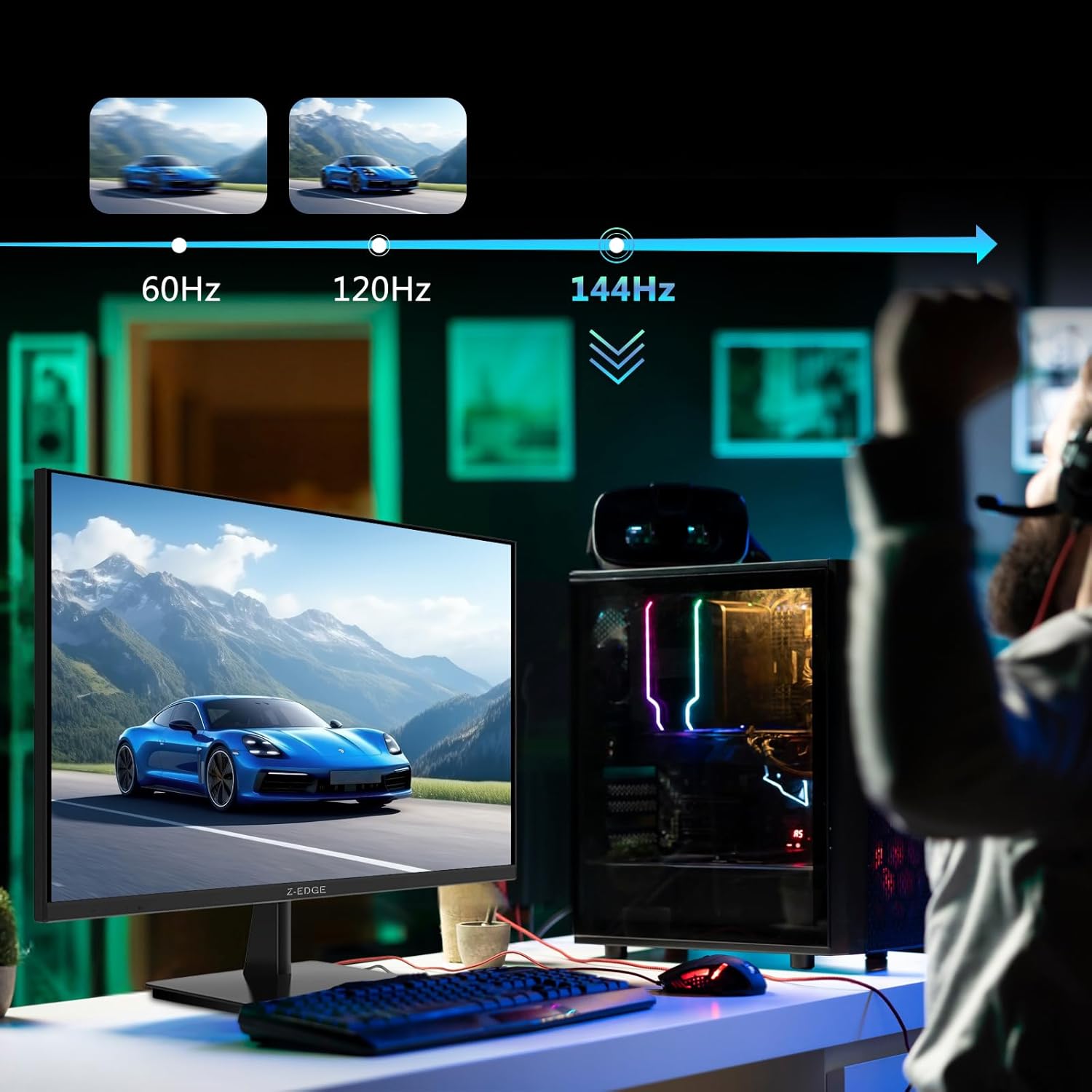
4.3 Refresh Rate and Response Time
The monitor supports up to a 144Hz refresh rate and 1ms response time for optimal performance in fast-paced applications and gaming.

5. Penyelenggaraan
5.1 Membersihkan Monitor
- Sentiasa cabut plag monitor dari salur keluar kuasa sebelum membersihkan.
- Gunakan kain lembut dan tidak berbulu sedikit dampdisalut dengan air atau pembersih skrin yang tidak melelas.
- Jangan sembur pembersih terus ke skrin.
- Elakkan menggunakan benzene, thinner, ammonia, atau pembersih yang melelas, kerana ini boleh merosakkan permukaan monitor.
5.2 Penyimpanan
When storing the monitor for an extended period, ensure it is powered off and disconnected from all cables. Store it in a cool, dry place, preferably in its original packaging to protect it from dust and physical damage.
6. Penyelesaian masalah
| Masalah | Kemungkinan Punca | Penyelesaian |
|---|---|---|
| Tiada Kuasa | Power cable not connected; Power outlet faulty; Power adapter faulty. | Ensure power cable is securely connected to monitor and outlet. Test outlet with another device. Contact support if adapter is suspected faulty. |
| Tiada Isyarat | Input cable not connected; Incorrect input source selected; Computer/device not outputting signal. | Check HDMI/DisplayPort cable connections. Select correct input source via OSD menu. Restart computer/device. |
| Skrin berkelip-kelip | Loose cable connection; Refresh rate mismatch; DCR (Dynamic Contrast Ratio) enabled. | Ensure cables are firmly connected. Adjust refresh rate in display settings. Disable DCR in OSD menu. |
| Poor Image Quality (Blurry/Distorted) | Incorrect resolution; Cable quality; Graphics driver issues. | Set display resolution to 3840x2160. Try a different high-quality cable. Update graphics drivers. |
| No Audio from Monitor | Volume too low; Incorrect audio output selected on computer; External speakers not connected/powered. | Increase monitor volume via OSD. Select monitor as audio output device in OS settings. Ensure external speakers are connected and powered. |
If the problem persists after trying these solutions, please contact Z-EDGE customer support.
7. Spesifikasi
| Ciri | Perincian |
|---|---|
| Nombor Model | U28I4K |
| Saiz Skrin | 28 Inci |
| Jenis Panel | IPS |
| Resolusi | 3840x2160 (4K UHD) |
| Kadar Segar Semula | 144Hz |
| Masa Tindak Balas | 1ms (MPRT) |
| Kecerahan | 300 cd/m² |
| Nisbah Kontras | 1000:1 |
| Sokongan Warna | 16.7 Juta Warna (8-bit) |
| Viewsudut | 178° (H/V) |
| Sokongan HDR | HDR10 |
| Ketersambungan | 2x HDMI 2.1, 2x DisplayPort 1.4, 1x Audio Out (3.5mm) |
| Gunung VESA | 100x100mm |
| Dimensi (dengan pendirian) | 19 x 64 x 46 cm |
| Berat (dengan pendirian) | 5.96 kg |
| Input Kuasa | DC 12V |
8. Waranti dan Sokongan
8.1 Maklumat Waranti
Z-EDGE products typically come with a limited manufacturer's warranty. Please refer to the warranty card included in your product packaging or visit the official Z-EDGE weblaman web untuk terma dan syarat jaminan terperinci. Simpan resit pembelian anda sebagai bukti pembelian untuk tuntutan jaminan.
8.2 Sokongan Pelanggan
For technical assistance, troubleshooting, or warranty inquiries, please contact Z-EDGE customer support:
- Webtapak: www.z-edge.com (Check for support contact details, FAQs, and driver downloads)
- e-mel: Rujuk kepada pegawai webtapak untuk alamat e-mel sokongan terkini.
- telefon: Rujuk kepada pegawai weblaman web untuk nombor telefon sokongan terkini.
When contacting support, please have your monitor's model number (U28I4K) and serial number ready.