Produk Selesaiview
The Phomemo 344WF is an upgraded Wi-Fi thermal label printer designed for efficient and high-quality label printing. It features 300 DPI resolution, 100mm/s printing speed, and compatibility with various operating systems and shipping platforms. This manual provides detailed instructions for setup, operation, and maintenance.

Phomemo 344WF printer with various label types, highlighting Wi-Fi connectivity.
Apa yang ada dalam Kotak
Verify that all components are present in your Phomemo 344WF package:
- 344WF Wi-Fi Thermal Label Printer
- Label
- Penyesuai Kuasa & Kabel
- USB Cord & Type C Convertor
- Panduan Pengguna

Contents of the Phomemo 344WF printer package, including the printer, cables, and user guide.
Panduan Persediaan
Sambungan Fizikal
Connect the power cable to the printer and a power outlet. Ensure the printer is switched on. Insert the labels into the printer, ensuring they are straight and smooth. The printer will automatically calibrate the labels.
Video demonstrating the physical connection of the Phomemo 344WF printer and proper label insertion.
Software Installation & Connectivity
The Phomemo 344WF supports both Wi-Fi and USB connections for various operating systems.
Mobile App (iOS/Android) Setup
Download the "Labelife" app from your device's app store. Turn on Bluetooth and Wi-Fi on your phone. Open the Labelife app and connect to the printer via Wi-Fi.

Diagram showing mobile app connectivity for Phomemo 344WF via Wi-Fi for Android and iOS devices.


Computer (Windows/Mac) Setup
For PC printing, download the driver and Printer Setting Tool from pm344.labelife.cc.
Persediaan Windows:
Detailed video guide on connecting the Phomemo 344WF printer to a Windows operating system, including driver installation and Wi-Fi configuration.
Mac OS Setup:
Detailed video guide on connecting the Phomemo 344WF printer to a Mac operating system, including driver installation and Wi-Fi configuration.

Image illustrating multi-system compatibility for Phomemo 344WF, supporting Chrome OS, Mac OS, Windows, and Linux via Wi-Fi or USB.
Arahan Operasi
Mencetak Label
Ensure the printer is connected and labels are loaded. Open your document (e.g., PDF shipping label) and select the Phomemo 344WF printer from your print options. Adjust paper size and print settings as needed before sending the print job.

Phomemo 344WF printer being used to print a shipping label, compatible with various e-commerce and shipping platforms.
Custom Label Creation
Use the Labelife application to design custom labels of various widths (1 inch to 4.6 inches) for barcodes, product labels, QR codes, and more. This allows for versatile use beyond just shipping labels.
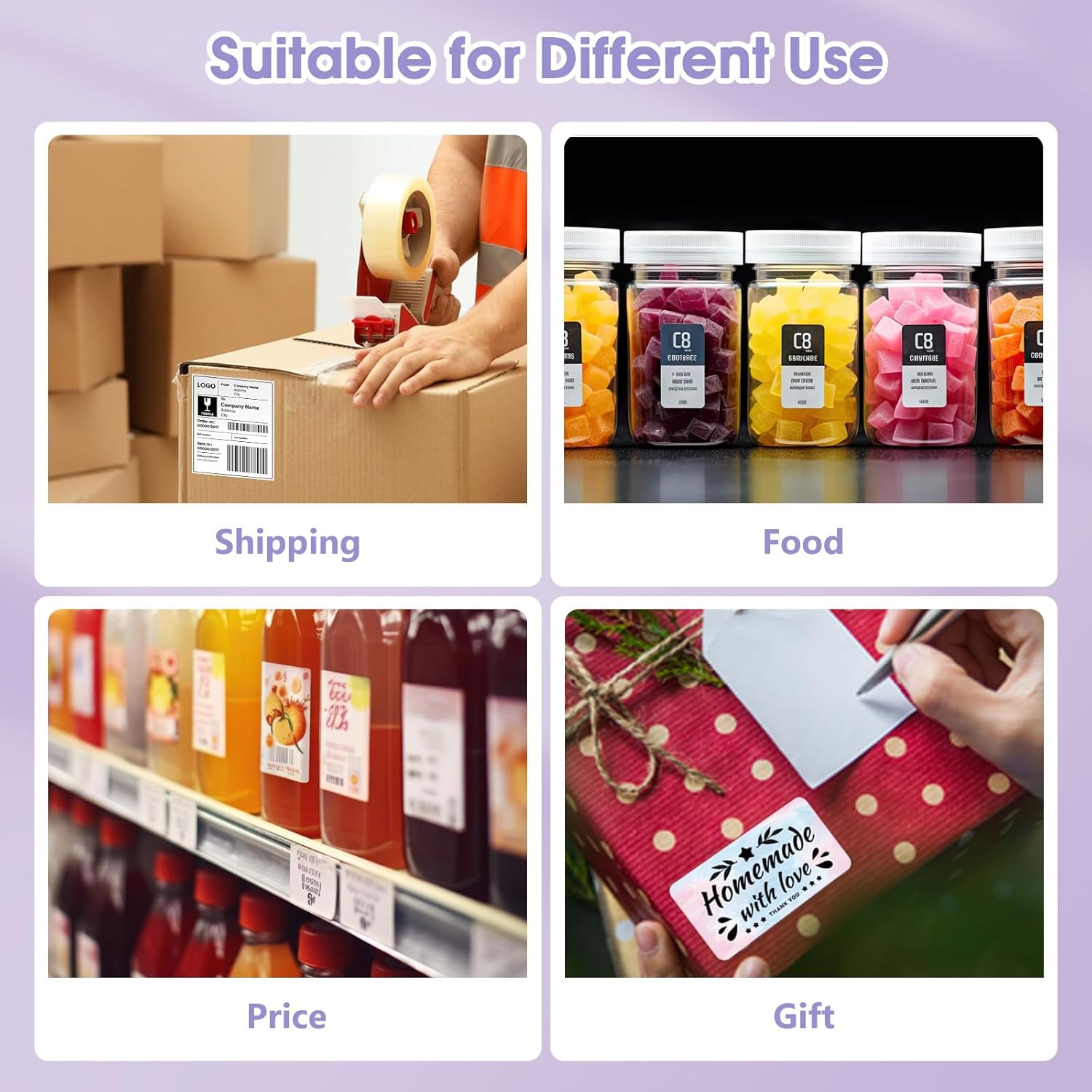
Examples of various custom labels and stickers that can be printed with the Phomemo 344WF, including circular, square, and rectangular labels.
Operasi Butang
The printer features intuitive button controls for common tasks. Refer to the video below for visual guidance.
Video demonstrating key button operations on the Phomemo 344WF printer, such as feeding labels, printing test pages, and restoring factory settings.
- Feed Button (Single Press): Feeds one blank label when idle. Pauses/resumes printing when active.
- Feed Button (Hold until 1 flash): Prints a test page.
- Feed Button (Hold until 2 flashes): Runs automatic label identification for labels with gaps.
- Feed Button (Hold until 3 flashes): Runs automatic label identification for labels with black marks.
- Feed Button (Hold until 4 flashes): Memulihkan tetapan kilang.
- Wi-Fi Button (Hold until 1 flash): Prints network test page.
- Wi-Fi Button (Hold until 2 flashes): Performs Wi-Fi factory reset.
Penyelenggaraan
Penjagaan dan Pembersihan
Regularly clean the print head with an alcohol swab to ensure optimal print quality. Keep the printer free from dust and debris. Avoid using abrasive cleaners or solvents that could damage the printer's surface.
Menyelesaikan masalah
Isu Biasa
Kualiti Cetakan Lemah
- Check label quality and ensure they are thermal labels.
- Adjust print density settings in the printer driver/app.
- Bersihkan kepala cetak.
Masalah Ketersambungan
- Ensure the printer and your device are connected to the same Wi-Fi network.
- Restart the printer and your device.
- Re-run Wi-Fi setup or try a USB connection.
Label Tidak Memberi Makan Dengan Betul
- Ensure labels are loaded straight and not jammed.
- Run automatic label identification (hold feed button until 2 or 3 flashes, depending on label type).
Spesifikasi
Butiran Teknikal
| Ciri | Perincian |
|---|---|
| Dimensi Produk | 7.2"D x 3.5"W x 3.5"H |
| Jenis Pengawal | iOS, Android |
| Saiz Media Pencetak Maksimum | 4 x 6 inci |
| Media cetak | Label |
| Kapasiti Helaian Input Maks | 72 |
| Kelajuan Salin Maks (Hitam & Putih) | 72 ppm |
| Peranti Serasi | PC |
| Resolusi Cetakan Warna Maksimum | 300 x 300 |
| Saiz Helaian | 4x6 Inci |
| Resolusi Cetakan Hitam dan Putih Maksimum | 300 dpi |
| Jenis Waranti | Waranti Terhad |
| Pencetakan dua muka | ya |
| Max copy resolution color | 300 x 300 |
| Resolusi salinan maks hitam-putih | 300 dpi |
| Dupleks | Simplex |
| Antara Muka Perkakasan | USB |
| Warna Dakwat | hitam |
| Resolusi | 300 x 300 |
| Fungsi Pencetak tambahan | Cetak Sahaja |
| Kaedah Kawalan | Apl |
| Output sheet capacity | 72 |
| Bilangan Pemandu | 2 |
| Kiraan Pemproses | 1 |
| Nombor Siri | 344 |
| Jumlah Port USB | 1 |
| Kegunaan Khusus Untuk Produk | Penghantaran |
| Berat Barang | 1.59 paun |
| ASIN | B0CQYJTPQX |
| Nombor model item | 344WF |
| Tarikh Mula-mula Tersedia | 26 Disember 2023 |
| Pengeluar | Phomemo |
| Negara Asal | China |
| Jenama | Phomemo |
| Teknologi Ketersambungan | Wi-Fi, USB |
| Teknologi Percetakan | terma |
| warna | Ungu |
| Nama Model | 344WF |
| Output Pencetak | Monokrom |
| Kelajuan Cetakan Maksimum (Warna) | 100 ppm |
| Max Printspeed Monokrom | 72 ppm |
| Berat Barang | 720 Gram |
Waranti dan Sokongan
The Phomemo 344WF printer comes with a Limited Warranty. For detailed warranty information and support, please refer to the official Phomemo webtapak atau hubungi perkhidmatan pelanggan.
Panduan Pengguna Rasmi (PDF): Muat turun PDF


