1. Pengenalan
The Zebra DS8108-SR is a high-performance handheld corded barcode scanner designed for efficient and accurate data capture in various work environments. It is capable of scanning both 1D and 2D barcodes, including those that are dense, poorly printed, crinkled, faded, distorted, dirty, damaged, or displayed on dimly lit electronic screens.
This manual provides essential information for setting up, operating, maintaining, and troubleshooting your DS8108-SR scanner to ensure optimal performance and longevity.
2. Ciri-ciri Utama
- Superior Scan Range: Offers a scanning range of up to 24 inches (61 cm), enhancing checkout speed and allowing for easy scanning of items in shopping carts without leaving the cash-wrap.
- Prestasi yang tiada tandingan: Equipped with an 800 MHz microprocessor, a high-resolution megapixel sensor, and Zebra's exclusive PRZM Intelligent Imaging technology, it instantly captures even the most problematic barcodes.
- Multi-Code Data Formatting (MDF): Capable of capturing multiple barcodes with a single scan and transmitting only the required barcodes in the application's expected order, improving efficiency.
- Direct Decode Indicator: The illumination on the barcode flashes upon a successful decode, providing immediate visual confirmation and improving user productivity.
- Reka bentuk tahan lasak: Withstands multiple 6 ft./1.8m drops to concrete and is designed to endure 2,000 tumbles in a 1.5 ft./0.5 m tumbler, ensuring reliability in demanding environments.
3. Kandungan Pakej
Upon unpacking your Zebra DS8108-SR scanner, please verify that all the following items are included:
- One (1) Zebra DS8108-SR Barcode Scanner
- Satu (1) Kabel USB
- One (1) Instruction Manual

Figure 1: The Zebra DS8108-SR scanner shown with its included USB cable.

Rajah 2: Gambar jarak dekat view of the USB cable, featuring a standard USB-A connector on one end and an RJ45-style connector for the scanner on the other.
4. Persediaan
Follow these steps to set up your Zebra DS8108-SR barcode scanner:
- Sambungkan Kabel USB: Insert the RJ45-style connector of the USB cable into the port at the base of the scanner handle.
- Sambung ke Peranti Hos: Plug the USB-A connector of the cable into an available USB port on your computer or Point-of-Sale (POS) system.
- Pemasangan Pemandu (jika perlu): Your operating system should automatically detect and install the necessary drivers. If not, please refer to the Zebra support webtapak untuk muat turun pemandu.
- Uji Pengimbas: Open a text editor or a compatible application and scan a test barcode. The scanned data should appear in the application.

Figure 3: Interface diagram illustrating how to connect the scanner via USB to a computer or RS-232 to a power source and host.
5. Arahan Operasi
The Zebra DS8108-SR is designed for intuitive operation:
- Handheld Scanning: Hold the scanner comfortably in your hand. Aim the scanning window at the barcode you wish to read.
- Trigger Scan: Press the trigger button located on the handle. A red aiming pattern will project from the scanning window.
- Successful Scan: Upon a successful scan, the scanner will emit an audible beep and the illumination on the barcode will flash, indicating that the data has been captured.
- Jarak Pengimbasan: For optimal performance, hold the scanner at an appropriate distance from the barcode, typically within its 24-inch (61 cm) range.

Figure 4: The Zebra DS8108-SR handheld scanner, ready for use.
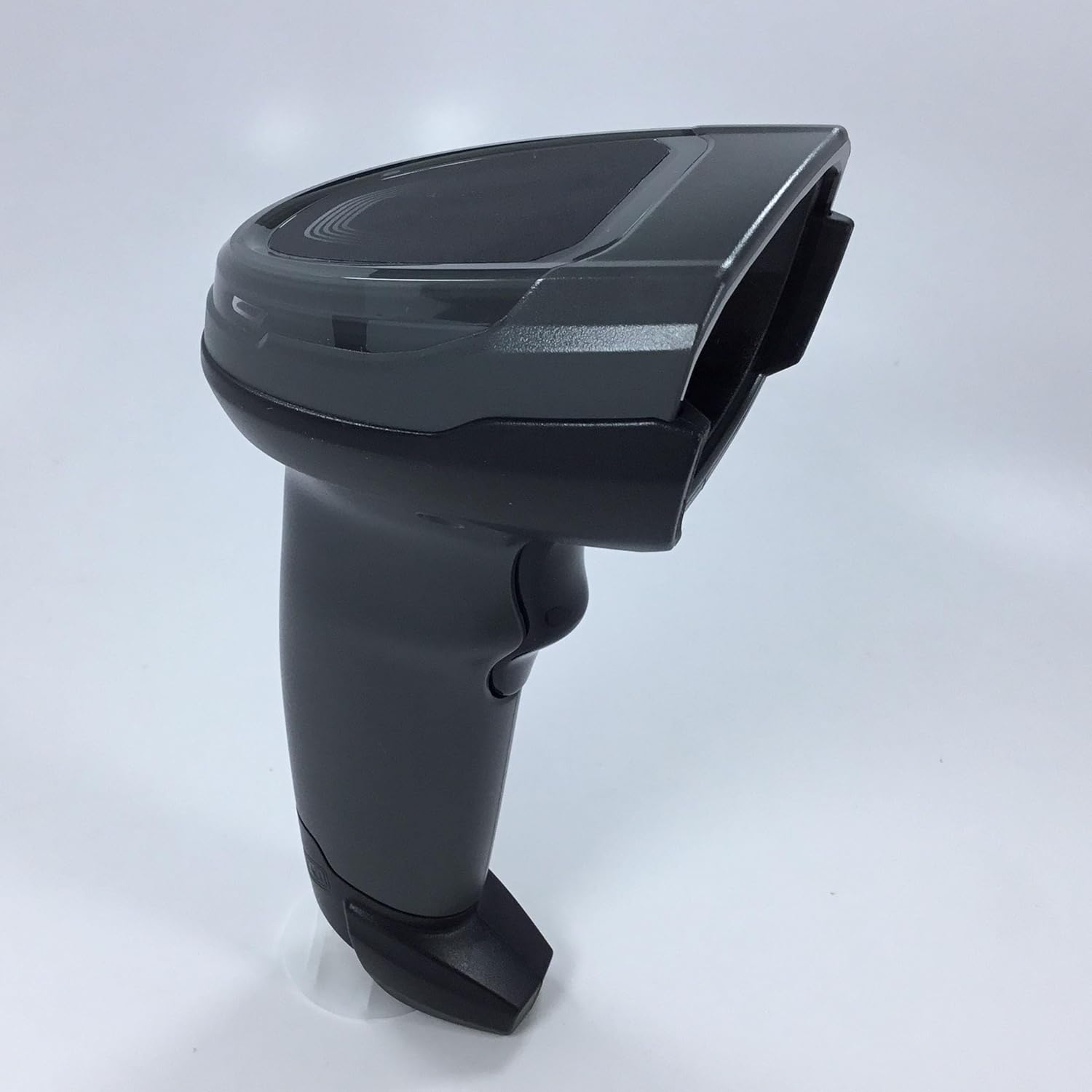
Rajah 5: Sisi view of the scanner, highlighting its ergonomic design for comfortable handling.
Jenis Kod Bar yang Disokong
The DS8108-SR supports a wide array of 1D and 2D barcode symbologies, including but not limited to:
- 1D Barcodes: UPC/EAN, Code 39, Code 128, etc.
- 2D Barcodes: QR Code, Data Matrix, PDF417, MaxiCode, Aztec Code, etc.
- Specialized Barcodes: Damaged codes, poorly printed codes, crinkled codes, faded codes, distorted codes, dirty codes, reflective codes, and film-covered codes.

Figure 6: Visual representation of various barcode types supported by the DS8108-SR, including Maxi Code, Folding Code, Damage Code, PDF 417, Data Matrix, Film Covered Code, and Reflective Code.
Produk Selesaiview Video
Video 1: Video ini memberikan gambaran ringkasview of the Zebra DS8108 Series Corded Handheld Standard Range Scanner Kit, demonstrating its components and basic functionality.
6. Penyelenggaraan
Penyelenggaraan yang betul memastikan jangka hayat dan prestasi optimum pengimbas anda:
- Pembersihan: Regularly clean the scanning window with a soft, lint-free cloth dampdicairkan dengan pembersih yang lembut dan tidak kasar. Elakkan bahan kimia yang keras.
- Penjagaan Kabel: Inspect the USB cable periodically for any signs of wear or damage. Replace if necessary to prevent connectivity issues.
- Storan: Store the scanner in a clean, dry environment when not in use. Avoid extreme temperatures and direct sunlight.
7. Penyelesaian masalah
If you encounter issues with your DS8108-SR scanner, refer to the following common problems and solutions:
| Masalah | Kemungkinan Punca | Penyelesaian |
|---|---|---|
| Scanner not reading barcodes | Incorrect aiming, dirty scanning window, damaged barcode, incompatible barcode type. | Ensure proper aiming. Clean the scanning window. Try scanning a different barcode. Verify the barcode type is supported. |
| No data transmitted to host | Loose cable connection, incorrect host configuration, driver issue. | Check USB cable connection. Ensure the scanner is properly configured for your host system. Reinstall drivers if necessary. |
| Pengimbas tidak dihidupkan | Cable not connected, power issue from host. | Verify the USB cable is securely connected to both the scanner and the host. Try a different USB port or host device. |
8. Spesifikasi
- model: DS8108-SR
- Dimensi: 6.6 in. H x 2.6 in. W x 4.2 in. D (16.8 cm H x 6.6 cm W x 10.7 cm D)
- Berat: 5.4 oz. / 154 g
- Ketersambungan: Corded (USB Cable)
- Supported Host Interfaces: USB, RS232, Keyboard Wedge, TGCS (IBM) 46XX over RS485
- Keupayaan Nyahkod: 2-D & 1-D Barcodes
- Jatuhkan Spesifikasi: Withstands multiple 6 ft. / 1.8m drops to concrete
- Spesifikasi Tumble: Designed to withstand 2,000 tumbles in 1.5 ft. / 0.5 m tumbler
- Graphics Format Support: Images can be exported as Bitmap, JPEG or TIFF
- Pengeluar: Simbol
9. Waranti dan Sokongan
For warranty information and technical support, please refer to the documentation provided with your product at the time of purchase or visit the official Zebra support webtapak. Syarat jaminan tertentu mungkin berbeza mengikut wilayah dan peruncit.


