1. Pengenalan
This manual provides detailed instructions for the Hyperkin Pixel Art Bluetooth Controller, Miraculous Cat Noir Edition. Please read this manual thoroughly before using the product to ensure proper operation and to maximize your gaming experience. This controller is designed for use with multiple platforms, offering wireless connectivity and a comfortable, ergonomic design.
2. Produk Lebihview
The Hyperkin Pixel Art Bluetooth Controller combines a retro aesthetic with modern functionality. It features a unique Miraculous Cat Noir design, wireless Bluetooth connectivity, and a built-in turbo function.
2.1 Ciri-ciri Utama
- Kesambungan Bluetooth Wayarles: Enjoy gaming freedom up to 30 feet away.
- Fungsi Turbo: Activate rapid-fire action for enhanced gameplay.
- Retro Design with Modern Ergonomics: A classic look combined with comfortable handling for extended play sessions.
- Mesra Perjalanan: Reka bentuk padat membolehkan mudah dibawa.
- High-Quality Symmetrical Sticks: Designed for precision and responsiveness.
2.2 Susun Atur Pengawal

Imej 2.2.1: Depan view of the Hyperkin Pixel Art Bluetooth Controller, Miraculous Cat Noir Edition. This image displays the D-pad, left and right analog sticks with paw print designs, A/B/X/Y buttons, Start/Select buttons, and the Cat Noir character art.

Imej 2.2.2: sebelah view of the Hyperkin Pixel Art Bluetooth Controller, Miraculous Cat Noir Edition. This image shows the shoulder buttons (L1, R1) and triggers (L2, R2), along with the USB-C charging port and mode switch.

Imej 2.2.3: jarak dekat view emphasizing the controller's retro design combined with modern ergonomic features for comfortable handling.
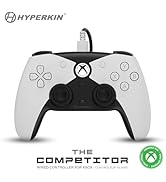
Imej 2.2.4: jarak dekat view tunjuk casing the high-quality symmetrical analog sticks, designed for precise control during gameplay.
3. Persediaan
3.1 Mengecas Pengawal
The controller includes a built-in Lithium Polymer battery. To charge, connect the supplied Type-C cable to the controller's charging port and the other end to a USB power source (e.g., a computer USB port, a USB wall adapter). The LED indicator on the controller will show charging status and turn off when fully charged.
3.2 Pairing via Bluetooth
To pair the controller with your device:
- Pastikan pengawal dicas secukupnya.
- Turn on the controller by pressing the Home button.
- Put the controller into pairing mode (refer to your device's specific instructions for Bluetooth pairing, as this may vary). Typically, this involves holding a small pairing button or a combination of buttons until the LED indicator flashes rapidly.
- On your device (Nintendo Switch, PC, Mac, Android, iOS, etc.), navigate to the Bluetooth settings.
- Cari untuk available devices and select "Hyperkin Pixel Art Controller" (or similar name) from the list.
- Once connected, the LED indicator on the controller will stabilize.
For Nintendo Switch, navigate to the 'Controllers' menu, then 'Change Grip/Order' to initiate pairing mode on the console.
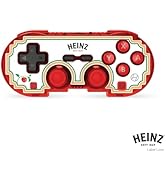
Imej 3.2.1: Illustration of the controller connecting wirelessly via Bluetooth, indicating a range of up to 30 feet.
3.3 Sambungan Berwayar
The controller can also be used via a wired connection. Connect the Type-C cable from the controller to a compatible USB port on your device. This mode is often plug-and-play, requiring no additional pairing.
4. Arahan Operasi
4.1 Kawalan Asas
The controller features standard gaming buttons:
- D pad: Input arah.
- Kayu Analog: Left and Right symmetrical sticks for precise movement and camera control.
- Butang Tindakan (A, B, X, Y): Primary interaction buttons.
- Shoulder Buttons (L, R) and Triggers (ZL, ZR): Additional input buttons, typically for actions like aiming, firing, or menu navigation.
- Butang Mula/Pilih: Untuk menu dan pilihan dalam permainan.
- Butang rumah: Returns to the system's home screen.
4.2 Fungsi Turbo
The turbo function allows for rapid, repeated input of a button press without continuously pressing the button. To activate or deactivate turbo for a specific button:
- Tekan dan tahan butang Turbo butang.
- While holding the Turbo button, press the desired action button (e.g., A, B, X, Y, L, R, ZL, ZR) once to activate turbo for that button.
- Repeat the process (hold Turbo, press the same action button) to deactivate turbo for that button.
5. Keserasian
The Hyperkin Pixel Art Bluetooth Controller is compatible with a wide range of gaming platforms:
- Nintendo Switch
- Nintendo Switch OLED Model
- Nintendo Switch Lite
- PC Windows 10/11
- Mac
- Chromebook
- peranti Android
- Peranti Apple iOS
- Stim
- Dek Stim
- Sekutu ROG
- Raspberry Pi
- Amazon Games/Amazon Luna
- Tesla
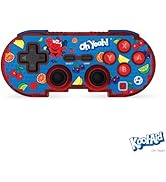
Imej 5.1: Visual representation of the controller's broad compatibility across multiple gaming platforms and operating systems.
6. Penyelenggaraan
Untuk memastikan jangka hayat dan prestasi optimum pengawal anda, ikuti garis panduan penyelenggaraan ini:
- Pembersihan: Gunakan kain lembut dan kering untuk mengelap pengawal. Untuk kotoran degil, sedikit dampen kain dengan air. Elakkan bahan kimia yang keras atau pembersih yang kasar.
- Storan: Simpan pengawal di tempat yang sejuk dan kering jauh dari cahaya matahari langsung dan suhu yang melampau.
- Penjagaan Bateri: Avoid fully discharging the battery frequently. Charge the controller regularly, even if not in use for extended periods, to maintain battery health.
- Elakkan Kesan Fizikal: Do not drop or expose the controller to strong impacts, as this can damage internal components.
7. Penyelesaian masalah
If you encounter issues with your Hyperkin Pixel Art Bluetooth Controller, refer to the following common problems and solutions:
| Masalah | Penyelesaian yang Mungkin |
|---|---|
| Pengawal tidak dihidupkan. | Ensure the controller is charged. Connect it to a power source using the Type-C cable. |
| Pengawal tidak bersambung melalui Bluetooth. |
|
| Buttons are unresponsive or delayed. |
|
| USB charging port does not work. |
|
| Vibration is too strong or loud. | Some games or systems may offer an option to adjust or disable vibration feedback within their settings. Consult your game or system's options menu. |
8. Spesifikasi
| Ciri | Perincian |
|---|---|
| Nombor Model | M01328-MTCN |
| Ketersambungan | Bluetooth (Wireless), USB Type-C (Wired) |
| Julat Tanpa Wayar | Sehingga 30 kaki |
| Jenis Bateri | 1 bateri Polimer Litium (termasuk) |
| Dimensi Pakej | 7.4 x 5.2 x 2.4 inci |
| Berat Barang | 9.9 auns |
| Pengeluar | Hyperkin |
9. Waranti dan Sokongan
This product is covered by the manufacturer's standard warranty. For specific warranty terms and conditions, please refer to the documentation included with your purchase or visit the official Hyperkin website. For technical support or further assistance, please contact Hyperkin customer service through their official channels.


