1. Pengenalan
This user manual provides detailed instructions for the Phomemo WiFi Thermal Label Printer PM-344-WF. This printer is designed for efficient and high-quality label printing, featuring WiFi and USB connectivity, 300DPI resolution, and compatibility with various operating systems and label sizes.
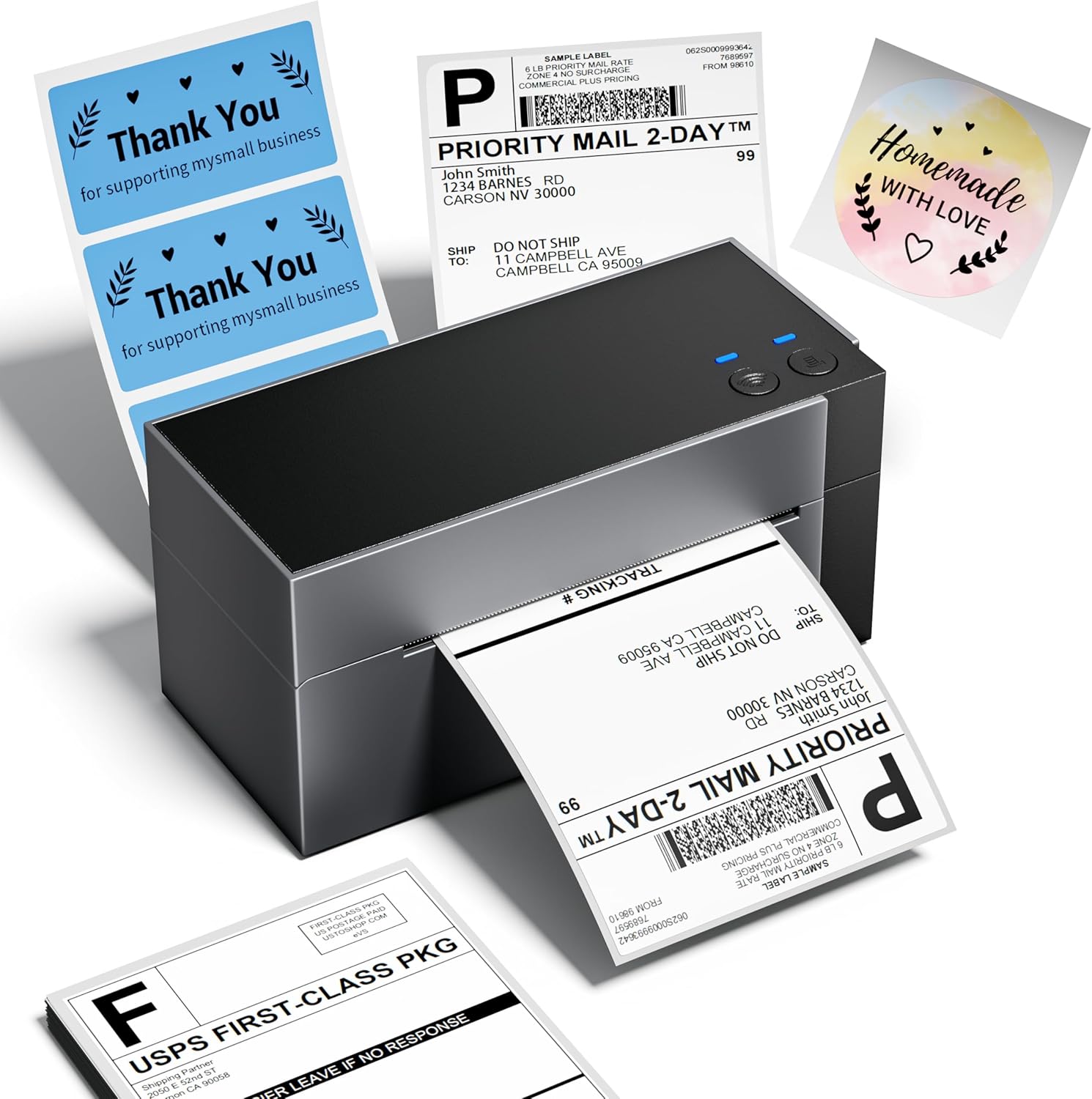
2. Apa yang ada di dalam Kotak
Selepas membuka kotak, sila sahkan bahawa semua komponen ada:
- Phomemo WiFi Thermal Label Printer (PM-344-WF)
- Penyesuai Kuasa
- Kabel USB-A ke USB-C
- Mac USB Adapter
- Sample 4x6 Labels
- Manual Pengguna (dokumen ini)
3. Panduan Persediaan
3.1 Sambungan Perkakasan
- Letakkan pencetak pada permukaan yang stabil dan rata.
- Connect the power adapter to the printer's power port and then to a power outlet.
- If using USB, connect the USB-A to USB-C cable from your computer to the printer. Use the Mac USB adapter if necessary.
- Load thermal labels into the rear slot of the printer. The printer will automatically feed and calibrate the label.
3.2 Pemasangan Perisian dan Pemacu
For full functionality, install the appropriate drivers and the Labelife application.
- Windows/macOS: Download drivers and the Labelife application from the official Phomemo webtapak. Ikut arahan pada skrin untuk pemasangan.
- iOS/Android: Download the "Labelife" app from the App Store (iOS) or Google Play Store (Android).
- ChromeOS/Linux: USB connectivity is supported. Ensure your system has generic printer drivers or install specific drivers if available from the Phomemo webtapak.
3.3 Sambungan WiFi
The PM-344-WF supports 5GHz WiFi for stable and fast wireless printing.
- Ensure your printer is powered on.
- Open the Labelife application on your device (smartphone, tablet, computer).
- Follow the in-app instructions to connect the printer to your WiFi network. This typically involves selecting your WiFi network and entering the password.
- Once connected, the WiFi indicator light on the printer will illuminate steadily.


4. Arahan Operasi
4.1 Memuatkan Label
The printer supports thermal labels with widths ranging from 1 inch to 4.6 inches.
- Pastikan pencetak dihidupkan.
- Gently insert the stack of thermal labels into the rear feed slot, print-side up.
- The printer will automatically detect the label and feed it to the correct starting position.

4.2 Label Percetakan
Use the Labelife application or your computer's printing dialogue to send print jobs.
- From Labelife App:
- Open the Labelife app and select the document or image you wish to print.
- Adjust print settings such as label size, orientation, and quantity.
- Tap the print button.
- From Computer (Windows/macOS):
- Open the document (e.g., PDF shipping label) in your preferred application.
- Select "Print" and choose the Phomemo PM-344-WF as your printer.
- Adjust printer preferences (e.g., paper size, quality) to match your label.
- Klik "Cetak".


4.3 Video Produk Rasmi
5. Penyelenggaraan
Penyelenggaraan tetap memastikan prestasi optimum dan memanjangkan jangka hayat pencetak anda.
- Membersihkan Kepala Cetak: Gunakan kain bebas bulu dengan ringanampened with isopropyl alcohol to gently wipe the print head. Ensure the printer is off and cooled down before cleaning.
- Membersihkan Penggelek Platen: Putarkan penggelek platen dan lapkannya denganamp kain untuk menanggalkan sebarang sisa pelekat atau habuk.
- Pembersihan Luaran: Wipe the exterior of the printer with a soft, dry cloth. Avoid abrasive cleaners.
- Storan: Store the printer in a cool, dry place away from direct sunlight and excessive dust.
6. Penyelesaian masalah
| Masalah | Kemungkinan Punca | Penyelesaian |
|---|---|---|
| Printer not responding / Red light blinking | Paper jam, out of labels, or connection issue. |
|
| Kualiti cetakan buruk (samar, kabur) | Dirty print head, low quality labels, or incorrect settings. |
|
| Cannot connect via WiFi | Incorrect WiFi password, printer too far from router, or 2.4GHz/5GHz band issue. |
|
| Labels not aligning correctly | Improper label loading or calibration issue. |
|
Untuk bantuan lanjut, sila rujuk bahagian Sokongan.
7. Spesifikasi
| Ciri | Perincian |
|---|---|
| Nama Model | PM-344-WF |
| Teknologi Percetakan | terma |
| Teknologi Ketersambungan | Wi-Fi, USB |
| Resolusi Cetakan | 300 x 300 DPI |
| Kelajuan Cetakan Maks (Monokrom) | 150 mm/s (approx. 72 sheets of 4x6 labels per minute) |
| Saiz Media Maksimum | 4 x 6 inci |
| Supported Label Widths | 1 inch to 4.6 inches |
| Peranti Serasi | Komputer Riba, PC, Telefon Pintar, Tablet |
| Jenis Pengawal | Android, iOS |
| Dimensi Produk | 7.18"D x 3.48"W x 3.52"H |
| Berat Barang | 1.59 paun |
| Pengeluar | Phomemo |
8. Maklumat Waranti
The Phomemo WiFi Thermal Label Printer PM-344-WF comes with a Limited Warranty. For specific terms and conditions of your warranty, please refer to the warranty card included in your product packaging or visit the official Phomemo webtapak. Simpan bukti pembelian anda untuk tuntutan waranti.
Optional protection plans may be available for extended coverage. Please check with your retailer for details.
9. Sokongan Pelanggan
Should you encounter any issues or have questions regarding your Phomemo printer, please contact our customer support team. Phomemo offers lifetime technical support.
- Sokongan dalam talian: Lawati Phomemo rasmi website for FAQs, driver downloads, and online chat support.
- Sokongan E-mel: Rujuk kepada pembungkusan produk anda atau pegawai rasmi webtapak untuk alamat e-mel sokongan pelanggan.
- Sokongan Telefon: Contact numbers may be available on the official Phomemo webtapak.
