1. Pengenalan
The Amazon Basics Thunderbolt4/USB4 Pro Docking Station is designed to expand the connectivity of your laptop, providing a single solution for multiple peripherals, external displays, and power delivery. This docking station is ideal for professionals and creators who require high-speed data transfer, advanced display capabilities, and efficient power management.
2. Maklumat Keselamatan
- Ensure the docking station is placed on a stable, flat surface.
- Jangan dedahkan peranti kepada air, lembapan atau suhu yang melampau.
- Gunakan hanya penyesuai kuasa dan kabel yang disediakan.
- Keep ventilation openings clear to prevent overheating. When fully loaded, the docking station may reach 122°F/50°C, which is normal for such products.
- Elakkan daripada menjatuhkan atau meletakkan peranti kepada kesan yang kuat.
3. Kandungan Pakej
Sila sahkan bahawa semua item terdapat dalam pakej anda:
- Stesen Pemasangan Thunderbolt 4
- Kabel Thunderbolt 4
- Penyesuai Kuasa
- Panduan Persediaan Pantas
4. Produk Lebihview
The Amazon Basics Thunderbolt4/USB4 Pro Docking Station offers a variety of ports to enhance your workstation setup.

Rajah 4.1: Depan dan Belakang View of the Docking Station with Port Labels. This image highlights the various input and output ports available on the docking station, including Thunderbolt 4, USB-A, HDMI, Ethernet, and the SD card slot.
Pelabuhan hadapan:
- Slot Kad SD: For high-speed data transfer from SD cards.
- USB-A 3.2 (10Gbps): For connecting USB-A devices.
- Bicu Audio 3.5mm: Untuk fon kepala atau pembesar suara.
- Thunderbolt 4/USB-C (To Host): The primary connection to your laptop, supporting 96W Power Delivery.
Port Belakang:
- DC DALAM: Power input from the provided adapter.
- HDMI 2.1 Output: Supports up to 8K@30Hz display.
- 2x Thunderbolt 4/USB-C (40Gbps, 15W max charging, 4K@60Hz display): For connecting additional Thunderbolt devices or external displays.
- Ethernet RJ45 (Up to 2.5Gbps): Untuk sambungan rangkaian berwayar berkelajuan tinggi.
- 2x USB-A 3.1: For connecting additional USB-A devices.
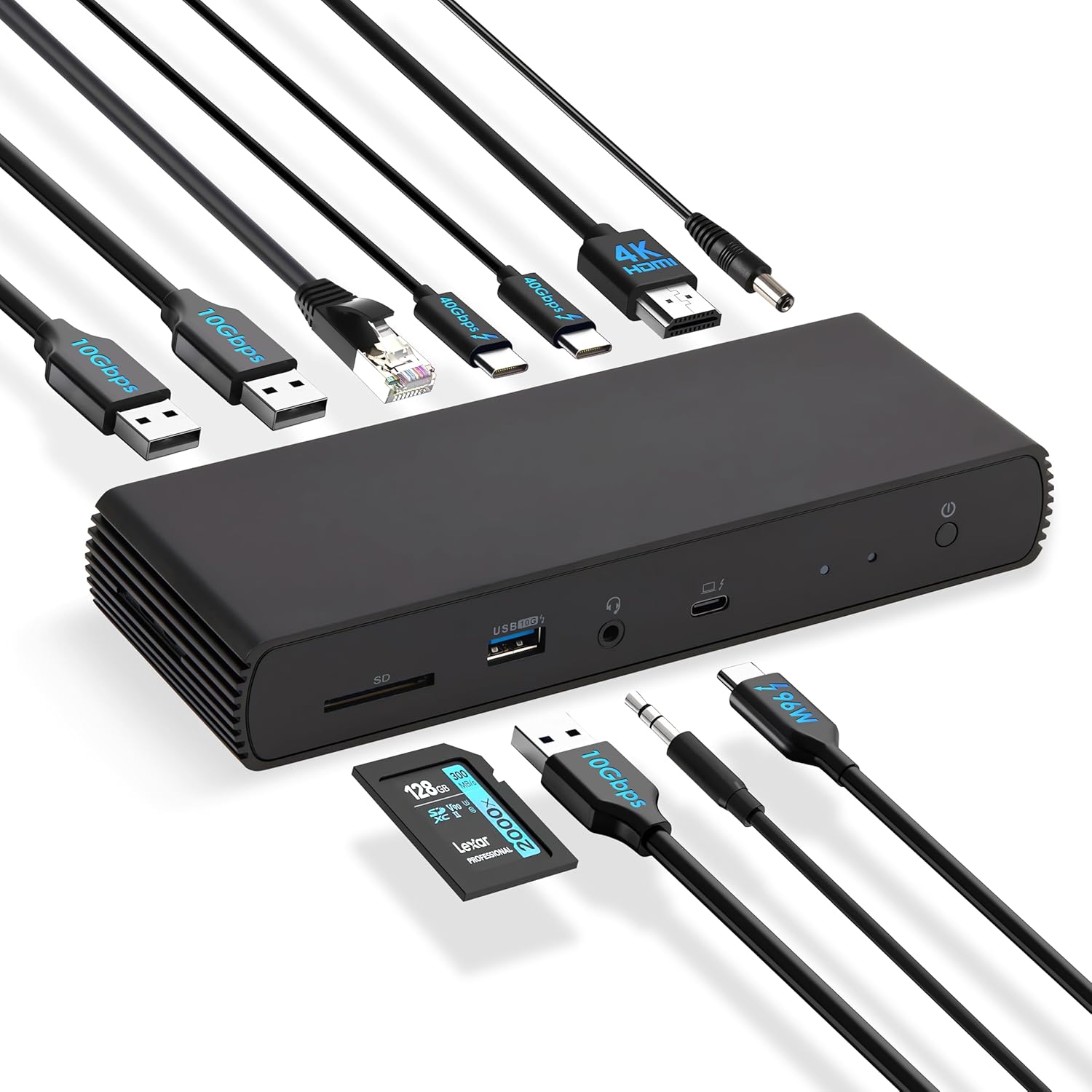
Rajah 4.2: The docking station connected to various peripherals and a laptop, demonstrating its comprehensive connectivity options.
5. Persediaan
Follow these steps to set up your Amazon Basics Thunderbolt4/USB4 Pro Docking Station:
- Sambungkan Kuasa: Connect the provided power adapter to the "DC IN" port on the rear of the docking station, then plug it into a wall outlet.
- Sambung ke Laptop: Use the provided black Thunderbolt 4 cable to connect the "Thunderbolt 4/USB-C (To Host)" port on the front of the docking station to a Thunderbolt 4 port on your laptop.
- Sambungkan Paparan:
- For a single 8K@30Hz display, connect your monitor to the HDMI 2.1 port.
- For dual 4K@60Hz displays, connect your monitors to the two Thunderbolt 4 USB-C ports on the rear.
- Nota: Verify your laptop's Thunderbolt ports support dual 4K@60Hz output. Ensure your graphics card has the latest drivers. Confirm your monitors support 4K@60Hz display. Use high-quality Thunderbolt 4 or USB4 cables for connection (not included for monitors). Avoid connecting the HDMI port first to prevent resolution downgrade due to bandwidth limitations.
- Sambung Peranti: Connect your USB devices (keyboard, mouse, external drives), Ethernet cable, and audio devices to the corresponding ports on the docking station.
- Hidupkan kuasa: Press the power button on the docking station. Ensure the Green Power LED and Blue Thunderbolt LED turn on.
Video 5.1: How to Use the Amazon Basics Thunderbolt4/USB4 Pro Docking Station. This video provides a visual guide to connecting the docking station, including power, displays, and peripherals, and demonstrates its functionality.
If the laptop fails to detect the docking station, please ensure that your Thunderbolt 4 cable is firmly connected and wait for 60 seconds to complete the setup.
6. Arahan Operasi
Once set up, the docking station provides seamless integration with your laptop for various functions:
- Sambungan Paparan: Extend or mirror your laptop's display to up to two external monitors.
- Penghantaran Kuasa: The docking station supports dynamic Power Delivery (PD) up to 96W to charge your connected laptop.
- Pemindahan Data Berkelajuan Tinggi: Utilize the Thunderbolt 4 ports for up to 40Gbps data transfer and USB-A 3.2 ports for 10Gbps data transfer.
- Kesambungan Rangkaian: The Ethernet RJ45 port supports up to 2.5Gbps (approximately 300 Megabytes per sec) for stable and fast wired internet access.
- Kesambungan Audio: Connect your headphones or speakers via the 3.5mm audio jack.

Rajah 6.1: Dual 4K@60Hz Display Setup. This image illustrates a laptop connected to two external monitors, showcasing the docking station's capability to support extended desktop environments for increased productivity.

Rajah 6.2: High-Speed Data Transfer. This image visually represents the rapid data transfer capabilities of the Thunderbolt 4 connection, emphasizing its efficiency for moving large files dengan cepat.
7. Keserasian
This docking station is compatible with:
- Laptops running Windows 10 OS or later which have a Thunderbolt 4 port.
- Non-M1/M2 chip MacBooks running macOS 11 (Big Sur) or later.
It is backwards compatible with Thunderbolt 3 laptops, but with limited functionality (e.g., may not support dual display).
Tidak serasi dengan:
- Linux or Chrome OS laptops.
- M1/M2 chip MacBooks running macOS 10.16 or earlier.

Rajah 7.1: Keserasian Berakhirview. This chart provides a quick reference for supported operating systems and laptop types, ensuring users can confirm device compatibility.
8. Penyelenggaraan
Untuk memastikan jangka hayat dan prestasi optimum stesen dok anda:
- Pembersihan: Use a soft, dry cloth to clean the exterior of the docking station. Do not use liquid cleaners or aerosols.
- Pengudaraan: Ensure the docking station has adequate airflow around it. Do not cover the ventilation holes.
- Storan: When not in use for extended periods, store the docking station in a cool, dry place away from direct sunlight.
9. Penyelesaian masalah
Jika anda menghadapi masalah dengan stesen dok anda, rujuk kepada masalah dan penyelesaian biasa berikut:
| Masalah | Kemungkinan Punca | Penyelesaian |
|---|---|---|
| Tiada output paparan atau skrin berkelip. | Incorrect cable connection, outdated drivers, incompatible display settings, or bandwidth limitations. | Ensure all display cables are firmly connected. Update your laptop's graphics drivers. Verify your monitors support the desired resolution (e.g., 4K@60Hz). If using dual displays, ensure your laptop's Thunderbolt ports support dual 4K@60Hz output. Avoid connecting HDMI first if using multiple displays. |
| Komputer riba tidak dicas atau dicas dengan perlahan. | Laptop power requirements exceed 96W, or incorrect connection. | Check your laptop manufacturer's power supply specifications. If requirements exceed 96W, the docking station may activate overload protection. Ensure the provided Thunderbolt 4 cable is used and connected to the correct upstream port. |
| Docking station not detected by laptop. | Loose Thunderbolt 4 cable connection. | Ensure the Thunderbolt 4 cable is firmly connected to both the docking station and your laptop. Wait for 60 seconds for the system to recognize the device. |
| Kelajuan rangkaian perlahan. | Thunderbolt bandwidth shared across devices. | Thunderbolt bandwidth is shared across devices. Display resolution and LAN speed may decrease with multiple high-bandwidth connections. Disconnect other high-bandwidth devices if maximum LAN speed is critical. |
10. Spesifikasi
| Ciri | Perincian |
|---|---|
| Jenama | Asas Amazon |
| Nombor Model | DBD1336 |
| Dimensi (LxWxH) | 7.86 x 2.95 x 1.23 inci |
| Berat badan | 2.15 paun |
| warna | Hitam |
| Antara Muka Perkakasan | USB, Thunderbolt |
| Jumlah Port USB | 3 (USB-A) + 2 (Thunderbolt 4/USB-C) |
| Jumlah Port HDMI | 1 (HDMI 2.1) |
| Penghantaran Kuasa | Sehingga 96W |
| Kelajuan Ethernet | 2.5Gbps |
| Paparan Sokongan | Dual 4K@60Hz (via TBT4) or Single 8K@30Hz (via HDMI 2.1) |
11. Waranti dan Sokongan
This Amazon Basics product is covered by a limited warranty. For detailed warranty information, please refer to the Warranty (PDF) document provided with your product or visit the Amazon Basics support page.
For technical support, troubleshooting assistance, or to inquire about replacement parts, please visit the Amazon customer support website or contact their customer service directly. Have your product model number (DBD1336) and purchase information ready.
Manual Pengguna (PDF): Muat Turun Di Sini
Panduan Pengguna (PDF): Muat Turun Di Sini
Waranti (PDF): Muat Turun Di Sini


