pengenalan
The Amazon Basics Thunderbolt 4 / USB4 Docking Station is designed to expand your laptop's connectivity and enhance your workspace. It provides multiple ports for monitors, peripherals, and network access, all while delivering power to your connected laptop through a single Thunderbolt 4 cable.
Apa yang Termasuk
- Stesen Pemasangan Thunderbolt 4
- Kabel Thunderbolt 4
- Penyesuai Kuasa
- Kord Kuasa
- Panduan Persediaan Pantas

Image: All components included with the docking station.
Produk Selesaiview
The docking station features a compact design with various ports for versatile connectivity. Below is a detailed look at the ports and indicators.

Imej: Depan view daripada stesen dok.
Panel Depan
- Pembaca Kad SD: Untuk membaca dan menulis ke kad memori SD.
- Port USB-A 3.1: Connect USB-A peripherals.
- Bicu Audio 3.5mm: Untuk fon kepala atau pembesar suara.
- Pelabuhan Hulu Thunderbolt 4: Connects to your laptop. Supports up to 85W Power Delivery.
- Penunjuk LED: Power and Thunderbolt connection status.
- Butang Kuasa: To turn the docking station on or off.
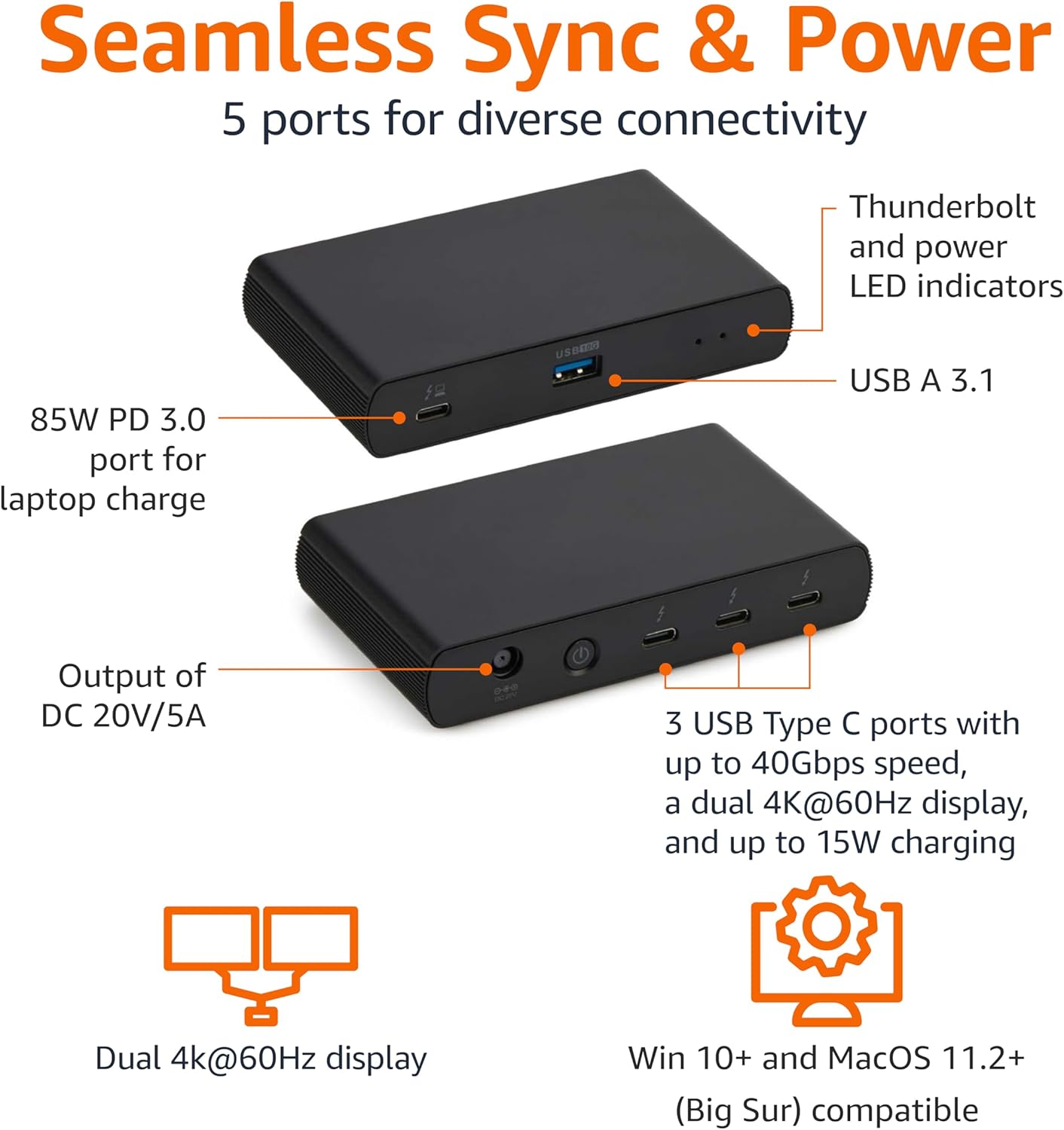
Image: Labeled ports on the docking station.
Panel Belakang
- DC Dalam Pelabuhan: Sambungkan penyesuai kuasa yang disediakan.
- Port HDMI 2.1: Sambungkan paparan luaran.
- 2x Thunderbolt 4 Downstream Ports: Connect additional Thunderbolt devices or external displays. Each supports up to 15W charging.
- Pelabuhan Ethernet 2.5G: Untuk sambungan rangkaian berwayar.
- 2x Port USB-A 3.1: Connect additional USB-A peripherals.
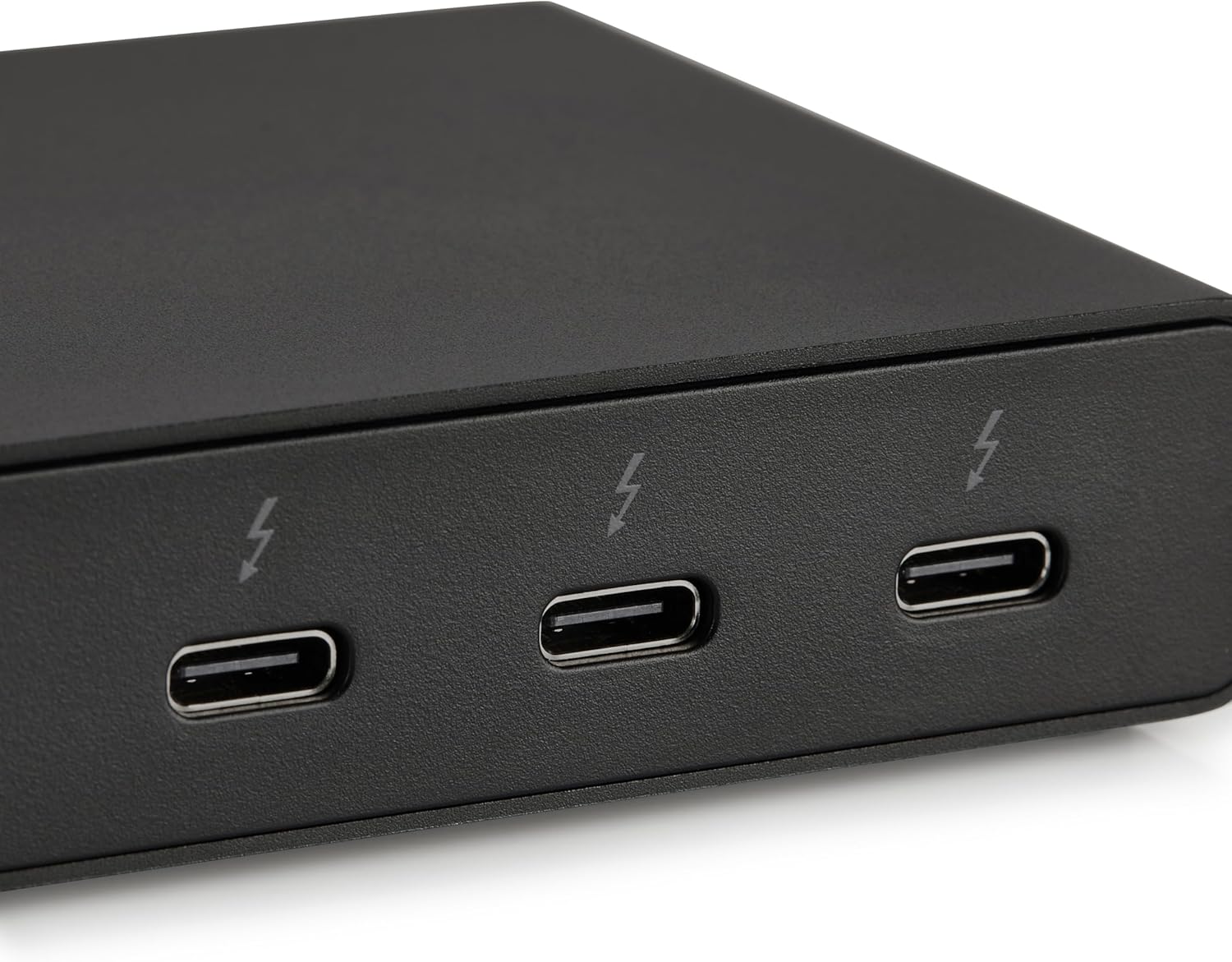
Image: Close-up of Thunderbolt 4 ports.
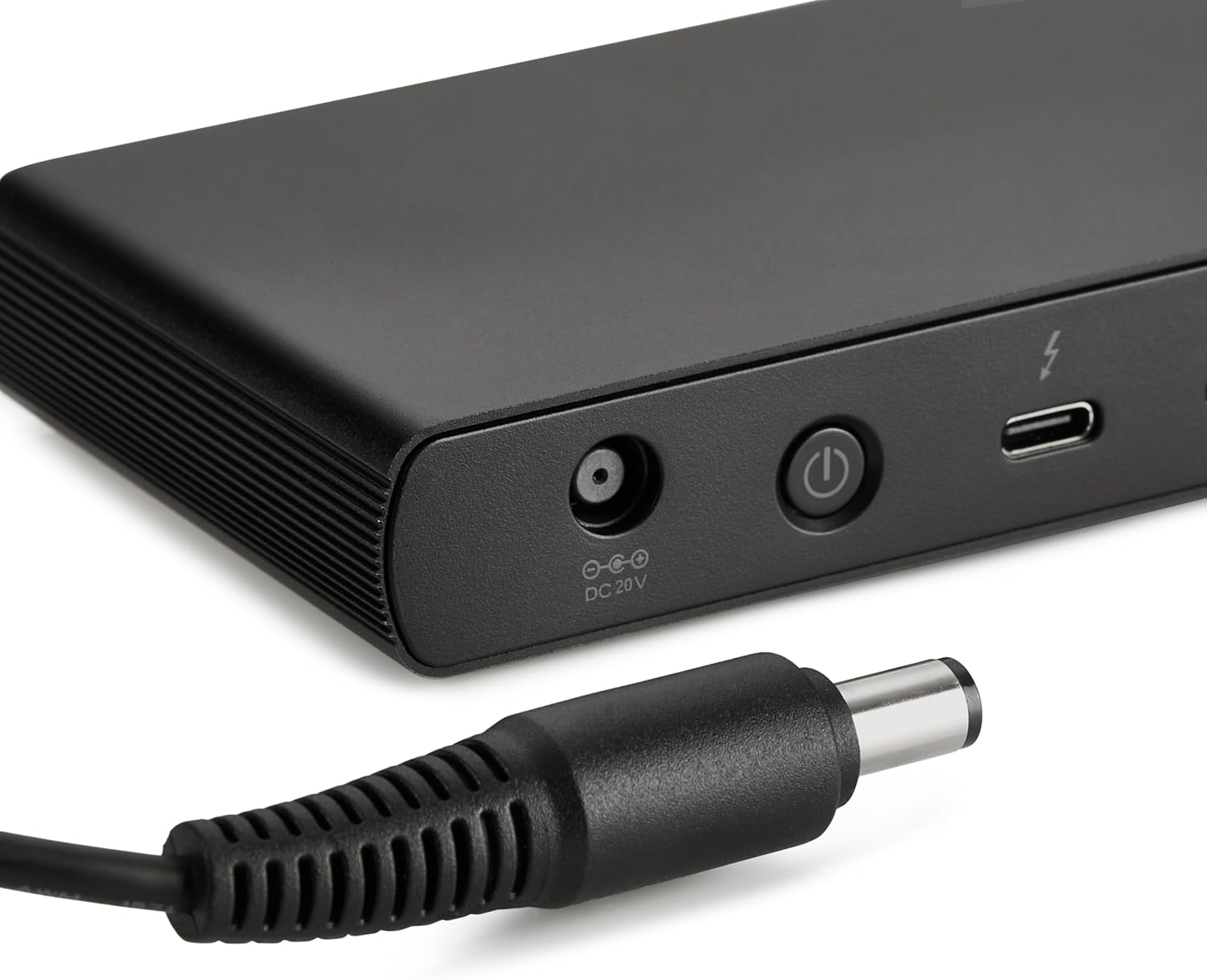
Image: Close-up of the DC power input.
Arahan Persediaan
- Sambungkan Kuasa: Plug the provided power adapter into the DC In port on the rear of the docking station, then connect the power cord to a wall outlet.
- Sambung ke Laptop: Use the provided black Thunderbolt 4 cable to connect the Thunderbolt 4 upstream port on the depan of the docking station to a Thunderbolt 4 port on your laptop.
- Hidupkan kuasa: Press the power button on the front panel of the docking station. The green power LED and blue Thunderbolt LED should illuminate.
- Sambung Peranti: Connect your monitors, Ethernet cable, USB devices, and audio devices to the appropriate ports on the docking station.
Video: This video demonstrates the basic setup and connectivity of the Amazon Basics Thunderbolt 4 / USB4 Docking Station, including connecting to a laptop, external displays, and peripherals.
Note: If your laptop does not immediately detect the dock, ensure the Thunderbolt 4 cable is securely connected. Wait approximately 60 seconds for the system to complete the setup process.
Arahan Operasi
Sokongan Dual Display
The docking station supports up to dual 4K@60Hz displays. You can connect one display via the HDMI 2.1 port and another via one of the Thunderbolt 4 downstream ports (using an appropriate adapter/cable, not included).
- Verify your laptop's Thunderbolt ports support dual 4K@60Hz output.
- Ensure your graphics card has the latest drivers installed.
- Confirm your monitors support 4K@60Hz display.
- Use high-quality Thunderbolt 4 or USB4 cables for display connections (not included).

Image: Dual display setup with the docking station.
Penghantaran Kuasa (PD)
The docking station provides dynamic power delivery up to 85W to charge your connected laptop. This eliminates the need for a separate laptop charger.
- Check your laptop manufacturer's power supply specifications.
- If laptop power requirements exceed 85W, the docking station may activate an overload protection feature, causing disconnection or improper port function.
- The Thunderbolt 4 downstream ports also provide up to 15W charging for connected devices.
Pemindahan Data Berkelajuan Tinggi
Leverage Thunderbolt 4 and USB4 technology for lightning-fast data transfers up to 40Gbps across the Thunderbolt ports, ensuring seamless workflows for large filedan aplikasi yang mencabar.
Keserasian
- Sistem Operasi yang Disokong: Windows 10 OS or later (with Thunderbolt 4 port), non-M1/M2 chip MacBooks running macOS 11 (Big Sur) or later.
- Keserasian ke belakang: Thunderbolt 3 laptops may work with limited functionality (e.g., not supporting dual display).
- Tidak Serasi Dengan: Linux or Chrome OS laptops, and M1/M2 chip MacBooks running macOS 10.16 or earlier.
Spesifikasi
| Ciri | Perincian |
|---|---|
| Jenama | Asas Amazon |
| Nombor Model | DBD1010 |
| Dimensi Produk | 4.76 x 2.84 x 0.86 inci |
| Berat Barang | 1.76 paun |
| Antara Muka Perkakasan | Thunderbolt, USB |
| Jumlah Port USB | 4 (1x USB-A 3.1 front, 2x USB-A 3.1 rear, 1x Thunderbolt 4 upstream front) |
| Pelabuhan Thunderbolt | 3 (1x upstream, 2x downstream) |
| Port HDMI | 1x HDMI 2.1 |
| Pelabuhan Ethernet | 1x 2.5G RJ45 |
| Penghantaran Kuasa | Sehingga 85W untuk mengehos komputer riba |
| Output Video | Dual 4K@60Hz displays |
| UPC | 840324412260 |
Menyelesaikan masalah
- Tiada Output Paparan:
- Pastikan semua kabel paparan disambungkan dengan selamat.
- Verify your laptop's Thunderbolt ports support dual 4K@60Hz output.
- Kemas kini pemacu kad grafik anda kepada versi terkini.
- Confirm your monitors support 4K@60Hz.
- Try using different high-quality Thunderbolt 4 or USB4 cables for display connections.
- Laptop Not Charging / Intermittent Charging:
- Ensure the provided Thunderbolt 4 cable is used for the upstream connection to your laptop.
- Confirm the power adapter is correctly plugged into the dock and a working wall outlet.
- Check your laptop's power requirements. If they exceed 85W, the dock's overload protection may activate.
- Peranti Tidak Dikesan:
- Ensure the Thunderbolt 4 cable connecting the dock to your laptop is firmly seated.
- Cuba sambungkan peranti persisian terus ke komputer riba anda untuk menolak masalah peranti.
- Mulakan semula komputer riba dan stesen dok anda.
- Pemindahan Data Lambat:
- Ensure you are using Thunderbolt 4 or USB4 compatible devices and cables for optimal speeds.
- Check that your laptop's ports support the expected data transfer rates.
Penyelenggaraan
- Pembersihan: Use a soft, dry cloth to clean the exterior of the docking station. Avoid liquid cleaners or solvents.
- Storan: Simpan stesen dok di tempat yang sejuk dan kering, jauh daripada cahaya matahari langsung dan suhu yang melampau.
- Penjagaan Kabel: Elakkan bengkok atau mengelim kabel secara berlebihan untuk mengelakkan kerosakan.
Waranti dan Sokongan
Untuk maklumat jaminan dan sokongan pelanggan, sila rujuk kepada Asas Amazon rasmi website or contact Amazon customer service. Protection plans are also available for extended coverage.
Untuk bantuan tambahan, lawati: amazon.com/AmazonBasics