pengenalan
The Logitech Signature M550 Wireless Mouse is designed for enhanced productivity and comfort. Featuring an adaptive SmartWheel for precise and fast scrolling, SilentTouch technology for quiet clicks, and versatile connectivity options, this mouse is compatible with multiple operating systems and devices. This manual will guide you through its setup, operation, and maintenance.
Persediaan
1. Pasang Bateri
The Logitech Signature M550 mouse requires one AA battery, which is included. To install the battery:
- Cari petak bateri di bahagian bawah tetikus.
- Luncurkan penutup.
- Insert the AA battery, ensuring correct polarity (+/-).
- Gantikan penutup petak bateri.

Imej: Bahagian bawah view of the Logitech Signature M550 mouse, highlighting the battery compartment, on/off switch, and the Logi Bolt USB receiver storage slot.
2. Connect Your Mouse
The Signature M550 offers two connection methods: Bluetooth Low Energy or the Logi Bolt USB receiver.
Menggunakan Penerima USB Logi Bolt:
- Remove the Logi Bolt USB receiver from the battery compartment.
- Pasangkan penerima USB Logi Bolt ke port USB-A yang tersedia pada komputer anda.
- Turn on the mouse using the on/off switch on the bottom. The mouse should connect automatically.
Menggunakan Bluetooth Tenaga Rendah:
- Turn on the mouse using the on/off switch on the bottom.
- Press and hold the Easy-Switch button on the bottom of the mouse until the LED light starts blinking rapidly. This indicates pairing mode.
- On your device (computer, tablet, etc.), open Bluetooth settings and search for available devices.
- Select "Logi M550" from the list to complete the pairing process.
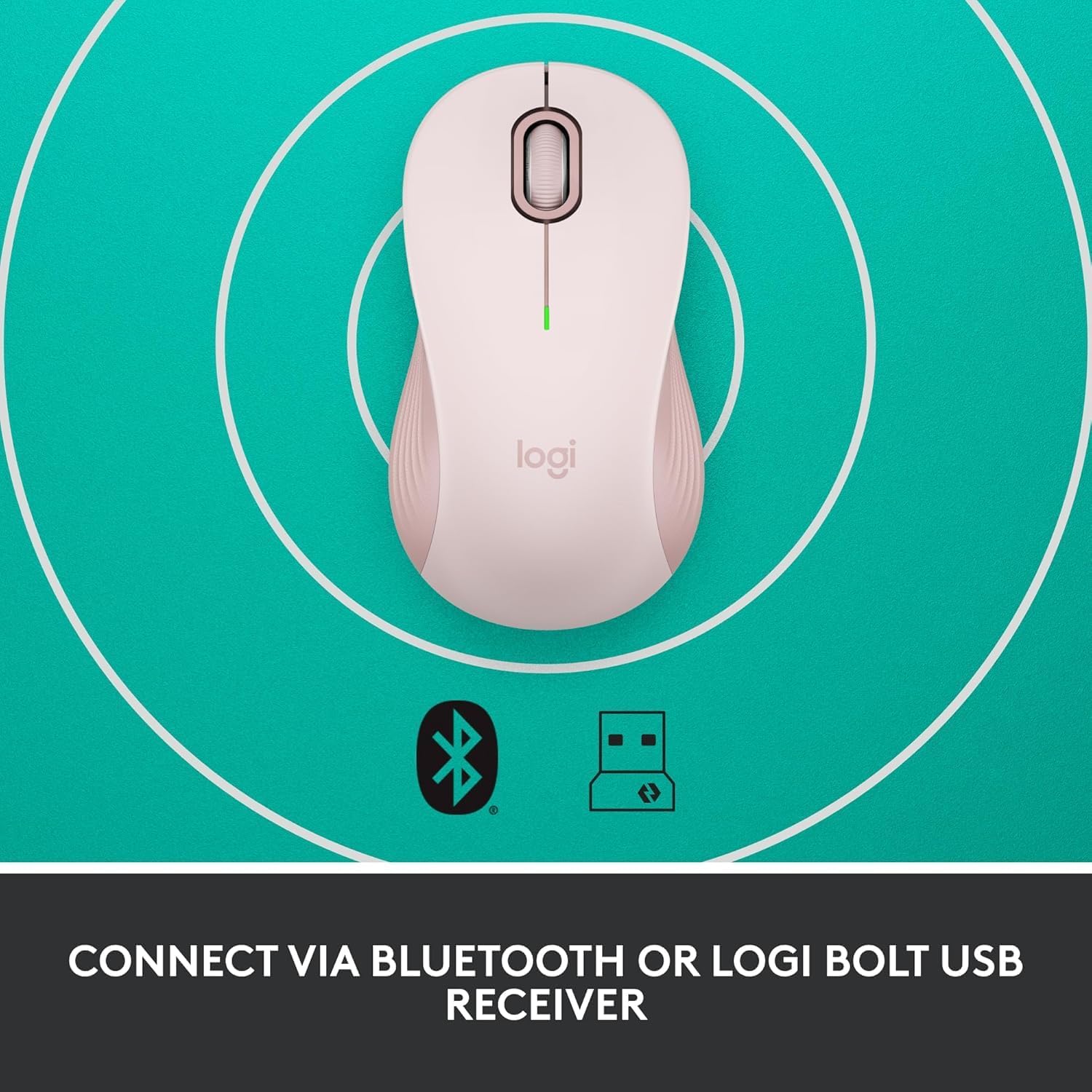
Image: The Logitech Signature M550 mouse on a teal background with icons for Bluetooth and the Logi Bolt USB receiver, illustrating its dual connectivity options.
Video: A demonstration of installing the battery and connecting the Logitech Signature M550 Wireless Mouse via Bluetooth or USB receiver.
Video: A user demonstrating the easy setup process of the Logitech Signature M550, including battery insertion and connectivity.
Arahan Operasi
Menatal SmartWheel
The Signature M550 features an adaptive SmartWheel that allows for two modes of scrolling:
- Line-by-line precision: For detailed navigation in documents and spreadsheets.
- Super-fast free spin: Flick the wheel for rapid scrolling through long web muka surat atau dokumen.

Image: A close-up of the Logitech Signature M550 mouse, highlighting the SmartWheel for precision and speed scrolling.
Video: A demonstration of the Logitech Signature M550's SmartWheel functionality, showcasing both precise and super-fast scrolling modes.
Klik Senyap dengan Teknologi SilentTouch
Experience a quieter workspace with Logitech's SilentTouch technology, reducing click noise by 90% compared to traditional mice. This allows for focused work without distractions.

Image: A woman using the Logitech Signature M550 mouse at a desk, illustrating the benefit of 90% less clicking noise for a focused work environment.
Multi-Device and OS Compatibility
The Signature M550 offers seamless compatibility across various platforms:
- Windows (including Windows 11)
- macOS
- Linux
- OS Chrome
- iPadOS
- Android
Image: The Logitech Signature M550 mouse displayed with a message confirming its full compatibility with Windows 11.
Penyelenggaraan
Penggantian Bateri
The mouse operates on a single AA battery with an average life of 24 months. When the battery is low, the LED indicator on the mouse will blink. To replace the battery, follow the steps outlined in the 'Install Battery' section.
Pembersihan
To maintain optimal performance, regularly clean your mouse with a soft, dry cloth. Avoid using harsh chemicals or abrasive materials.
Menyelesaikan masalah
Isu Sambungan
- Tetikus tidak bertindak balas: Ensure the mouse is turned on and the battery is correctly installed or replaced.
- Kegagalan berpasangan Bluetooth: Make sure your device's Bluetooth is enabled and the mouse is in pairing mode (blinking LED). Try restarting both the mouse and your device.
- USB receiver not detected: Ensure the Logi Bolt USB receiver is securely plugged into a working USB-A port. Try a different USB port.
- Gangguan: Move the mouse closer to your device and away from other wireless devices that might cause interference.
Spesifikasi
| Jenama | Logitech |
| Siri | M550 |
| Nombor Model Item | 910-006593 |
| Teknologi Ketersambungan | Bluetooth, USB |
| Teknologi Pengesanan Pergerakan | Optik |
| Ciri Khas | Lightweight, Portable, Soundless, Wireless |
| Sumber Kuasa | Dikuasakan Bateri |
| Bateri Diperlukan | 1 bateri AA (termasuk) |
| Purata Hayat Bateri | 24 bulan |
| Berat Barang | 3.44 auns |
| Dimensi Pakej | 5.55 x 3.54 x 1.73 inci |
| Platform Perkakasan | Linux, Mac, PC |
| Sistem Operasi Disokong | Windows, macOS, Linux, Chrome OS, iPadOS, Android |
Maklumat Waranti
For detailed warranty information regarding your Logitech Signature M550 Wireless Mouse, please refer to the official Logitech website or the warranty card included with your product. Logitech typically offers a limited hardware warranty for its products.
Sokongan
If you encounter any issues or have questions about your Logitech Signature M550 Wireless Mouse, please visit the official Logitech support website for FAQs, troubleshooting guides, and contact information for customer service.


