1. Pengenalan
This manual provides detailed instructions for the installation, operation, and maintenance of your Jennov JS7015 5MP Dual-Band Wi-Fi Outdoor Security Camera. Please read this manual thoroughly before using the product to ensure correct usage and optimal performance.

Figure 1: Jennov JS7015 Outdoor Security Camera
The Jennov JS7015 is a 5-megapixel outdoor security camera featuring dual-band Wi-Fi connectivity (2.4GHz and 5GHz). It offers 360-degree viewing capabilities, PIR human detection, auto-tracking, 24/7 recording, and two-way audio for comprehensive outdoor surveillance.
2. Kandungan Pakej
Sila semak kandungan bungkusan selepas diterima. Jika ada item yang hilang atau rosak, hubungi sokongan pelanggan.
- Jennov JS7015 5MP Dual-Band Wi-Fi Outdoor Security Camera
- Penyesuai Kuasa
- Skru dan Penambat Pemasangan
- Manual Pengguna (dokumen ini)
3. Produk Lebihview
Biasakan diri anda dengan komponen kamera.

Figure 2: Camera Pan and Tilt Mechanism
The camera features a motorized pan and tilt mechanism, allowing for a 355° horizontal rotation (pan) and a 60° vertical rotation (tilt). This enables comprehensive coverage of the surveillance area. The camera body houses the lens, infrared LEDs, white light LEDs, microphone, and speaker. Two external antennas provide enhanced Wi-Fi signal reception.
- Kanta Kamera: Tangkap video footage.
- LED inframerah: Sediakan pencahayaan untuk penglihatan malam hitam putih.
- Lampu LED Putih: Provide illumination for color night vision and act as a spotlight.
- mikrofon: Merakam audio untuk komunikasi dan rakaman dua hala.
- Penceramah: Mengeluarkan audio untuk komunikasi dua hala dan penggera.
- Antena: Untuk sambungan Wi-Fi.
- Pelabuhan Kuasa: Menyambung kepada penyesuai kuasa.
- Butang Tetapkan Semula: Used to reset the camera to factory settings (usually located near the SD card slot or under a cover).
- Slot Kad SD: For local video storage (supports up to 128GB, not included).
4. Panduan Persediaan
4.1 Pemasangan Fizikal
The camera is designed for outdoor use and is IP66 waterproof. Choose a suitable location for mounting, ensuring a clear view of the area you wish to monitor and proximity to a power source.
- Mark Drilling Positions: Gunakan templat pelekap (jika disediakan) atau tapak kamera untuk menandakan lubang skru pada dinding.
- Lubang gerudi: Drill holes at the marked positions. Insert wall anchors if mounting on masonry.
- Kamera Selamat: Attach the camera base to the wall using the provided screws.
- Laraskan Sudut: Loosen the adjustment screws (if any) to position the camera for optimal coverage before tightening.

Rajah 3: Reka Bentuk Kalis Air IP66
The camera is built with waterproof materials and has an IP66 rating, making it suitable for outdoor installation and resistant to dust and water jets.
4.2 Sambungan Kuasa
Connect the provided power adapter to the camera's power port and then plug it into a power outlet. The camera will power on and initiate its startup sequence.
4.3 Muat Turun Apl dan Pendaftaran Akaun
The Jennov JS7015 camera uses the EseeCloud application for remote access and control.
- Muat turun Aplikasi: Cari untuk "EseeCloud" in your smartphone's app store (Google Play Store for Android or Apple App Store for iOS) and download the application.
- Daftar Akaun: Open the EseeCloud app and follow the on-screen instructions to register a new account using your email address or phone number.
4.4 Menambah Kamera pada Apl
Ensure your smartphone is connected to the same Wi-Fi network (2.4GHz or 5GHz) that you intend to connect the camera to.
- Buka Apl: Launch the EseeCloud app and log in.
- Tambah Peranti: Tap the "+" icon or "Add Device" option.
- Pilih Jenis Peranti: Choose "Wi-Fi Camera" or similar option.
- Imbas Kod QR: The app may prompt you to scan a QR code located on the camera or its packaging.
- Konfigurasi Wi-Fi: Follow the app's instructions to enter your Wi-Fi network name (SSID) and password. The camera supports both 2.4GHz and 5GHz Wi-Fi bands.
- Sambung: The camera will attempt to connect to your Wi-Fi network. Once connected, it will appear in your device list within the app.
- Tetapkan kata laluan: Create a strong password for your camera for security purposes.
5. Arahan Operasi
5.1 Langsung View dan Kawalan Pan/Tilt
From the EseeCloud app, select your camera to access the live view.
- Makanan hidup: View real-time video from your camera.
- Kuali/Condongkan: Use the directional controls within the app to remotely adjust the camera's horizontal (pan) and vertical (tilt) angles.
5.2 Penjejakan Auto
Kamera boleh menjejak objek bergerak secara automatik dalam bidangnya view.

Figure 4: Auto Tracking in Action
Enable the auto-tracking feature in the app settings. The camera will then detect and follow moving targets until they leave the camera's view.
5.3 Motion Detection and Alarms
The camera features advanced PIR (Passive Infrared) human detection to minimize false alarms.

Figure 5: PIR Human Detection and Alarm Options
When a human thermal profile is detected, the camera can trigger various alarms.
- Pengesanan PIR: Activates recording and sends notifications when a human is detected.
- Penggera Bunyi: Configure the camera to emit a siren sound upon detection.
- Spotlight Alarm: The integrated spotlight can be activated to deter intruders.
- Pemberitahuan: Receive instant alerts on your smartphone via the EseeCloud app.
5.4 Audio Dua Hala
Berkomunikasi secara langsung dengan individu berhampiran kamera menggunakan mikrofon dan pembesar suara terbina dalam.

Rajah 6: Komunikasi Audio Dua Hala
Tap the microphone icon in the app to speak, and listen through the camera's speaker. This feature is useful for interacting with visitors or deterring unwanted guests.
5.5 Rakaman dan Penyimpanan
The camera supports continuous 24/7 recording and offers flexible storage options.
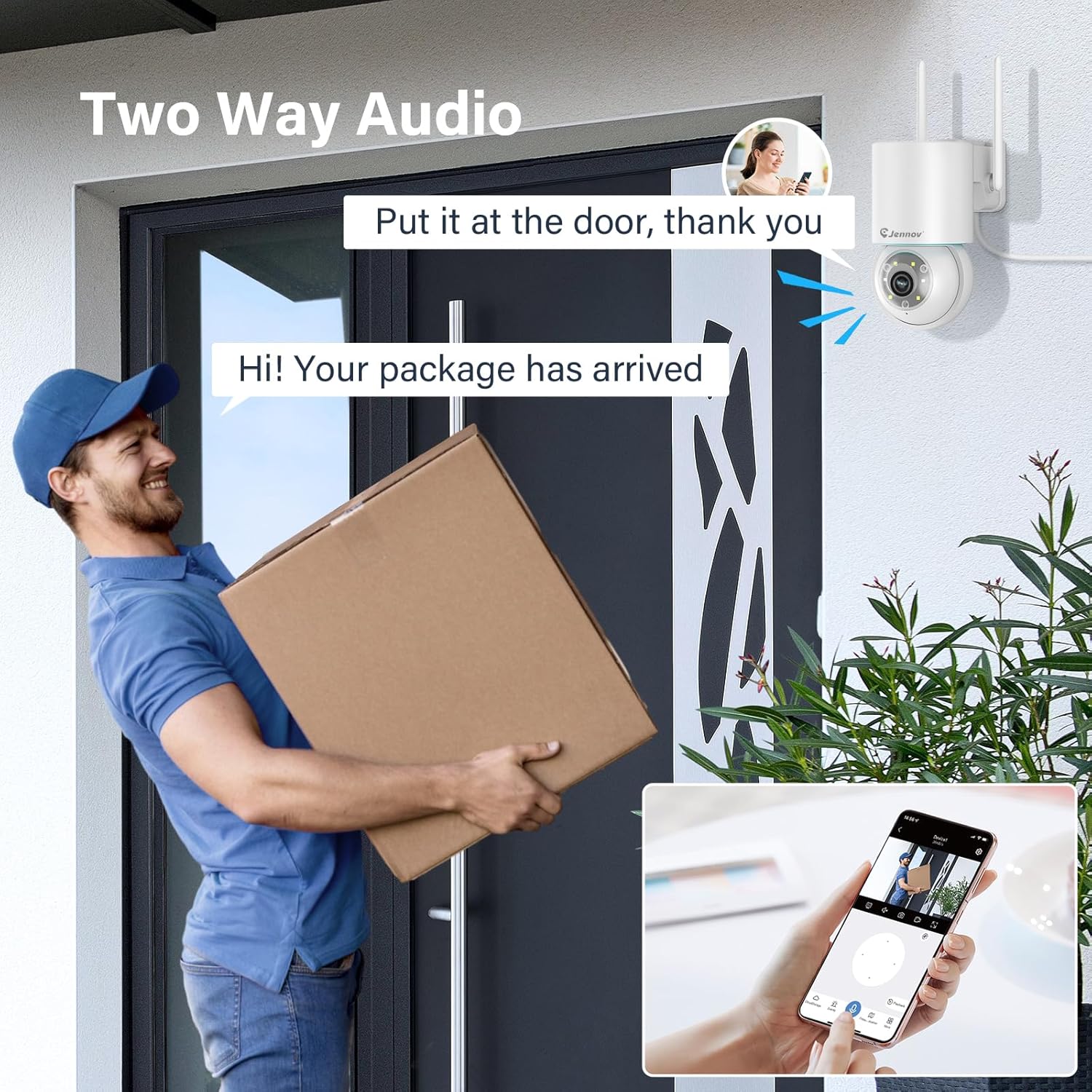
Figure 7: 24/7 Recording and Storage Options
Akses foo yang dirakamtage via the app's playback function.
- Rakaman 24/7: The camera can continuously record footage, ensuring no vital moments are missed.
- Storan Setempat: Insert a microSD card (up to 128GB, not included) into the camera's SD card slot for local storage.
- Storan Awan: Optional cloud storage service is available, often with a free trial period (e.g., 7 days). This provides off-site backup of your recordings.
5.6 Mod Penglihatan Malam
The camera offers three night vision modes for clear visibility in low-light conditions.

Figure 8: 5MP Color Night Vision
The camera provides clear night vision up to 65 feet (20 meters) with 5MP resolution.
- Mod Warna Penuh: Utilizes white LEDs to provide full-color video at night.
- Black and White Mode: Uses infrared LEDs for traditional black and white night vision.
- Mod Pintar: Automatically switches between black and white and full color based on detected motion or light conditions.
You can switch between these modes within the EseeCloud mobile application.
5.7 Customized Detection Area
Tentukan kawasan tertentu dalam kamera view di mana pengesanan gerakan harus aktif.

Figure 9: Customized Detection Area Settings
This feature helps reduce unwanted alerts by focusing detection on critical zones. The app typically offers "Area mode" and "Cordon mode" for defining these zones.
6. Penyelenggaraan
- Pembersihan: Bersihkan lensa kamera dengan kerap menggunakan kain lembut dan kering untuk memastikan kualiti imej yang jelas. Jangan gunakan bahan kimia yang keras.
- Kemas kini Firmware: Check the EseeCloud app periodically for available firmware updates. Keeping your camera's firmware updated ensures optimal performance and security.
- Pengurusan Kad SD: If using local storage, periodically check the SD card's status in the app. Format the card as needed to maintain recording efficiency.
- Bekalan Kuasa: Ensure the power adapter and cable are free from damage and properly connected.
7. Penyelesaian masalah
- Kamera Luar Talian:
- Periksa kekuatan isyarat Wi-Fi.
- Pastikan kamera dihidupkan.
- Mulakan semula kamera dan penghala Wi-Fi anda.
- If using 5GHz Wi-Fi, ensure your router supports it and the camera is connected to the correct band.
- Try re-adding the camera to the EseeCloud app.
- Kualiti Imej Lemah:
- Bersihkan lensa kamera.
- Pastikan pencahayaan yang mencukupi, terutamanya pada waktu malam.
- Semak kelajuan sambungan internet anda.
- Pengesanan Pergerakan Tidak Berfungsi:
- Verify motion detection settings in the app are enabled.
- Laraskan sensitiviti pengesanan.
- Ensure no obstructions are blocking the camera's view.
- Check if detection areas are correctly configured.
- Isu Audio Dua Hala:
- Ensure microphone and speaker permissions are granted to the EseeCloud app on your smartphone.
- Check volume settings on both the app and your phone.
- Pastikan tiada halangan fizikal yang menghalang mikrofon atau pembesar suara kamera.
- Cannot Access SD Card Recordings:
- Pastikan kad SD dimasukkan dengan betul.
- Check if the SD card is formatted correctly (usually FAT32).
- Verify that continuous recording or event recording to SD card is enabled in the app.
- The SD card might be full; consider formatting it or replacing it.
8. Spesifikasi
| Ciri | Spesifikasi |
|---|---|
| Nombor Model | JS7015 |
| Jenama | Jennov |
| Resolusi | 5 Megapixel (1920p video recording) |
| Sudut Pan / Tilt | Pan 355 °, Condong 60 ° |
| Penglihatan Malam | Color Night Vision, Black & White Night Vision, Smart Mode (up to 65ft/20m) |
| Kesambungan Wi-Fi | Dual-Band (2.4GHz / 5GHz) |
| Audio | Audio Dua Hala (Mikrofon & Pembesar Suara Terbina Dalam) |
| Pengesanan Pergerakan | Pengesanan Manusia PIR, Penjejakan Automatik |
| Pilihan Storan | Kad MicroSD (sehingga 128GB), Storan Awan |
| Penilaian Kalis Air | IP66 |
| Input Kuasa | 5 Volt |
| Penggunaan Kuasa | 24 Watt |
| Dimensi (L x W x H) | 12 x 8 x 16 cm |
| bahan | plastik |
| Jenis Pemasangan | Lekap di dinding |
| Peranti Serasi | Telefon Pintar, Tablet, Komputer |
| Apl Kawalan | EseeCloud |
9. Waranti dan Sokongan
For warranty information and technical support, please refer to the warranty card included with your product or visit the official Jennov webtapak.
- Perkhidmatan Pelanggan: Contact Jennov customer support for assistance with product issues, technical questions, or warranty claims.
- Sumber Dalam Talian: Check the Jennov weblaman web untuk Soalan Lazim, manual terkini dan muat turun perisian.


