1. Pengenalan
Thank you for choosing the ZEBRONICS K4000MW Wireless Keyboard. This manual provides essential information for setting up, operating, maintaining, and troubleshooting your new keyboard. The K4000MW offers versatile connectivity options, including 2.4 GHz wireless and dual Bluetooth, making it compatible with a wide range of devices such as laptops, desktops, tablets, and smartphones. Its compact design and integrated multimedia keys enhance productivity and user convenience.

Imej 1: Atas-bawah view of the ZEBRONICS K4000MW Wireless Keyboard, showcasing susun aturnya yang padat dan kemasan hitamnya.
2. Persediaan
2.1 Kandungan Pakej
- ZEBRONICS K4000MW Wireless Keyboard
- USB Nano Receiver (for 2.4 GHz connection)
- Manual Pengguna
2.2 Pemasangan Bateri
- Cari petak bateri di bahagian bawah papan kekunci.
- Buka penutup petak bateri.
- Insert the required batteries (not specified in JSON, typically AA or AAA) according to the polarity markings.
- Tutup penutup petak bateri dengan selamat.
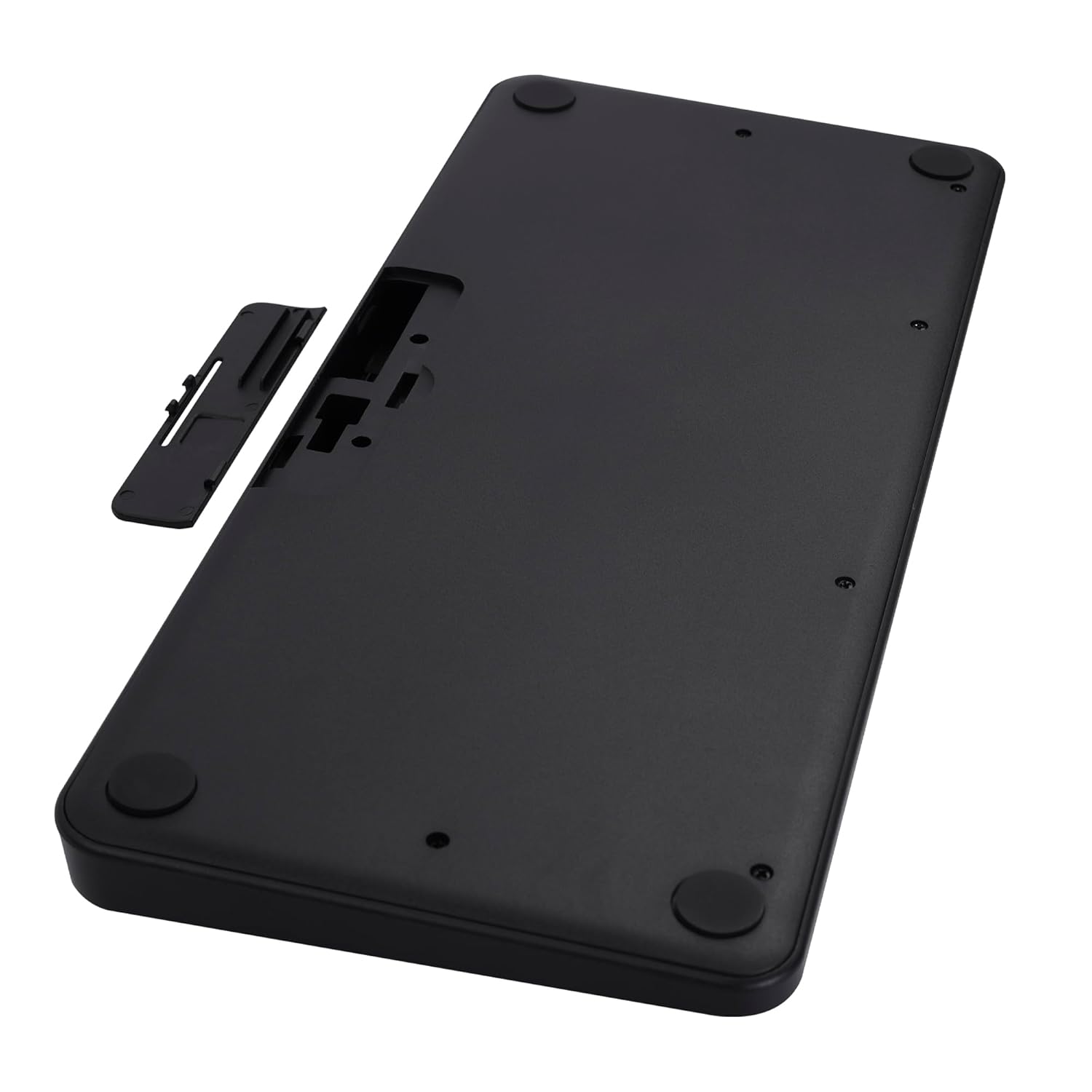
Image 2: The underside of the keyboard, showing the battery compartment and the slot for the USB nano receiver.
2.3 Menyambung melalui Tanpa Wayar 2.4 GHz
- Remove the USB nano receiver from its storage slot in the battery compartment.
- Plug the nano receiver into an available USB port on your computer or compatible device.
- The keyboard should automatically connect. The 2.4G LED indicator on the keyboard will illuminate briefly to confirm connection.
2.4 Menyambung melalui Bluetooth
The keyboard supports up to two Bluetooth connections (BT1 and BT2).
- Pairing for BT1:
a. Tekan dan tahan butang Fn + BT1 keys simultaneously for 3-5 seconds until the BT1 LED indicator starts blinking rapidly.
b. On your device (laptop, tablet, smartphone), enable Bluetooth and search for available devices.
c. Select "ZEB-K4000MW" from the list of devices to pair.
d. Once paired, the BT1 LED indicator will stop blinking and remain solid for a few seconds. - Pairing for BT2:
a. Follow the same steps as for BT1, but press and hold Fn + BT2 kunci.
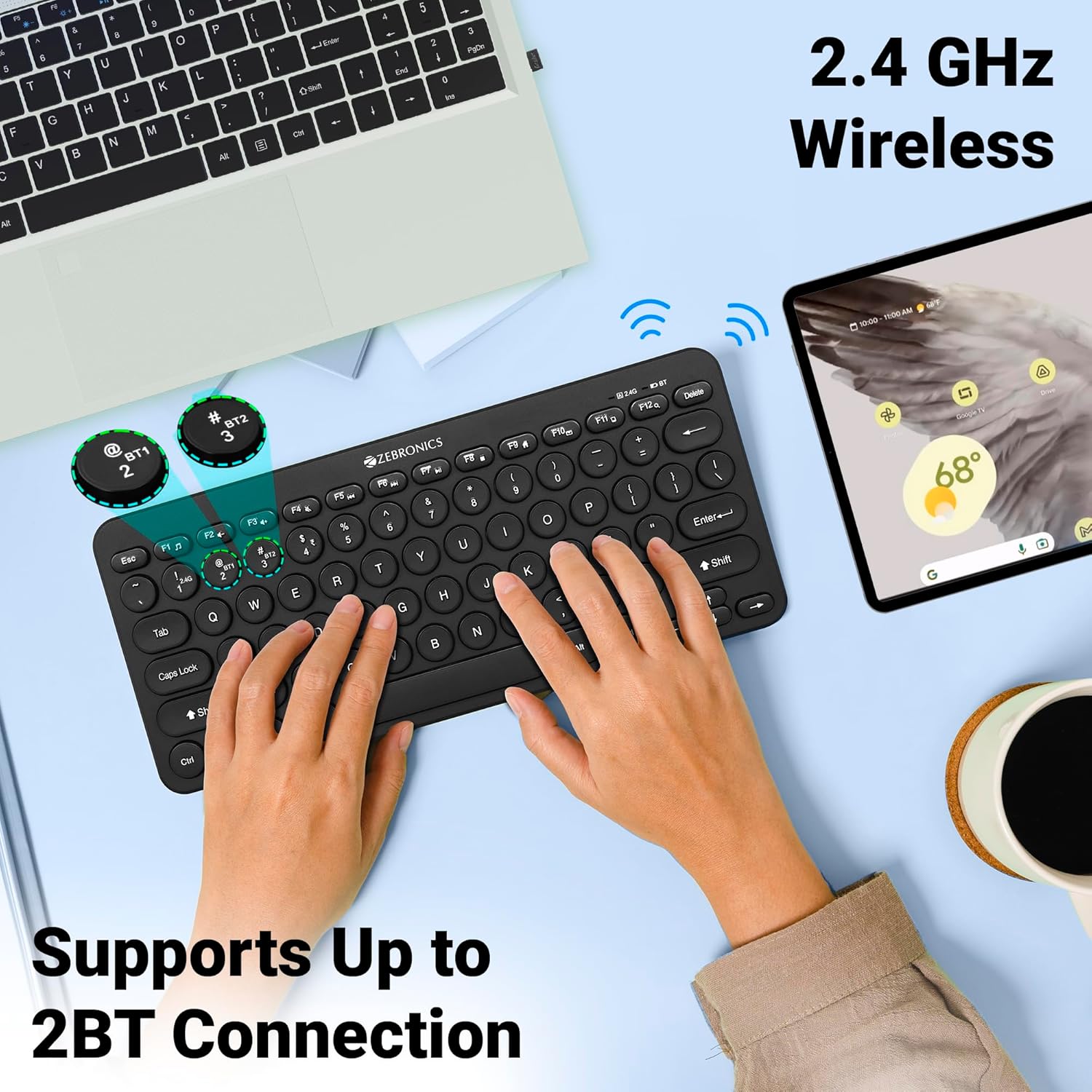
Image 3: The keyboard in use, highlighting the 2.4 GHz wireless and dual Bluetooth connection capabilities with LED indicators.
2.5 Bertukar Antara Peranti
Untuk bertukar antara peranti yang disambungkan:
- Tekan Fn + 2.4G to switch to the device connected via the 2.4 GHz nano receiver.
- Tekan Fn + BT1 to switch to the device paired with Bluetooth 1.
- Tekan Fn + BT2 to switch to the device paired with Bluetooth 2.
3. Mengendalikan Papan Kekunci
3.1 Penaipan Asas
The keyboard features 78 UV-coated keys designed for comfortable and efficient typing. The layout includes standard alphanumeric keys, function keys, and navigation keys.
3.2 Kekunci Multimedia
The keyboard integrates 12 multimedia keys (F1-F12) for quick access to media controls and other functions. To use these functions, press the Fn kekunci serentak dengan kekunci fungsi yang dikehendaki.
- Fn+F1: Pemain Media
- Fn+F2: Kelantangan Kurang
- Fn+F3: Kelantangan Naik
- Fn+F4: bisu
- Fn+F5: Trek Sebelumnya
- Fn+F6: Main/Jeda
- Fn+F7: Trek Seterusnya
- Fn+F8: Berhenti
- Fn+F9: Web pelayar
- Fn+F10: E-mel
- Fn+F11: Komputer Saya
- Fn+F12: Kalkulator
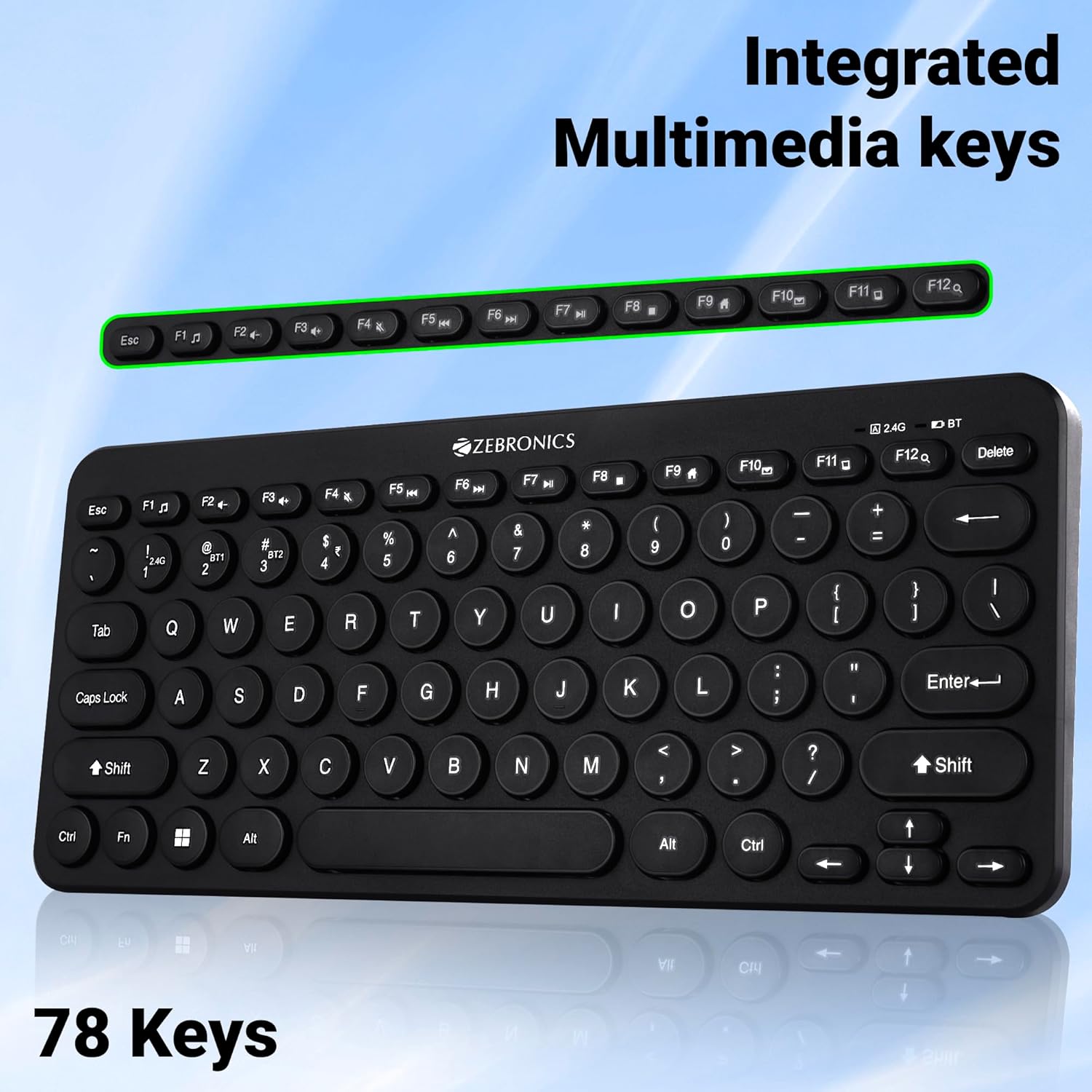
Image 4: The keyboard with the row of function keys (F1-F12) highlighted, indicating their integrated multimedia capabilities.
3.3 Rupee Key
The keyboard includes a dedicated Rupee key, indicating regional inclusivity for users.
3.4 Penunjuk LED
The keyboard features LED indicators to provide status information:
- LED 2.4G: Indicates 2.4 GHz wireless connection status.
- BT1/BT2 LED: Indicates Bluetooth connection status for BT1 or BT2.
- LED Caps Lock: Bercahaya apabila Caps Lock aktif.
- LED Bateri Rendah: Flashes or changes color to indicate low battery power.
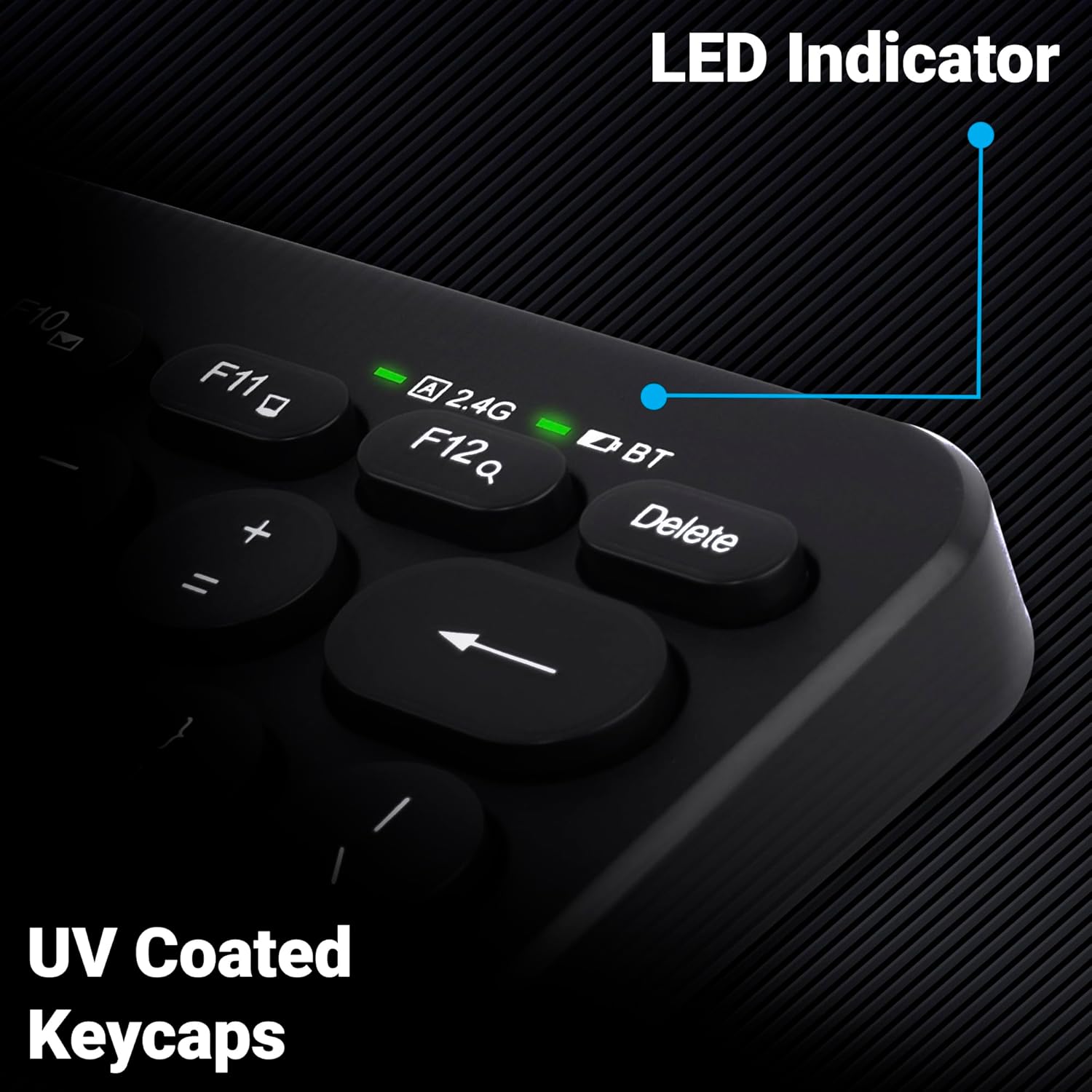
Imej 5: Gambar jarak dekat view of the keyboard's top right corner, showing the LED indicators for 2.4G, BT, and Caps Lock, along with the UV-coated keycaps.
3.5 Keserasian Peranti
The K4000MW keyboard is designed for broad compatibility, integrating seamlessly with:
- Komputer riba
- Desktop
- Tablet
- Telefon pintar
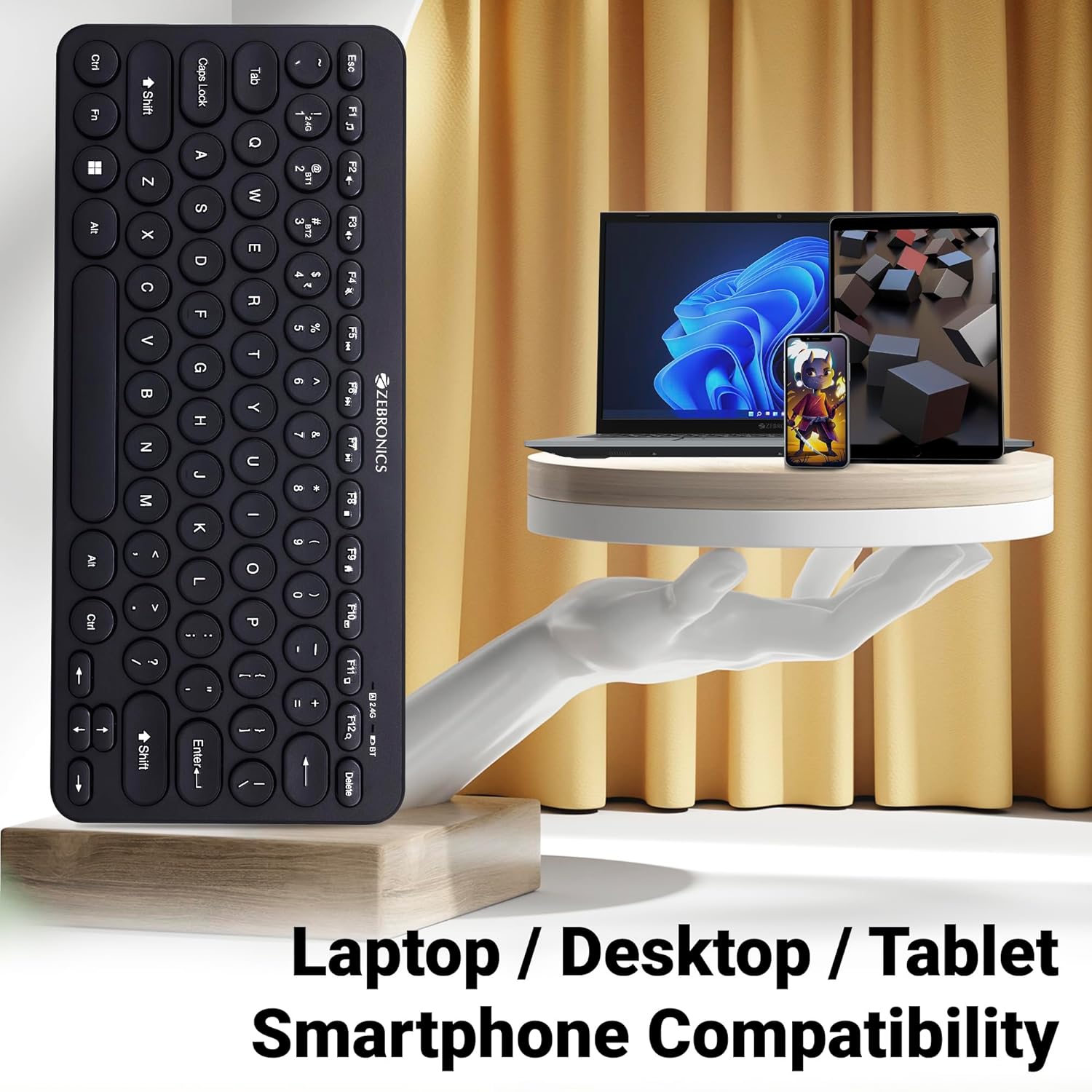
Image 6: The keyboard positioned next to a laptop, tablet, and smartphone, illustrating its multi-device compatibility.
4. Penyelenggaraan
4.1 Pembersihan
- Gunakan kain lembut dan kering untuk mengelap permukaan papan kekunci.
- Untuk kotoran degil, sedikit dampen kain dengan air atau larutan pembersih lembut. Elakkan kelembapan berlebihan.
- Do not use harsh chemicals or abrasive cleaners, as these can damage the keycaps and finish.
- Gunakan udara termampat untuk mengeluarkan habuk dan serpihan dari antara kekunci.
4.2 Penjagaan Bateri
- Replace batteries when the low battery indicator illuminates to ensure uninterrupted operation.
- If the keyboard will not be used for an extended period, it is recommended to remove the batteries to prevent leakage.
- Store the keyboard in a cool, dry place.
5. Penyelesaian masalah
5.1 Papan Kekunci Tidak Bertindak Balas
- Semak Bateri: Pastikan bateri dipasang dengan betul dan mempunyai cas yang mencukupi. Gantikan jika perlu.
- Semak Sambungan: Verify that the 2.4 GHz nano receiver is securely plugged into the USB port, or that the Bluetooth connection is active and paired.
- Tukar Saluran: If using Bluetooth, ensure you are on the correct BT1 or BT2 channel.
- Pasang semula Bluetooth: If connection issues persist, try unpairing and re-pairing the keyboard with your device.
- Gangguan: Move the keyboard closer to the receiver/device and away from other wireless devices that might cause interference.
5.2 Keys Not Working or Lagging
- Kekunci Bersih: Pastikan tiada serpihan bersarang di bawah kunci.
- Tahap Bateri: Low battery can sometimes affect key responsiveness. Replace batteries.
- Gangguan: Wireless interference can cause lag. Try moving closer to the receiver/device.
- Keserasian Peranti: Ensure your device's operating system is compatible with the keyboard.
5.3 Bluetooth Disconnection Issues
- Jarak: Ensure the keyboard is within the effective range of your Bluetooth device.
- Gangguan: Other Bluetooth or wireless devices nearby can cause disconnections.
- Device Bluetooth Driver: Update your device's Bluetooth drivers to the latest version.
- pasangan semula: Remove the keyboard from your device's Bluetooth list and re-pair it.
6. Spesifikasi
| Ciri | Perincian |
|---|---|
| Jenama | ZEBRONIK |
| Nama Model | K4000MW |
| Teknologi Ketersambungan | 2.4 GHz Wireless, Bluetooth (Dual BT) |
| Bilangan Kunci | 78 |
| Kekunci Multimedia | 12 Integrated Multimedia Keys |
| Jenis Keycap | UV-Coated |
| Ciri Khas | Rupee Key, LED Indicator (Battery, Connectivity, Caps Lock) |
| Reka bentuk | Slim & Minimalist |
| Peranti Serasi | Desktop, Laptop, Tablet, Smartphone |
| Sistem Operasi | Windows 10 (and other compatible OS) |
| Sumber Kuasa | Dikuasakan Bateri |
| Dimensi Produk (LxWxH) | 29.4 x 13.4 x 3 cm |
| Berat Barang | 320 g |
7. Waranti dan Sokongan
7.1 Maklumat Waranti
For specific warranty terms and conditions, please refer to the warranty card included with your product or visit the official ZEBRONICS webtapak. Simpan resit pembelian anda sebagai bukti pembelian untuk tuntutan waranti.
7.2 Sokongan Pelanggan
If you encounter any issues or have questions regarding your ZEBRONICS K4000MW Wireless Keyboard, please contact ZEBRONICS customer support through their official webtapak atau maklumat hubungan yang diberikan dalam pembungkusan produk anda.


