pengenalan
Thank you for choosing the MINIX Portable Monitor. This 16-inch Full HD 1200P IPS touch screen display is designed for enhanced productivity and entertainment on the go. Its ultra-slim design and versatile connectivity make it an ideal companion for laptops, PCs, gaming consoles, and mobile devices. This manual provides essential information for setting up, operating, maintaining, and troubleshooting your new portable monitor.
Maklumat Keselamatan
- Do not expose the monitor to rain or moisture to prevent fire or electric shock hazards.
- Elakkan meletakkan monitor di bawah cahaya matahari langsung atau berhampiran sumber haba.
- Use only the power adapter and cables provided or recommended by MINIX.
- Jangan cuba membuka atau membaiki monitor sendiri. Rujuk semua servis kepada kakitangan yang berkelayakan.
- Jauhkan monitor daripada medan magnet yang kuat.
- Clean the screen with a soft, lint-free cloth. Do not use liquid cleaners or aerosol sprays directly on the screen.
Apa yang ada dalam Kotak
Sahkan bahawa semua item terdapat dalam pakej anda:
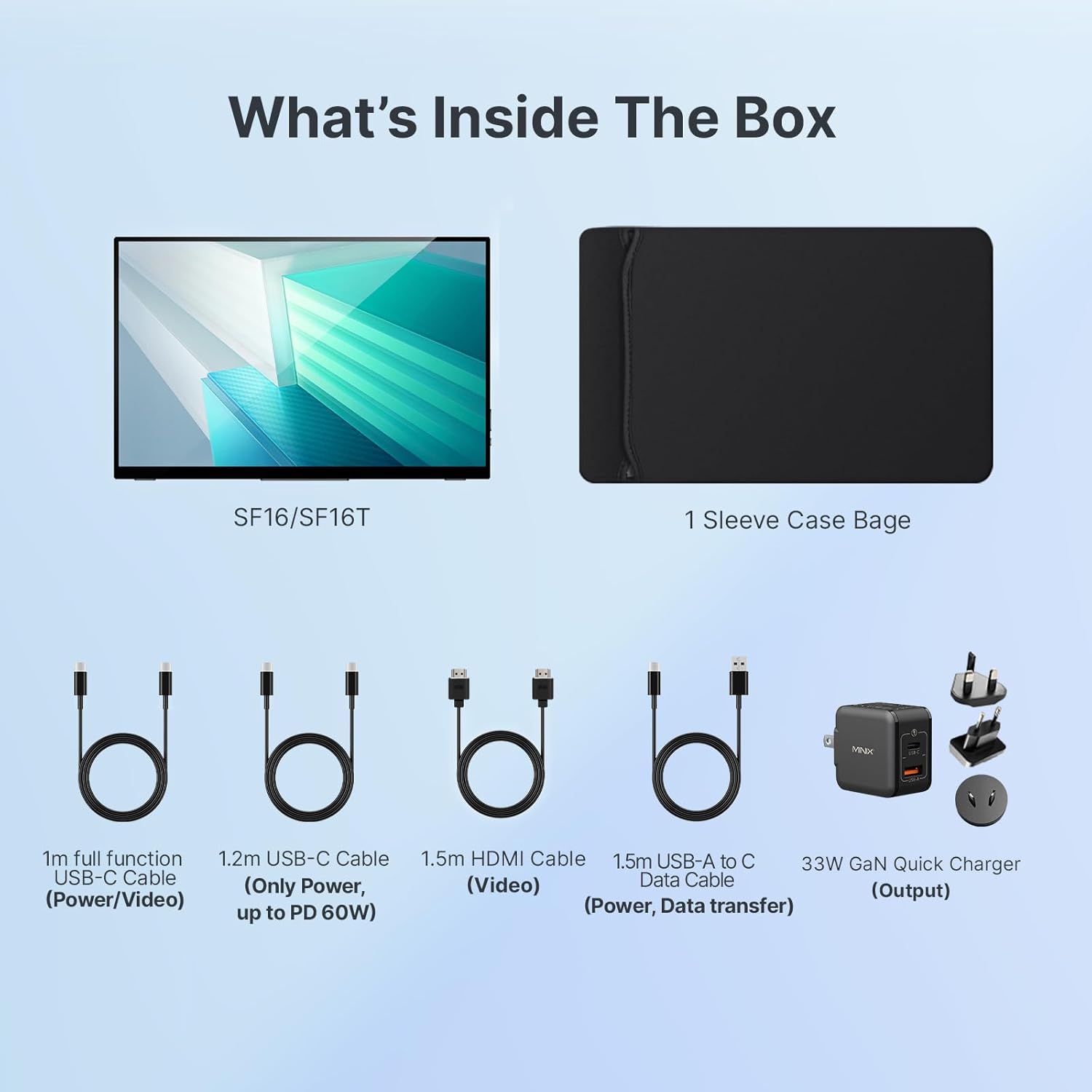
Rajah 1: Kandungan Pakej
- MINIX Portable Monitor (SF16/SF16T)
- Beg Sarung Lengan
- 1m Full Function USB-C to USB-C Cable (Power/Video)
- 1.2m USB-C to USB-C Cable (Power, up to PD 60W)
- 1.5m HDMI to HDMI Cable (Video)
- 1.5m USB-A to C Data Cable (Power, Support Touch for SF16T)
- 33W GaN Quick Charger (Output)
Produk Selesaiview
Familiarize yourself with the ports and controls on your MINIX Portable Monitor.

Rajah 2: Port dan Kawalan Monitor
- Port USB 2.0: Connects to a keyboard or mouse.
- Butang Kuasa: Menghidupkan/mematikan monitor.
- Brightness/Up Key: Adjusts screen brightness or navigates menu up.
- Volume/Down Key: Adjusts volume or navigates menu down.
- Standard HDMI Port: Connects to devices via HDMI for video input.
- Bicu Audio 3.5mm: Untuk menyambungkan fon kepala atau pembesar suara luaran.
- Type-C (Full Function) Ports: Two full-featured USB-C ports for power, video, and touch data transfer.

Figure 3: Ultra-Slim Design
Persediaan
Sambungan Awal
The MINIX Portable Monitor offers flexible connectivity options. Ensure your device supports USB 3.1 Type C DP Alt-Mode for full functionality via a single USB-C cable.
- Bekalan Kuasa: Connect the provided 33W GaN Quick Charger to one of the monitor's USB-C ports (or use a power bank with sufficient output).
- Video & Data Connection:
- USB-C (Single Cable Solution): If your laptop or device has a full-featured USB-C port (supporting DisplayPort Alternate Mode and Power Delivery), connect it to one of the monitor's full-function USB-C ports using the 1m full function USB-C cable. This single cable can provide power, video, and touch functionality.
- HDMI + USB-C (for Power/Touch): If your device only has an HDMI output, connect the monitor via the HDMI port using the 1.5m HDMI cable for video. Then, connect a USB-C port on the monitor to a USB-A or USB-C port on your device using the 1.5m USB-A to C data cable for power and touch functionality (if applicable).
- Hidupkan kuasa: Press the Power Button on the monitor to turn it on.

Figure 4: Connectivity Diagram
Using the Built-in Stand
The monitor features a built-in kickstand for easy adjustment of viewing angles. Simply extend the stand from the back of the monitor and adjust it to your desired angle between -10° and -35°.
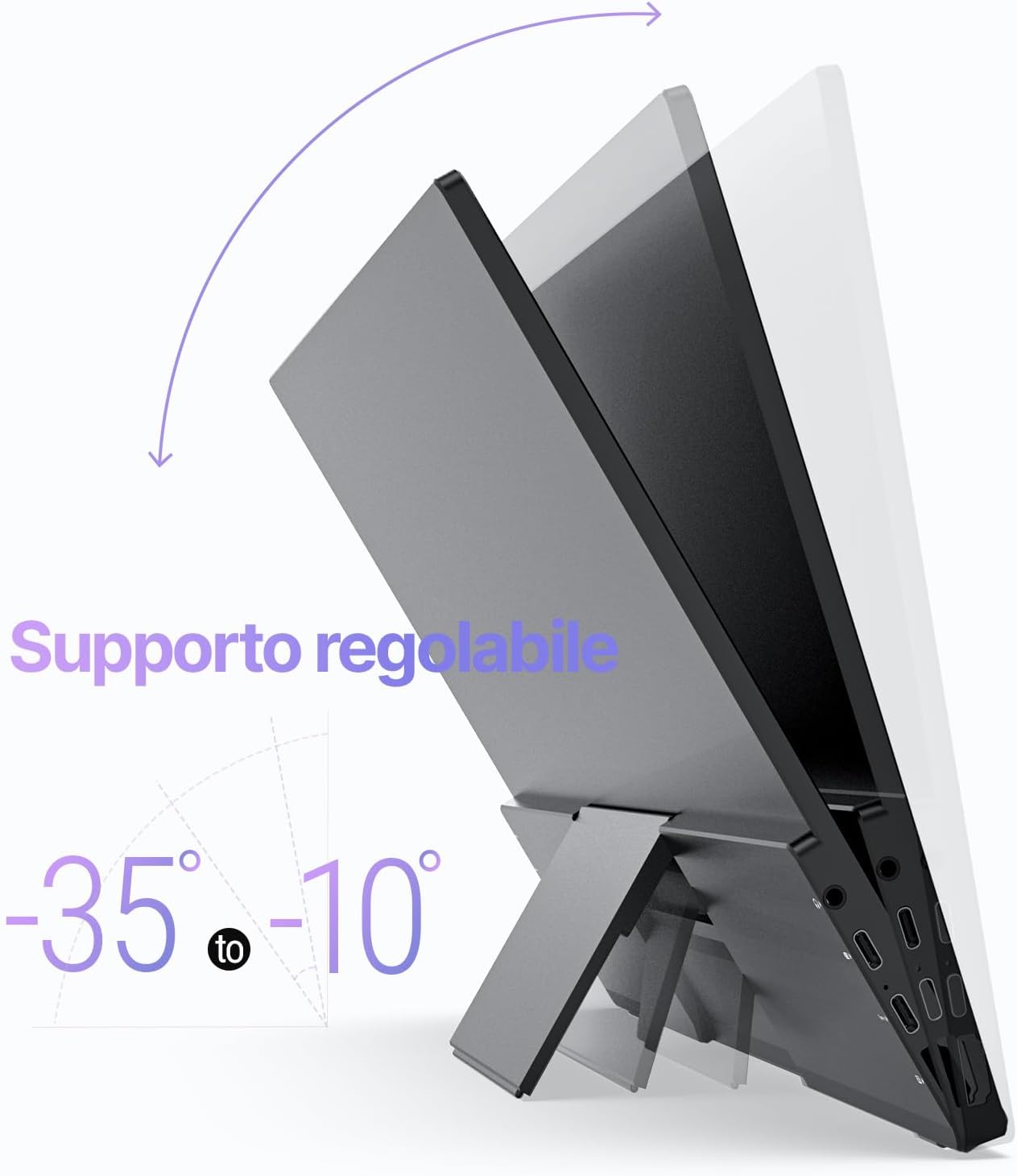
Figure 5: Adjustable Stand
Beroperasi
Tetapan Paparan
Use the Brightness/Up and Volume/Down keys on the side of the monitor to access and navigate the On-Screen Display (OSD) menu. Here you can adjust various settings such as brightness, contrast, color temperature, and input source.
Touch Screen Functionality (SF16T Model)
The SF16T model supports ten-point multi-touch and gesture controls across various operating systems including macOS, Windows 10/11, Android, and Linux. Ensure the USB-C connection is properly established for touch functionality.

Figure 6: Multi-Touch Support
Demonstrasi Video
Watch this official video from MINIX Technology Limited for a visual guide on setting up and using your portable monitor, highlighting its key features like the built-in stand, multi-touch support, and USB-C connectivity.
Video 1: MINIX 16" Portable Touch Monitor Overview
Penyelenggaraan
- Membersihkan Skrin: Lap skrin perlahan-lahan dengan kain yang lembut, kering dan tidak berbulu. Untuk tanda degil, sedikit dampen the cloth with water or a screen-specific cleaning solution (apply to cloth, not directly to screen).
- Membersihkan Casing: Use a soft, dry cloth to wipe the exterior casing. Elakkan pembersih atau pelarut yang melelas.
- Storan: When not in use, store the monitor in its provided sleeve case to protect it from dust and scratches. Keep it in a cool, dry place.
- Pengendalian: Sentiasa pegang monitor pada bahagian tepinya. Elakkan daripada memberi tekanan pada skrin.
Menyelesaikan masalah
| Masalah | Kemungkinan Punca | Penyelesaian |
|---|---|---|
| No display/"No Signal" message | Incorrect input source selected; Loose cable connection; Insufficient power; Device not outputting signal. |
|
| Touch screen not responding (SF16T) | USB-C data cable not connected or not full-featured; Driver issue; OS incompatibility. |
|
| Skrin berkelip-kelip | Cable issue; Interference; Refresh rate mismatch. |
|
| No audio from monitor speakers | Volume too low; Audio output not set to monitor; Cable issue. |
|
Spesifikasi
| Ciri | Perincian |
|---|---|
| Nombor Model | SF16 |
| Saiz Skrin | 16 Inci |
| Resolusi | 1920 x 1200 Pixels (FHD 1200P) |
| Nisbah Aspek | 16:10 |
| Jenis Panel | IPS |
| Kecerahan | 300 Candela (Nit) |
| Skrin Sentuh | Yes (SF16T model, 10-point touch) |
| Ketersambungan | 2x Full-featured USB-C, 1x Standard HDMI, 1x USB 2.0, 1x 3.5mm Audio Jack |
| Dimensi (L x W x H) | 4.84 x 15.59 x 10.79 inci |
| Berat Barang | 4.16 paun |
| Permukaan Skrin | Berkilat |
| Ciri Penjagaan Mata | Flicker Free, Blue Light Filter |
Waranti dan Sokongan
MINIX Technology Limited provides a limited warranty for this product. Please refer to the warranty card included in your package for specific terms and conditions. For technical support, troubleshooting assistance, or warranty claims, please contact MINIX customer service through their official webtapak atau peruncit tempat anda membeli produk tersebut.
You can visit the official MINIX Store on Amazon for more information and support: MINIX Store


