1. Pengenalan
This manual provides instructions for the installation, operation, and maintenance of your Keenetic Skipper (2nd Generation) AC1200 Mesh WiFi 5 Gigabit Router. Please read this manual carefully before using the device to ensure proper functionality and to prevent damage.
The Keenetic Skipper is a high-speed, reliable dual-band Gigabit Wi-Fi router designed for extensive coverage. It supports multiple users and devices, making it suitable for large areas. This device functions as a primary router or as part of a multi-node Wi-Fi system, offering seamless connectivity and load balancing through automatic switching between Gigabit Ethernet, Wi-Fi, and 4G/3G internet service providers.
2. Kandungan Pakej
Sahkan bahawa semua item terdapat dalam pakej anda:
- Keenetic Skipper Router
- Penyesuai Kuasa Jenis-C
- Multi-language Installation Manual
3. Produk Lebihview
The Keenetic Skipper router offers a range of features designed for a robust and flexible home network:
- Stable and Fast Internet: Ensures reliable and high-speed internet connectivity.
- 4K UHD Video Streaming: Supports smooth streaming of high-resolution video content.
- Excellent Coverage: Designed to provide broad Wi-Fi coverage throughout your home.
- IntelliQoS Traffic Prioritization: Manages network traffic to prioritize important data streams.
- Aplikasi Mudah Alih Mesra Pengguna: Control and monitor your network via a dedicated app.
- Cyber Threat and Family Protection: Includes features for network security and parental controls.
- Powerful Network Storage and Personal Cloud: USB port allows for network storage and personal cloud functionalities.

Imej 3.1: Depan view of the Keenetic Skipper AC1200 Mesh WiFi 5 Gigabit Router, highlighting its dual-band speed, 4 Gigabit ports, and USB 2.0 capabilities.
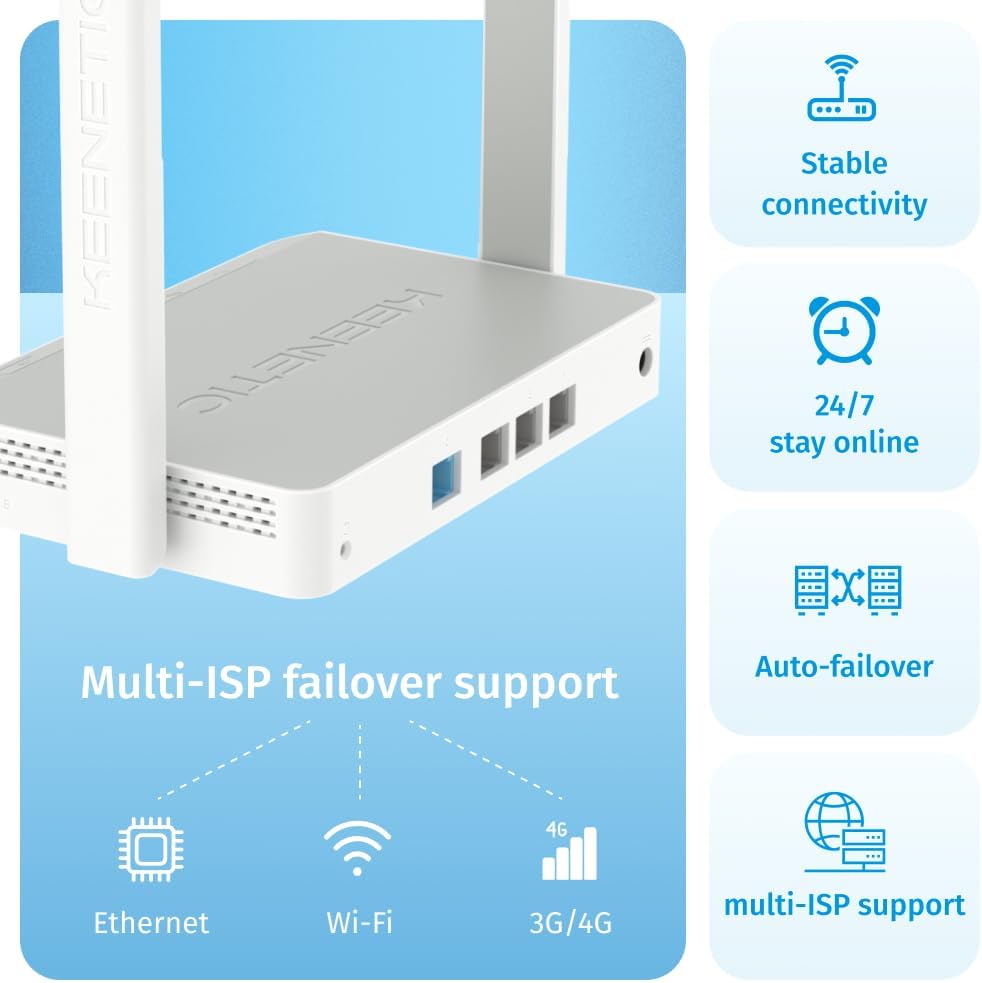
Imej 3.2: Sisi view of the Keenetic Skipper router, illustrating its stable connectivity, 24/7 online capability, auto-failover, and multi-ISP support via Ethernet, Wi-Fi, and 3G/4G.

Imej 3.3: Belakang view of the Keenetic Skipper router, showing its 4 Gigabit Ethernet ports for wired connections and a USB 2.0 port for network storage and media sharing. It also depicts various devices like Smart TVs, Gaming Consoles, and IoT devices connecting via Ethernet.
4. Persediaan
Follow these steps for initial setup of your Keenetic Skipper router:
- Sambungkan Penyesuai Kuasa: Plug the Type-C power adapter into the router's power port and then into a wall outlet.
- Sambung ke Internet:
- For a wired internet connection (DSL/Cable Modem), connect an Ethernet cable from your modem to the router's WAN port (usually labeled or distinctively colored).
- For 4G/3G internet, connect a compatible USB modem to the router's USB port.
- Sambungkan Peranti Anda:
- Sambungan Berwayar: Sambungkan komputer anda ke salah satu port LAN penghala menggunakan kabel Ethernet.
- Sambungan Wayarles: On your computer or mobile device, search for the Wi-Fi network name (SSID) printed on the label on the bottom of the router. Connect to this network using the provided Wi-Fi password.
- Akses ke Web Antara muka: Buka a web pelayar dan masukkan alamat IP lalai (cth,
192.168.1.1ormy.keenetic.net) into the address bar. Follow the on-screen instructions to complete the initial setup, including setting up your administrator password and Wi-Fi network name/password. - Install Mobile App (Optional but Recommended): Download the Keenetic mobile application from your device's app store for easy management and monitoring.
5. Arahan Operasi
This section covers the basic operation and key features of your Keenetic Skipper router.
5.1 Wi-Fi Network Management
You can manage your Wi-Fi settings, including network name (SSID), password, and security protocols (WPA2/WPA3), through the web interface or the Keenetic mobile app.
- Operasi Dwi-Jalur: The router supports both 2.4 GHz and 5 GHz Wi-Fi bands. You can configure them separately or use a single SSID for seamless band steering.
- Rangkaian Tetamu: Create a separate Wi-Fi network for guests to provide internet access without compromising your main network's security.
5.2 Keenetic Mesh Wi-Fi System
The Keenetic Skipper can be expanded to create a Mesh Wi-Fi system for seamless coverage in larger homes or offices. This eliminates Wi-Fi dead zones.

Image 5.1: Illustration demonstrating seamless Wi-Fi coverage without dead zones using Keenetic Mesh Technology, showing routers placed across multiple floors of a house.
To set up a Mesh system, refer to the detailed instructions available on the Keenetic support webtapak atau melalui aplikasi mudah alih.
5.3 Parental Controls and Security
Utilize the built-in parental controls to manage internet access and ensure safe browsing for family members.
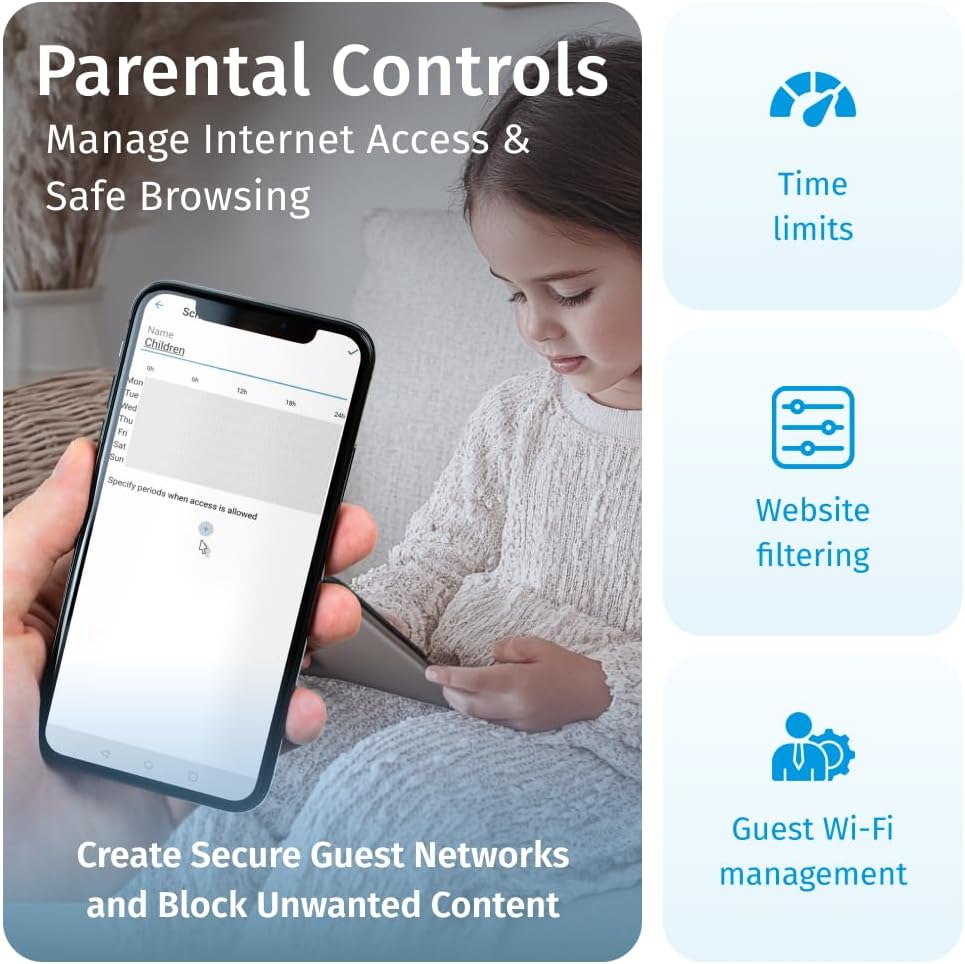
Image 5.2: Screenshot of the Keenetic mobile app displaying parental control settings, including time limits, website filtering, and guest Wi-Fi management.
- Had Masa: Set schedules for internet access for specific devices or users.
- WebPenapisan tapak: Sekat akses kepada yang tidak sesuai webtapak.
- Cyber Threat Protection: The router includes features to protect your network from various online threats.
5.4 Fungsi Port USB
The USB 2.0 port allows for extended functionality:
- Storan Rangkaian: Connect a USB storage device (e.g., flash drive, external hard drive) to create network-attached storage (NAS) for file sharing within your network.
- Pelayan Media: Use the connected USB storage as a media server to stream content to compatible devices.
- 3G/4G Modem Support: Connect a compatible USB modem for mobile internet backup or primary connection.
5.5 Smart Home & IoT Management
The Keenetic Skipper is designed to securely manage your smart home and IoT devices.

Image 5.3: Diagram illustrating the Keenetic router's central role in a smart home, securely managing various IoT devices across different rooms, supported by advanced cloud-based security and auto-updates.
5.6 Keenetic Mobile Application
The Keenetic app for Android and iOS provides convenient remote monitoring and control of your network.

Image 5.4: Screenshots of the Keenetic mobile application interface, showing features like device management, traffic prioritization, and guest network creation.
- Pengurusan Peranti: View connected devices and manage their access.
- Traffic Prioritization: Adjust IntelliQoS settings on the go.
- Guest Network Creation: Easily enable or disable guest Wi-Fi.
6. Penyelenggaraan
Penyelenggaraan berkala memastikan prestasi optimum dan jangka hayat penghala anda.
- Kemas Kini Perisian: KeeneticOS receives regular updates. Ensure your router is configured for automatic updates or check for them periodically via the web interface or mobile app to benefit from new features and security enhancements.
- Pembersihan: Keep the router clean and free from dust. Use a soft, dry cloth. Do not use liquid cleaners or aerosols. Ensure ventilation openings are not blocked.
- penempatan: Place the router in a central location, away from obstructions, large metal objects, and interference sources (e.g., microwaves, cordless phones) for best Wi-Fi performance.
- Memulakan semula: If you experience network issues, a simple restart (power cycling) of the router can often resolve them. Unplug the power adapter, wait 10 seconds, then plug it back in.
7. Penyelesaian masalah
This section addresses common issues you might encounter with your Keenetic Skipper router.
- Tiada sambungan internet:
- Semak sama ada modem anda berfungsi dengan betul.
- Pastikan semua kabel disambungkan dengan selamat ke penghala dan modem.
- Mulakan semula modem dan penghala anda.
- Sahkan tetapan internet anda dalam penghala web antara muka.
- Isyarat Wi-Fi Lemah atau Zon Mati:
- Letakkan semula penghala ke kedudukan yang lebih tengah.
- Pastikan antena diorientasikan dengan betul.
- Kurangkan gangguan daripada peranti elektronik lain.
- Consider expanding your network with additional Keenetic Mesh devices.
- Tidak Boleh Mengakses Penghala Web Antara muka:
- Pastikan peranti anda disambungkan ke penghala (berwayar atau wayarles).
- Sahkan anda menggunakan alamat IP yang betul (cth.,
192.168.1.1) atau domain (my.keenetic.net). - Cuba kosongkan cache penyemak imbas anda atau gunakan penyemak imbas lain.
- Mulakan semula penghala.
- Kata Laluan Wi-Fi Terlupa:
- Log masuk ke penghala web interface or mobile app to retrieve or change the password.
- If you cannot log in, you may need to perform a factory reset (see below).
- Tetapan semula kilang:
If you encounter persistent issues or forget your administrator password, you can perform a factory reset. Warning: This will erase all your custom settings and restore the router to its default factory configuration.
- With the router powered on, locate the Reset button (often a small pinhole button).
- Use a paperclip or similar pointed object to press and hold the Reset button for approximately 10 seconds until the indicator lights change.
- Lepaskan butang dan tunggu penghala dimulakan semula. Anda kemudian perlu mengkonfigurasi semula penghala dari awal.
8. Spesifikasi
| Ciri | Perincian |
|---|---|
| Jenama | Keenetik |
| Nama Model | KN-1912-01-EU |
| Sistem Operasi | KeeneticOS |
| Teknologi Ketersambungan | Ethernet, USB, WLAN |
| Standard Komunikasi Tanpa Wayar | 802.11ac (Wi-Fi 5) |
| Kelas Band Kekerapan | Dwi-Jalur (2.4 GHz & 5 GHz) |
| Bilangan Pelabuhan | 4 port Gigabit Ethernet |
| Port USB | USB 2.0 |
| Protokol Keselamatan | WPA2 / WPA3 / Enterprise Security |
| Peranti Serasi | Personal Computer, Laptop, Tablet, Smartphone, Game Console |
| Komponen Termasuk | Router, Type-C Power Adapter, Multi-language Installation Manual |
9. Waranti & Sokongan
9.1 Maklumat Waranti
Specific warranty details for the Keenetic Skipper router are typically provided with the product packaging or available on the official Keenetic webtapak. Sila rujuk sumber ini untuk terma dan syarat waranti yang paling tepat dan terkini.
Information regarding spare parts availability and guaranteed software updates is not available in the provided product data. Please check the manufacturer's official resources for this information.
9.2 Sokongan Teknikal
For technical assistance, troubleshooting beyond this manual, or further inquiries, please refer to the following resources:
- Keenetic Official Webtapak: Visit the official Keenetic website for FAQs, support articles, firmware downloads, and contact information.
- Keenetic Mobile App: The mobile application may offer direct access to support resources or community forums.


