1. Pengenalan
Welcome to the user manual for your new SGIN E10P 10-inch Kids Tablet. This guide provides essential information on setting up, operating, maintaining, and troubleshooting your device. Please read this manual thoroughly to ensure proper use and to maximize your tablet's features.
Apa yang ada dalam Kotak
Selepas membongkar, sila sahkan bahawa semua item yang disenaraikan di bawah ada:
- SGIN E10P Kids Tablet (with protective case)
- Manual Pengguna
- Kabel Jenis-C USB
- Penyesuai Kuasa (Pengecas)
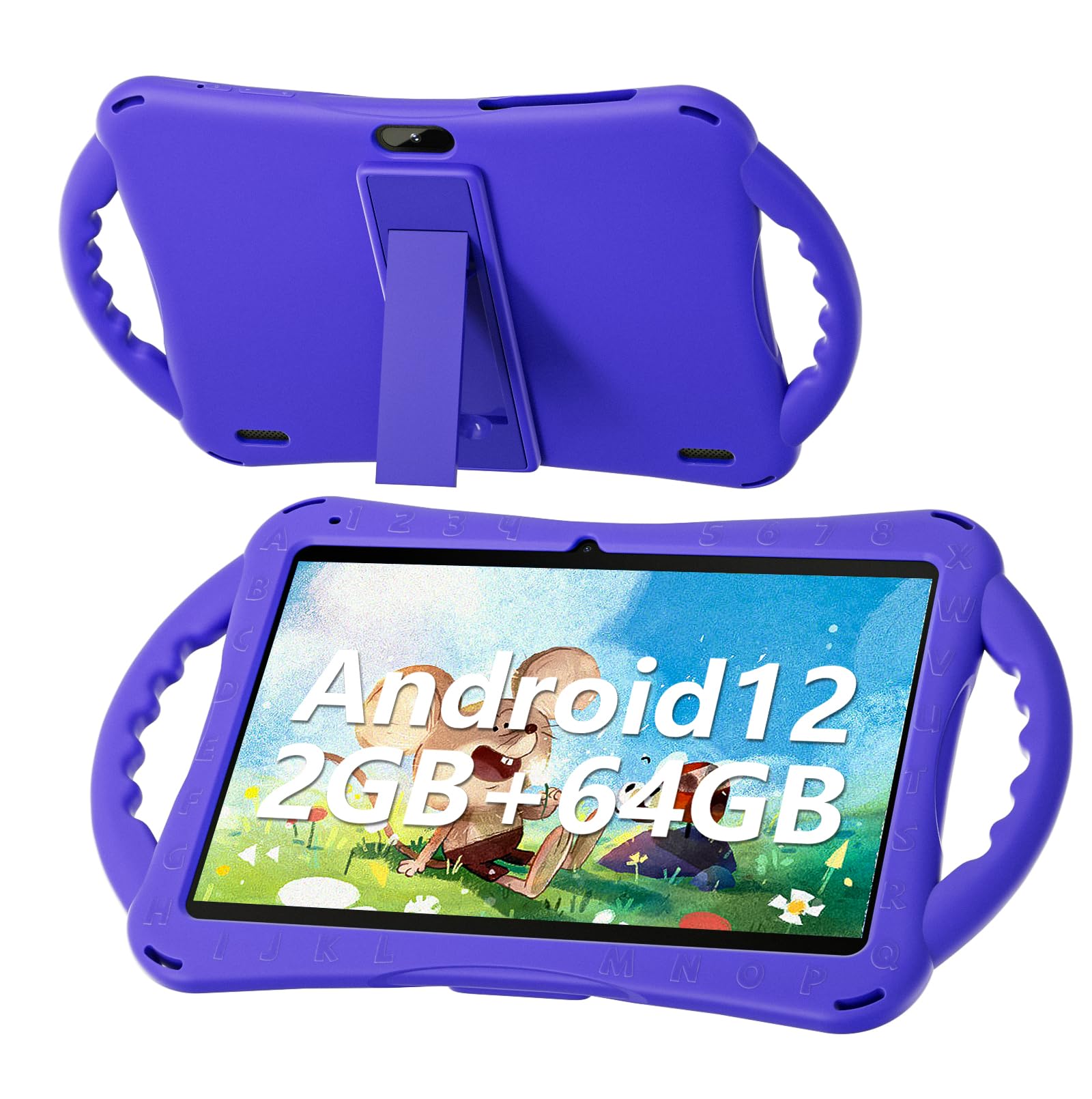
Figure 1: SGIN E10P Kids Tablet with its protective case.
2. Produk Lebihview
Familiarize yourself with the physical components of your SGIN E10P Kids Tablet.

Figure 2: Labeled diagram of the SGIN E10P Kids Tablet components.
- Kamera Depan: Untuk panggilan video dan swafoto.
- Kamera Belakang: Untuk mengambil gambar dan video.
- Penceramah: Output audio.
- Pelabuhan Jenis-C: Untuk pengecasan dan pemindahan data.
- Slot Kad TF: For expanding storage with a microSD card.
- Jack fon kepala: Untuk menyambungkan fon kepala berwayar.
- Tingkatkan Kelantangan: Button to raise the audio level.
- Kurangkan Kelantangan: Button to lower the audio level.
- Bracket (Kickstand): Pendirian bersepadu untuk bebas tangan viewing.
- Armrest (Handle): Ergonomic handles on the protective case for easy gripping.
3. Persediaan
3.1 Mengecas Tablet
Before first use, fully charge the tablet. Connect the USB Type-C cable to the tablet's Type-C port and the other end to the power adapter. Plug the power adapter into a wall outlet. The battery indicator on the screen will show charging status. A full charge typically takes several hours.
3.2 Menghidupkan/Mematikan
- Untuk Menghidupkan: Press and hold the Power button (usually located on the side or top edge) until the SGIN logo appears on the screen.
- Untuk Mematikan: Press and hold the Power button until a menu appears. Select "Power off" from the options.
- Untuk Mulakan Semula: Press and hold the Power button until a menu appears. Select "Restart" from the options.
3.3 Persediaan Awal
The first time you power on the tablet, you will be guided through an initial setup process:
- Pemilihan Bahasa: Pilih bahasa pilihan anda.
- Sambungan Wi-Fi: Pilih rangkaian Wi-Fi anda dan masukkan kata laluan untuk bersambung ke internet.
- Akaun Google: Sign in with an existing Google account or create a new one. This is necessary for downloading apps from the Google Play Store.
- Tarikh dan Masa: Tetapkan tarikh dan masa yang betul, atau benarkan rangkaian menetapkannya secara automatik.
- Kawalan Ibu Bapa: Configure Google Kids Space or other parental control features to manage content and screen time for children.
4. Mengendalikan Tablet
4.1 Navigasi Asas
The SGIN E10P tablet uses a touch-sensitive screen for navigation:
- Ketik: Touch the screen once to open an app, select an item, or press a button.
- Sentuh dan Tahan: Tekan dan tahan item untuk mengakses pilihan tambahan atau mengalihkannya.
- Leret: Seret jari anda merentasi skrin untuk menatal halaman atau senarai.
- Cubit-untuk-Zum: Letakkan dua jari pada skrin dan gerakkannya menjauh untuk zum masuk, atau bersama untuk zum keluar.
4.2 Kesambungan Wi-Fi
To connect or manage Wi-Fi networks:
- Pergi ke tetapan > Rangkaian & internet > Wi-Fi.
- Togol Wi-Fi On.
- Pilih rangkaian yang anda inginkan daripada senarai dan masukkan kata laluan jika digesa.

Figure 3: The tablet supports both 2.4GHz and 5GHz Wi-Fi for stable connections.
4.3 Applications and Content
The tablet runs on Android 12 and comes with access to the Google Play Store, allowing you to download a wide range of applications. It is pre-configured for children's use, supporting apps like YouTube Kids, educational games, and other child-friendly content.

Figure 4: The Android 12 interface with various pre-installed and downloadable kids' apps.
4.4 Kawalan Ibu Bapa
Utilize the built-in parental control features to manage your child's tablet experience. This includes setting screen time limits, filtering content, and approving app downloads. Access these settings through the Google Family Link app or directly in the tablet's settings under "Digital Wellbeing & parental controls."
5. Penyelenggaraan
5.1 Pembersihan
- Skrin: Use a soft, lint-free cloth specifically designed for electronics. For stubborn smudges, slightly dampbilas kain dengan air atau larutan pembersih skrin (jangan sembur terus ke skrin).
- Kes: The silicone protective case can be wiped with a damp cloth and mild soap if necessary. Ensure it is completely dry before reattaching it to the tablet.
- Pelabuhan: Keep all ports (USB-C, headphone jack, TF card slot) free of dust and debris. Use a soft brush or compressed air if needed.
5.2 Penjagaan Bateri
The tablet is equipped with a 5000mAh battery, providing extended usage time.

Figure 5: The tablet features a 5000mAh battery for prolonged use.
- Elakkan suhu yang melampau, kerana ia boleh merendahkan hayat bateri.
- Use only the provided charger and cable to prevent damage.
- Untuk jangka hayat bateri yang optimum, elakkan daripada kerap menghabiskan bateri sepenuhnya atau mengekalkannya pada cas 100% untuk tempoh yang lama.
5.3 Penyimpanan
Store the tablet in a cool, dry place away from direct sunlight and moisture when not in use.
6. Penyelesaian masalah
This section addresses common issues you might encounter with your SGIN E10P tablet.
6.1 Tablet Tidak Dihidupkan
- Ensure the tablet is sufficiently charged. Connect it to the charger for at least 30 minutes before attempting to power it on again.
- Tekan dan tahan butang Kuasa selama 10-15 saat untuk melakukan mula semula secara paksa.
6.2 Isu Sambungan Wi-Fi
- Check if Wi-Fi is enabled in the tablet's settings.
- Verify that your Wi-Fi router is working correctly and other devices can connect.
- Forget the network in the tablet's Wi-Fi settings and reconnect.
- Restart both the tablet and your Wi-Fi router.
6.3 Aplikasi Ranap atau Terhenti
- Tutup dan buka semula apl.
- Kosongkan cache dan data apl masuk tetapan > Apl > [Nama Apl] > Storan & cache.
- Ensure the app is updated to its latest version via the Google Play Store.
- Mulakan semula tablet.
6.4 Prestasi Perlahan
- Tutup aplikasi latar belakang yang tidak diperlukan.
- Kosongkan data yang disimpan dalam cache daripada aplikasi dan sistem.
- Ensure there is sufficient storage space available. Delete unused apps or files.
- Consider performing a factory reset as a last resort (Nota: This will erase all data on the tablet. Back up important files pertama).
7. Spesifikasi
Key technical specifications for the SGIN E10P Kids Tablet:
| Ciri | Spesifikasi |
|---|---|
| Jenama | SGIN |
| Nombor Model | E10P |
| Saiz Skrin | 10 Inci |
| Resolusi Skrin | 1280 x 800 |
| Pemproses | 1.5 GHz Allwinner Quad-core A133 |
| RAM | 2 GB |
| Storan (ROM) | 64 GB |
| Storan Boleh Dikembangkan | TF Card Slot (for additional expansion) |
| Sistem Operasi | Android 12 |
| belakang Webresolusi cam | 5 MP |
| Kamera Depan | 2 MP |
| Kapasiti Bateri | 5000 mAh |
| Ketersambungan | WiFi 2.4G/5G, Bluetooth 4.2 |
| Dimensi (LxWxH) | 10.1 x 6 x 0.4 inci |
| Berat Barang | 2.27 paun |
8. Waranti dan Sokongan
SGIN provides a 1-year maintenance period from the date of purchase for this product. If you encounter any issues or require assistance, please contact SGIN customer support.
For further support, please refer to the contact information provided with your purchase documentation or visit the official SGIN webtapak.


