1. Pengenalan
This manual provides essential information for the proper setup, operation, and maintenance of your TECLAST T40HD 10.4-inch Android 13 Tablet. Please read this manual thoroughly before using the device to ensure optimal performance and longevity. Keep this manual for future reference.

Imej 1.1: Depan dan belakang view of the TECLAST T40HD tablet, showcasing its slim design and camera module.
2. Kandungan Pakej
Sahkan bahawa semua item yang disenaraikan di bawah terdapat dalam pembungkusan produk anda:
- TECLAST T40HD Tablet
- Penyesuai Kuasa (mungkin berbeza mengikut wilayah)
- Data Cable (USB Type-C)
- Drive Out Pin (for SIM/Micro SD tray)
- Kad Penyelenggaraan
- Manual Pengguna (dokumen ini)
- Pelindung Skrin (dipasang terlebih dahulu atau disertakan secara berasingan)

Image 2.1: Illustration of the TECLAST T40HD tablet and its standard accessories included in the box.
3. Persediaan Awal
3.1 Mengecas Tablet
Before first use, fully charge the tablet using the provided power adapter and USB Type-C cable. Connect the cable to the tablet's USB-C port and the adapter to a power outlet. The charging indicator will typically show progress on the screen.

Image 3.1: The tablet connected to a charger, indicating battery status, and a user operating the tablet while traveling.
3.2 Menghidupkan/Mematikan
- Untuk Menghidupkan: Press and hold the Power button (located on the side) until the TECLAST logo appears on the screen.
- Untuk Mematikan: Press and hold the Power button until the power options menu appears. Select 'Power off'.
- Untuk Mulakan Semula: Daripada menu pilihan kuasa, pilih 'Mulakan Semula'.
3.3 Inserting SIM and Micro SD Cards
The TECLAST T40HD supports dual SIM cards and a Micro SD card for expanded storage. Use the provided drive out pin to open the card tray.
- Locate the SIM/Micro SD card tray on the side of the tablet.
- Insert the drive out pin into the small hole next to the tray and press gently until the tray ejects.
- Tarik keluar dulang dengan berhati-hati.
- Place your Nano-SIM cards and/or Micro SD card into the designated slots on the tray, ensuring correct orientation.
- Tolak dulang kembali ke dalam tablet dengan lembut sehingga ia terpasang dengan klik di tempatnya.

Image 3.2: The SIM/Micro SD card tray, illustrating the placement of SIM cards.
3.4 Persediaan Android Awal
Upon first power-on, the tablet will guide you through the Android 13 setup process. This includes selecting your language, connecting to Wi-Fi, setting up your Google account, and configuring security options like face unlock.
4. Mengendalikan Tablet
4.1 Navigation and Gestures
The TECLAST T40HD runs on Android 13, offering intuitive navigation through gestures and on-screen buttons. Common gestures include:
- Ketik: Pilih item atau buka apl.
- Leret: Tatal melalui halaman atau senarai.
- Cubit untuk zum: Besarkan atau kecilkan kandungan pada skrin.
- Swipe up from bottom: Go to Home screen or open app drawer.
- Swipe from left/right edge: pergi balik.
4.2 Menyambung ke Rangkaian
- Wi-Fi: Go to Settings > Network & internet > Wi-Fi. Select your network and enter the password.
- Data Mudah Alih (4G LTE): If a SIM card is inserted, enable mobile data in Settings > Network & internet > Mobile network.
- Bluetooth: Pair with Bluetooth devices (e.g., headphones, keyboards) via Settings > Connected devices > Bluetooth.
4.3 Multimedia and Gaming
The tablet's 2K HD display and Unisoc T606 Octa-core processor provide a smooth experience for media consumption and gaming.
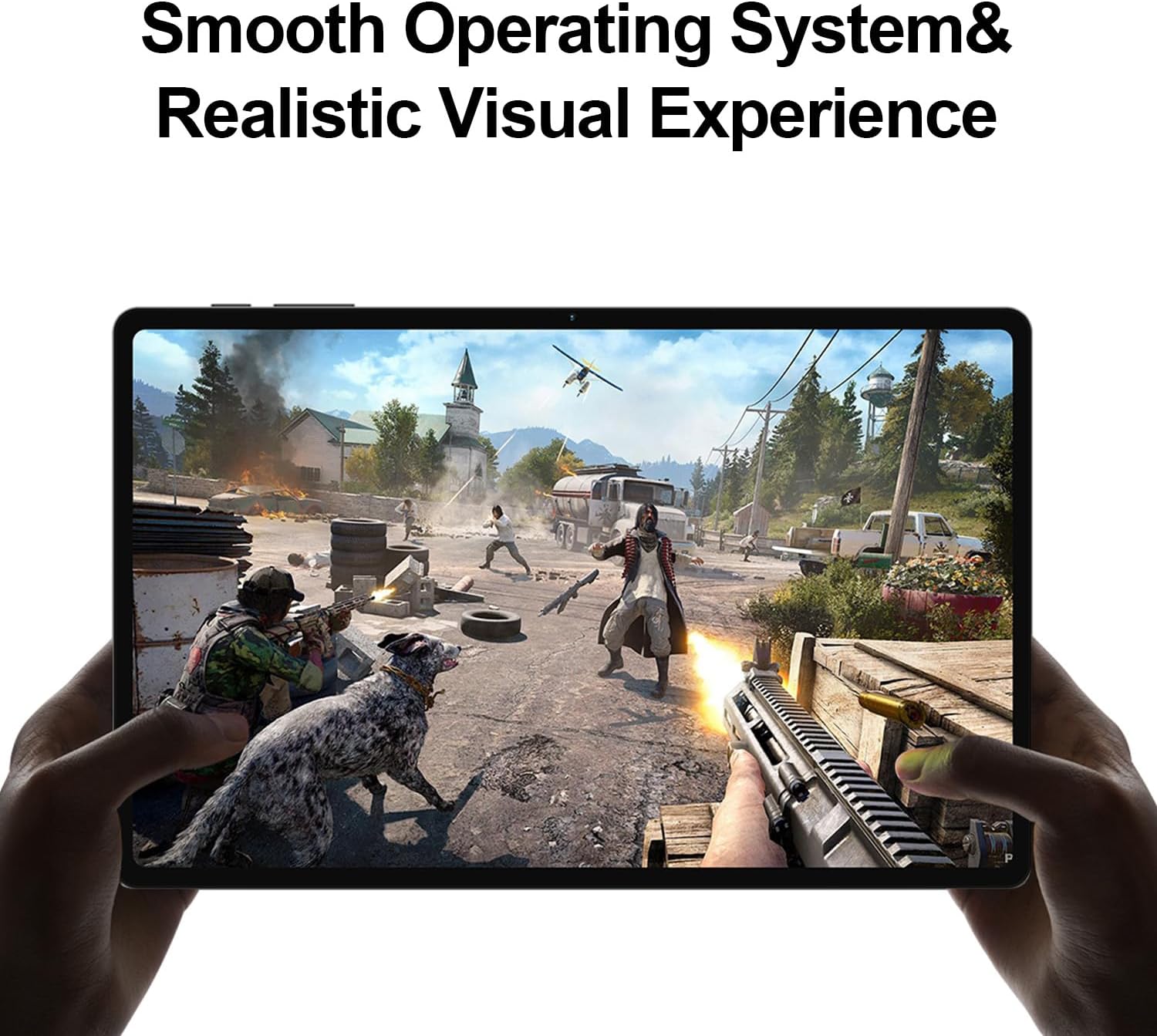
Image 4.1: The tablet displaying a high-fidelity video game, demonstrating its graphical capabilities.

Imej 4.2: Tablet menunjukkanasing its battery performance for different usage scenarios.
4.4 Berbilang tugas
Android 13 supports split-screen mode, allowing you to use two apps simultaneously. To activate, open an app, then swipe up slightly from the bottom of the screen to reveal the recent apps. Tap the app icon at the top of the window and select 'Split top'. Choose another app to fill the second half of the screen.

Image 4.3: The tablet demonstrating split-screen functionality for enhanced productivity.
4.5 Kawalan Ibu Bapa
Utilize Android's built-in parental control features to manage screen time, restrict app access, and filter content. Access these settings through the Google Family Link app or directly in the tablet's Settings menu under 'Digital Wellbeing & parental controls'.

Image 4.4: Parental control features displayed on the tablet, enabling management of usage for children.
4.6 Navigasi GPS
The integrated GPS functionality allows for precise location tracking and navigation. Use pre-installed map applications or download your preferred navigation apps from the Google Play Store.

Image 4.5: The tablet used for GPS navigation in a vehicle.
4.7 Android 13 Features Overview
The TECLAST T40HD operates on Android 13, offering enhanced privacy controls, improved battery efficiency, smoother overall operation, and various user interface improvements. It also expands compatibility with a wide range of devices and applications.

Image 4.6: Visual representation of the Android 13 operating system interface on the tablet.
4.8 Video Produk Rasmi
Video 4.1: An official product video from Teclast USA Official Store, showcasing the key features and design of the TECLAST T40HD Android 13 Tablet.
5. Penyelenggaraan
- Pembersihan: Gunakan kain lembut dan tidak berbulu untuk membersihkan skrin dan badan. Elakkan bahan yang melelas atau bahan kimia yang keras.
- Kemas Kini Perisian: Semak dan pasang kemas kini sistem secara kerap untuk memastikan prestasi dan keselamatan yang optimum. Pergi ke Tetapan > Sistem > Kemas kini sistem.
- Penjagaan Bateri: To prolong battery life, avoid extreme temperatures and do not let the battery fully discharge frequently.
- Pengurusan Storan: Kosongkan secara berkala yang tidak perlu files dan nyahpasang apl yang tidak digunakan untuk mengosongkan ruang storan.
6. Penyelesaian masalah
| Isu | Penyelesaian yang Mungkin |
|---|---|
| Tablet tidak dihidupkan | Ensure the tablet is charged. Connect to the charger for at least 30 minutes before attempting to power on again. |
| Skrin tidak bertindak balas | Perform a force restart by holding the Power button for approximately 10-15 seconds. If the issue persists, contact support. |
| Isu sambungan Wi-Fi | Restart the tablet and your Wi-Fi router. Forget the network in Wi-Fi settings and reconnect. Ensure you are within range. |
| Apl ranap atau beku | Clear the cache for the problematic app (Settings > Apps > [App Name] > Storage & cache > Clear cache). Update the app or uninstall and reinstall it. Ensure sufficient free storage. |
| Prestasi perlahan | Close unused background apps. Clear cache and temporary files. Consider a factory reset if performance issues are severe and persistent (back up data first). |
| Kad SIM tidak dikesan | Ensure the SIM card is correctly inserted into the tray. Restart the tablet. Verify that mobile data is enabled in settings. |
7. Spesifikasi

Imej 7.1: Selesaiview of the TECLAST T40HD tablet's key technical specifications.
| Ciri | Perincian |
|---|---|
| Model | T40HD |
| Sistem Operasi | Android 13 (GMS Certified) |
| Paparan | 10.4-inch 2K (2000x1200) TDDI IPS, TÜV Rheinland Certified |
| Pemproses | Unisoc T606 Okta-Teras (1.6 GHz) |
| RAM | 16GB (8GB fizikal + 8GB lanjutan) |
| Storan Dalaman | 128GB UMCP |
| Storan Boleh Dikembangkan | Micro SD card up to 1TB |
| Kamera Belakang | 13MP + 30W auxiliary camera |
| Kamera Depan | 8MP |
| Bateri | Polimer Lithium 7200mAh |
| Ketersambungan | 4G LTE (Dual SIM), 5G WiFi (2.4/5GHz), Bluetooth 5.0, GPS |
| Pelabuhan | Bicu Fon Kepala USB Jenis-C, 3.5mm |
| Dimensi (LxWxH) | 10.4 x 6 x 0.6 inci |
| Berat badan | 1.9 paun |
8. Waranti dan Sokongan
8.1 Maklumat Waranti
TECLAST products typically come with a 1-year warranty from the date of purchase. This warranty covers manufacturing defects. Please refer to the 'Maintenance Card' included in your package for specific warranty terms and conditions. Keep your proof of purchase for warranty claims.
8.2 Sokongan Pelanggan
For technical assistance, troubleshooting, or warranty inquiries, please contact TECLAST customer support. You can typically find contact information on the official TECLAST website or through the retailer where you purchased the device. TECLAST aims to respond to inquiries within one working day and offers a 1-year unconditional replacement service for eligible issues.
Nota Penting: It is recommended to charge the product for more than 30 minutes before turning it on for the first time.


