1. Pengenalan
This manual provides essential instructions for the proper use and care of your Kodak Classic K100 USB 2.0 128GB Flash Drive. Please read this manual thoroughly before using the device to ensure optimal performance and longevity. The Kodak K100 flash drive offers reliable storage for your data, featuring a cap and body design for protection and portability.
2. Maklumat Keselamatan
- Do not expose the flash drive to extreme temperatures, direct sunlight, or high humidity.
- Elakkan daripada menjatuhkan atau meletakkan peranti kepada kesan yang kuat.
- Jauhkan peranti daripada air dan cecair lain.
- Do not attempt to disassemble or modify the flash drive. This will void the warranty.
- Ensure proper ejection of the device from your computer before removal to prevent data corruption.
3. Produk Lebihview
The Kodak Classic K100 USB 2.0 Flash Drive is designed for portable data storage. It features a protective cap and a standard USB Type-A connector.

Image 3.1: Kodak K100 USB Flash Drive with its protective cap removed, revealing the USB Type-A connector. The drive body is black with a red stripe and the Kodak logo, and "128GB" printed on it.
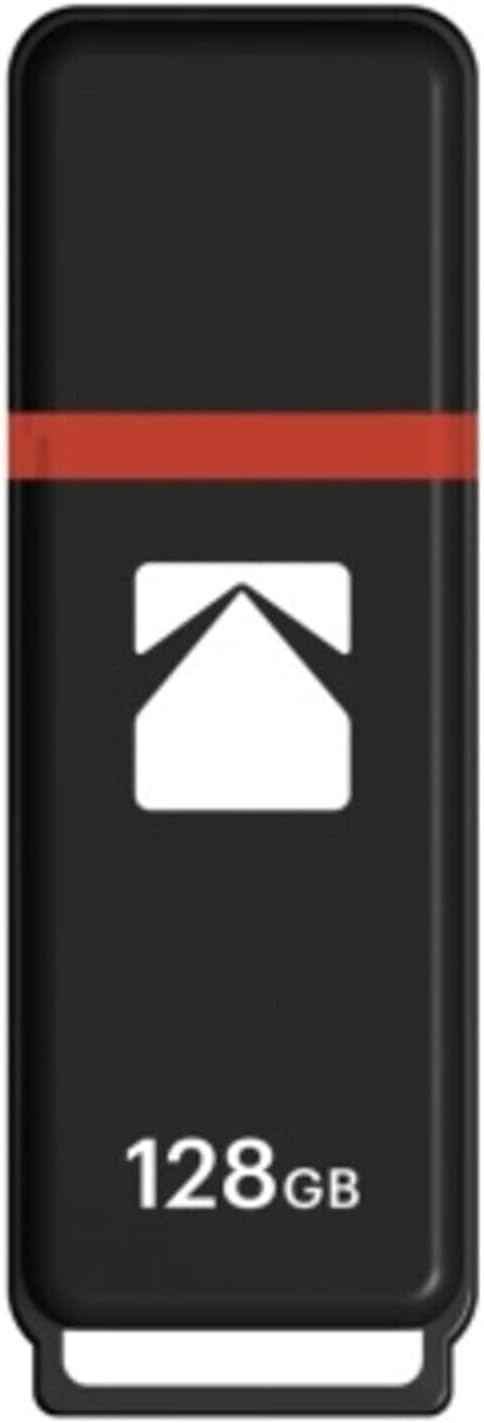
Image 3.2: Kodak K100 USB Flash Drive with its protective cap securely in place. The drive is black with a red stripe and the Kodak logo, and "128GB" printed on it.
Komponen:
- Penyambung USB: Standard USB 2.0 Type-A for connecting to computers and compatible devices.
- Topi Pelindung: Covers the USB connector when not in use, preventing dust and damage. The cap can be securely clipped onto the rear of the drive during use.
- Drive Body: Houses the flash memory and control circuitry.
- Gelung Lanyard: Located at the end of the drive for attaching a lanyard or keychain (lanyard not included).
4. Persediaan
The Kodak K100 Flash Drive is a plug-and-play device, requiring no special driver installation for most operating systems.
Menyambung ke Komputer:
- Remove the protective cap from the USB flash drive. You can clip the cap onto the rear of the drive to prevent loss.
- Locate an available USB Type-A port on your computer.
- Insert the USB connector of the flash drive firmly into the USB port.
- Your computer's operating system will automatically detect the device. A notification may appear indicating that the device is ready for use.
The flash drive will appear as a removable storage device (e.g., "Removable Disk" or "KODAK K100") in your computer's file penjelajah (Windows) atau Finder (macOS).
5. Arahan Operasi
Once connected, the Kodak K100 Flash Drive functions like any other storage device.
Memindahkan Files:
- Untuk Menyalin Files to the Flash Drive: Buka folder yang mengandungi files you wish to transfer. Drag and drop the files or folders into the flash drive's window, or copy them (Ctrl+C/Cmd+C) and paste them (Ctrl+V/Cmd+V) into the flash drive's directory.
- Untuk Menyalin Files from the Flash Drive: Open the flash drive's window. Drag and drop the files or folders from the flash drive to your desired location on your computer, or copy them (Ctrl+C/Cmd+C) and paste them (Ctrl+V/Cmd+V) to your computer's directory.
Safely Removing the Flash Drive:
It is crucial to safely eject the flash drive before physically removing it to prevent data loss or corruption.
- Windows: Right-click on the flash drive icon in "This PC" or the system tray (bottom right corner), then select "Eject" or "Safely Remove Hardware." Wait for the "Safe to Remove Hardware" message before unplugging.
- macOS: Drag the flash drive icon from your desktop or Finder sidebar to the Trash icon, or right-click (or Control-click) the flash drive icon and select "Eject." Wait for the icon to disappear before unplugging.
- Linux: Right-click the flash drive icon on your desktop or file pengurus dan pilih "Keluarkan" atau "Nyahpasang".
6. Penyelenggaraan
Proper care ensures the longevity and reliability of your flash drive.
- Pembersihan: Use a soft, dry, lint-free cloth to clean the exterior of the flash drive. Do not use liquid cleaners or solvents.
- Storan: When not in use, keep the protective cap on the USB connector to prevent dust and debris from entering. Store the drive in a cool, dry place, away from magnetic fields.
- Sandaran Data: Regularly back up important data stored on the flash drive to another storage medium (e.g., computer hard drive, cloud storage) to prevent data loss in case of device malfunction or damage.
7. Penyelesaian masalah
| Masalah | Kemungkinan Punca | Penyelesaian |
|---|---|---|
| Flash drive not detected by computer. |
|
|
| Tidak boleh menulis files to the flash drive. |
|
|
| Data transfer is slow. |
|
|
| "Disk is write-protected" error. |
|
|
8. Spesifikasi
| Ciri | Perincian |
|---|---|
| Nama Model | Kodak Classic K100 |
| Nombor Model Item | EKMMD128GK102P10 |
| Kapasiti | 128 GB |
| Antara muka | USB 2.0 (USB Type A) |
| Kelajuan Baca | Sehingga 15 MB/s |
| Tulis Kelajuan | Sehingga 5 MB/s |
| Keserasian | Windows 10, 8, 7, Vista, XP; Mac OS 10.4 or later; Linux 2.6.31 or higher |
| warna | Red (as per current product variant) |
| Dimensi (LxWxH) | 4.6 x 3.6 x 0.6 inci |
| Berat badan | 1.92 auns |
| Ciri Khas | Compact, Lightweight, Cap clips onto back |
9. Waranti & Sokongan
For warranty information and technical support regarding your Kodak Classic K100 USB 2.0 Flash Drive, please refer to the official Kodak website or contact their customer service department. Details are typically provided with your purchase documentation or on the product packaging.
Sokongan dalam talian: Visit the official KODAK website for FAQs, driver downloads (if applicable), and contact information.
Pemulihan Data: While this product is designed for reliability, data loss can occur. Consider purchasing a data recovery plan for critical data, if available from your retailer. Always back up important files.


