The Phomemo M960 Label Maker is a portable, Bluetooth-enabled device designed for easy and efficient label creation. Its compact size and inkless thermal printing technology make it ideal for various organizational and creative tasks. This manual provides comprehensive instructions for setup, operation, maintenance, and troubleshooting.
Ciri-ciri Utama:
Stylish, portable design: Less than half the size and weight of traditional label makers, perfect for on-the-go use.
User-friendly customization: Edits labels via the smart "Print Master" application (iOS and Android compatible) with access to over 1500 icons, 270+ borders, 110 fonts, 26 templates, and 11 languages.
Exceptional printing quality: 203 dpi resolution, prints larger fonts, reduces blank labels. Built-in 1200mAh rechargeable battery with Type-C charging.
Versatile label options: Perfect for item labeling, price tags, document sorting, decoration, DIY projects, and personal entertainment.
Easy cutting, durability: Built-in manual cutter for easy cutting and peeling. BPA-free tape provides enhanced waterproof, oil-proof, hot & low-temperature resistance, fade resistance, and scratch resistance.
2. Apa yang ada di dalam Kotak
Your Phomemo M960 package includes the following items:
1 x Phomemo M960 Label Maker Printer
1 x Roll Laminated Label Tape
1 x Panduan Pengguna
1 x Kabel Jenis-C
Figure 1: Phomemo M960 Label Maker and included accessories.
3. Panduan Persediaan
3.1. Mengecas Peranti
Before first use, fully charge your Phomemo M960 Label Maker using the provided Type-C cable. The device has a built-in 1200mAh battery for continuous operation.
3.2. Memuatkan Pita Label
Follow these steps to properly load the label tape into your device:
Buka penutup atas pembuat label.
Prepare the label tape cartridge. Ensure the tape is extended approximately 3cm (1.18 inches) from the cartridge.
Insert the tape cartridge into the designated slot inside the label maker.
Tutup penutup atas dengan selamat.
Figure 2: Steps for loading the M Series label tape.
3.3. Muat Turun Apl dan Sambungan
The Phomemo M960 operates via the "Print Master" smart application. Ensure your smartphone or tablet meets the system requirements (Android 5.0 and IOS 9.0 or above).
Scan the QR code in the user manual or search for "Print Master" in your device's app store (App Store for iOS, Google Play for Android).
Muat turun dan pasang aplikasi.
Turn on the Bluetooth on your Phomemo M960 by pressing the power button. The indicator light will illuminate.
Open the "Print Master" app on your smartphone. The app will automatically search for and connect to your label maker.
Figure 3: Download the "Print Master" app for full functionality.
Video 1: Demonstrates the setup and basic usage of the Phomemo label maker, including app connection and first print.
4. Arahan Operasi
4.1. Creating and Printing a Basic Label
Open the "Print Master" app and ensure your device is connected.
Tap "New Label" to start a new design.
Enter your desired text.
Customize the font, size, alignment, and add icons or borders as needed.
Once satisfied with your label design, tap the "Print" button.
Confirm the print quantity and tap "Print Now".
The label will print from the device. Use the built-in manual cutter to separate the label.
Peel off the backing paper and apply the label to your desired surface.
Figure 4: User-friendly customization options within the "Print Master" app.
4.2. Multiple Printing
To print multiple copies of the same label:
Design your label as described in Section 4.1.
Before tapping "Print Now", adjust the "Quantity Setting" to your desired number of copies (up to 9 copies).
Teruskan dengan percetakan.
Video 2: Demonstration of batch printing multiple labels using the Phomemo label maker.
4.3. Deleting Text and Format
To clear your label design in the app:
To delete one character at a time, use the backspace icon in the app's text editor.
To delete all text or text and format, look for the delete or clear options within the app's editing interface.
Video 3: Shows how to delete text and formatting within the label maker app.
4.4. Using Different Label Tapes
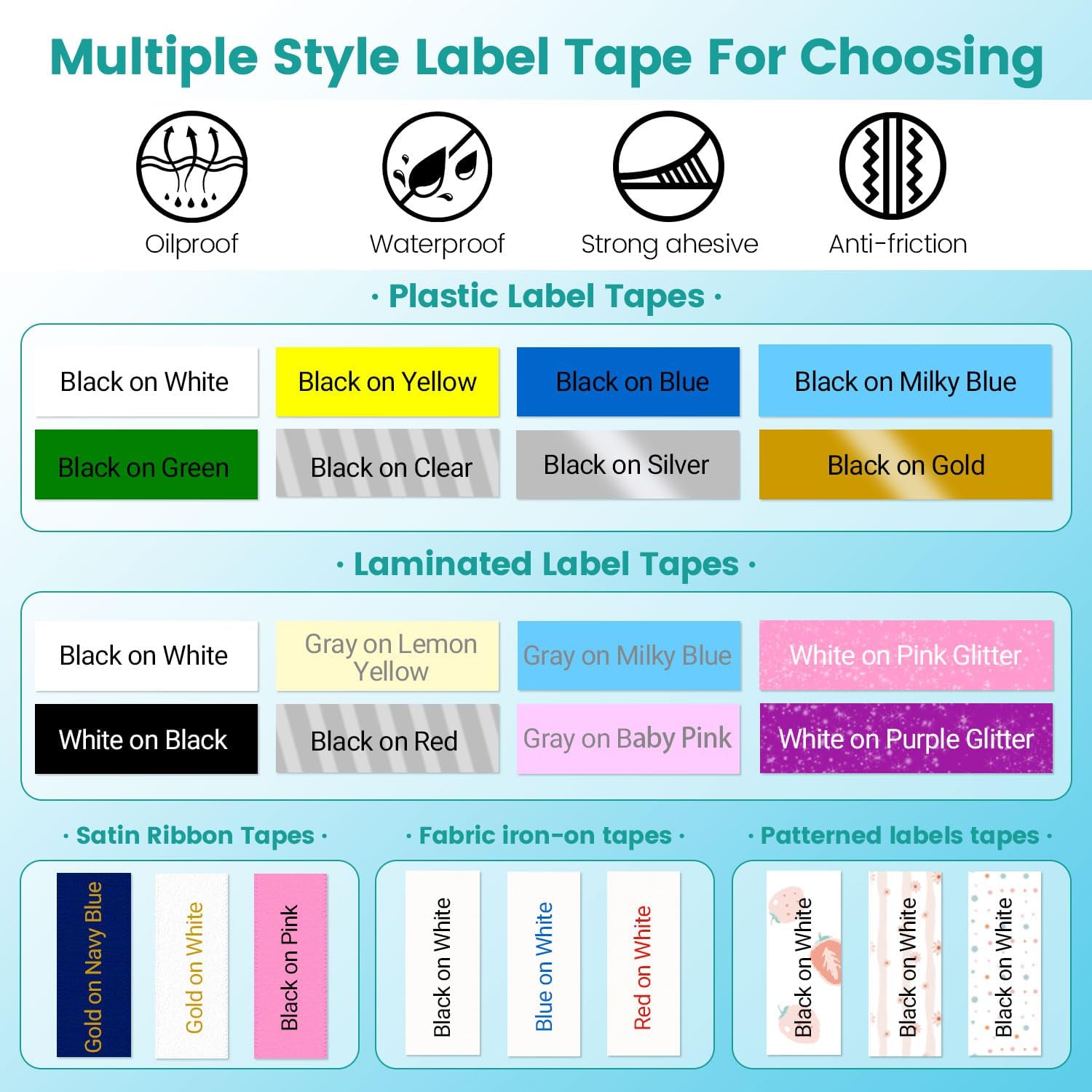
The Phomemo M960 supports various M Series label tapes, including plastic, laminated, satin ribbon, fabric iron-on, and patterned labels. Each type offers different properties like oil-proof, waterproof, strong adhesive, and anti-friction.
Figure 5: Explore multiple style label tape options for your M960.
Video 4: Demonstrates the use of holographic label tape with the M960 label maker.
5. Penyelenggaraan
5.1. Membersihkan Kepala Cetak
As an inkless thermal printer, the M960 requires minimal maintenance. However, regularly cleaning the print head can ensure optimal print quality. Use a soft, lint-free cloth lightly dampened with rubbing alcohol to gently wipe the print head. Ensure the device is powered off before cleaning.
5.2. Penjagaan Bateri
To prolong battery life, avoid fully discharging the battery frequently. Charge the device when the battery indicator is low. If storing the device for an extended period, charge it to approximately 50% and recharge every few months.
5.3. Tape Storage
Store label tape cartridges in a cool, dry place away from direct sunlight and extreme temperatures to maintain adhesive quality and print integrity.
6. Penyelesaian masalah
If you encounter issues with your Phomemo M960, please refer to the following common solutions:
Peranti tidak bersambung melalui Bluetooth: Ensure Bluetooth is enabled on both the label maker and your smartphone. Restart both devices and the "Print Master" app. Check if the app has necessary permissions (e.g., location for Android 12 or below).
Poor print quality (faded, unclear): Check if the label tape is correctly installed. Ensure the print head is clean (refer to Section 5.1). Try a new label tape roll.
Tape not feeding or jamming: Verify the tape is inserted correctly and not tangled. Ensure no foreign objects are obstructing the tape path.
Peranti tidak dihidupkan: Ensure the battery is charged. Connect the device to the Type-C charger and try again.
For more detailed troubleshooting or persistent issues, please consult the "Print Master" app's help section or contact Phomemo customer support.
7. Spesifikasi
Ciri
Spesifikasi
Jenama
Phomemo
Nama Model
M960 label maker
Dimensi Produk
4.57"D x 2.17"W x 5.51"H
Berat Barang
0.35 Auns
Teknologi Ketersambungan
Bluetooth
Teknologi Percetakan
terma
Resolusi Cetakan Warna Maksimum
203 DPI
Resolusi Cetakan Hitam dan Putih Maksimum
203 DPI
Peranti Serasi
Telefon Pintar, Tablet
Bateri
1 bateri Lithium Ion diperlukan (termasuk)
Komponen yang Disertakan
1 Roll Laminated Label Tape, 1 User Guide, 1 Type-C Cable, 1 Printer
8. Waranti dan Sokongan
Phomemo products are designed for reliability and performance. For warranty information and customer support, please refer to the official Phomemo webtapak atau butiran hubungan yang disediakan dalam pembungkusan produk anda.
A digital version of the user guide is available di sini.