1. Pengenalan
Thank you for choosing the Cherry KW 7100 Mini Multi-Device Compact Keyboard. This manual provides essential information for setting up, operating, and maintaining your new keyboard. Designed for versatility and portability, this keyboard offers seamless connectivity across multiple devices.
2. Apa yang ada di dalam Kotak
- Cherry KW 7100 Mini Multi-Device Compact Keyboard
- USB-C to USB-A Charging/Connection Cable
- 2x Bateri AAA
- 2.4 GHz Wireless Nano Receiver (stored magnetically in the keyboard)
- Membawa Sarung
- Manual Arahan

Rajah 1: Atas-bawah view of the Cherry KW 7100 Mini Keyboard.
3. Persediaan
3.1. Pemasangan Bateri
- Cari petak bateri di bahagian bawah papan kekunci.
- Geser buka penutup petak bateri.
- Masukkan dua bateri AAA, pastikan kekutuban (+/-) betul.
- Tutup penutup petak bateri dengan selamat.
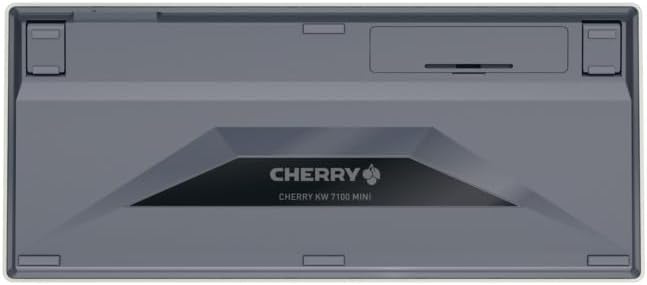
Figure 2: Underside of the keyboard with the battery compartment.
3.2. Menyambung Papan Kekunci
The Cherry KW 7100 Mini supports three connection methods: Bluetooth, 2.4 GHz Wireless, and Wired USB-C.
3.2.1. Sambungan Bluetooth (Sehingga 3 Peranti)
- Hidupkan papan kekunci menggunakan suis kuasa yang terletak di sebelah.
- Press and hold one of the Bluetooth channel keys (F1, F2, or F3) for 3-5 seconds until the corresponding LED indicator blinks rapidly. This indicates pairing mode.
- On your device (laptop, smartphone, tablet), navigate to Bluetooth settings and search for available devices.
- Select "Cherry KW 7100" from the list to pair. The LED will stop blinking and remain solid for a few seconds upon successful connection.
- Repeat for up to two additional devices using the other Bluetooth channel keys (F1, F2, or F3).
3.2.2. Sambungan Wayarles 2.4 GHz
- Locate the 2.4 GHz wireless nano receiver, typically stored magnetically in a slot on the underside of the keyboard.
- Insert the nano receiver into an available USB-A port on your computer.
- Turn on the keyboard using the power switch. The keyboard should automatically connect to the receiver.
3.2.3. Sambungan USB-C Berwayar
- Connect one end of the provided USB-C cable to the USB-C port on the keyboard.
- Connect the other end of the USB-C cable to an available USB-A port on your computer.
- The keyboard will function as a wired keyboard.
Video 1: Demonstrating the setup and typing experience of the Cherry KW 7100 Mini Keyboard.
4. Mengendalikan Papan Kekunci
4.1. Bertukar Antara Peranti Bersambung
To switch between paired Bluetooth devices, simply press the corresponding Bluetooth channel key (F1, F2, or F3) that your device is paired to. The keyboard will automatically connect to the selected device.
4.2. Function Keys (FN)
The keyboard features a dedicated FN key, typically located near the right Shift key. This key, in combination with other keys, activates secondary functions such as media controls, screen brightness, and other system commands. Refer to the keycap legends for specific FN key combinations.
4.3. Petunjuk LED
LED indicators on the keyboard provide information about its status:
- Bluetooth Channel LEDs (F1, F2, F3): Indicate the currently active Bluetooth connection or pairing mode.
- LED Caps Lock: Bercahaya apabila Caps Lock aktif.
- LED Status Bateri: Menunjukkan tahap bateri rendah.
4.4. Kaki Boleh Laras
The keyboard is equipped with stable, fold-out feet on the underside. These allow you to adjust the typing angle for improved ergonomics and comfort.
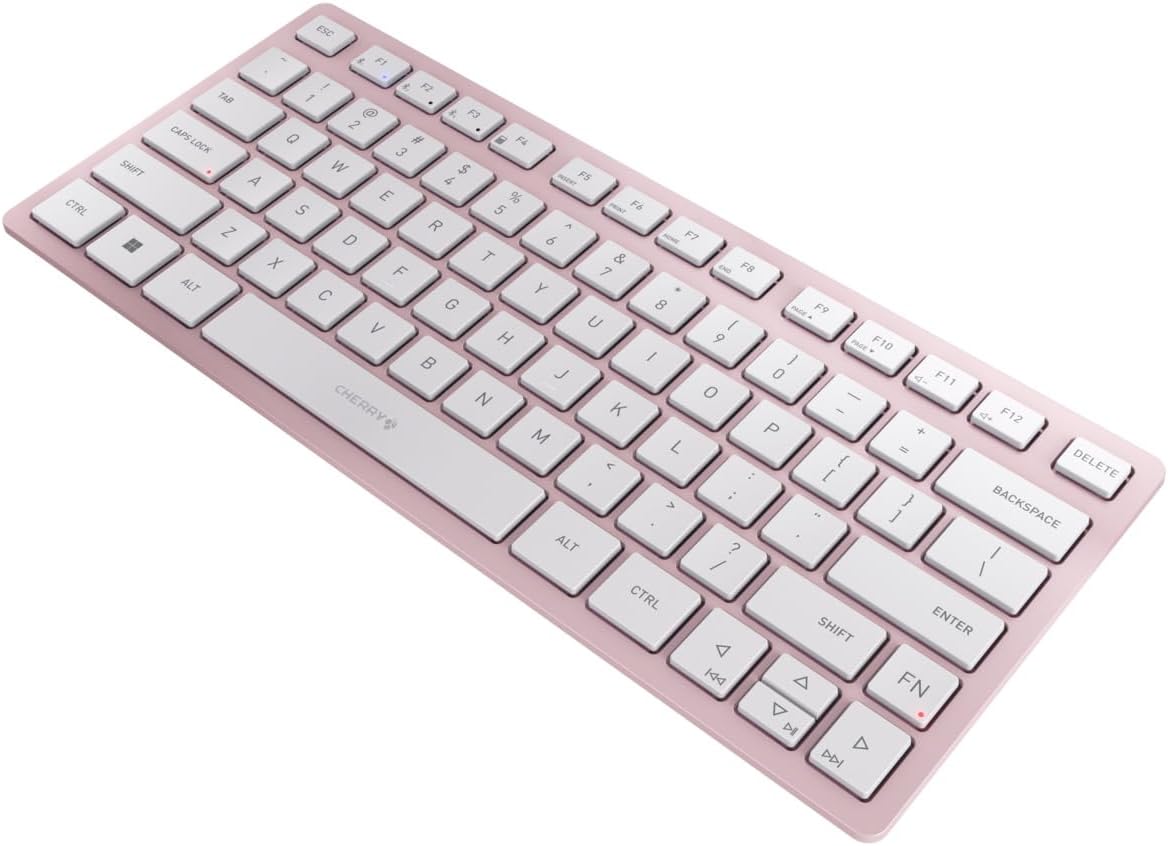
Rajah 3: Bersudut view of the keyboard, highlighting its slim profile.

Rajah 4: Sisi view showing the adjustable feet extended for an ergonomic typing angle.
5. Penyelenggaraan
5.1. Pembersihan
To clean your keyboard, gently wipe the keycaps and surface with a soft, lint-free cloth. For stubborn dirt, slightly dampen the cloth with water or a mild, non-abrasive cleaning solution. Avoid excessive moisture and do not spray cleaners directly onto the keyboard.
5.2. Penyimpanan
When not in use, especially during travel, store the keyboard in its included carrying case to protect it from dust, scratches, and minor impacts.

Figure 5: The keyboard stored in its protective carrying case.
6. Penyelesaian masalah
6.1. Papan Kekunci Tidak Bersambung
- Pastikan papan kekunci dihidupkan.
- Periksa bateri dan gantikannya jika perlu.
- For Bluetooth, ensure the correct channel (F1, F2, or F3) is selected and the keyboard is in pairing mode (blinking LED).
- For 2.4 GHz wireless, ensure the nano receiver is securely plugged into a USB-A port.
- Cuba sambungkan melalui kabel USB-C untuk menolak masalah wayarles.
- Mulakan semula peranti anda dan cuba pasangkan semula.
6.2. Kekunci Tidak Memberi Respons
- Check the connection as described above.
- Pastikan tiada serpihan bersarang di bawah kunci.
- Jika menggunakan sambungan berwayar, cuba port atau kabel USB yang berbeza.
6.3. Hayat Bateri Pendek
- Pastikan anda menggunakan bateri AAA yang segar dan berkualiti tinggi.
- Turn off the keyboard when not in use to conserve battery power.
7. Spesifikasi
| Ciri | Spesifikasi |
|---|---|
| Nama Model | KW 7100 |
| Nombor Model Item | JK-7100US-19 |
| Jenama | ceri |
| Teknologi Ketersambungan | Bluetooth 5.1 (3 channels), 2.4 GHz Wireless, USB-C Wired |
| Peranti Serasi | Komputer riba, Telefon Pintar, Tablet |
| Penerangan Papan Kekunci | Compact, Multi-Device |
| Mekanisme Utama | CHERRY SX Scissor Mechanism |
| Sumber Kuasa | 2x Bateri AAA |
| Penyulitan | AES-128 |
| Dimensi Produk | 11.6 x 5.1 x 0.6 inci |
| Berat Barang | 1.4 paun |
| bahan | Logam, Plastik |
| warna | Cherry Blossom |
8. Waranti dan Sokongan
This product is covered by Cherry's standard manufacturer warranty. For detailed warranty information, technical support, or service inquiries, please visit the official Cherry webtapak atau hubungi sokongan pelanggan mereka secara langsung.
Pengeluar: ceri
Webtapak: www.cherry.de


